Network Discovery Is Turned on Windows 11
On Windows 11, keep network discovery on for private networks. If it is off, or sharing still fails, check the active network profile, Windows Defender Firewall rules, and the discovery services that Windows uses for network browsing. Without those checks, shared folders, printers, and NAS devices can stay hidden on the LAN. This guide shows how to tell whether discovery is disabled, blocked, or broken by service and profile drift.
Network discovery troubleshooting matrix
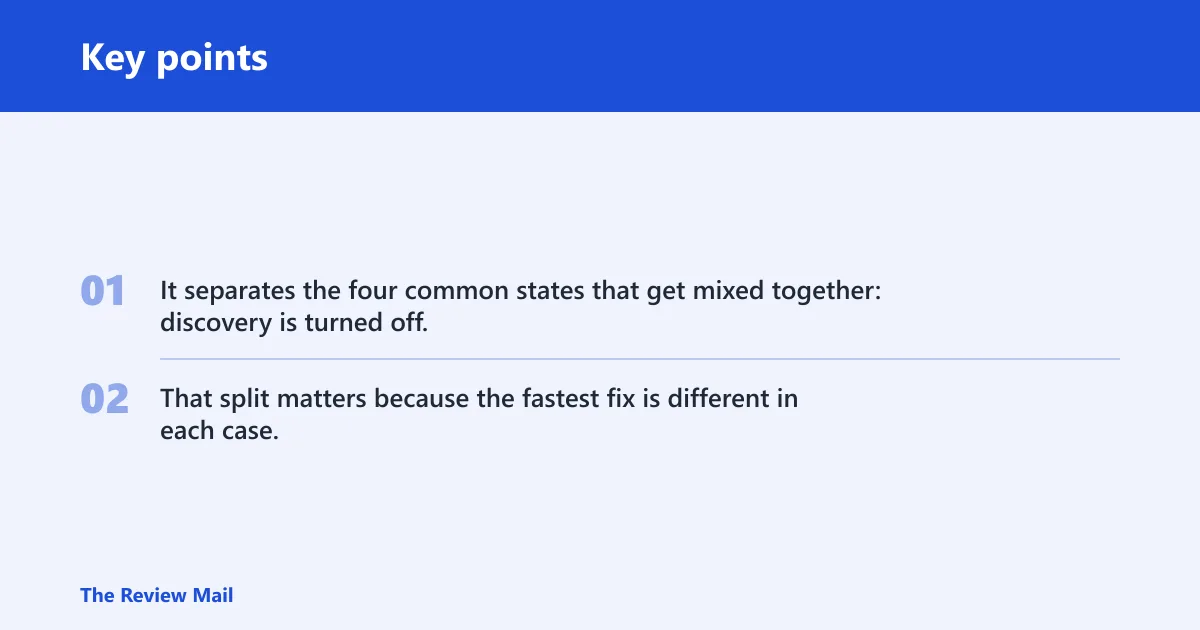
Use this first. It separates the four common states that get mixed together: discovery is turned off, discovery is on but nothing appears, discovery keeps reverting, and discovery works for some devices but not others. That split matters because the fastest fix is different in each case.
| State | Typical symptom | Likely cause | Fastest fix | Verification step |
|---|---|---|---|---|
| Turned off | File Explorer’s Network view is empty or shows very little, and Windows says discovery is off | The Private section in Advanced sharing settings is disabled, or the PC is on a Public profile | Switch the network to Private, then turn on Network discovery in the Private section | Open File Explorer and check whether nearby PCs, printers, or NAS units appear in Network |
| Turned on but not working | The toggle is on, yet devices still do not appear | The network profile is wrong, one or more discovery services are stopped, or firewall rules are blocking discovery | Check the profile first, then the service state, then the firewall rules | Try a direct path to a known share or device name, then recheck Network view |
| Turns itself off again | Discovery is on after you change it, then it resets after restart or sign-in | Profile drift, policy, or a managed-device setting is overriding the change; service startup settings may also be drifting | Correct the active profile and inspect policy or management settings before changing the toggle again | Restart, then confirm the Private setting still stays on |
| Only some devices are missing | Windows PCs appear, but a NAS, printer, or older PC does not | Mixed discovery methods, legacy protocol needs, or device-side settings | Check the missing device first, then consider SMB 1.0/CIFS only for older gear | Verify whether the missing device answers by name, IP address, or its own admin page |
What network discovery does on Windows 11
Network discovery makes your computer visible to other devices on the local network, and it affects what appears in File Explorer’s Network view. By default, it is enabled for private networks and disabled for public networks. That is why the network profile matters as much as the toggle itself.
Why File Explorer’s Network view changes
When discovery is on and the PC is on a Private profile, Windows can advertise the device and detect others on the same local network. When discovery is off, or the profile is Public, nearby devices may stop showing in Network even if they are still reachable by direct address or share path.
Picture a home PC that can open a NAS by typing the share name, yet the NAS is missing from File Explorer’s Network list. That points to a discovery or profile problem, not necessarily a dead network connection.
Private versus Public network profiles
The Private network profile is the recommended choice for home or trusted office networks. It is the profile that allows network discovery to work as intended. Public keeps discovery disabled for safety on untrusted networks, so do not switch a café, hotel, or other shared network to Private just to make a device appear.
When discovery should stay off
Keep discovery off on networks you do not control. Public profiles reduce visibility for a reason. If a work laptop moves between locations, the right move is to use Private only on trusted networks and leave Public in place everywhere else.
How do you turn on network discovery on Windows 11?
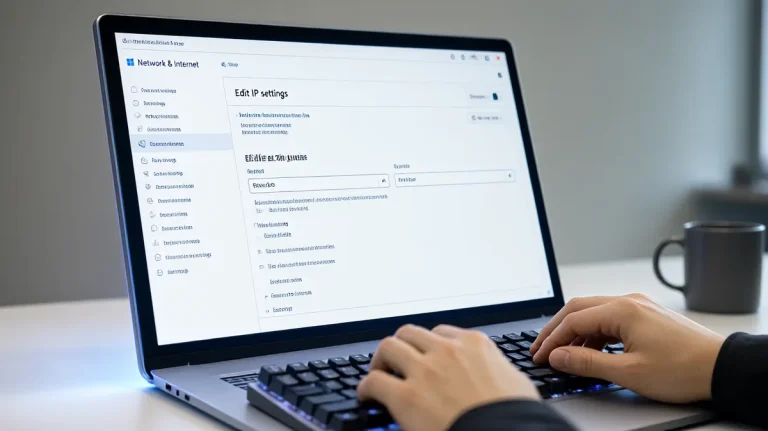
Open Settings > Network & internet > Advanced network settings > Advanced sharing settings, then turn on Network discovery in the Private section first. If the PC also uses a trusted wired or wireless network that Windows still labels Public, fix the profile first. Discovery settings are split by profile.

Open Advanced sharing settings
- Open Settings.
- Go to Network & internet.
- Open Advanced network settings.
- Select Advanced sharing settings.
Turn on the Private section first
In Advanced sharing settings, open the Private networks section and turn on Network discovery. Pureinfotech also recommends checking Set up network connected devices automatically. If you share files or printers on this network, turn on File and printer sharing in the same section.
Check the Public section separately
Advanced sharing settings has a separate Public networks section. Leave discovery off there unless you are troubleshooting on a network you trust and understand. The key point is simple: one section controls trusted networks, the other controls public ones.
Change the network from public to private
If the PC is on the wrong profile, switch it before you keep changing discovery settings. Open Settings > Network & internet, choose the active Wi‑Fi or Ethernet connection, then set Network profile type to Private. Pureinfotech recommends that profile for network discovery.
A common first-timer mistake is leaving the profile on Public because the toggle looked right. On a trusted home LAN, that can leave discovery disabled even after the user turns it on in the Private section.
Why is network discovery on but not working?
If the toggle is on and devices still do not appear, the problem is usually profile mismatch, a stopped discovery service, or firewall filtering. Do not jump straight to SMB 1.0/CIFS. First confirm the PC is on a Private profile, then check the required services, then inspect firewall rules.
Verify the five core services
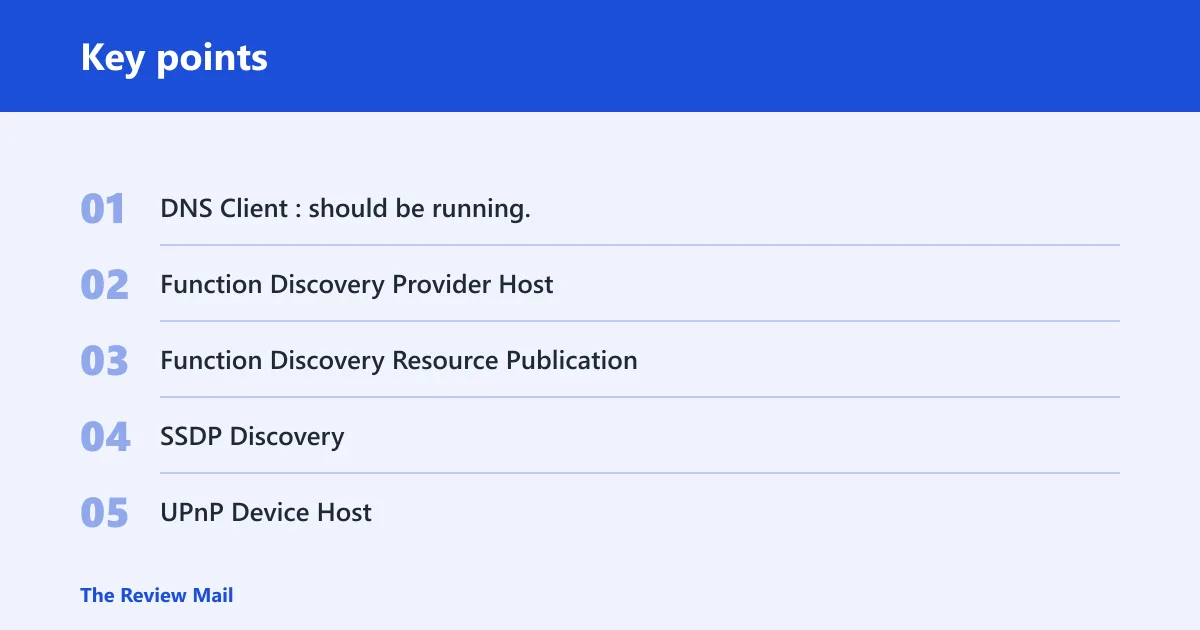
MajorGeeks says these services need to be running: DNS Client, Function Discovery Provider Host, Function Discovery Resource Publication, SSDP Discovery, and UPnP Device Host. Check their running state first. Only change startup behavior if it has drifted from the default on your system or a policy requires it.
- DNS Client: should be running.
- Function Discovery Provider Host: should be running.
- Function Discovery Resource Publication: should be running.
- SSDP Discovery: should be running.
- UPnP Device Host: should be running.
Some Windows builds use Manual or Trigger Start for parts of this stack. That is why the useful check is whether the service is running when discovery is needed, and whether its startup setting has drifted from the expected default for that device.
Match the symptom to the cause
If discovery is on but nothing appears in Network, a service may be stopped or the firewall may be blocking the active profile. If only some devices are missing, the problem may be on the missing device itself, or it may rely on older discovery behavior. If the setting keeps reverting, that points to profile or policy drift instead.
Say your Windows 11 laptop is on Wi‑Fi, Network discovery is on, and a desktop PC appears, but a printer does not. That pattern usually means the network stack is fine for modern devices, while the printer needs its own network, sharing, or legacy protocol setting checked.
Why does network discovery turn off automatically on Windows 11?
When discovery turns off again after a restart or sign-in, the root cause is usually not the toggle itself. The active network profile may still be Public, a policy may be restoring the setting, or service startup behavior may not survive reboot. Fix the cause first, then reapply the setting.
Look for profile drift after reboot
Recheck Network profile type after restart. If Windows returns the adapter to Public, discovery in the Private section will not stay relevant. This is common on networks that are trusted by the user but still identified by Windows as public.
Check for policy or managed-device settings
On work-managed PCs, policy can override discovery settings. If the switch flips back on its own, the machine may be receiving rules from an organization account, device management, or another security layer. In that case, local changes may not persist until the policy owner changes the rule.
Reapply the setting only after the cause is corrected
Once the profile or policy issue is fixed, return to Advanced sharing settings and turn on Network discovery again in the right section. If needed, confirm the related services are still running after the next reboot. That keeps you from treating the symptom as the cause.
Windows Defender Firewall checks
Windows Defender Firewall can block discovery if the active profile is restrictive or if the discovery rules were changed or corrupted. Inspect the discovery rule group in Windows Defender Firewall with Advanced Security, not just the basic allow-app screen. If the rule set looks wrong, a firewall reset may be the cleanest repair.
Inspect the discovery rule group
Open the advanced firewall console and review the rules related to network discovery. Make sure the rules allow discovery on the active profile you actually use. Do not open more profiles than needed. If the PC is on Private, the rule should match Private.
Reset firewall rules if they look corrupted
If discovery still fails and the rule set appears damaged or inconsistent, reset Windows Defender Firewall rules and then retest. That step is useful when the rules themselves, not the PC’s file sharing settings, are the source of the problem. After the reset, recheck discovery on the active profile.
Legacy devices and SMB 1.0/CIFS
SMB 1.0/CIFS File Sharing Support is a legacy fallback for older devices. It is not the default fix for modern Windows 11 shares. Use it only when the missing device is old enough to need SMB 1.0/CIFS and the other discovery checks already look right.
When SMB 1.0/CIFS is actually relevant
Older NAS boxes, very old printers, and pre-modern PCs may still depend on SMB 1.0/CIFS or another outdated discovery method. That is where the setting matters. If your missing device is recent, SMB 1.0/CIFS is usually the wrong place to start.
How to tell an old-device problem from a normal share problem
If a modern Windows PC and a modern NAS appear, but one ancient device does not, the missing device is the clue. Check that device’s own sharing settings, admin page, or firmware notes first. If it specifically calls for SMB 1.0/CIFS, enable only that legacy support and retest.
Why this stays an optional last step
SMB 1.0/CIFS adds compatibility for some old hardware, but it also adds a security tradeoff. That is why it belongs at the end of the troubleshooting path, after profile, services, firewall, and direct-share checks.
How do I fix network discovery is turned off on Windows 11?
Start by switching the active network to Private, then go to Settings > Network & internet > Advanced network settings > Advanced sharing settings and turn on Network discovery in the Private section. If it still shows off, check whether the device is managed by policy or whether the firewall is blocking the active profile.
How do I change a Windows 11 network from public to private?
Open Settings > Network & internet, choose the current Wi‑Fi or Ethernet connection, and set Network profile type to Private. That is the profile recommended for home and trusted office networks. After the change, return to Advanced sharing settings and verify the Private discovery toggle is on.
Which Windows services must be running for network discovery?
Check DNS Client, Function Discovery Provider Host, Function Discovery Resource Publication, SSDP Discovery, and UPnP Device Host. The important check is that they are running when discovery is needed. If startup behavior has drifted from the default on your system, correct that as well.
Do I need to enable firewall rules for network discovery on Windows 11?
Often yes, especially if discovery is on but devices still do not appear. Review the discovery rule group in Windows Defender Firewall with Advanced Security and allow discovery on the active profile only. If the rules look broken or inconsistent, reset the firewall and test again.
Should I turn on file and printer sharing too?
Turn it on if you want other devices to access shared folders or printers on that PC. Pureinfotech includes it in the same flow as discovery, but it is separate from discovery itself. If you only want the PC to appear in Network, discovery is the key setting; sharing is for access.