Code 47: What It Means and How to Fix It in Windows
Code 47 means CM_PROB_HELD_FOR_EJECT. In Device Manager, the device is present but held in an eject-related state, so the fastest fixes are usually reconnecting it, scanning for hardware changes, or restarting Windows.
What code 47 means in Device Manager
Device Manager is showing a stop state rather than a permanent failure. The device entry is still there, but Windows has not cleared the state cleanly. This can happen after unplugging a device, using safe removal, or reconnecting hardware that did not reinitialize properly.
USB peripherals, network adapters, docks, and some internal devices can all show the same message. If the device still appears in Device Manager, Windows usually sees it; the problem is often that the device state has not reset.
Likely causes of code 47
The most common possibility is that the device was left in an eject-related state. In some cases, reconnecting through a different port or direct connection can clear it. A driver problem can also keep the device from returning to normal after the hardware is reattached.
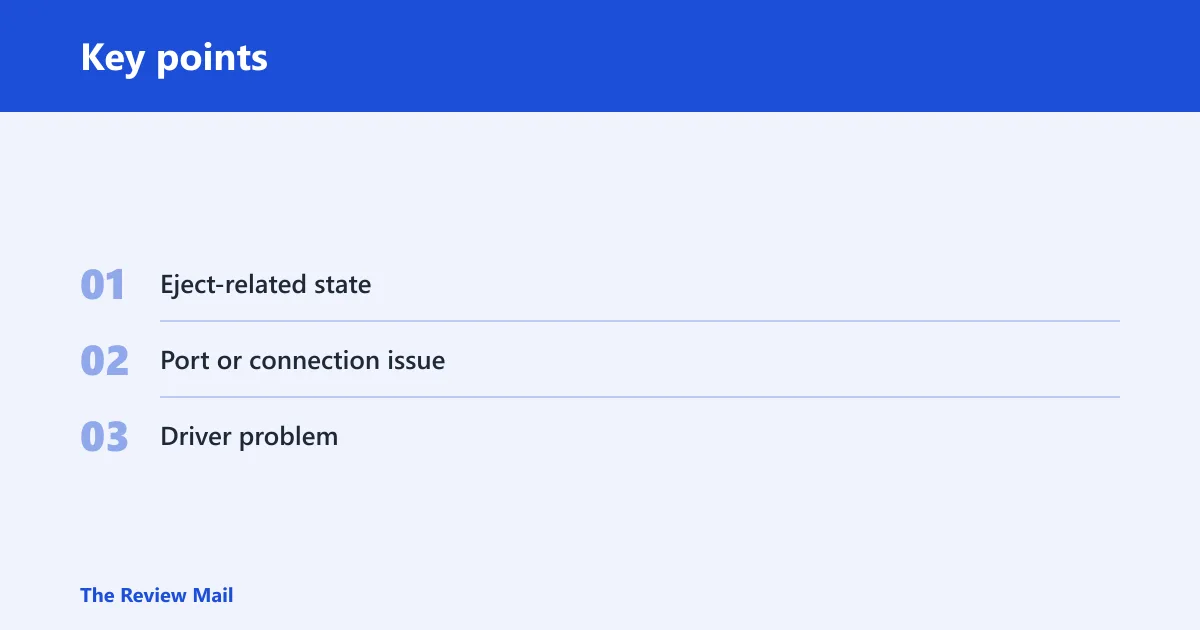
- Eject-related state that did not clear after removal or reconnect
- Port or connection issue that prevents the device from reinitializing
- Driver problem that keeps the device entry from starting normally
Safe removal state after unplugging
If the device was unplugged or safely removed, Windows may keep the device entry until it is detected again. Reconnecting the same device can help, especially if the cable, port, or power state changes enough for Windows to redetect it. A restart can also force Windows to re-enumerate the hardware.
For example, if a USB headset or flash drive disappears after safe removal and then shows this error when reconnected, try connecting it again and then scanning for hardware changes before changing drivers.
- Unplug the device.
- Reconnect it directly to a different port, if available.
- Open Device Manager.
- Choose Action > Scan for hardware changes.
- If it still shows the error, restart Windows and check again.
USB ports, hubs, and docked laptops
Different connection paths can behave differently. A front-panel port, a hub, a dock, and a direct motherboard port can each behave as separate paths, and one of them may be the one that is still holding the device state. On an ASUS laptop or desktop, trying a direct port on the computer can help separate the device from the dock or hub path.
If the device is on a dock or hub, disconnect it and try a direct port on the PC. On a desktop, try a rear motherboard port before a front-panel port. This is a standard Windows troubleshooting step when the device won’t return to normal after reconnecting.
- Disconnect the device from any hub or dock.
- Plug it into a direct USB port on the PC.
- Try a second port type if available, such as rear panel instead of front panel.
- Open Device Manager and choose Action > Scan for hardware changes.
- If the same port keeps failing, move the device to another connection path and retest.
Driver mismatch or corruption
If the device still appears after reconnecting and trying another port, the driver may need attention. A driver can be mismatched or not load correctly after the device is re-detected. This is more likely to matter for network adapters, graphics devices, or vendor-specific hardware than for a basic mouse or flash drive.
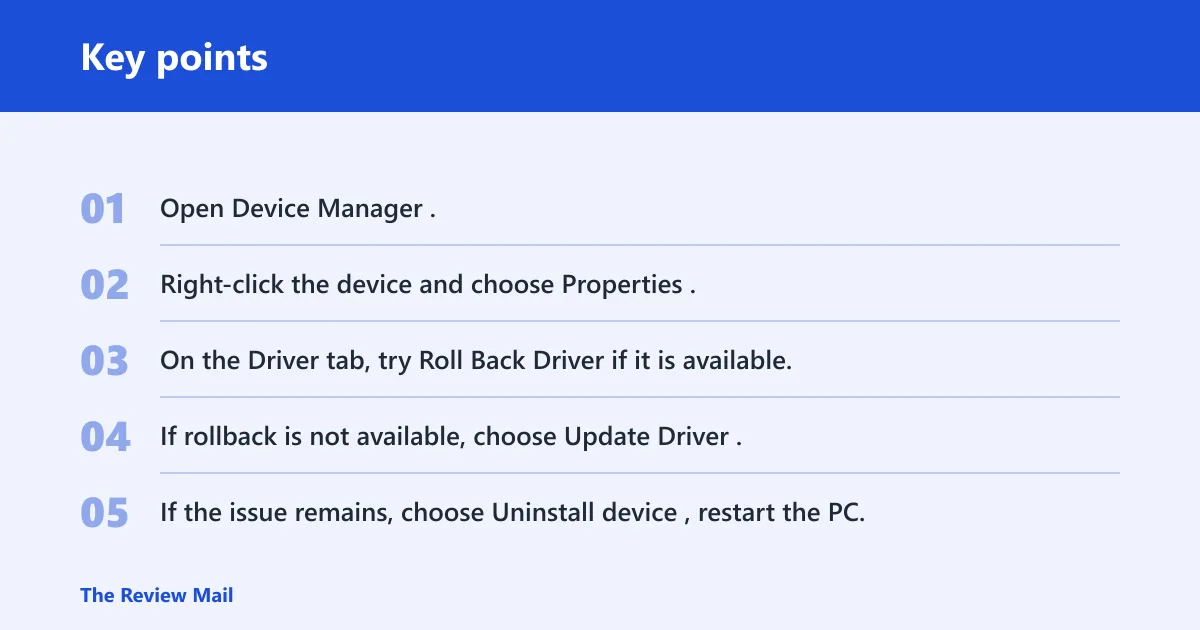
Start with rollback if the problem began after a driver update. If rollback is unavailable, try updating the driver from the vendor package. If that does not help, uninstall the device in Device Manager, restart the PC, and let Windows detect it again.
- Open Device Manager.
- Right-click the device and choose Properties.
- On the Driver tab, try Roll Back Driver if it is available.
- If rollback is not available, choose Update Driver.
- If the issue remains, choose Uninstall device, restart the PC, then let Windows detect it again.
If a device on an ASUS system keeps showing the error after a reconnect, try the direct port on the computer first before changing the driver. That keeps the troubleshooting order focused on the simplest Windows checks first.
Code 47 recovery table
This table gives the shortest safe path for the four device patterns that come up most often. Start in the left column that matches the symptom you see. If the first fix does not clear the state, move to the next step in the same row.
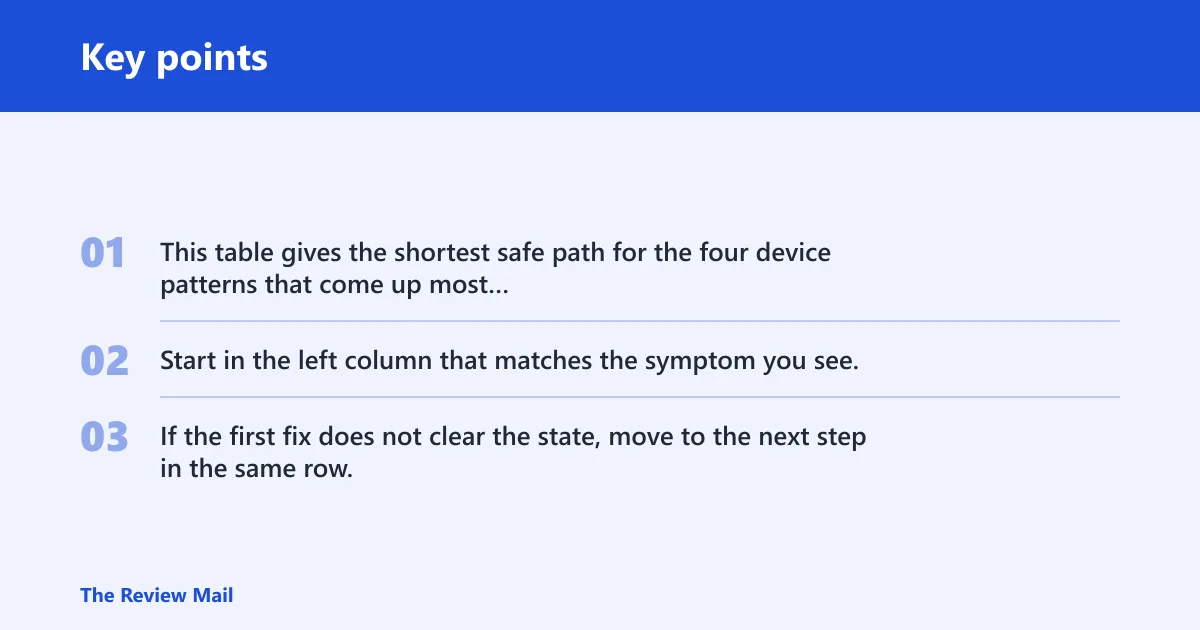
| Symptom pattern | Likely cause | Fastest safe fix | Next step |
|---|---|---|---|
| USB peripheral shows the error after unplugging or safe removal | The device entry was not cleared after removal | Reconnect to a different USB port, then scan for hardware changes | Restart Windows and retest on a direct rear motherboard port |
| Device works on one connection path but not another | The current port or hub path may not be reinitializing the device | Disconnect the dock or hub and connect the device directly to the PC | Move to a different direct port and scan again |
| Internal adapter, network card, or GPU-related device shows the error | A driver problem may be preventing normal detection | Use Device Manager to update or roll back the driver | Uninstall the device, restart, then let Windows detect it again |
| Device returns after reboot but still shows the error | The device may still be associated with the same connection path or driver state | Change the port and run Action > Scan for hardware changes | Test the device on another PC to separate device fault from Windows fault |
Still not working?
If reconnecting, changing ports, rescanning, and driver rollback or reinstall do not clear the error, move from software checks to hardware checks. Try the device on another PC, or try a known-good device on the same port to separate a bad device from a bad port or connection path. If the same device keeps returning with the error, support or replacement is the next practical step.
Frequently asked questions
What if no code is shown, only the full error message?
Open Device Manager, right-click the computer or root node, and choose Scan for hardware changes from the Action menu if you want to refresh detection. If needed, use View > Devices by connection to see which path the device is attached to, then move it to a different port.
Can code 47 be caused by USB removal or driver problems?
Yes. Removal is a common trigger, and a driver problem can keep the device from returning to normal after the hardware reconnects. The safest order is port change, scan, restart, then driver rollback or reinstall. If you start with the driver, you may miss a simple connection-path issue.
What is the difference between code 47 and code 45?
Code 47 means Windows has kept a device entry in an eject-related state. Code 45 means Windows does not currently see the device. For code 45, focus on connection, power, cable, or hardware detection; for this error, focus first on reinitializing the existing device entry.
Can this affect network adapters, USB devices, or GPUs?
Yes. USB peripherals are a common fit, but network adapters and some internal devices can also show it. For a network adapter or GPU-related device, use the Driver tab in Device Manager to try rollback or update only after a port change, rescan, and restart fail.
Does reinstalling the driver fix this error?
Sometimes, but it should not be the first move. In Device Manager, try Action > Scan for hardware changes, then restart, then use Update Driver or Roll Back Driver. If the device is attached through a dock or hub, move it to a direct port first so you are not reinstalling around the same connection path.
How do I fix this error on Windows?
Use the shortest safe sequence: disconnect the device, connect it to a different direct port, scan for hardware changes, restart, and only then try driver rollback, update, or uninstall. That order fits both Windows 10 and Windows 11. If the device still shows the error on another PC, the device itself may need replacement.