Reset Network Settings Windows 11 Pro
Use reset network settings windows 11 pro only after command-line repairs fail or when Wi‑Fi, Ethernet, VPN, proxy, or DNS problems affect multiple adapters; it removes and reinstalls all network adapters, then reboots. Skip it when one adapter or one profile is broken, because it can wipe saved VPNs, Wi‑Fi credentials, and custom IP or DNS settings. This guide shows when to reset, which lighter fixes to try first, and what to restore afterward on a personal or managed PC. (Microsoft Learn)
Match symptoms to the right repair level
A full network reset is Windows 11 Pro’s widest repair. Use it when the problem spans more than one adapter or more than one setting, such as repeated Wi‑Fi drops, an unidentified network message, or a VPN that breaks after other repairs fail. It is a last broad reset, not a first move.
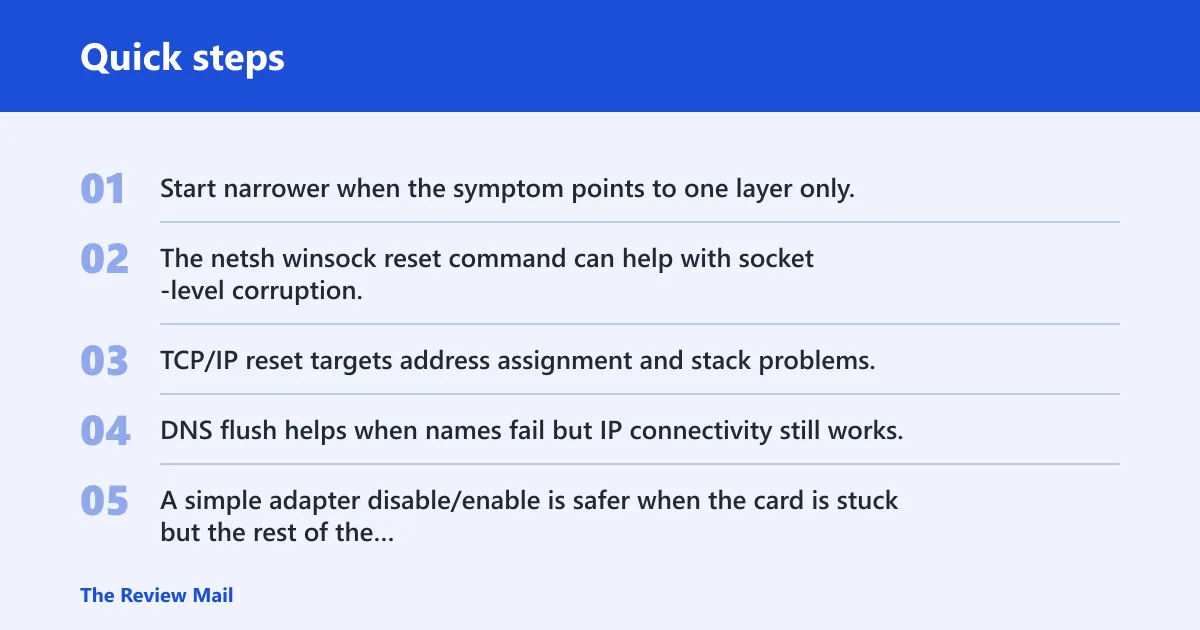
Start narrower when the symptom points to one layer only. The netsh winsock reset command can help with socket-level corruption. TCP/IP reset targets address assignment and stack problems. DNS flush helps when names fail but IP connectivity still works. A simple adapter disable/enable is safer when the card is stuck but the rest of the stack looks normal.
In managed environments, a reset can miss the real cause. Group Policy, endpoint firewall rules, corporate proxy settings, or a company VPN profile may restore the same failure after reboot. If the device is joined to a work tenant, check whether policy is setting the network path before you wipe local settings.
Network reset decision table
| Symptom | Likely cause | Safest first action | Data or settings lost? | Verify after reboot |
|---|---|---|---|---|
| Wi‑Fi drops on several networks | Adapter config, VPN conflict, or corrupted stack | Adapter restart or network reset if the issue repeats | Yes, if you use full reset | SSID, password, signal, and internet access |
| Unidentified network | Broken IP configuration or adapter state | TCP/IP reset, then full reset if needed | TCP/IP reset: no saved Wi‑Fi loss; full reset: yes | Valid IP address, gateway, and DNS server |
| Pages fail by name, not by IP | DNS cache or custom DNS problem | ipconfig /flushdns | No personal files lost; DNS cache cleared | Domain names resolve and websites load |
| Apps connect, browser does not | Proxy or browser-specific network path | Proxy check and DNS flush | Proxy settings may change if you reset | System proxy status and browser access |
| Default gateway not available | Adapter, router lease, or TCP/IP issue | Adapter restart, then TCP/IP reset | No with restart; possible settings loss with full reset | Gateway address, DHCP lease, and ping response |
| VPN disconnects on login | VPN profile or virtual adapter conflict | Repair or reinstall the VPN first | Full reset can remove VPN adapters | VPN profile, credentials, and route behavior |
Say your laptop works on Ethernet in one office but shows an unidentified network on home Wi‑Fi and a workplace VPN also fails. That pattern points to a broader stack problem, so a full reset is reasonable after lighter fixes fail. The same action would be too broad if only one saved Wi‑Fi profile were broken.
How do you reset network settings in Windows 11 Pro?
The Windows 11 path starts in Settings > Network & Internet > Advanced network settings. From there, select Network reset and then choose Reset now. Windows can restart after confirming the reset, usually after about 5 minutes. The restart is expected.
Find network reset in Settings
Open Settings > Network & Internet > Advanced network settings. On that page, choose Network reset. The next screen explains that Windows will remove and reinstall network components. Click Reset now only after you are ready to re-enter Wi‑Fi, VPN, and proxy details if needed.
Confirm reset now and wait for the restart
After you click Reset now, Windows asks for confirmation. Accepting the prompt starts the process, then the device restarts automatically. Give it time; the reboot is part of the fix, not a sign of failure. Do not interrupt it unless the machine is clearly stuck.
What Windows removes during the reset
The full reset removes and reinstalls Wi‑Fi, Ethernet, and VPN adapters. It also deletes saved Wi‑Fi networks, custom DNS entries, and proxy settings. In practice, that means the system returns network components to default state and clears saved connection data that may be causing the fault.
What does a network reset remove?
A full network reset clears saved network state, not your personal files or installed apps. It deletes Wi‑Fi profiles, removes custom DNS and proxy settings, and reinstalls adapters. That is useful when corruption is spread across several layers, but it is disruptive when you only need one setting repaired.
Wi‑Fi profiles and saved passwords
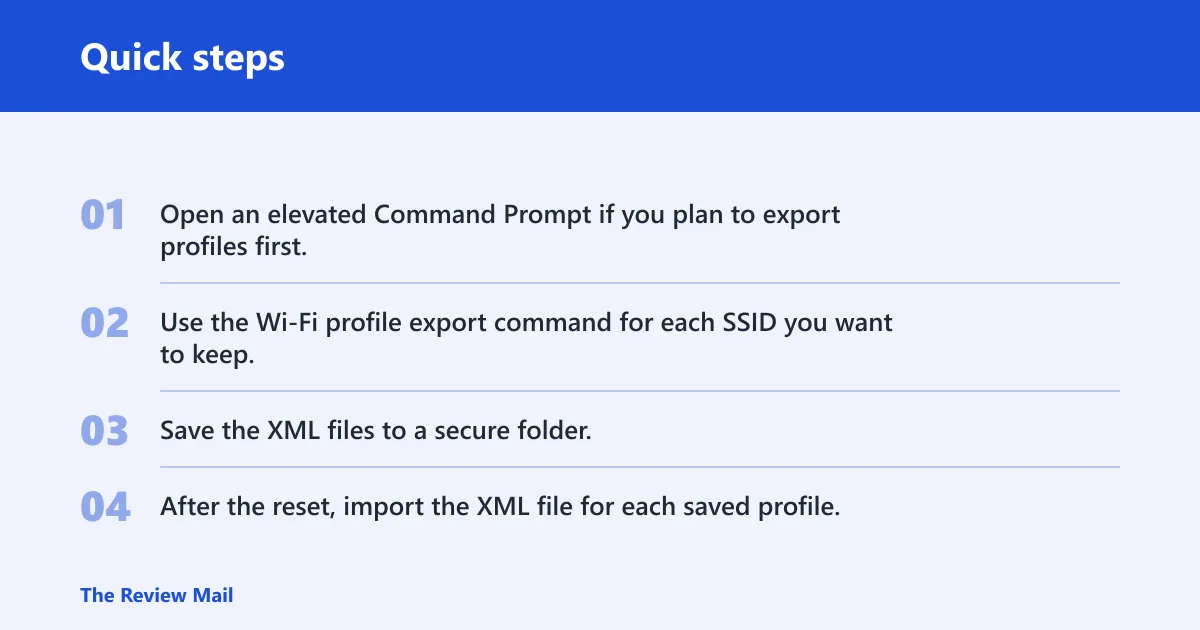
Saved Wi‑Fi networks are deleted during the reset. That includes the password cache for each profile. If you have several networks, export them first so you can import the XML files later. Otherwise, you must reconnect to each SSID manually and re-enter the password.
- Open an elevated Command Prompt if you plan to export profiles first.
- Use the Wi‑Fi profile export command for each SSID you want to keep.
- Save the XML files to a secure folder.
- After the reset, import the XML file for each saved profile.
VPN adapters, proxy settings, and custom DNS
VPN adapters and VPN settings can be removed or reset. Proxy settings can also be erased or returned to default. Custom DNS values are also cleared. Those changes matter on Windows 11 Pro because enterprise VPNs and corporate proxies often need the exact server, credential, and routing settings restored after reboot.
A common first-timer mistake is assuming a reset leaves DNS and proxy untouched. It does not. If a workstation used a manual DNS server to reach an internal app, write that address down before you reset, or the app may fail even after Wi‑Fi connects normally again.
Ethernet and Wi‑Fi adapter reinstallation
During the reset, Windows removes and reinstalls the Wi‑Fi adapter and the Ethernet adapter. That can help when the driver is still present but the configuration is damaged. It can also reveal a bad driver, because the network may fail again once Windows reloads the same driver package.
Which command-line fix should you try first?
Use the narrowest command that fits the symptom. netsh winsock reset helps when applications cannot communicate cleanly over the socket layer. netsh int ip reset targets the TCP/IP stack and is a better match for addressing or gateway problems. ipconfig /flushdns clears cached name lookups when websites fail by name but not by IP.
Winsock reset for socket errors
Choose Winsock reset when one app can reach the network and another cannot, or when security software and VPN software leave the socket catalog in a broken state. It is a lighter repair than a full network reset. It usually requires a restart, but it does not remove saved Wi‑Fi profiles.
TCP/IP reset for addressing problems
Use TCP/IP reset when Windows shows an invalid IP address, a bad gateway, or an unidentified network after repeated renewals. This command resets the stack tied to IP configuration. It is often the better first choice when the device still sees the adapter but cannot route traffic correctly.
DNS flush for name lookup failures
Use ipconfig /flushdns when the browser says it cannot find a site, but direct IP access still works. That points to name-resolution trouble, not a dead adapter. The command clears the local DNS cache and is often paired with the other two repairs above.
What should you restore after the reset?
After the reboot, verify the basics in a fixed order: reconnect Wi‑Fi, confirm Ethernet link if you use cable, then check IP address, gateway, DNS, proxy, and VPN. The first goal is simple connectivity. The second is restoring the exact settings needed for work apps, printers, and internal sites.
Reconnect Wi‑Fi and re-enter the password
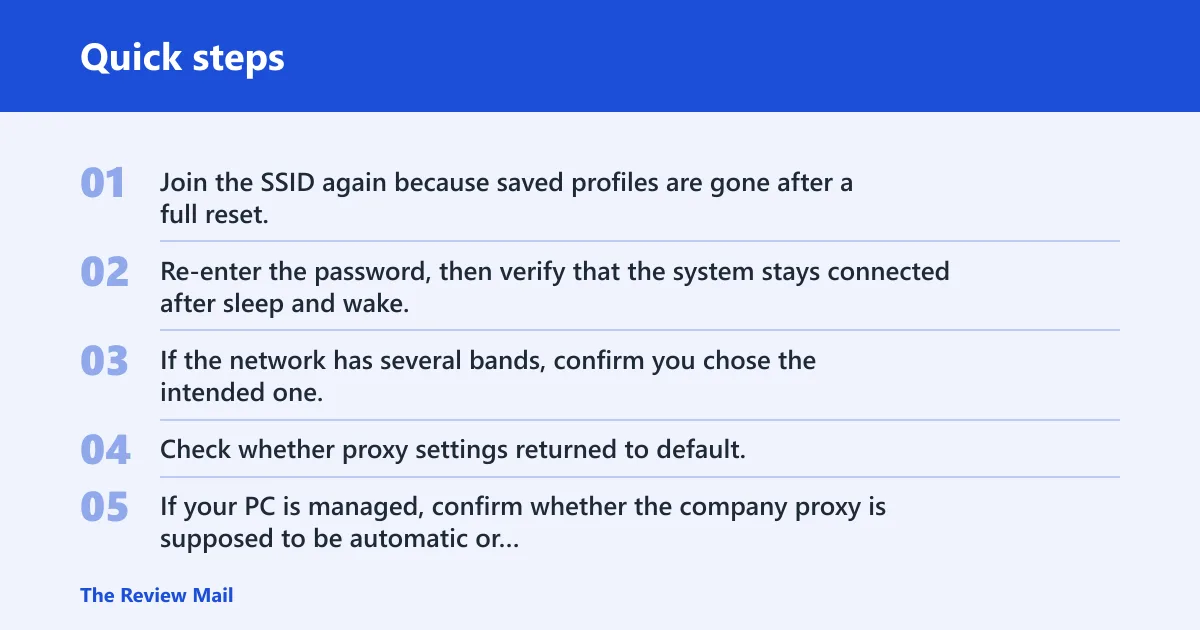
Join the SSID again because saved profiles are gone after a full reset. Re-enter the password, then verify that the system stays connected after sleep and wake. If the network has several bands, confirm you chose the intended one, such as 2.4 GHz or 5 GHz, if both are offered under similar names.
Recheck proxy, DNS, and VPN settings
Check whether proxy settings returned to default. If your PC is managed, confirm whether the company proxy is supposed to be automatic or manual. Restore custom DNS if you use one, and reopen the VPN client to see whether it still has the correct server, profile, and certificate settings.
Verify IP address, gateway, and driver status
Confirm that the adapter has a valid IP address and default gateway, not an APIPA-style fallback address. If Ethernet still fails, recheck the adapter driver in Device Manager. A reset can clear configuration but cannot repair a broken driver package or a damaged NIC.
Suppose a desktop at home regains internet on Ethernet after the reset, but a work VPN no longer connects. That points to a VPN profile or policy issue, not a cable problem. Restore the VPN client first, then check whether the corporate gateway or certificate was wiped by the reset.
What if Wi‑Fi still does not work?
If Wi‑Fi still fails after a full reset, move to adapter driver repair, router checks, ISP checks, and policy review. At that point, the problem may be outside Windows settings. A reset cannot fix bad radio hardware, a dead access point, or a provider outage.
Reinstall or roll back the adapter driver
Open Device Manager and inspect the wireless adapter. If it shows a warning icon, reinstall the driver from the PC maker or adapter vendor. If the issue started after a driver update, roll back to the previous version. That is often more precise than another full reset.
Check router, ISP, and physical Ethernet link
Power-cycle the router if every device is failing. For Ethernet, confirm the link light on the port and switch. If the PC gets no connection from any network and the router or modem is offline, Windows settings are not the problem. Contact the ISP only after local hardware checks.
Review corporate proxy, firewall, and VPN policy
On Windows 11 Pro, policy-managed settings can override what you restored locally. A company firewall rule, proxy PAC file, or VPN client policy may reapply at sign-in. If the reset seems to work briefly and then fail again, check whether management software is rewriting the network profile.
Frequently asked questions
How do I reset network settings on Windows 11 Pro?
Go to Settings > Network & Internet > Advanced network settings, choose Network reset, and click Reset now. Windows asks for confirmation, then restarts automatically after about 5 minutes. Save any Wi‑Fi, VPN, proxy, or DNS details you need before you confirm.
Will resetting network settings delete anything on Windows 11 Pro?
It does not delete personal files or installed applications. It does delete saved Wi‑Fi networks, and it can remove or reset VPN adapters, proxy settings, and custom DNS values. Think of it as a network configuration wipe, not a system wipe.
How do I reset network settings on Windows 11 from Command Prompt?
Windows 11 can use Command Prompt for narrower repairs, not the same broad Settings reset. Run netsh winsock reset for socket problems, netsh int ip reset for TCP/IP issues, and ipconfig /flushdns for name-resolution trouble. Restart after the command that matches the symptom.
What does a network reset do in Windows 11?
It removes and reinstalls Wi‑Fi, Ethernet, and VPN adapters, clears saved Wi‑Fi profiles, and resets custom DNS and proxy settings. That can help with frequent Wi‑Fi drops or unidentified network errors. It is broader than a driver toggle or a single command-line repair.
Why would I reset network settings instead of using the troubleshooter?
Use the troubleshooter first when the issue looks simple. Use a full reset when the failure spans several adapters or keeps returning after Winsock, TCP/IP, DNS, or proxy checks. The reset is heavier, but it can clear corruption that the troubleshooter only identifies and leaves in place.
Can I reset only one adapter instead of all network settings?
Yes. Disable and re-enable one adapter, reinstall a single driver, or repair one VPN profile when the problem is isolated. That is safer than a full reset because it avoids wiping Wi‑Fi profiles, custom DNS, and proxy settings that still work for the rest of the system.
What should I do after a network reset if Wi‑Fi still does not work?
Reinstall or roll back the wireless driver, confirm the router is online, and check whether other devices can connect. On a managed PC, review proxy, firewall, and VPN policy, because corporate settings may be restoring the failure after reboot. If Ethernet also fails, suspect driver or hardware fault.
How do I reset network settings in Windows 10?
Windows 10 uses a similar Settings path, but the labels can differ by build. Look for Network & Internet and then the reset option in advanced settings. The same caution applies: it is a broad reset, so use it after simpler repairs fail.
Will resetting network settings delete anything Windows 10?
The same basic rule applies in Windows 10: personal files stay in place, but saved Wi‑Fi networks, some VPN settings, custom DNS, and proxy settings may be removed. Because the effect is broad, back up any profile or server details you need before you confirm the reset.
What does network reset do Windows 10?
It restores default networking components, removes saved network state, and restarts the machine. That can fix stubborn adapter or configuration problems, but it does not repair bad hardware, router failures, or an ISP outage. If the symptom is limited to one layer, start with the narrower fix first.