Code 40 Explained: What It Means and How to Fix It
Device Manager code 40 generally means Windows found a driver-service entry that is not valid for the device. Open Device Manager, check Properties > Device status, and then verify whether the device recently changed drivers, was moved to a different port, or started failing after a Windows Update.
What code 40 means
Code 40 is a Windows hardware status error shown in Device Manager under Properties > Device status. Microsoft maps it to CM_PROB_DRIVER_SERVICE_KEY_INVALID (per Microsoft support).
Where to find it
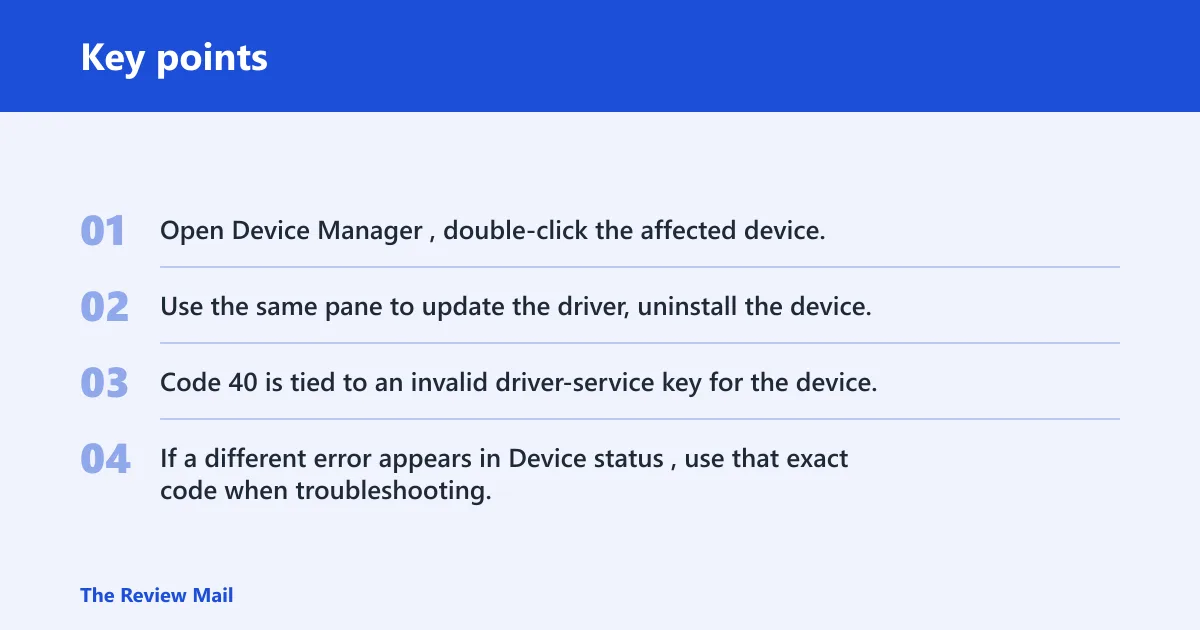
Open Device Manager, double-click the affected device, then open Properties and read the Device status box. Use the same pane to update the driver, uninstall the device, disable and re-enable hardware, or scan for hardware changes.
How code 40 differs from other device errors
Code 40 is tied to an invalid driver-service key for the device. If a different error appears in Device status, use that exact code when troubleshooting, because the fix path can be different.
Why code 40 happens
The error can appear after a driver install, rollback, or partial uninstall leaves an invalid driver-service entry. It can also appear after Windows updates or when a device is not detected correctly during setup. External connections such as USB, Bluetooth, audio, network, and storage devices can also be involved when the error shows up on removable hardware.
Driver package problems
A driver update, rollback, or partial uninstall can leave Windows with a broken service entry. That is why people searching for code 40 cm prob driver service key invalid often end up fixing the driver store rather than the device itself.
Windows image or system file corruption
If Windows files or the component store are damaged, the driver may install but still fail to start correctly. That is where DISM and System File Checker come in. Use them when several devices show the same error or when the error returns after a clean reboot.
Device connection faults
USB, Bluetooth, audio, network, and chipset devices can fail while Windows is identifying them. A loose cable, a bad port, or a docking station can all be part of the problem for removable devices.
Actual hardware failure
If the same device still shows the error after you try another port or another computer, the device itself becomes a stronger possibility, similar to Code 43.
Which cause is most likely?
Use the device class and the last thing that changed to narrow the cause. A recent Windows Update, a new driver, or a moved USB cable often explains the error faster than broad troubleshooting. If the device works elsewhere, Windows or the driver package is the better target.
Say your USB headset works on one laptop but shows code 40 on your desktop after a driver update. That points first to the driver package or connection path on the desktop. By contrast, a storage enclosure that still shows the error after you move it to another port may need deeper hardware checks.
Picture a network adapter that breaks right after an optional driver update in Windows Update. The update path becomes the first place to check, especially if the adapter still appears in Device Manager but cannot start. Rolling back the driver or uninstalling and reinstalling it is the lower-risk move before deeper repair.
Code 40 decision table
| Affected device class | Most likely cause | First fix to try | Verification step | Escalation trigger |
|---|---|---|---|---|
| USB | Connection issue, port issue, or driver package | Disconnect, reconnect, and try another USB port; then update or reinstall the device | Device status no longer shows code 40 after reboot | Fails on another port and another PC |
| Bluetooth | Driver/service entry or radio pairing stack issue | Check the driver in Device Manager, then update or reinstall it | Bluetooth returns in Settings and Device Manager without the error | Adapter still cannot start after reinstall |
| Audio | Driver package or Windows audio component problem | Update or roll back the audio driver, then scan for hardware changes | Sound device opens without the error in Device status | No playback device appears after reinstall |
| Network adapter | Driver mismatch after update or a bad reinstall | Use Device Manager to roll back or uninstall the adapter | The adapter reconnects and receives an address after reboot | Adapter still has the error after reinstall |
| Storage | Driver, controller, or device failure | Check the connection, then reinstall the controller or storage driver | Disk appears in Disk Management and Device status is clear | Drive is missing on multiple systems |
How do you fix driver problems?
Start with the lowest-risk driver move: update, then roll back, then uninstall and reinstall. If Windows Update recently changed the device, that update can be the trigger. If the device still shows code 40 afterward, remove the driver package if Windows offers that option and let it redetect on reboot.
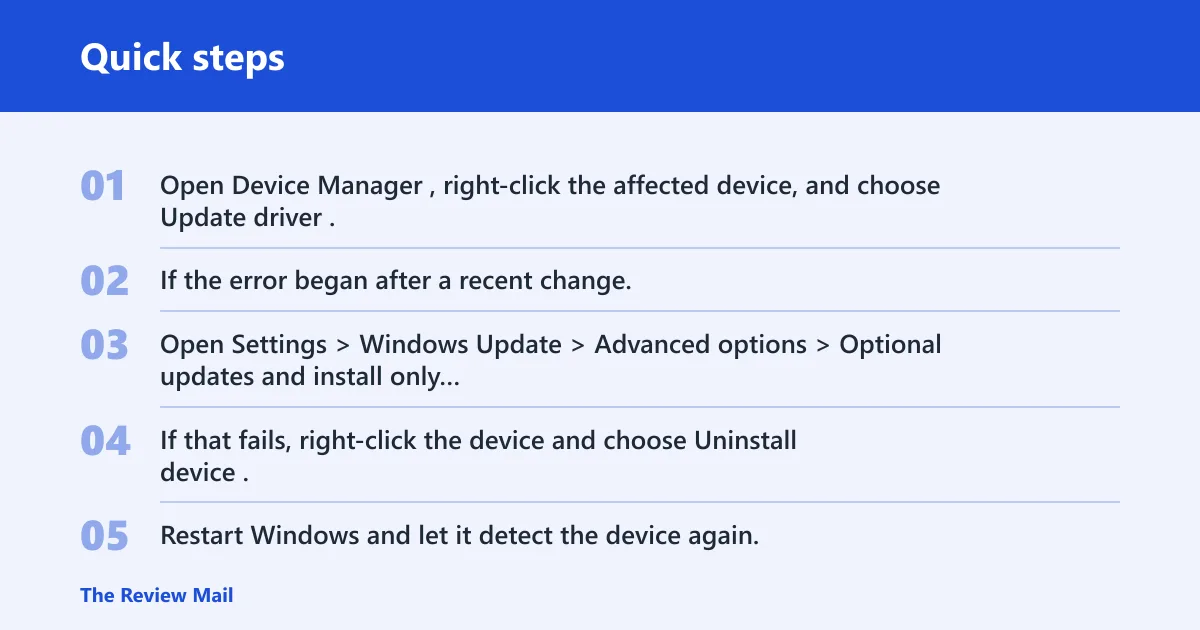
- Open Device Manager, right-click the affected device, and choose Update driver.
- If the error began after a recent change, choose Roll Back Driver on the Driver tab when available.
- Open Settings > Windows Update > Advanced options > Optional updates and install only relevant driver updates.
- If that fails, right-click the device and choose Uninstall device. If offered, select Delete the driver software for this device.
- Restart Windows and let it detect the device again.
- Return to Device Manager > Action > Scan for hardware changes and recheck Device status.
Windows Update can cause code 40
Yes. Windows Update can replace a working driver with a mismatched one, or it can repair a broken package. That is why optional driver updates belong in the process, but not in an endless loop. If the same update keeps reintroducing the error, pause that driver update and use rollback or vendor software instead.
When should you repair Windows?
Repair Windows when multiple devices fail, when a reinstall does not clear code 40, or when Device Manager points to a system-wide startup problem. DISM repairs the Windows image first; sfc /scannow checks protected system files next.
- Open Command Prompt as administrator.
- Run
DISM /Online /Cleanup-Image /RestoreHealthand wait for it to finish. - Run
sfc /scannow. - Restart Windows.
- Go back to Device Manager and check Properties > Device status again.
If several devices show the same error after a feature update, this step usually belongs before another uninstall attempt.
What if code 40 returns?
If the error comes back after reinstalling, stop treating it as a simple driver issue. Reseat or replace external cables and ports, test the device on another computer, and compare the result. If the device still fails in a second system, the device itself becomes a stronger possibility.
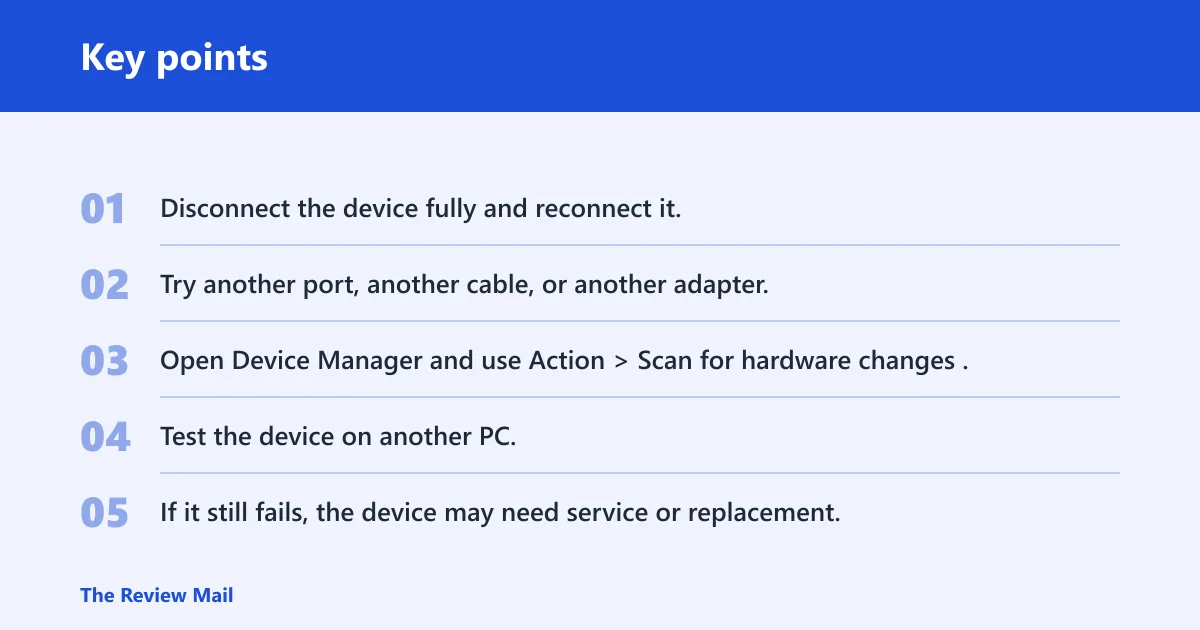
- Disconnect the device fully and reconnect it.
- Try another port, another cable, or another adapter.
- Open Device Manager and use Action > Scan for hardware changes.
- Test the device on another PC.
- If it still fails, the device may need service or replacement.
A common first-timer mistake is to reinstall the driver three times in a row without changing anything else. That usually hides the real problem. Move to a different port, a different cable, or a different computer before calling it fixed.
Prevention: after a working fix, avoid installing driver updates from two places at once. Use either Device Manager or the device maker’s package, then verify Device status before adding another update.
Frequently asked questions
What is code 40?
It is a Device Manager status that marks a device with an invalid driver-service key. Open the device’s Properties page and read Device status. The quickest check is to confirm whether the same device still shows the error after a reboot and a driver update.
How do I check which device has code 40?
Open Device Manager and look for the device with a warning icon. Double-click it, then open Properties > Device status. If several entries are uncertain, scan the USB controllers, Bluetooth, Sound, video and game controllers, Network adapters, and Disk drives sections first.
Is code 40 a driver problem or hardware problem?
It can be a driver-service issue, a Windows repair issue, or a hardware issue. If DISM, sfc /scannow, and a full reinstall fail, and the device still fails on another PC, hardware becomes the stronger possibility.
What should I do if a reinstall does not clear code 40?
Run DISM /Online /Cleanup-Image /RestoreHealth, then sfc /scannow, then reinstall the device again. If the error returns, test another cable, another port, or another computer. For internal storage or motherboard devices, that is the point to involve vendor support or a technician.
What is code 40 on Lenovo?
On a Lenovo PC, code 40 still means the same Device Manager status. Check the Lenovo device’s driver package, then try the Device Manager steps above: update, roll back, uninstall, reinstall, and scan for hardware changes. If the device is external, try another port before assuming the Lenovo system itself is the cause.
What is code 40 error in Device Manager?
It is the Device Manager status you see under Properties > Device status when Windows cannot use the device through its driver-service entry as expected. The exact fix still depends on the affected class: a Bluetooth radio, a USB controller, a network adapter, or a storage device do not fail for identical reasons.
What is code 40/20/40 vs 40/console/40?
Those are not standard Device Manager status codes. If you saw them in a log or another product, treat them as unrelated until you verify the exact text in Device Manager > Properties > Device status. For Windows hardware troubleshooting, the device status text is the one that matters.
How do I handle code 40 on a laptop?
Use the same sequence: check the device in Device Manager, update or roll back the driver, run DISM and sfc /scannow if multiple devices are affected, and test removable hardware on another port if possible. If the error appears on an internal device, the driver and Windows repair steps come first.