Wi‑Fi Adapter Disabled Windows 11 Fix: What to Try
If Windows 11 says your Wi‑Fi adapter is disabled, enable it in Device Manager. If it is missing, reinstall the driver or scan for hardware changes. If it is broken, remove and reinstall the adapter driver. Using the wrong fix wastes time and leaves you offline. This guide shows how to separate disabled, missing, and driver-broken adapters, then applies the right Windows 11 fix for each, based on Microsoft Support guidance.
What the symptom usually means
The quickest checks are the Wi‑Fi icon and Device Manager. Confirm Wi‑Fi is on and turn off Airplane mode in Settings > Network & Internet before deeper troubleshooting, because those controls can hide a working adapter. If the adapter appears in Device Manager, the issue is different from one that never appears.
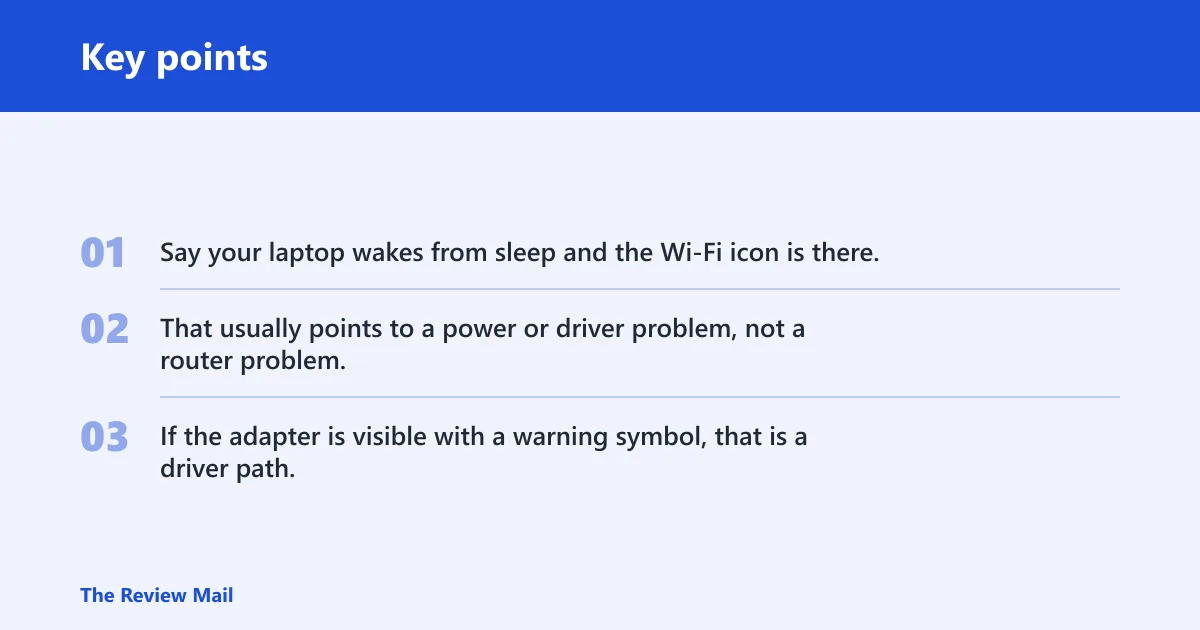
Say your laptop wakes from sleep and the Wi‑Fi icon is there, but the adapter disappears from Network adapters after hibernate. That usually points to a power or driver problem, not a router problem. If the adapter is visible with a warning symbol, that is a driver path, not a missing-hardware path.
Wi‑Fi adapter decision table
| Symptom | Likely cause | First fix | Verification step | When to stop |
|---|---|---|---|---|
| Disabled in Device Manager | The adapter is turned off in Windows or by a power setting | Device Manager > Network adapters > right-click the adapter > Enable device | The adapter shows normally, and the Wi‑Fi icon returns | Stop if the adapter stays enabled after sleep and a cold boot |
| Missing from Device Manager | The device is not enumerating or the driver is not loading | Action > Scan for hardware changes, then check WLAN AutoConfig | The adapter appears under Network adapters with no warning icon | Stop if it reappears and connects after a restart |
| Yellow triangle or Code 10 | Driver failure or corruption | Update driver, then roll back or reinstall the adapter | The warning icon disappears, or Properties shows no error | Stop if the adapter connects and survives reboot |
| Works after reboot only | Power management or a bad driver state after sleep | Turn off adapter power saving, then test sleep and cold boot | The adapter returns after wake and after a full shutdown | Stop if Wi‑Fi remains available after sleep and cold boot |
| Connects on one network but not another | Network compatibility or saved-profile issue | Forget the network and reconnect, or test a different known-good network | The adapter connects to the alternate network | Stop if Wi‑Fi works reliably on more than one network |
Why is my Wi‑Fi adapter disabled in Windows 11?
Start by turning Wi‑Fi on in Windows, then re-enable the adapter in Device Manager. If the adapter is disabled only after sleep or hibernate, check its power settings next. A disabled adapter can be a simple Windows state issue, while a missing adapter needs another path.
Enable in device Manager
- Check the Wi‑Fi icon in the taskbar and turn on Wi‑Fi if it is off.
- Open Settings > Network & Internet and turn Airplane mode off.
- Right-click the Start button, open Device Manager, expand Network adapters, and look for the wireless adapter.
- If it is disabled, right-click it and choose Enable device.
- Right-click the adapter again, open Properties > Power Management, and clear Allow the computer to turn off this device to save power.
- Restart the PC, then check whether the adapter stays enabled after sleep and after a full shutdown.
Stop here if the adapter appears under Network adapters with no warning icon, the Wi‑Fi icon returns, and the adapter stays enabled after sleep and a cold boot. If it drops out again, move to the missing-adapter or driver path instead of repeating the same enable step.
What if the adapter is missing from Device Manager?
If the adapter does not show under Network adapters, scan for hardware changes first, then check Windows services that can block Wi‑Fi from appearing. A missing adapter usually means Windows is not loading the device correctly, so reinstalling a driver before scanning often wastes time.
Check WLAN AutoConfig
- Open Device Manager and expand Network adapters.
- On the menu bar, choose Action > Scan for hardware changes.
- Open Services, find WLAN AutoConfig, and confirm Service status is Running and Startup type is Automatic.
- Open Settings > System > Troubleshoot > Other troubleshooters, then run the Network and Internet troubleshooter in the Get Help app if it is offered there. If the adapter is still missing, continue with the next Windows recovery step.
- Restart the PC and check Device Manager again.
- If it still does not appear, open Settings > Network & internet > Advanced network settings and use Network reset as the last local step.
Stop here if the adapter appears under Network adapters with no warning icon and the Wi‑Fi connection returns after restart. If the adapter is still missing, the next step is driver recovery or OEM support, not repeated scanning.
How do you fix a driver problem in Windows 11?
A yellow warning triangle in Device Manager points to a driver problem, not a missing adapter. A warning icon or Code 10 means Windows sees the device but cannot start it correctly, which is the path where Update driver, Roll Back Driver, and reinstall steps matter. If the problem started after Windows Update, treat the update as a likely trigger and work through driver recovery in order.
Roll Back driver
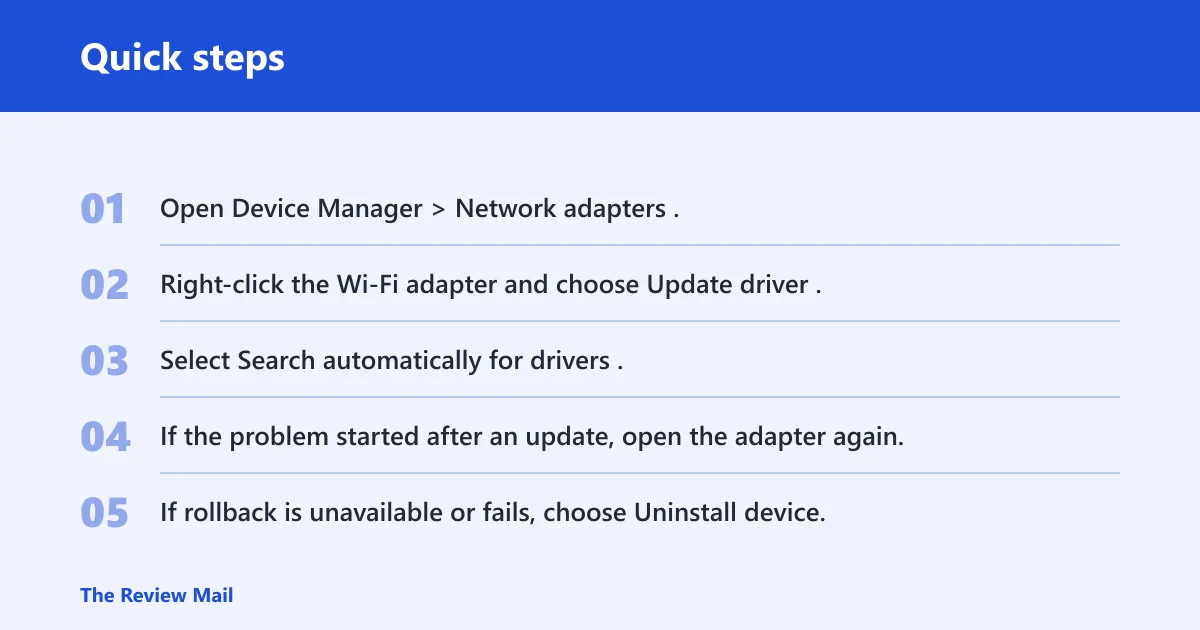
- Open Device Manager > Network adapters.
- Right-click the Wi‑Fi adapter and choose Update driver.
- Select Search automatically for drivers.
- If the problem started after an update, open the adapter again, select Properties > Driver, and choose Roll Back Driver if the button is available.
- If rollback is unavailable or fails, choose Uninstall device, and on the confirmation box select Delete the driver software for this device when offered.
- Restart the PC, then return to Device Manager and choose Action > Scan for hardware changes.
- If Windows is still using the generic driver or the adapter keeps failing, install the manufacturer driver for the wireless card model.
Stop here if the warning icon disappears, the adapter appears normally under Network adapters, and Wi‑Fi reconnects after reboot. If the adapter still shows an error, continue to a clean reinstall rather than repeating the same rollback.
Reinstall Driver
- Open Device Manager and expand Network adapters.
- Right-click the Wi‑Fi adapter and choose Uninstall device.
- If offered, select Delete the driver software for this device.
- Restart the PC.
- Open Device Manager again and choose Action > Scan for hardware changes.
- If Windows loads a generic or failing driver, install the exact OEM package for the wireless card model.
Stop here if the adapter reappears under Network adapters with no warning icon and stays connected after restart. If it still fails, the remaining options are network reset or a vendor-supplied driver package.
Intel Wi‑Fi adapters may use Intel AX210, AX211, or BE200 chipsets, so the exact manufacturer package matters. The adapter family determines which driver package fits best, which is why a generic driver can connect but still miss power or radio features on a specific laptop model.
Why does Wi‑Fi fail after sleep or a Windows Update?
When Wi‑Fi works after reboot only, the common split is power management versus driver corruption. If the adapter disappears after sleep or hibernate, check the adapter power setting first. If the failure started right after Windows Update, try a rollback or clean reinstall before a network reset. The most reliable verification is whether Wi‑Fi remains available after sleep and cold boot, not just after a restart.
Network Reset
- Open Device Manager > Network adapters.
- Open the Wi‑Fi adapter’s Properties > Power Management tab.
- Clear Allow the computer to turn off this device to save power.
- Restart the PC, then put it to sleep and wake it again.
- Shut the PC down fully, wait a moment, then start it again and check the adapter.
- If Windows Update likely broke the driver, use Roll Back Driver or uninstall and reinstall the adapter driver.
- If the adapter still misbehaves, use Settings > Network & internet > Advanced network settings > Network reset and reconnect after the reset.
Stop here if Wi‑Fi remains available after sleep and cold boot, the adapter stays present in Device Manager, and there is no warning icon after the reset. If the adapter still vanishes after sleep, the issue is more likely a driver or firmware compatibility problem than a simple Windows setting.
What if the adapter vanishes after sleep but returns after a warm reboot? That pattern often means the power setting or driver state is failing to recover cleanly. A cold boot is the better verification step because it checks whether the adapter survives a full power cycle, not just a restart.
What if wifi works on wpa2 but not wpa3 in windows 11?
If the adapter connects on one wireless network but not another, test a different known-good network and forget the saved profile on the problem network before changing anything else. That helps separate a Windows profile issue from a broader adapter problem. If the adapter connects elsewhere, the original network or its saved settings are the more likely issue.
WPA3 transition mode
- Open the router’s wireless security settings.
- If the router offers mixed security, try the compatibility option instead of forcing a single security mode.
- Retest the same network from Windows 11.
- If the connection still fails, forget the network in Windows and reconnect by entering the password again.
- Change only one setting at a time, then reconnect from Windows after each change.
- If the adapter works on another network but not this one, the router configuration remains the likely compatibility issue.
Stop here if the same adapter connects to the same SSID after the router change and the connection remains stable after sleep and reboot. If the network still fails and other networks work, focus on the router configuration rather than the Windows adapter.
Still not working?
If the adapter still does not appear or keep working, move to the least disruptive escalation first: Network reset, then a manufacturer driver install, then vendor support. Before you call for help, note the adapter name, whether Device Manager shows a warning symbol, and whether the failure happens after sleep, after a cold boot, or only on one network.
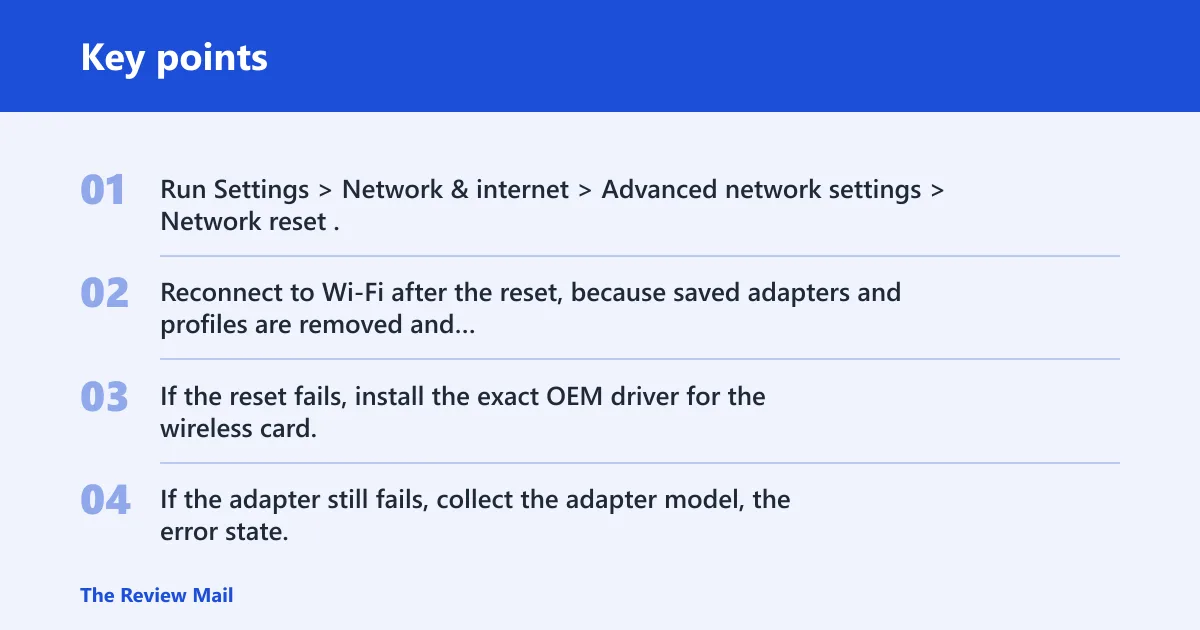
- Run Settings > Network & internet > Advanced network settings > Network reset.
- Reconnect to Wi‑Fi after the reset, because saved adapters and profiles are removed and reinstalled.
- If the reset fails, install the exact OEM driver for the wireless card.
- If the adapter still fails, collect the adapter model, the error state, and the security mode in use before you escalate to the PC or router vendor.
A common mistake is changing router security before checking Device Manager. If the adapter is disabled or missing, router changes will not bring the hardware back. A clean verification step after each fix keeps you from repeating the wrong branch.
Frequently asked questions
Why is my wifi adapter disabled in windows 11?
Windows can disable the adapter directly, or power management can turn it off during sleep. Check Device Manager > Network adapters, enable the adapter if needed, then open Properties > Power Management and clear Allow the computer to turn off this device to save power. Verify by sleeping and waking the PC.
How do I enable wifi adapter in device manager windows 11?
Right-click the Start button, open Device Manager, expand Network adapters, right-click the wireless adapter, and choose Enable device. If it is already enabled, open Properties and check the Driver and Power Management tabs for a driver fault or sleep-related shutdown.
What if my wifi adapter is missing in windows 11?
Use Action > Scan for hardware changes in Device Manager first. Then confirm WLAN AutoConfig is Running and set to Automatic. If the adapter still does not appear, run the Windows network troubleshooter, then Network reset as the last local recovery step.
How do I reinstall wifi driver on windows 11?
Open Device Manager > Network adapters, right-click the adapter, choose Uninstall device, and select Delete the driver software for this device if offered. Restart, then choose Action > Scan for hardware changes. If Windows loads the wrong package, install the manufacturer driver for the exact card model.
Why does windows 11 say network adapter driver is missing?
That message usually means Windows cannot load the adapter driver or the device did not enumerate correctly. Check Device Manager for the adapter, use Update driver, then try a clean uninstall and reinstall. If the adapter still does not appear, run Network reset and then install the OEM driver.
How do I stop windows update from breaking my wifi driver?
If the problem starts after Windows Update, use Roll Back Driver in Device Manager > Properties > Driver. If that is not available, uninstall the adapter, restart, and install the manufacturer package instead of the generic one. After the fix, verify the adapter after both sleep and a cold boot.
What if wifi works on one network but not another in windows 11?
Forget the saved network in Windows and reconnect, then try a different known-good network. If the adapter works on another network, the original network or its saved profile is the more likely issue. If it fails everywhere, return to Device Manager and driver recovery.