0x0000000b Fix: What It Means and How to Repair It
0x0000000b is the NO_EXCEPTION_HANDLING_SUPPORT bug check value. Because this bug check appears very infrequently, the most useful first step is to collect the crash details and then narrow the cause by isolating recent software changes, startup items, and hardware behavior. If Windows still starts, note what changed before the stop; if it does not, use recovery options and preserve the evidence before making more changes.
This guide is part of our Windows performance problems: full list and fixes series.
What does the stop code mean?
The Blue Screen of Death is Windows’ crash screen. In this case, 0x0000000b is the NO_EXCEPTION_HANDLING_SUPPORT bug check value, and Microsoft notes that the !analyze debug extension can display information about the bug check and help determine the root cause. (Microsoft Learn)
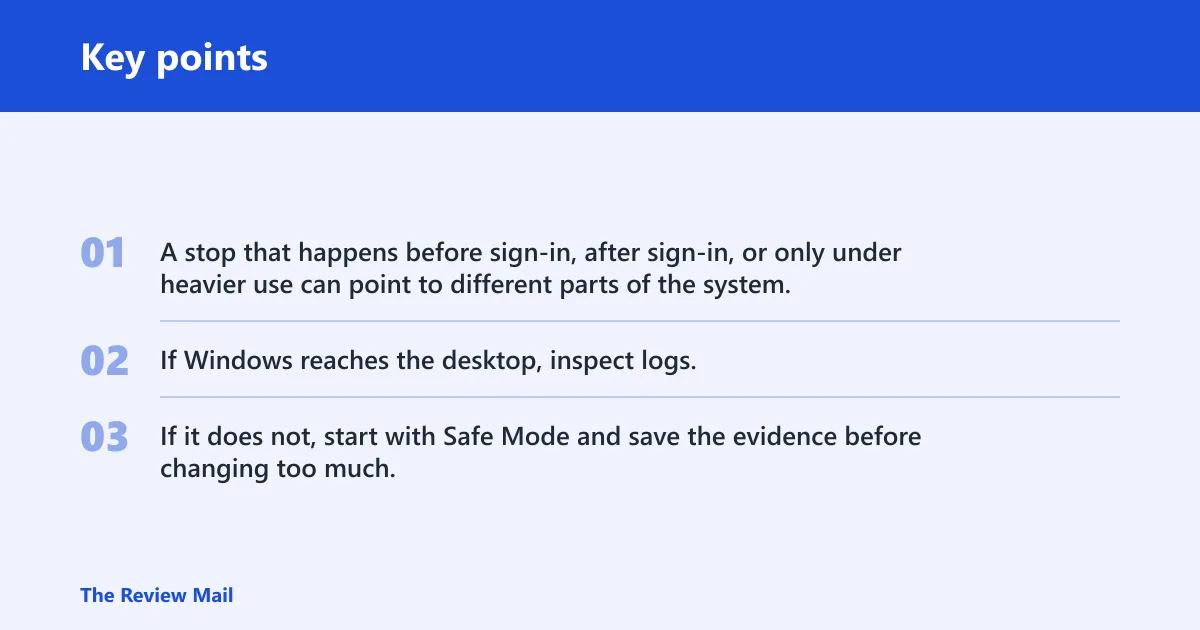
That crash timing matters. A stop that happens before sign-in, after sign-in, or only under heavier use can point to different parts of the system. If Windows reaches the desktop, inspect logs. If it does not, start with Safe Mode and save the evidence before changing too much.
0x0000000b triage table
| Symptom pattern | Most likely cause class | Safest next action | When to stop software fixes and test hardware |
|---|---|---|---|
| Boot-loop crashes before sign-in | Startup software or a driver loaded during boot | Enter Safe Mode and remove the newest driver or startup change | If Safe Mode also crashes, move to RAM and storage checks |
| Random desktop crashes after login | A driver or another loaded component | Check Event Viewer, then roll back the last display, storage, or chipset driver | If crashes stay random after rollback, run memory diagnostics |
| Crashes after a recent update | A recent Windows update or driver package | Use System Restore or uninstall the recent update | If the same stop code returns after restore, test hardware next |
| Crashes during gaming or heavy disk use | A driver, memory issue, or storage problem | Check the device driver first, then test memory and storage | If load triggers the same crash in Safe Mode or after rollback, test hardware |
If your PC blue-screens as soon as the login screen appears, but it stays up in Safe Mode, that points away from the base operating system and toward something loaded during a normal boot. If the same code appears only while copying a large game folder to an SSD, the storage path and the drivers involved in that path deserve a close look.
What are the most likely causes?
With this stop code, the crash pattern is more useful than a fixed cause list. The issue can involve software that loads during boot, a device driver, or a hardware path such as memory or storage. Use the timing of the crash to decide which branch to check first rather than assuming one specific cause.
- Match the crash timing. A crash before sign-in suggests something that loads early. A crash after login suggests something that loads later. A crash under heavy use suggests looking at the devices or components involved in that workload.
- Save the clue trail. If Windows still opens, note the exact time of the crash and the last thing that changed: a driver install, a Windows update, a new security tool, or a storage change. That detail helps decide which branch to follow next.
- Check for a repeat pattern. One crash after a single change suggests software. The same crash across multiple boots, or after undoing recent changes, makes hardware testing more important.
Can Safe Mode point to a driver problem?
Yes. Safe Mode starts Windows with a minimal set of drivers and startup items, which helps separate normal boot components from the base operating system. If the crash stops there, the likely culprit is usually something that is not required for Safe Mode.
- Enter Safe Mode from recovery. On Windows 11, go to Settings > System > Recovery > Advanced startup > Restart now, then choose Troubleshoot > Advanced options > Startup Settings and press 4 for Safe Mode. On Windows 10, open Settings > Update & Security > Recovery, under Advanced startup select Restart now, then choose Troubleshoot > Advanced options > Startup Settings and press 4.
- Remove the newest change. Open Device Manager, find the likely device category such as Display adapters, Storage controllers, or System devices, then choose Properties > Driver and use Roll Back Driver if the button is available. If not, disable the device briefly to test whether the crash stops.
- Confirm the result. Restart normally. If the blue screen disappears, the last driver or startup component you changed is a reasonable place to focus. If the crash remains in Safe Mode, move to memory or storage testing.
How do I fix stop code 0x0000000b?
Start with the narrowest fix that fits the crash pattern. If Windows boots, use Device Manager and logs first. If it does not, use Safe Mode and restore the last known good driver or system state before running file repairs.
- Rollback the suspect driver. In Device Manager, check Display adapters, Storage controllers, and chipset-related entries first. Use Roll Back Driver if the problem began after a driver update, or Uninstall device if rollback is unavailable and Windows can reload a stable package.
- Run file repair commands. Open an elevated Command Prompt and run
sfc /scannow. If it reports damage it cannot fix, runDISM /Online /Cleanup-Image /RestoreHealth, then run SFC again. - Check logs after boot. Open Event Viewer and review Windows Logs > System for critical and error events at the crash time. Look for the last failing driver, service, or device name before the blue screen.
Is 0x0000000b caused by RAM, drivers, or disk issues?
Any of the three can fit, but the symptom pattern changes the odds. Random crashes, crashes during games, or crashes under file transfers can involve memory or storage. Driver problems are more likely when the issue starts after a device update, a startup tool change, or another recent software change.
- Run Memory Diagnostic. Search for Windows Memory Diagnostic, choose Restart now and check for problems, and let the test finish. If the crash happens under load or with no clear software change, memory testing belongs near the top of the list.
- Check the drive path. If the crash appears during installs, copies, or game launches, inspect the storage device and its controller driver in Device Manager. A bad storage driver can look like a bad drive, and a bad drive can mimic software corruption.
- Separate cause from symptom. A successful system file repair does not rule out a hardware issue. If crashes continue after SFC, DISM, and driver rollback, move on to hardware checks.
What logs should I check after a 0x0000000b crash?
If Windows stays up long enough, check Event Viewer first. It can show the last critical or error event before the stop, which helps identify the failing driver or service. If Windows never reaches the desktop, the logs may be less useful than the boot state and the exact crash timing.
- Open the System log. Go to Event Viewer > Windows Logs > System. Filter for Critical and Error entries around the crash time, then note the source name and event ID.
- Check Reliability Monitor. Search for View reliability history and look for red X entries near the first blue screen. It can make the sequence of app failures, driver installs, and Windows changes easier to read.
- Match timing to changes. If the log shows a driver or service right before the crash, treat that component as the first suspect rather than the whole OS.
Should you use System Restore or undo updates?
Yes, if the crash began right after a driver install or a Windows update. System Restore can roll back drivers, registry settings, and system configuration to a restore point. If the problem started after a patch, uninstalling that update or pausing further updates can be the cleanest next move.
- Use System Restore. Search for Create a restore point, open System Protection, then choose System Restore and pick a point from before the crash started. This is the best fit when a recent change is the clearest clue.
- Remove the latest update. Go to Settings > Windows Update > Update history > Uninstall updates and remove the most recent cumulative or driver update that lines up with the first blue screen.
- Pause follow-up changes. In Windows Update, pause updates long enough to confirm the crash stops. If the system stabilizes, the update path was likely involved and should stay under suspicion.
Still not working?
If the crash survives Safe Mode, driver rollback, SFC, DISM, and restore attempts, continue with hardware checks and deeper recovery. Repeated crashes under load, in Safe Mode, or on a clean boot can point to a failing component or a problem that is not resolved by ordinary repair steps. Save the evidence first, then decide whether the machine needs vendor support or a reset.
- Preserve the clues. Copy the exact stop code, crash timing, and any Event Viewer source names before you change anything else. If Windows can reach the desktop, keep the logs and note whether the crash happens at boot or under load.
- Test the hardware path. Run Memory Diagnostic again if the crash is random, and check the storage drive and controller path if the failure appears during copies or installs. If both tests point away from software, hardware replacement becomes more likely.
- Consider a reset or reinstall. If the system still fails after hardware checks and restore attempts, use Reset This PC as the next software endpoint. A full reinstall makes sense only after the evidence no longer points to one driver or one recent change.
Prevention: Keep a restore point before major driver or Windows Update changes, and avoid stacking multiple driver installs at once. That gives you a clean rollback path if the stop code returns.
Frequently asked questions
What does 0x0000000b mean in Windows?
It is the NO_EXCEPTION_HANDLING_SUPPORT bug check value. Because this bug check appears very infrequently, use the crash timing, logs, and any recent changes to narrow the next step.
Can safe Mode fix 0x0000000b?
Safe Mode does not fix the root cause by itself, but it can reveal it. If the crash stops there, use Device Manager to roll back or disable the newest display, storage, or chipset driver, then reboot normally to confirm the change.
When is 0x0000000b a hardware failure instead of software?
Think hardware when the crash stays random, returns under heavy disk or gaming load, or continues after Safe Mode, rollback, SFC, DISM, and System Restore. That pattern makes RAM, storage, or a controller issue more likely than a startup conflict.
Can a bad update cause 0x0000000b?
Yes. A recent Windows Update or driver package can trigger the crash, especially if the first failure followed the install closely. Use Settings > Windows Update > Update history > Uninstall updates or System Restore to back out the change.
Do I need Windows reinstall if 0x0000000b keeps coming back?
Not first. Reinstall only after Safe Mode, driver rollback, Event Viewer checks, SFC, DISM, and hardware testing no longer point to a narrower cause. If the same stop code survives those steps, a reset or reinstall becomes the next reasonable endpoint.