Solve High Cpu Usage Windows 10
How to Fix High CPU Usage in Windows 10
If CPU usage stays above 80–90% for several minutes after Windows 10 settles, treat it as a persistent problem. Start in Task Manager, identify the top CPU process, then close nonessential apps and check Windows Update and Microsoft Defender scans if the load does not drop. Microsoft Learn says sustained high CPU is a troubleshooting signal, not just a momentary spike.
- Open Task Manager and sort by CPU to find the top process.
- Close extra browser tabs and background apps you do not need.
- Check Startup items for apps that relaunch after every boot.
- Review Windows Update for pending installs or restarts.
- Run a full Microsoft Defender scan if the process looks unknown or suspicious.
- If the PC is still slow after those checks, move to repair and escalation steps.
Reading idle versus post-login CPU spikes
CPU usage is the share of processor time Windows and your apps are using. A short jump is normal. A steady reading near 90 to 100% means the system is spending most of its time on one or more tasks, which is why typing, opening files, and switching windows can feel delayed.
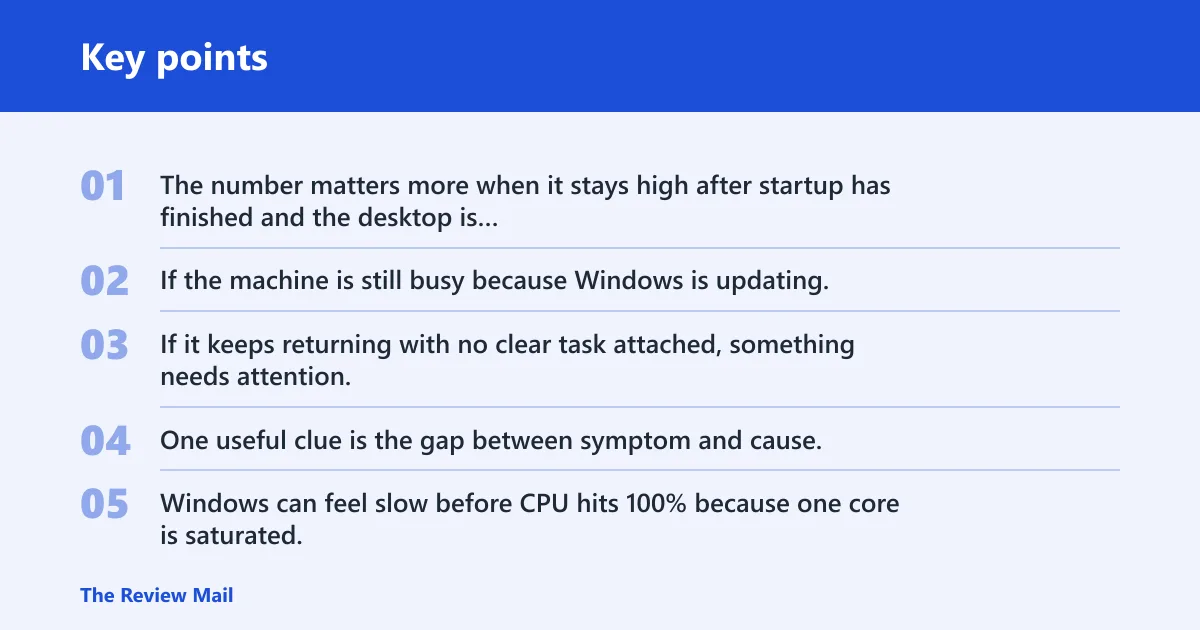
The number matters more when it stays high after startup has finished and the desktop is idle. If the machine is still busy because Windows is updating, a browser is restoring many tabs, or a backup tool is running, that load may be expected. If it keeps returning with no clear task attached, something needs attention.
One useful clue is the gap between symptom and cause. Windows can feel slow before CPU hits 100% because one core is saturated, a service is looping, or disk and memory pressure are adding delay. You are looking for the pattern, not only the number.
A laptop may jump to around 95% CPU for about two minutes right after login, then drop to around 8%. That points to startup activity, not a lasting fault. If it sits at 92% while idle for 20 minutes, the fix path changes.
How do you find the process causing it?
Open Task Manager, go to the Processes tab, and sort by CPU first. Microsoft Support recommends Task Manager as the first stop for identifying app and process load, and Microsoft Learn notes that sustained high CPU should be traced to the specific process before you change anything else.
Check the Processes tab first
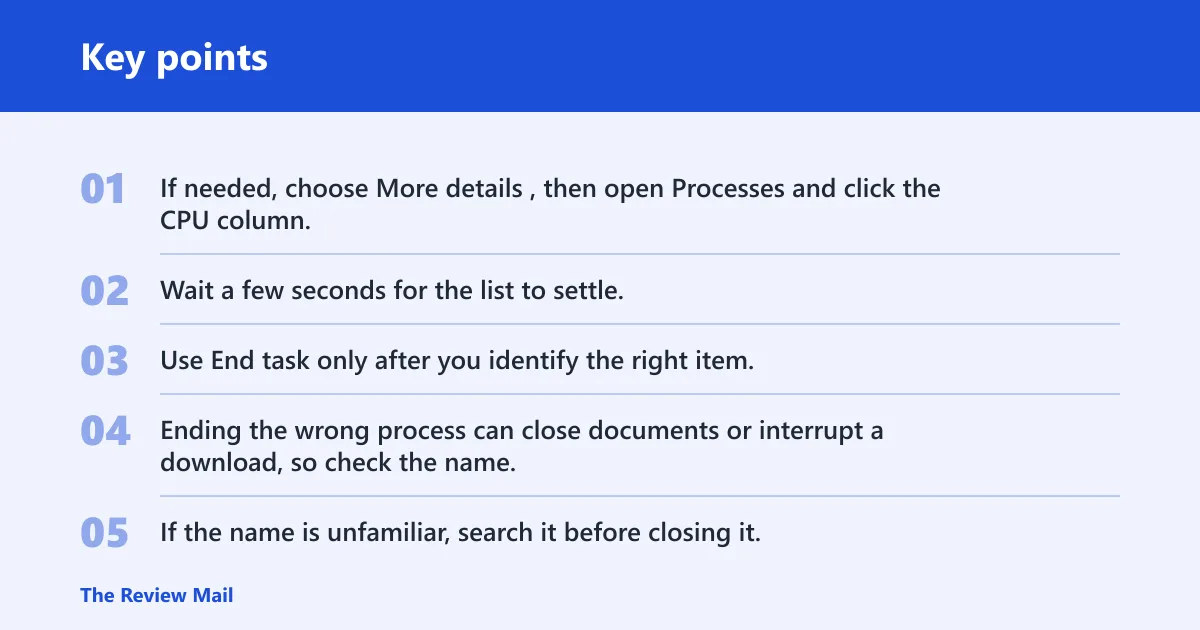
Press Ctrl+Shift+Esc to open Task Manager. If needed, choose More details, then open Processes and click the CPU column. Wait a few seconds for the list to settle, because the top entry can change during short spikes.
Use End task only after you identify the right item. Ending the wrong process can close documents or interrupt a download, so check the name, publisher, and whether the item is an app, background process, or Windows component. If the name is unfamiliar, search it before closing it.
Look at the Startup tab for repeat offenders
If the same app returns after every restart, move to the Startup tab. Disable nonessential items there, then reboot and check CPU again. That step helps when the problem is not a one-time process, but an app that keeps relaunching at sign-in.
| Symptom pattern | Likely cause | Fastest safe check | Next action |
|---|---|---|---|
| One app stays at the top of CPU after you open it | Runaway app or hung task | Confirm the app name in Processes, then wait 30 to 60 seconds | End task if it is clearly the offender, then relaunch or update it |
| System Idle Process is high | CPU is mostly free, not busy | Check whether another process, not Idle, is near the top | Look elsewhere; high Idle is usually good news |
| Browser CPU rises with many open tabs | Tabs, scripts, or extensions | Close extra tabs and test with extensions off | Keep fewer tabs open, remove problem extensions, or restart the browser |
| CPU jumps again after every boot | Startup app or scheduled task | Check the Startup tab and Task Manager after sign-in | Disable unneeded startup items and retest after reboot |
| CPU spikes during update checks or reboot loops | Windows Update or a failed update cycle | Check update status and pending restarts | Install the pending update, then reboot cleanly |
| Unknown process plus repeated pop-ups or fan surge | Malware or potentially unwanted program | Run a security scan and inspect detections | Quarantine or remove threats, then recheck Task Manager |
| Service Host entries keep climbing and falling | Windows service, driver, or scheduled task loop | Note which service-host item is active and when it spikes | Update Windows, drivers, or the related app; escalate if it returns |
A common first-timer mistake is to blame System Idle Process because it appears near the top. High idle time means the processor is available, not overloaded. If Idle is high and the machine is still slow, the bottleneck is often elsewhere, such as disk, memory, or a hidden service loop.
Suppose Task Manager shows Service Host: Windows Update near the top, while your browser is closed and no large app is open. That pattern points away from the browser and toward an update cycle or related background service. Ending the service is not the first move; checking update state is.
What should you close or disable first?
Start with the lowest-risk items: browser tabs, background applications you do not need, and startup apps that do not belong at boot. These are the most common causes of avoidable CPU load, and they are also the easiest to test without changing the system.
Close extra browser tabs
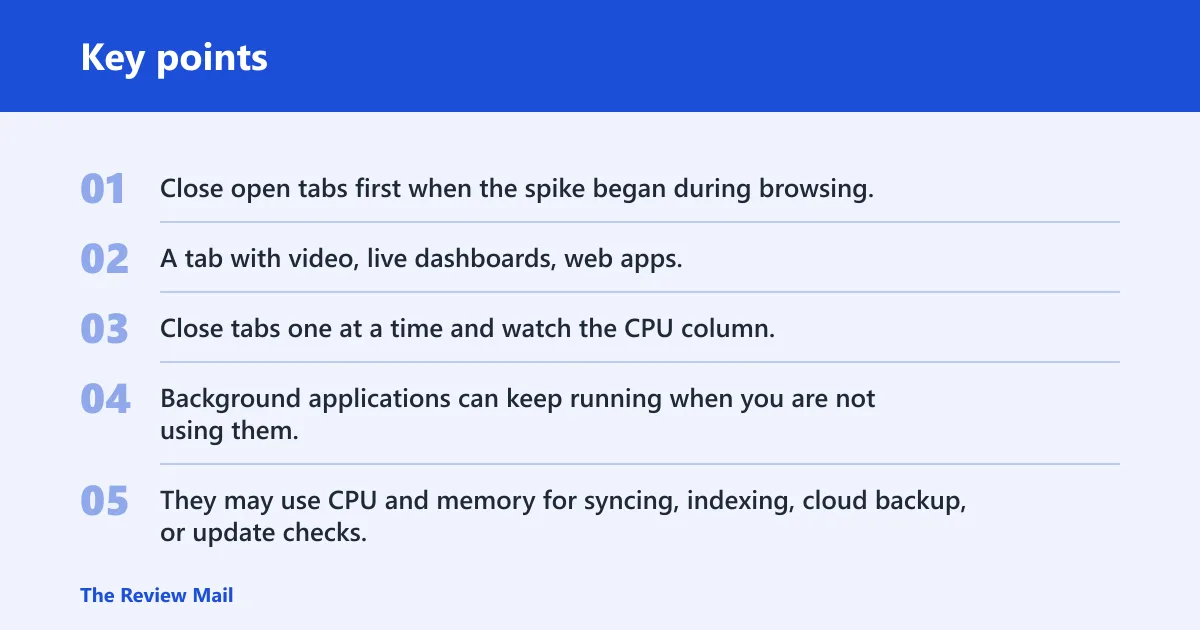
Close open tabs first when the spike began during browsing. A tab with video, live dashboards, web apps, or heavy scripts can keep CPU busy even if the window is not active. Close tabs one at a time and watch the CPU column.
Quit background applications you do not need
Background applications can keep running when you are not using them. They may use CPU and memory for syncing, indexing, cloud backup, or update checks. If a tool is not needed right now, close it from Task Manager or its own tray menu and see whether the load falls.
Disable startup apps that do not belong at boot
Use the Startup tab to turn off apps that do not need to start with Windows. Focus on launchers, chat tools, cloud clients, and vendor utilities you rarely use. Leave security software and hardware drivers alone unless you know the app is safe to disable.
Background load matters more on older dual-core PCs, where one busy process can crowd out everything else. It also matters on laptops running on battery, because Windows may apply different power behavior and the fan curve can make load more obvious. On gaming or content-creation systems, a high CPU reading may be normal during rendering or compiling, but it should match the task you started.
Can Windows Update fix high CPU?
Yes, when the problem is tied to a known bug or a broken Windows component. Microsoft recommends checking Windows Update when a persistent issue may already have a fix, and optional quality updates can matter when Microsoft has already corrected the build you are on. Do not treat updates as a cure-all, but do use them as a real fix path.
Check for pending updates and restarts
Open Windows Update and confirm whether a restart is waiting. A pending reboot can keep update services active longer than expected, which may hold CPU use high. Install the update, restart cleanly, then check whether the spike returns after the desktop settles.
Use optional quality updates when the bug fits
Optional quality updates can matter when Microsoft has already corrected the issue you are seeing. If the problem started after a specific patch or build, review the available updates and install the one that matches the fix path rather than assuming the slowdown will clear on its own.
What to do when an update itself triggers load
If Windows Update is the top CPU user for a long time, give it time to finish once. If it keeps looping, stalls on the same percentage, or reappears after reboot, the update may be stuck. At that point, check update history, try the built-in troubleshooter, and consider a repair install only after the local checks fail.
How do you tell if malware is causing high CPU usage?
Malware is a possible hidden cause when CPU stays high and no normal app explains it. Warning signs include a process name that looks random, repeated browser redirects, security tools turning off, or CPU climbing again right after you end the process. Hidden miners and PUPs often relaunch from startup or scheduled tasks.
Run a security scan and remove detections
Use Microsoft Defender or your installed antivirus to run a full scan. The same source recommends using Defender scans to check for threats when performance problems do not have a normal app explanation. Remove anything detected, then reboot and inspect Task Manager again.
Check for hidden background activity after cleanup
If the scan finds a threat, check whether any unknown startup entries, scheduled tasks, or browser extensions remain. A hidden process may disappear from the foreground and continue working in the background. If CPU returns after cleanup, do not assume the machine is clean just because one scan passed.
Power settings and deeper checks
Power settings are a later-step troubleshooting area, not the first move. They can affect how aggressively the processor boosts, how quickly the system sleeps components, and how a laptop behaves on battery. If the problem is persistent, they are worth checking after the obvious process and update causes are ruled out.
Review power settings on laptops and desktops
On a laptop, compare behavior on battery and plugged in. If CPU load seems worse only on battery, the active power plan may be limiting performance or changing background behavior. On a desktop, open advanced power settings and confirm that the plan is not forcing unusual processor limits.
Watch for driver or service loops
Some high-CPU cases come from a Windows service, driver, or scheduled task that keeps waking up. That is why the exact process name matters. If the same service-host item returns after restart, update the related driver or app, then test again after a clean boot.
Know when the issue needs repair or reinstall steps
If the top process keeps returning after restart, ending the task, updating Windows, and removing suspicious software, it may be time to stop local troubleshooting. At that point, the issue may be tied to system file corruption, a broken profile, or a deeper service conflict. A repair install or a clean reinstall becomes more reasonable than another round of the same steps.
Frequently asked questions
What process is causing high CPU usage in Windows 10?
The answer is the process at the top of the CPU column in Task Manager, but only after the list settles. If System Idle Process is high, that usually means the CPU is free. If a service-host entry, browser, or unknown app is near the top, that is the real lead.
How do I lower CPU usage without reinstalling Windows?
Start with browser tabs, background apps, and startup items. Then check Windows Update, run a security scan, and look for service or driver loops. Power settings can help later, especially on laptops. Reinstalling Windows should stay at the end of the list, not the beginning.
Should I close background apps to fix 100% CPU?
Yes, if the apps are not needed right now. Background applications can keep consuming CPU and memory even when you are not using them. Close the obvious offenders first, then watch whether CPU drops. If the same app relaunches after every boot, remove it from Startup.
Can Windows Update fix a high CPU problem?
Yes, when the problem matches a known Windows bug or a bad update state. If update services themselves are stuck, install pending updates, restart, and test again. Microsoft also notes that optional quality updates can resolve issues that were already fixed in a later build.
Quick checklist: what to disable first, and what not to end
- First: extra browser tabs, nonessential background apps, and Startup items you recognize.
- Next: pending Windows Update restarts and any optional quality updates that match the issue.
- Then: a full Microsoft Defender scan if the process name is unknown or suspicious.
- Do not end: security software, drivers, or Windows components unless you know exactly what they are.
- Do not ignore: sustained CPU above 80–90% after the desktop is idle and settled.