White Blank Screen Fix: What to Try First on Windows
Fast decision block: If white screen is before login, test the display path first; if after login, boot Safe Mode; if it only happens in a browser or app, clear cache or reset the app. That split covers the fastest fixes for a Windows white screen without wasting time on the wrong branch. If you need a deeper guide while you work, jump to Safe Mode, graphics driver rollback, external monitor not detected, Windows Update rollback, or browser cache clearing.
Start with the display path: If the screen shows BIOS or Safe Mode but turns white only after login, a common first fix is a graphics driver rollback or clean reinstall; if it stays white before Windows loads, check the monitor, cable, and input first. Guessing wrong can waste hours and make recovery harder. This guide walks you through a symptom-based flow for startup, login, and external-display white screens, with fast tests that separate display, driver, update, and peripheral causes.
What causes the white screen of death on Windows?
A blank white screen on a Windows 11/10 PC usually points to one of a few branches: a peripheral or dock conflict, a graphics driver problem, a Windows update issue, an external display path fault, or a hardware failure. Match the symptom to the shortest test. Start there, not with a full reinstall.
Peripheral or dock conflict
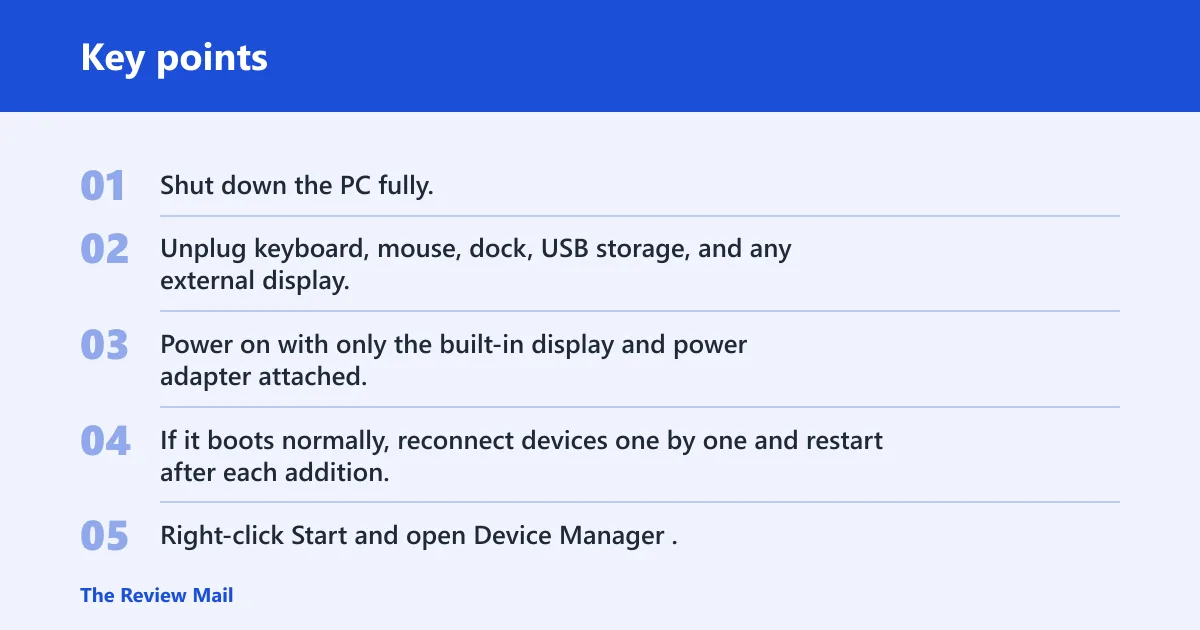
If the screen goes white right after startup and you have a dock, USB hub, printer, controller, or extra display attached, disconnect everything first. A faulty external device can block a normal boot, especially when the issue appears soon as you log in on Windows 10/11.
- Shut down the PC fully.
- Unplug keyboard, mouse, dock, USB storage, and any external display.
- Power on with only the built-in display and power adapter attached.
- If it boots normally, reconnect devices one by one and restart after each addition.
Graphics driver failure
A bad display-related driver is one of the most common software causes. If Safe Mode works but normal mode does not, the graphics driver is a likely suspect. Outdated or failed drivers can trigger the white screen after login. Microsoft’s guidance for Safe Mode explains that it loads Windows with only basic drivers and services, which is why it helps isolate driver and startup conflicts (Microsoft Support: Safe Mode). For driver changes, Device Manager is the correct place to update or roll back a display adapter, and Microsoft documents Roll Back Driver for reverting a problematic device driver (Microsoft Learn: Device Manager / Roll Back Driver).
- Right-click Start and open Device Manager.
- Expand Display adapters.
- Right-click the graphics device and choose Update driver.
- If the problem started after a driver change, open Properties > Driver > Roll Back Driver if available.
- Restart and test normal sign-in again.
Windows Update regression
Sometimes the first white screen appears after patching. A recent Windows Update can leave the desktop in a bad state, especially if the issue starts after reboot and was not present before the update. Microsoft’s recovery guidance includes using update history and uninstalling recent updates when a problem begins right after patching (Microsoft Support: Windows Update recovery/uninstall updates).
- Open Settings > Windows Update.
- Select Check for updates and install any pending fixes.
- Restart when prompted.
- If the issue started immediately after patching, go to Settings > Windows Update > Update history > Uninstall updates.
- Remove the most recent update, then reboot and test again.
External display or adapter issue
On a laptop, a white screen on the internal panel can come from the display path rather than Windows itself. A dock, USB-C adapter, HDMI cable, or monitor input can fail while the system is still booting normally. Microsoft’s display troubleshooting guidance also starts with checking cables, input selection, and trying another display path before assuming a Windows fault (Microsoft Support: display troubleshooting).
- Disconnect the external monitor and adapter or dock.
- Cycle the laptop’s display output with Windows key + P.
- Test the internal screen alone.
- If the external monitor is the only white screen, change the monitor input and cable, then try a different port.
Hardware fault
If the machine whites out before Windows loads, or the same symptom appears in BIOS and on every boot path, hardware moves higher on the list. That can include the panel, cable, GPU, or motherboard.
- Power off and reconnect the charger.
- Boot to BIOS or UEFI setup if possible.
- Check whether the white screen appears there too.
- If BIOS also looks wrong, stop at software fixes and contact the device maker or a repair shop.
How do you fix a blank white screen?
Start with the fastest split: remove peripherals, force restart, and then decide whether the white page appears before Windows loads or only after sign-in. If the screen is white only after login, the most likely next step is Safe Mode or a graphics driver fix. If it is white before Windows appears, inspect the monitor path first.
If your laptop wakes to a white desktop after sign-in, but the lock screen and BIOS both display normally, that pattern points away from the panel and toward Windows, often the graphics driver or a recent update.
- Force restart the PC if you cannot reach the desktop.
- Disconnect all peripheral devices, including docks and USB hubs.
- On a laptop, test the built-in screen only, then try Windows key + P to switch outputs.
- If the machine reaches login and then whites out, boot into Safe Mode.
- If Safe Mode works, remove recent driver or app changes before trying normal boot again.
Why is my laptop showing a white blank screen?
On a laptop, the most useful clue is whether an external monitor works while the built-in panel does not. If only the internal screen is white, the problem may be the panel, display cable, or brightness/display path. If both screens fail after login, look first at drivers, updates, or startup software.
Check the laptop display path first
- Unplug the laptop from a dock or USB-C adapter.
- Disconnect any external monitor.
- Open the lid fully and test the built-in screen alone.
- Press Windows key + P and choose PC screen only.
- If the external display works and the laptop panel does not, the internal display path needs service.
Use a screen test only as a diagnostic
A full-screen white display can help reveal smudges or dead pixels, but it does not repair anything. Tools in this category include a completely blank white page in fullscreen, and some versions let you adjust brightness from 10-100%. That is useful for inspection, not recovery.
- Open a full-screen white display test on the problem panel.
- Look for dead pixels, backlight patches, or obvious stains.
- Exit the test and return to troubleshooting if the hardware image still looks wrong.
What should you do if your screen turns white after you sign in?
If the white screen appears only after login, Windows is usually loading far enough for the desktop session to break. That makes graphics drivers, startup apps, and recent updates more likely than a dead panel. Safe Mode becomes the fastest way to separate a Windows issue from hardware.
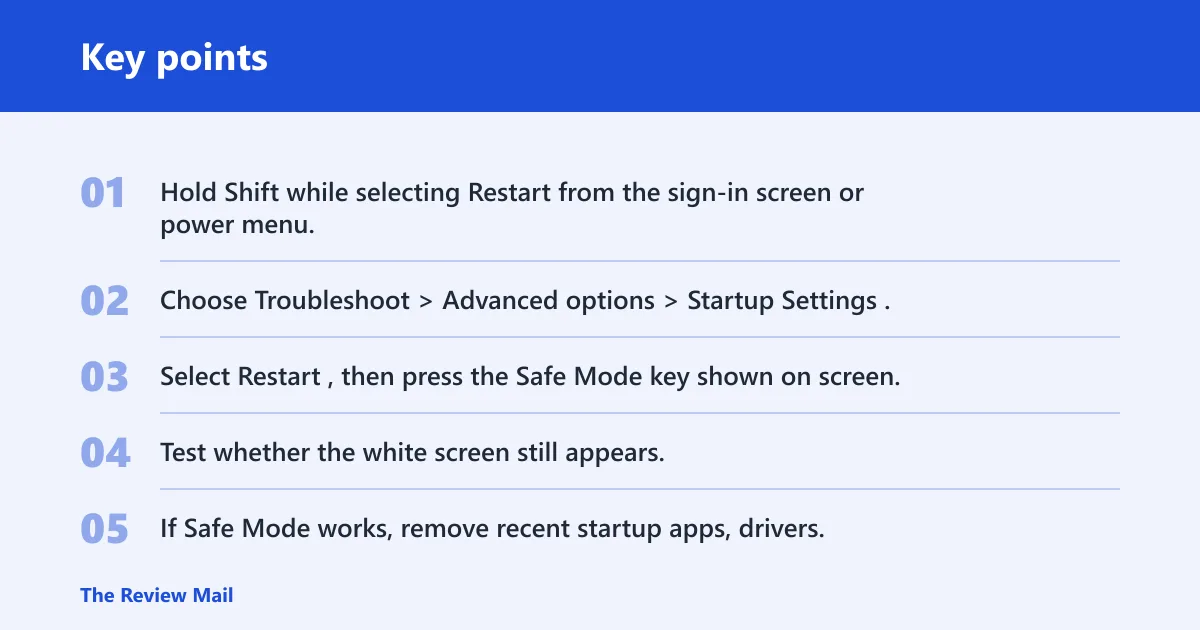
Boot into Safe Mode to isolate non-essential software
- Hold Shift while selecting Restart from the sign-in screen or power menu.
- Choose Troubleshoot > Advanced options > Startup Settings.
- Select Restart, then press the Safe Mode key shown on screen.
- Test whether the white screen still appears.
- If Safe Mode works, remove recent startup apps, drivers, or utilities added before the problem started.
What Safe Mode tells you
Safe Mode starts only essential features. It blocks third-party apps and non-essential programs, which is why it matters here. If the system loads in Safe Mode, the core Windows install is less likely to be the problem, and the search should move to the last change that normal boot needs but Safe Mode skips. Microsoft’s Safe Mode documentation describes this reduced startup behavior and the recovery flow used to reach it (Microsoft Support: Safe Mode).
When should you boot into Safe Mode for a white screen issue?
Boot into Safe Mode when normal Windows loading is blocked or when the screen turns white only after sign-in. That is the cleanest way to tell whether a third-party app, startup item, or driver is interfering. If Safe Mode also fails, the cause is more likely to be display hardware or a deeper boot problem.
- If normal boot is blocked, force restart the PC.
- Use Shift + Restart to reach recovery options.
- Open Startup Settings and boot into Safe Mode.
- Remove the most recent app, driver, or system change that normal mode needs.
- Reboot normally after each change to confirm the white screen is gone.
Suppose Safe Mode loads, but normal mode returns to a blank white desktop after 20 seconds. That pattern usually means a startup app, service, or graphics component is only breaking in the full Windows session.
White screen triage in 10 minutes
This matrix is designed to maximize certainty quickly. Each branch gives you the most likely cause, the expected result if you chose the right branch, and what that branch rules out so you do not repeat the same test twice.

| Symptom | Most likely cause | Fastest test | Next action |
|---|---|---|---|
| White screen after login | Graphics driver or startup app conflict | Boot into Safe Mode | Roll back or update the display driver in Device Manager |
| White screen after a Windows update | Update regression | Check Settings > Windows Update > Update history | Install pending updates or uninstall the newest update |
| White screen on an external monitor only | Cable, adapter, or input issue | Swap cable or port | Test a different monitor input and reconnect the adapter |
| Safe Mode works but normal boot fails | Third-party software or driver conflict | Start normal mode after removing recent changes | Disable or uninstall the newest startup item, app, or driver |
| White before Windows loads | Monitor, cable, or hardware fault | Check BIOS and the display path | Service the panel, GPU, or motherboard if BIOS also fails |
Frequently asked questions
How do I fix a blank white screen on Windows?
Start by removing external devices, then force restart the PC. If the white screen appears after login, open Safe Mode and check Device Manager > Display adapters for the graphics driver. If it appears before Windows loads, test the monitor, cable, and input first.
How do I know if a driver is causing the white screen?
If Safe Mode works but normal mode does not, the display driver moves near the top of the list. Open Device Manager > Display adapters, update the driver, or use Roll Back Driver if the problem started after a change. Then restart and test again.
What should I do if my screen turns white after I sign in?
Use Safe Mode to separate Windows from startup software. If it loads there, remove the newest app, driver, or utility added before the failure. Then reboot normally. If the system still whites out only after login, check the graphics driver through Device Manager.
How do I fix a blank white screen on a laptop?
Disconnect the dock, external monitor, and USB accessories first. Then test the laptop panel by itself, switch display output with Windows key + P, and see whether BIOS appears normally. If the built-in screen stays white while the external display works, the laptop display path likely needs service.
How do I fix a blank screen?
For a Windows blank screen, the fastest path is restart, remove peripherals, and check whether the problem is before or after sign-in. If the white page is inside a browser or app, clear that app’s cache first. If it affects the whole PC, focus on drivers, updates, and hardware.
iPhone white screen path
If the white screen is on an iPhone and not a Windows PC, treat it as a separate device path. If the phone shows the Apple logo, then turns white, the issue is usually a boot, app, or iOS software problem rather than a monitor or cable issue. If it is white only inside one app, force-close that app first; if the whole phone is affected after an update or restore, use the device’s recovery options or update/restore flow through a computer. The symptom split still matters: app-only white screen points to the app, while a system-wide white screen points to iOS startup or recovery.
Kindle Paperwhite white screen path
If the white screen is on a Kindle Paperwhite, the troubleshooting path is also different from Windows. A white screen on an e-reader often means the device is frozen, out of power, or stuck after an update. Start by charging it fully, then do a hard restart. If the screen remains white during startup but the device responds to power or charge changes, the issue is more likely firmware or hardware than content inside a book. This path is separate from the Windows display-and-driver checks above.
Sources
Microsoft Support: Safe Mode. Microsoft Learn: Device Manager and Roll Back Driver. Microsoft Support: Windows Update recovery/uninstall updates. Microsoft Support: display troubleshooting.