Windows 11 Something Went Wrong
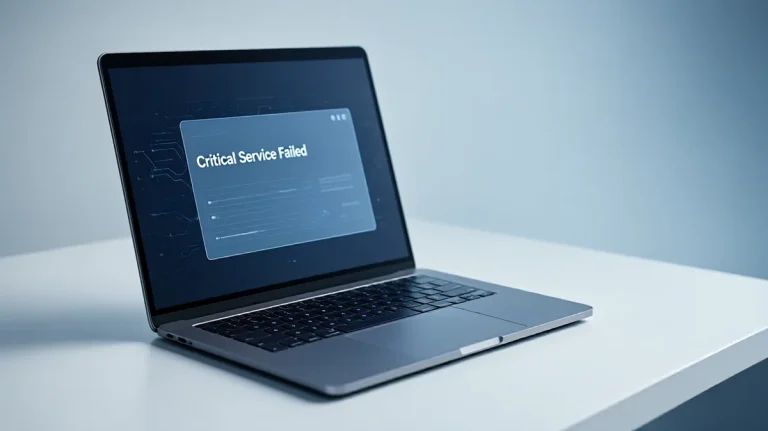
On Windows 11, “Something went wrong” can be a generic error, so start with the area where it appears: PIN sign-in, Settings, Windows Update, Microsoft account, or work/school account recovery. Ignoring the wrong layer can leave you locked out, stuck in a sign-in loop, or unable to install updates. This guide groups the error by location, then points you to the most likely fix first.
Quick answer
The message is vague by design. Microsoft often does not spell out the exact cause in the dialog, so the fastest way forward is to sort the error by where it appears and what changed just before it started. A return after restart matters. So does whether the device is treated as managed.
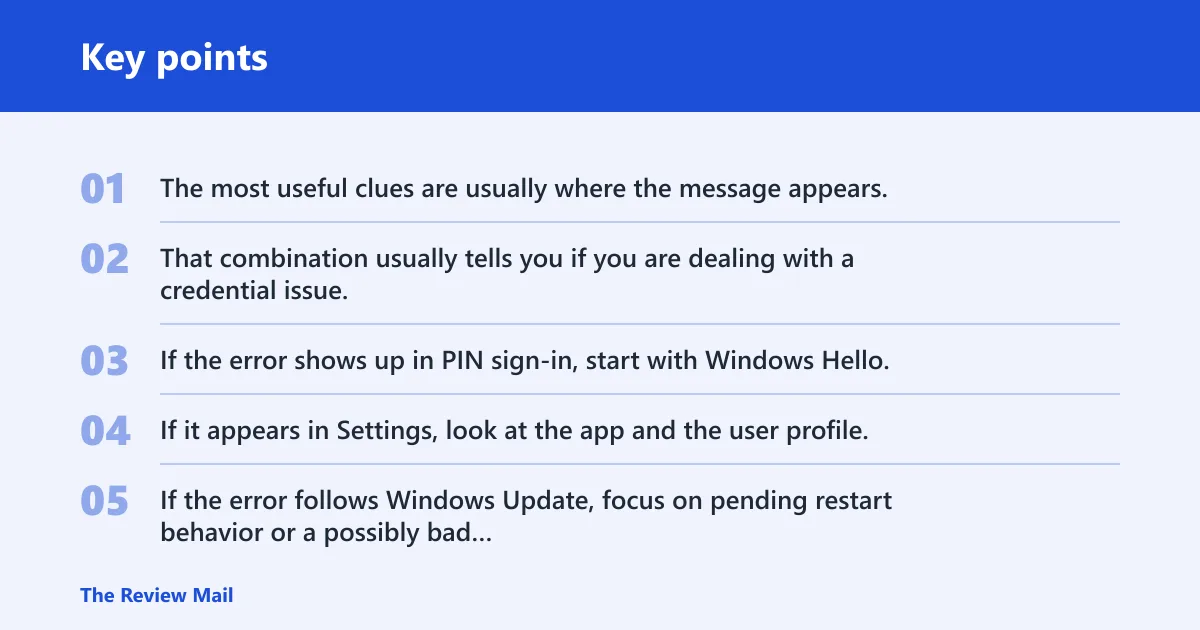
The most useful clues are usually where the message appears, whether it started after a restart or update, and whether it comes back after signing in again. That combination usually tells you if you are dealing with a credential issue, a profile problem, an update state, or a device-management conflict.
If the error shows up in PIN sign-in, start with Windows Hello. If it appears in Settings, look at the app and the user profile. If the error follows Windows Update, focus on pending restart behavior or a possibly bad cumulative update. If it points at an account, check Microsoft account sync or work/school enrollment first.
Windows error triage matrix
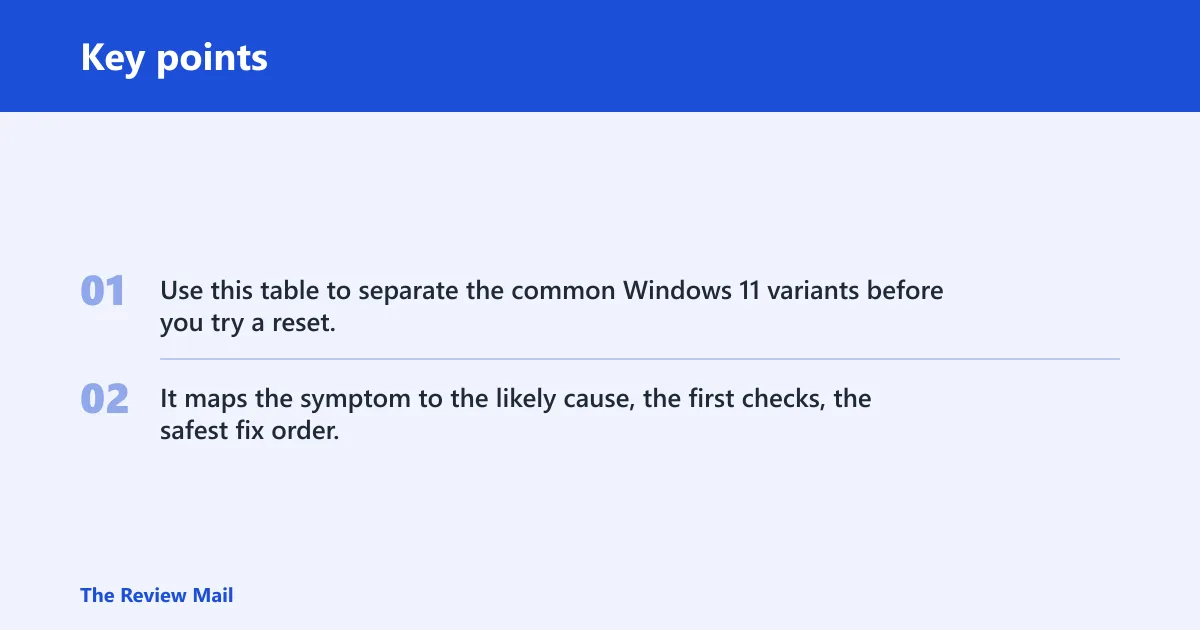
Use this table to separate the common Windows 11 variants before you try a reset. It maps the symptom to the likely cause, the first checks, the safest fix order, and the point where deeper recovery makes sense.
| Exact message | Where it appears | Most likely cause | First 3 checks | Fix order | When to use Safe Mode or WinRE | When to stop and reset the profile |
|---|---|---|---|---|---|---|
| Something went wrong | PIN | Windows Hello PIN store, token sync, or account state | Restart, confirm network, choose password fallback if offered | Remove and recreate PIN, then check Microsoft account sign-in | Safe Mode if the prompt loops after normal boot | Stop if the PIN still fails after reset and password sign-in works |
| PIN isn’t available | PIN | Local device credential store corruption or Hello provisioning failure | Try password sign-in, check whether the device is online, reopen the sign-in screen | Reset PIN, then rebind Hello credentials | WinRE if you cannot reach the sign-in screen or the loop blocks access | Stop if the local profile cannot rebuild the PIN after a clean restart |
| Something went wrong | Settings | Settings app failure or profile-specific corruption | Open Settings in another account, restart Explorer, check if only one page fails | Repair app, then reset app, then test an admin account | Safe Mode if Settings fails in one profile but not another | Stop if the same profile breaks after app reset and SFC /scannow |
| Something went wrong | Update | Pending restart, stuck cumulative update, or rollback issue | Check for restart required, review update history, verify free space | Restart, retry update, then uninstall the last cumulative update if needed | WinRE if Windows Update loops or boot repair is needed | Stop if the update failure returns after rollback and repair |
| Something went wrong | Sign-in | Microsoft account token sync, password fallback failure, or device enrollment issue | Sign in with password, confirm internet, reauth the account | Reconnect the Microsoft account, then refresh device registration | Safe Mode for account testing, WinRE if the device will not settle after reboot | Stop if the same account breaks across restarts and other accounts work |
| Something went wrong | Settings or sign-in on a managed-looking PC | Work or school account remnants or stale device management | Check for old organization accounts, review access work or school, verify whether the device is personal | Disconnect the old organization account, then refresh enrollment state | Safe Mode if the account list is unstable, WinRE if policy blocks normal repair | Stop if the device still reports managed state after disconnecting old accounts |
Why does Windows 11 say something went wrong after a restart?
A restart can expose a pending update, a half-finished credential change, or a profile that did not load cleanly. If the message appears right after reboot, check whether Windows is waiting on a restart, whether the last update completed, and whether the same account still opens normally after a second sign-in.
Start with the low-risk checks: close the dialog, restart the PC once, confirm network access, and check Windows Update state. If the message followed a recent cumulative update, the update itself may be the trigger. If the device loops back to the same screen after every restart, move to repair tools instead of repeating the same boot.
What matters here is the pattern. One failed restart after an update is different from a loop that returns every time. The first can be a transient state. The second often points to a broken update stage or a profile that Windows cannot finish loading.
What to check before you repair system files
- Close the dialog and restart the PC once.
- Sign in with the password instead of PIN if that option appears.
- Open Windows Update and look for a pending restart or a failed install.
- Check whether the same error appears in another user account.
If another account works, the problem is likely tied to that profile. If no account works, the issue is broader and system file repair becomes more useful. Keep that split in mind before you run SFC or DISM.
Windows Hello PIN: what to check first
When the error appears at the PIN prompt, treat it as a Windows Hello problem first. The “PIN isn’t available” variant usually means the local device credential store is not usable, not that the whole Microsoft account is gone. Password fallback can help you get back in and rebuild the PIN.
Use password sign-in if it is offered. Then remove and recreate the PIN from sign-in options. If the PIN reset fails, look for local credential store damage or a failed account sync. On a device with a Microsoft account, reauthenticating the account can refresh the sign-in token and clear the stale state.
Say your laptop shows “PIN isn’t available” after a power outage and the password option still works. That points away from the account itself and toward the local Hello credential store. Reset the PIN first. Do not jump straight to a full reset if the password path still opens the desktop.
If the device is offline, reconnect it before retrying Hello. Windows Hello depends on local credentials, but some recovery paths still need a live account state to finish. If the prompt repeats after a clean PIN reset and restart, stop and inspect the profile rather than forcing more retries.
How do you fix Windows 11 Settings errors?
When Settings fails, first decide whether it fails everywhere or only in one account. A profile-specific failure usually points to user data rather than the app itself. If the app opens under an admin account but not a standard user account, that difference is useful, not random.
Start with the app repair option. If that does not work, use reset for the Settings app and then test again. If only one profile breaks, the issue is likely tied to that profile. If every account shows the same failure, move toward system file repair or update repair instead of chasing user-specific settings.
The quickest verification is simple: open Settings, visit Windows Update, and open Account. If those pages load without crashing, the repair held. If they fail only in the original profile, the profile may be damaged enough to justify a reset of that account state.
Admin account behavior versus standard user behavior
A standard user account can fail in Settings while an admin account still works. That usually means permission, profile, or policy differences are involved. If the admin account opens Settings cleanly, use it to repair the app, check update state, and inspect whether the failing account is tied to old organization settings.
Windows Update errors and loops
When the message appears during update work, think in terms of update state first. A pending restart can block the next install. A recent cumulative update can also leave the device in a loop where Windows keeps retrying the same stage. In some cases, the latest Windows update is required before another feature can complete, which makes the failure look more mysterious than it is.
Check whether Windows is asking for a restart. If it is, restart before anything else. Then open update history and look for the last failed item. If the failure started after a cumulative update, uninstalling that update or rolling back the last change is often safer than chasing unrelated system repairs.
Picture a desktop that says “Something went wrong” after every update reboot and then offers the same failed installation again. That is not a PIN issue. It is an update-state problem. Use rollback or repair paths that preserve data before you consider anything more disruptive.
Rollback and repair paths that preserve data
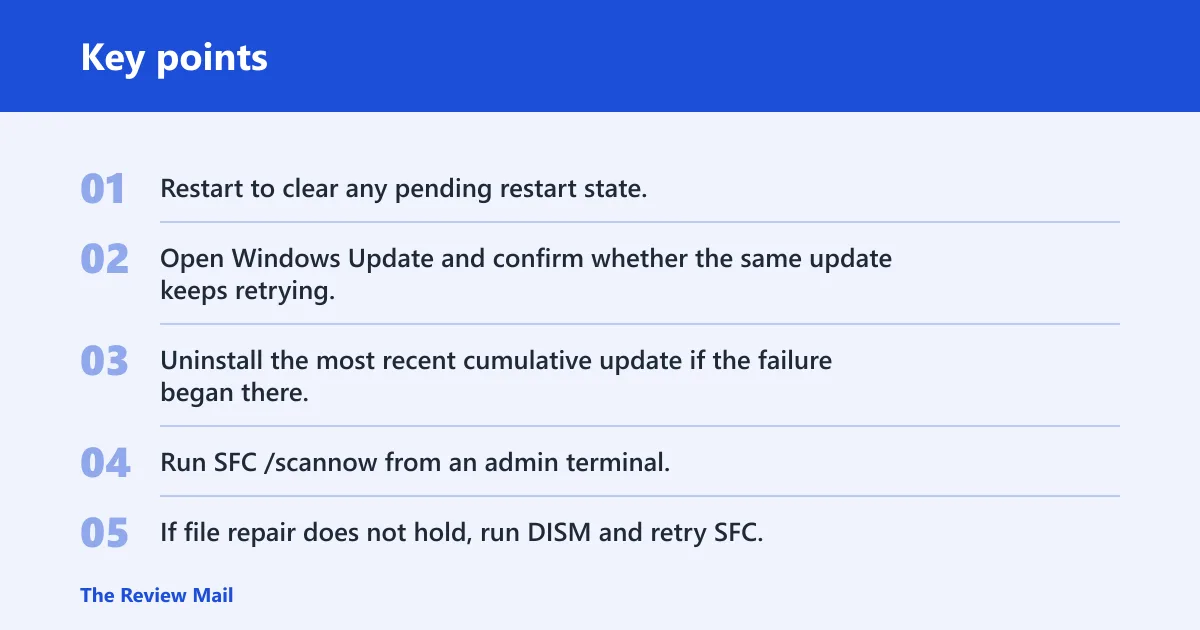
- Restart to clear any pending restart state.
- Open Windows Update and confirm whether the same update keeps retrying.
- Uninstall the most recent cumulative update if the failure began there.
- Run
SFC /scannowfrom an admin terminal. - If file repair does not hold, run DISM and retry SFC.
If the loop still returns after that sequence, use WinRE for offline troubleshooting. That is the point where startup repair or a controlled rollback becomes more sensible than repeated in-band retries.
Can a work or school account cause it?
Yes. Leftovers from an old work or school account can trigger the message, especially if Windows still thinks the device belongs to an organization. Microsoft may also treat a consumer PC as a work PC, which changes the path for sign-in, enrollment, or update prompts. A personal device and a managed device do not always behave the same way.
Start by checking whether the device is being detected as managed. Review work or school accounts, device enrollment, and any old organization connection that should no longer exist. If this is a personal PC, disconnect the old account carefully and recheck whether the error clears. If it is actually managed, do not remove policy-backed enrollment casually.
The distinction matters because the fix is different. A consumer device with a stale organizational token often needs the old account removed. A managed device may need the organization’s sign-in and policy flow corrected instead. Treating both the same usually wastes time.
System repair steps that fit the cause
Use SFC /scannow when you suspect corrupted protected system files. It must run from an admin terminal and can take time, but its job is narrow: verify and repair Windows file integrity. If SFC finds corruption but cannot fix everything, DISM comes next because it repairs the Windows image that SFC depends on.
DISM also needs an elevated admin terminal. It is the broader image-servicing repair, so it often comes before a second SFC pass. That order matters. If the system image is damaged, SFC can keep failing on the same files until DISM restores the source image.
System Restore belongs earlier than a full reset when a restore point exists and the problem started after a recent change. It can roll back apps and drivers to a pre-issue state. If Windows will not settle after reboot, WinRE gives you startup repair, advanced options, and the path to reset this PC only after the lighter options fail.
Safe Mode as a diagnostic boot state
Safe Mode loads minimal drivers and is useful when you need to test whether a profile, account, or app failure disappears in a stripped-down boot. If the error stops in Safe Mode, the cause is more likely to be a driver, startup app, or account component than a core Windows file.
Use Safe Mode when the same message keeps returning in normal boot and you need a cleaner test before restoring or resetting anything. It is especially useful for confirming whether Settings fails only because of the current profile. If the error survives Safe Mode, move toward WinRE, profile repair, or account recovery.
Frequently asked questions
Why does Windows 11 say something went wrong?
It usually means Windows hit a failure but did not expose the exact cause in the dialog. The key is where it appears: PIN, Settings, Update, Microsoft account, or work/school enrollment. That location usually points to the right fix faster than repeated retries.
How do I fix Windows 11 saying something went wrong after a restart?
Start with another restart, then check Windows Update for a pending restart or failed install. If the message returns every boot, test another account and then move to SFC /scannow or DISM. A loop after restart is usually a state problem, not a random pop-up.
Why does Windows 11 say something went wrong and my PIN isn’t available?
That usually points to a Windows Hello PIN or local credential store issue. Try password sign-in first, then remove and recreate the PIN. If the account still works by password, the profile is probably usable and the Hello credentials are the part that needs repair.
How do I fix something went wrong when opening Settings in Windows 11?
Check whether the failure happens in one account or all accounts. Repair the Settings app first, then reset it if needed. If an admin account opens Settings normally, the problem is often profile-specific, not a full Windows failure.
Why does Windows 11 say something went wrong after an update?
That often means a pending restart, a stuck cumulative update, or a bad rollback state. Restart once, review update history, and confirm the same update is not looping. If needed, uninstall the last cumulative update and then run SFC /scannow.
Can a work or school account cause something went wrong in Windows 11?
Yes. Old organization accounts, stale device enrollment, or leftover management state can trigger it, especially on a personal PC that Windows still reads as managed. Disconnect obsolete work or school accounts only if the device is personal and not under active organization control.
How do I know if the error is from Windows Update, PIN, or account corruption?
Match the symptom to the surface area. PIN errors show up at sign-in, update errors show up during install or reboot, and account corruption often affects Microsoft account or work/school flows across restarts. If another account works, the problem is more likely profile-specific than system-wide.