Code 343: Fix Windows Code 43 Errors and Drivers
Windows code 343 may be a mistyped or misread Device Manager code, according to en.wikipedia.org. Start by opening Device Manager and updating the affected driver, either there or from the device maker’s support page. If the error returns after reinstalling, test the device on another port or another computer before treating hardware failure as the main cause.
What code 43 means
Code 43 in Device Manager means Windows stopped the device because it reported a problem or could not initialize correctly. Open Device Manager, find the device with the yellow exclamation point, and read the Device status box. If Roll Back Driver is available, note that before changing anything else.
What “code 343” usually means in search results
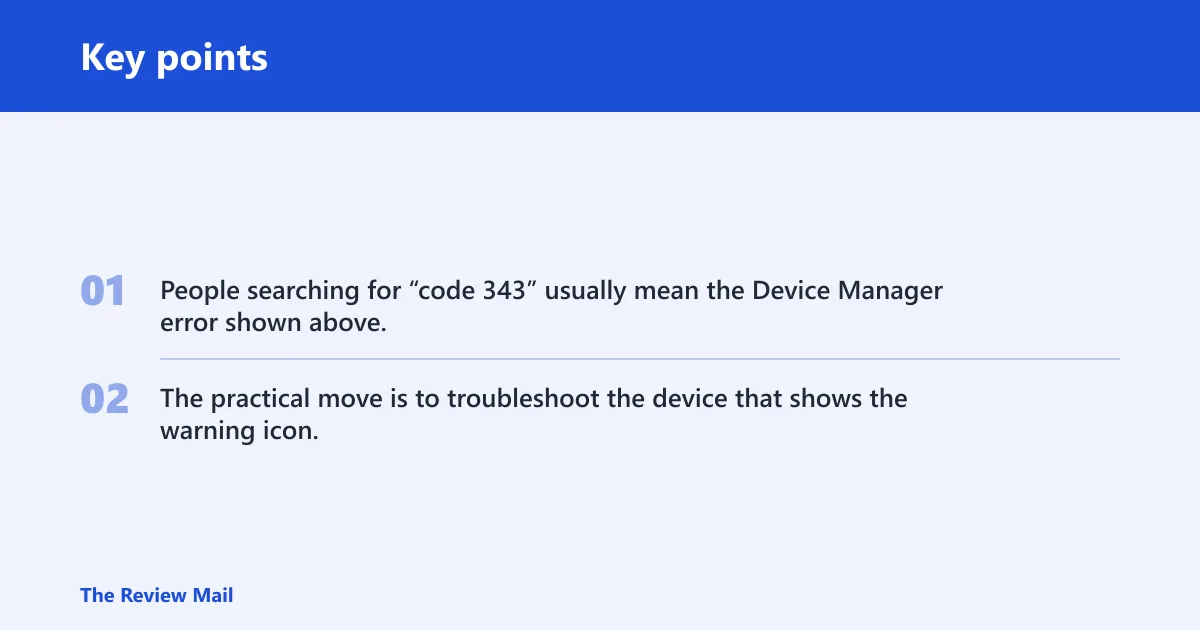
People searching for “code 343” usually mean the Device Manager error shown above. The practical move is to troubleshoot the device that shows the warning icon, then decide whether the failure follows the driver, the port, or the hardware.
Likely causes
Code 43 can come from a driver conflict, a driver update that left the device in a bad state, a device that does not initialize cleanly after restart, or hardware that is failing. A second reboot only helps if it changes the device state.
- Driver conflict or bad update. The driver loads, but the device stops reporting a healthy state.
- Device not initializing cleanly after restart. The problem comes back after reboot, which suggests a persistent driver or device issue.
- Hardware fault. If the same device fails on another port or another computer, hardware moves up the list.
Graphics adapter fixes
For graphics adapters, start with the vendor driver path, not only Windows Update. Open Device Manager and update the adapter driver. If the GPU still shows Code 43 after a driver change, check whether rollback is available.
- Open Device Manager > Display adapters.
- Right-click the GPU > Update driver > Search automatically for drivers.
- If Windows finds nothing, install the latest driver from the GPU maker or the PC maker.
- If the problem started right after an update, open Properties > Driver > Roll Back Driver if the button is active.
- If rollback is unavailable or fails, use Uninstall device, then restart the PC and reinstall the vendor driver.
Say your laptop’s integrated graphics starts showing Code 43 after a driver refresh and the display still works, but games and video apps begin failing. That pattern makes the driver path more likely than a dead GPU. If the same Code 43 comes back after restart, stop cycling the same installer.
USB device fixes
USB problems need a port-and-device split, because a bad cable, a weak port, or a device driver can produce the same warning icon. A clean port test is the quickest safe check for USB devices.
- Unplug the device and wait a few seconds.
- Plug it into a different USB port on the same PC.
- If it is still flagged, open Device Manager > Universal Serial Bus controllers or the device’s category.
- Right-click the device entry > Uninstall device.
- Restart the PC, reconnect the device, then test it again.
- If possible, plug the same device into another computer to separate a device fault from a PC fault.
A common first-timer mistake is to reinstall the driver three times without changing the port. If the device works on a second PC, the Windows machine or its USB controller becomes the suspect. If it fails everywhere, the device itself is the more likely cause.
Wi-Fi adapter fixes
Wi-Fi adapters can show Code 43 after a bad driver change, a failed reinstall, or an initialization problem after restart. When the same adapter keeps failing after a reboot, stop repeating the same removal and reinstall cycle.
- Open Device Manager > Network adapters.
- Right-click the Wi‑Fi adapter > Update driver.
- If a recent update triggered the issue, open Properties > Driver and use Roll Back Driver if available.
- If rollback is missing, use Uninstall device, then restart the PC.
- Install the latest wireless driver from the PC maker first, then the adapter maker if needed.
- If the error returns after reboot, move on to other diagnostics for the PC or adapter path instead of repeating driver removal.
Code 43 triage table
Use this table to match the device type to the fastest safe test. It also shows when rollback is worth trying, when uninstalling makes sense, and when the pattern starts to look like hardware rather than software.
| Device category | Most likely cause | Fastest safe test | When to use rollback | When to uninstall | When to stop and suspect hardware |
|---|---|---|---|---|---|
| Graphics adapters | Driver conflict or bad update | Install the GPU maker’s driver, then reboot | After a recent driver change | If rollback is missing or fails | If Code 43 returns after reboot with the vendor driver |
| USB devices | Port issue, device driver issue, or device fault | Try another USB port first | After a recent driver install or Windows update | If the device still shows a warning in Device Manager | If it fails on another port and another computer |
| Wi-Fi adapters | Driver conflict or adapter initialization issue | Install the PC maker’s driver, or the adapter maker’s driver if needed | After a recent wireless driver update | If rollback is unavailable or the reinstall did not help | If the error returns after restart and the device still fails in normal use |
| Recurring after restart | Persistent driver or hardware problem | Reboot once to confirm the loop | Only if the last change was a driver update | Use uninstall only once, then test again | Stop retrying driver fixes and move to vendor diagnostics or replacement |
When should you stop troubleshooting?
Stop repeating driver fixes when the same device returns to Code 43 after a restart, after a rollback, or after a clean reinstall. At that point, the next step is not another reinstall. It is a vendor diagnostic, a BIOS or chipset check, or replacement testing if the hardware is removable.
Picture a USB Wi‑Fi dongle that works on one port, fails on another, and still throws Code 43 after a reboot. That pattern points away from one corrupt driver package and toward the adapter or its controller path. For a laptop Wi‑Fi card, a BIOS update or vendor support page is the more sensible next stop.
If that didn’t work, try this next
Check the PC maker’s support page for chipset drivers, BIOS updates, and wireless firmware notes. If the device is removable, test it in another machine. If it is built in, use the maker’s diagnostics before replacing parts.
Prevention: after a working fix, keep the device driver version that solved the issue and avoid stacking another update immediately unless the vendor release notes mention the same device.
Frequently asked questions
How do I tell whether Code 43 is a driver issue or hardware issue?
Try the device in another port first. If it still fails, test it on another computer if possible. If the problem follows the device across systems, hardware becomes more likely. If it only happens on one PC, the driver, port, or controller path is the better place to look.
What should I do if Roll Back Driver is not available?
Use Uninstall device, then restart the PC. After that, reinstall the correct driver from the PC maker or device maker. If the problem returns after reboot, continue with port testing or another computer test, depending on the device type.
Why does Code 43 come back after I restart?
That usually means the device is failing to initialize cleanly again after Windows reloads the driver. A reboot that does not change the result is a sign to test a different port, another computer, or a different driver package rather than repeating the same step.
Should I update the driver from Device Manager or from the device maker?
Start in Device Manager if you need a quick check, but if that does not help, use the driver from the PC maker or device maker. For built-in devices, the PC maker’s package is often the safer place to start because it can match the system configuration.
When is it reasonable to suspect hardware failure?
If the same device fails on another port or another computer, or if the error keeps returning after a clean reinstall and restart, hardware is more likely. At that point, use the manufacturer’s diagnostics or replace the removable device.