High Cpu Usage Detected Windows 11
If Windows 11 CPU usage stays high, use this fast triage order: open Task Manager, sort by CPU, identify the pattern, then apply the matching fix. A sustained spike usually falls into one of these buckets: one app, idle-high background activity, System or a driver issue, browser load, post-update activity, or a suspicious process.
- Open Task Manager and sort by the CPU column.
- Check whether one app, many background items, System, a browser, or a suspicious process is on top.
- Match the pattern: app issue, idle background task, browser hardware acceleration, driver/update problem, or security scan.
- If the spike persists, verify the process path, review startup apps, update drivers, repair system files, and rescan with Windows Security.
How to check resource consumption in task Manager
Open Task Manager, open the Processes tab, then sort by the CPU column so the biggest user moves to the top. That gives you the fastest read on what is running hot right now. If one item sits far above the rest, start there before changing system settings.
Open task Manager
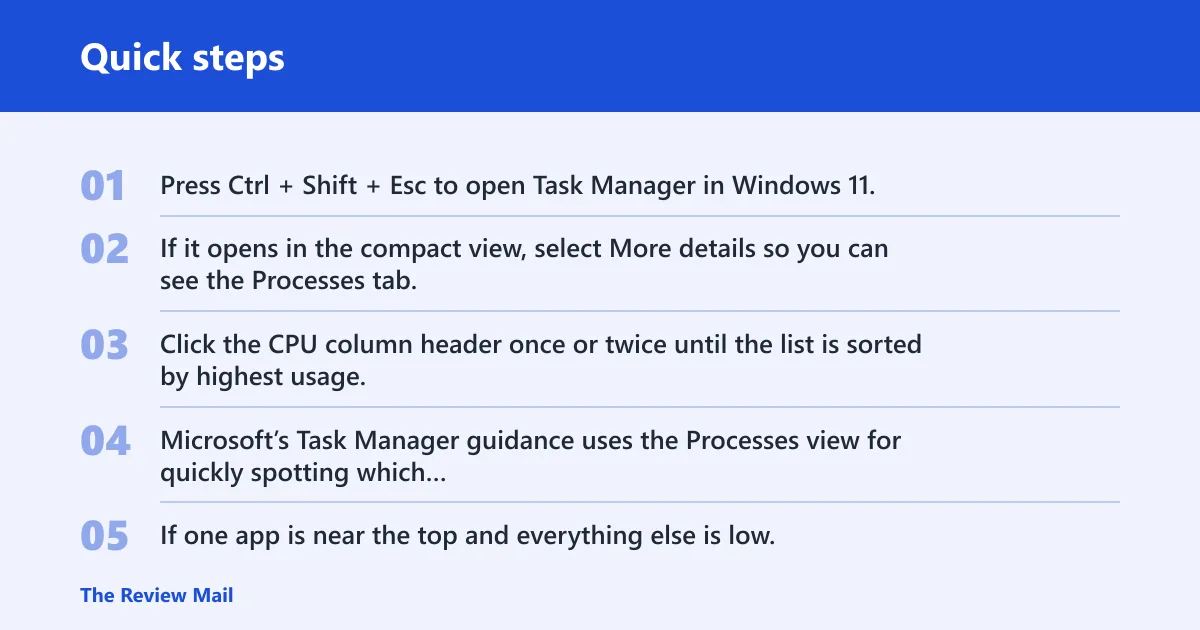
Press Ctrl + Shift + Esc to open Task Manager in Windows 11. If it opens in the compact view, select More details so you can see the Processes tab, the CPU column, and the End task action.
Sort by CPU
Click the CPU column header once or twice until the list is sorted by highest usage. Microsoft’s Task Manager guidance uses the Processes view for quickly spotting which apps and background items are consuming resources, which makes CPU sorting the first triage move.
Check whether one app or many processes are active
If one app is near the top and everything else is low, the problem likely sits in that app. If many background items are active at once, the issue may involve startup items, updates, sync tools, browser tabs, or a service that keeps waking the CPU.
| Symptom pattern | Likely culprit | First check | Next step |
|---|---|---|---|
| Idle desktop, but CPU stays high | Background apps, startup items, Windows Search, Runtime Broker | Task Manager sorted by CPU, then Startup apps | Close unneeded background items, review startup entries, check service activity |
| One app peaking CPU | Single app, browser tab, or stuck process | Processes tab and CPU column | End task, reopen the app, then see if the spike returns |
| System or ntoskrnl.exe near the top | Kernel activity, driver issue, hardware conflict | Confirm the exact process name in Task Manager | Check drivers, recent updates, and service activity |
| Browser-driven spikes | Chrome or another browser, often tab or extension related | Close tabs, watch the browser process list | Test hardware acceleration off, then restart the browser |
| Malware suspicion | Malicious process masking as a familiar name | Windows Security scan and process name review | Run Quick Scan, then Full Scan if the problem stays |
| Spike starts after an update | Driver or system compatibility issue | Recent Windows update and Device Manager changes | Update drivers, then reboot and check CPU usage again |
Why is CPU usage high when the PC is idle?
When the desktop looks idle but CPU stays high, the cause is often background work rather than an open window. Background apps can keep using resources when nothing obvious is on screen, and startup items can relaunch them every time the PC boots. Windows Search and Runtime Broker can also show up in those cases.
Check background apps and startup items
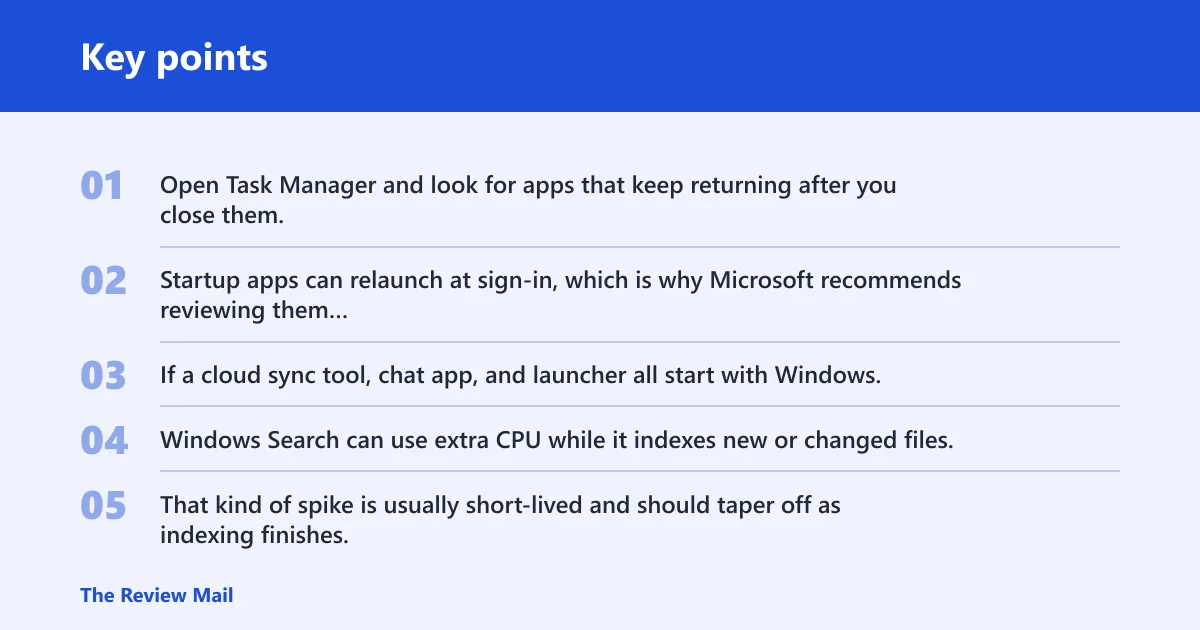
Open Task Manager and look for apps that keep returning after you close them. Startup apps can relaunch at sign-in, which is why Microsoft recommends reviewing them when Windows feels slow. If a cloud sync tool, chat app, and launcher all start with Windows, the load can stay high without any single window looking suspicious.
Review Windows Search indexing activity
Windows Search can use extra CPU while it indexes new or changed files, especially after a reset, update, or large file transfer. That kind of spike is usually short-lived and should taper off as indexing finishes. If the CPU stays high for a long time, the search service may be stuck rather than simply busy.
Look at Runtime Broker and other background processes
Runtime Broker usually runs with low CPU usage. If it spikes, inspect what changed recently, such as a new app permission, a Store app update, or a startup change that keeps waking it. A persistent spike is more useful as a clue than as a conclusion.
What if one app is using most of the CPU?
If one app is at the top of the CPU list, close it cleanly first and then see whether CPU drops. That tells you whether the spike was temporary or tied to that app. If it returns after relaunch, the problem is more likely inside the app, a browser tab, or a plug-in than in Windows itself.
Use End task for the offending app
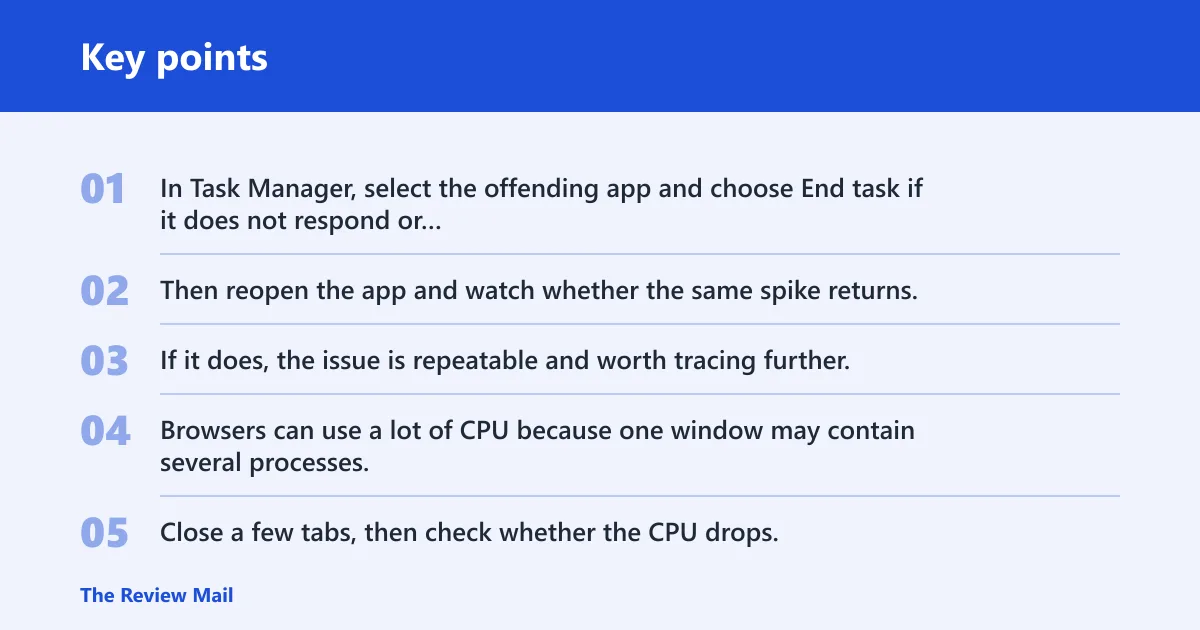
In Task Manager, select the offending app and choose End task if it does not respond or keeps saturating the CPU. Then reopen the app and watch whether the same spike returns. If it does, the issue is repeatable and worth tracing further.
Close browser tabs and check hardware acceleration
Browsers can use a lot of CPU because one window may contain several processes. Close a few tabs, then check whether the CPU drops. If the spike remains tied to the browser, test hardware acceleration by turning it off and restarting the browser. It can help when graphics or video handling is the bottleneck, but it can also hurt performance if the GPU path is the problem.
A common first-timer mistake is blaming Windows when a single browser session is the real load. Picture five tabs, one video stream, and a web app running in the background. The browser can become the top CPU user even though nothing else looks busy.
Verify the process path before trusting the name
Task Manager’s Details tab can help confirm whether a process is really part of Windows or just looks similar. If you need to inspect the file location, open the process details and check the path. A process that mimics a familiar name but lives outside the expected Windows location deserves closer review before you end it.
Restart the app and watch for repeat spikes
If restarting the app clears the problem once but it returns later, that points to an app bug, a bad extension, or a file the app keeps retrying. At that point, update the app, remove recent add-ons, or reinstall the app before treating Windows as the main cause.
System and ntoskrnl.exe checks
System and ntoskrnl.exe can appear in Task Manager when the kernel is doing work on behalf of drivers, hardware, or core Windows tasks. That does not always mean the file itself is broken, but it does mean the real source may sit lower in the stack.
Confirm the exact process name in Task Manager
Confirm that the process name is really System or ntoskrnl.exe, not a similar-looking third-party item. If it is system-related, do not assume a simple app close will solve it. The next checks should focus on drivers, recent updates, and service activity.
Look for driver or hardware compatibility issues
Outdated or incompatible drivers can contribute to high CPU usage, especially around graphics, network, storage, or audio devices. Device Manager is the quickest place to check for updates. Compatibility problems can also show up as repeated spikes after a device wakes, connects, or changes modes.
Check whether the spike started after a Windows update
If CPU use jumped after a Windows update, treat that timing as a clue. A post-update spike can come from a pending driver, a service reindexing files, or a compatibility issue that appeared only after the latest build. Reboot once after the update, then check whether the spike survives the restart.
Windows Security scan steps
When CPU stays high and the process name looks familiar but suspicious, run a security check before you keep changing settings. Malware can disguise itself under system-like process names, so a name alone is not proof that the process is safe. Windows Security gives you the first pass at that check.
Run Quick Scan first
Open Windows Security, go to Virus & threat protection, and start a Quick Scan. A Quick Scan is the fastest way to check for common threats that may be driving unexplained CPU use. If the system is clearly busy, keep an eye on whether the scan itself changes the CPU pattern.
Run Full Scan if the spike persists
If the CPU problem stays after the quick check, run a Full Scan. That matters when a process name looks normal but the behavior does not. A deeper scan is worth it when the spike keeps returning without an obvious app cause.
Watch for process names that imitate Windows components
Be suspicious when a process name looks close to System, Runtime Broker, or another built-in component but sits outside the expected Windows path or keeps relaunching. A disguised process may try to look ordinary in Task Manager. If the name is familiar but the CPU pattern is not, keep digging.
Update drivers and Windows
Drivers and Windows updates matter because compatibility problems can keep the CPU busy even after you close apps. This is the point where a quick triage check becomes a deeper repair step. Update the software stack before you move to stronger fixes.
Check Device Manager for driver updates
Open Device Manager and look for any device that has an update available or shows a warning. Driver problems can produce CPU spikes, especially around graphics, network, storage, or audio devices. If the spike began after a device change, focus there first.
Install pending Windows updates
Install pending Windows updates, then reboot. Some spikes come from a temporarily busy system right after patching, but persistent high CPU after updates deserves another pass through Task Manager and the service list. If the CPU settles after reboot, the issue may have been temporary.
Use Microsoft’s driver and system repair checks
After updates, Microsoft support recommends updating drivers, and for stubborn performance problems it also points to repairing Windows system files with built-in tools. If the same process keeps returning, combine driver updates with system file repair rather than relying on app-level fixes alone. This is especially useful when the problem affects more than one app.
Reboot and recheck CPU usage after updates
After updates, return to Task Manager and sort by CPU again. If the same process remains near the top, the update did not clear the issue. If the list changes, the original spike may have been tied to the update process rather than a lasting fault.
What should you check if CPU stays high after closing apps?
If CPU stays high after you close obvious apps, the problem is often at the service, startup, or system level rather than in one window. Check service activity, background items, and recent system changes next. A persistent spike after the desktop looks empty is a sign to move beyond app-level fixes.
Review service-level activity
Windows Search, update services, and similar background components can keep working even when no app is open. If a service is responsible, closing a window will not change much. That is why service status matters when the spike survives app closing and desktop idle time.
Inspect startup and background app settings
Go back to startup and background app settings and remove anything that does not need to begin at sign-in. Background apps can use resources even when you are not actively using them, and some only become obvious after a reboot. If the issue disappears after disabling one item, you found a good lead.
Treat persistent spikes as a deeper system issue
If CPU remains high after app checks, service checks, driver updates, and security scans, the remaining possibilities include corrupted system files or a broader Windows problem. If built-in repair tools do not change the result, a reset or reinstall may be the last resort.
Frequently asked questions
What does high cpu usage detected mean?
It means one or more processes are demanding a large share of the processor, often enough to slow the PC. That can make the machine slow, hot, noisy, or unresponsive. The key question is whether the spike is brief and expected, or persistent and tied to one process.
How do I view cpu usage in windows 11 task manager?
Press Ctrl + Shift + Esc, open Task Manager, and go to the Processes tab. Then click the CPU column to sort by usage. If you see one app near the top, that is your first candidate for closing, restarting, or checking for a bug.
Why is my cpu usage high on windows 11?
Common causes include too many background processes, a browser session with many tabs, a stuck app, a Windows service, a driver issue, or malware. The fastest way to narrow it down is to check whether the spike happens while idle, after an update, or only inside one app.
How do I tell which app is using the most cpu?
In Task Manager, sort the Processes tab by the CPU column. The top entry is the current biggest user. If the entry is a browser, remember that one visible window may hide several active tasks, so check whether tabs or extensions are the real source.
What should I do if windows 11 shows high cpu usage?
Start with Task Manager, identify the top process, and decide whether the spike is tied to one app or is present while idle. Close the offender, review startup and background items, run Windows Security scans, then check drivers and updates. If it still stays high, move to service checks and system file repair.