Windows 11 100 Cpu Usage Fix
For Windows 11 100 CPU usage fix, first decide whether the spike is normal load, a startup surge, or a stuck background service. If the PC is idle and CPU stays above about 80% for more than 5 minutes, treat it as a possible fault. Ignored spikes can slow boot, stutter games, drain battery, and make Windows Update crawl. This guide separates idle, gaming, and service-caused CPU spikes, then works through the fixes in order.
Identifying normal spikes versus system faults
High CPU is only a problem when it persists while the PC is doing very little. Idle usage should usually stay around 1% to 5-10%. If Task Manager shows 100% while the system is waiting, a background process, service, malware, power setting, or cooling issue is more likely than normal workload.
Suppose the machine sits at the desktop with no app open, yet the CPU column keeps climbing to the top and never drops. That points to a fault. Picture the opposite case: a game is compiling shaders after launch and CPU spikes for a short time. That is often normal.
Windows 11 100% CPU: What to check first
| Symptom | Likely cause | Fastest test | Next action |
|---|---|---|---|
| Idle CPU stays near 100% | Background process, malware, or bad service | Task Manager > Processes tab > sort by CPU | Scan with Windows Security, then stop the top process or service |
| CPU spikes right after boot | Startup apps, update helpers, cloud sync, launchers | Task Manager > Startup apps | Disable unneeded entries and reboot |
| CPU stays high during gaming | Overlay, launcher, anti-cheat, or driver conflict | Close overlays and compare with one game only | Update graphics and chipset drivers |
| CPU spikes during Windows Update | Normal installation activity or update service load | Check Windows Update status in Settings | Let the update finish before changing services |
| CPU rises when the PC heats up | Cooling or throttling issue | Feel for fan noise and check temperature behavior | Improve airflow and change the power plan |
| WMI Provider Host stays at the top | Another app or driver is constantly querying Windows Management Instrumentation | Restart, then sort Task Manager by CPU and watch which app appears with it | Update or remove the related app, then restart WMI if needed |
| SysMain is consuming CPU | Background prefetch activity or a service glitch | services.msc > SysMain > Stop | Test with it stopped, then disable only if CPU drops clearly |
| Malware or unknown process | Suspicious software, adware, or hidden loader | Windows Security full scan and Protection history | Quarantine/remove the item and check whether it returns after reboot |
| Post-boot startup load | Too many startup apps, cloud sync, launchers, updaters | Task Manager > Startup apps | Disable the nonessential items and reboot |
How do I find what is causing high CPU usage in Task Manager?
Task Manager is the fastest way to name the culprit. Open the Processes tab, click the CPU column to sort from highest to lowest, and look at the process at the top. Microsoft support recommends using Task Manager to identify apps and processes that are using system resources, which makes it the first stop for CPU spikes.
- Press Ctrl + Shift + Esc to open Task Manager.
- Select Processes.
- Click the CPU column once or twice so the highest user sits at the top.
- Read the process name, then compare it with what is open on the desktop.
- If the name is unfamiliar, right-click it and choose Open file location or End task only after you identify it.
Do not end random items first. Ending the wrong process can hide the real cause and force you to repeat the search.
Why is Windows 11 idle CPU at 100%?
Idle CPU at 100% is not normal. Microsoft support treats sustained high CPU as a sign to identify the process first, then check for updates, malware, and background services. If the PC is doing little else, a service loop or rogue process is more likely than normal workload.
- Open Task Manager and sort Processes by CPU.
- Note the top process name, then close only clearly unnecessary apps.
- Open Windows Security > Virus & threat protection > Scan options.
- Run a Full scan, then review Protection history for blocked or quarantined items.
- If CPU is still high after the scan, restart the PC and check whether the same process returns.
Malware can cause 100 CPU usage on Windows 11, and unknown processes often hide behind ordinary-looking names. If the scan finds nothing and the load remains high, the next step is to look at services and startup items rather than repeating the same scan.
What startup apps should I disable for high CPU usage?
Disable the startup apps that add load without helping the PC boot. Microsoft says startup apps can slow sign-in and background performance, so the safest candidates are optional tools: cloud sync, game launchers, chat apps, hardware updaters, RGB tools, and printer helpers. Leave security, audio, touchpad, and essential driver items alone.
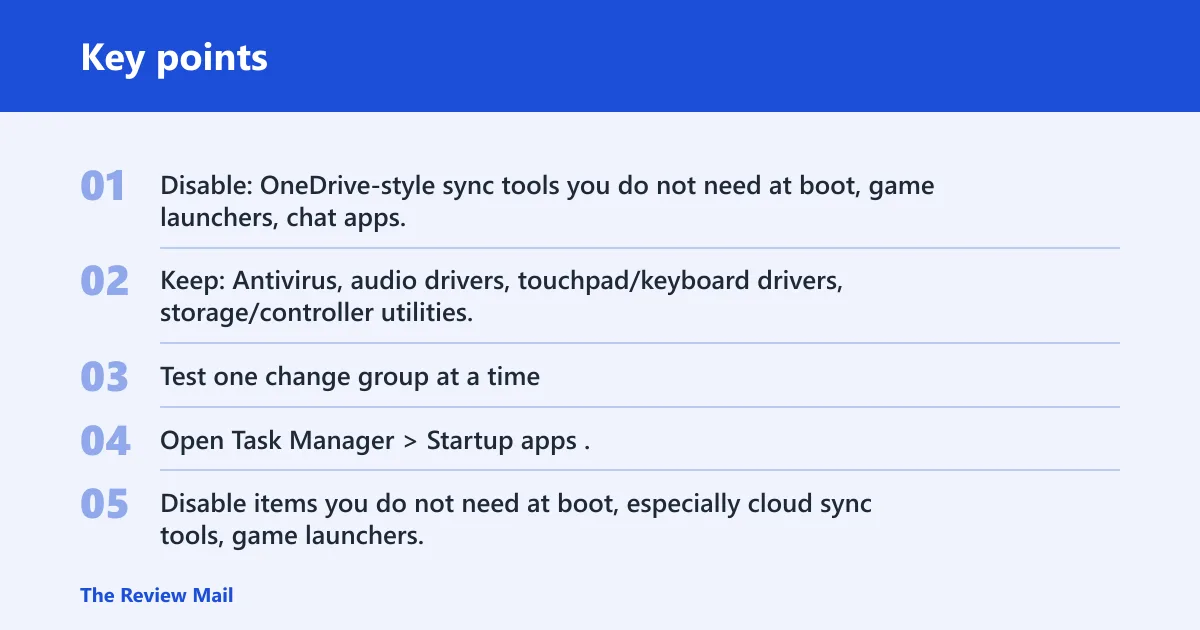
- Disable: OneDrive-style sync tools you do not need at boot, game launchers, chat apps, hardware updater tools, RGB controllers, printer helpers, and vendor tray apps.
- Keep: Antivirus, audio drivers, touchpad/keyboard drivers, storage/controller utilities, VPN only if required, and any app you need immediately after sign-in.
- Test one change group at a time: disable a few items, reboot, and check CPU again.
High CPU right after boot usually points to startup apps, update helpers, sync clients, launchers, or a service that wakes too early. Startup apps are a common cause because they load before you open anything. If WMI Provider Host is the top item for a long stretch, restart the PC and check whether it stays high after sign-in.
- Open Task Manager > Startup apps.
- Disable items you do not need at boot, especially cloud sync tools, game launchers, chat apps, and hardware updaters.
- Restart the PC and check whether CPU settles after sign-in.
- If WMI Provider Host stays near the top, restart the PC once more and then watch whether the same component remains high.
- If the spike returns, reopen Processes and note the exact name before changing more items.
A common first-timer mistake is ending every startup app and service at once instead of checking which one is driving the Windows 11 CPU spike. Change one group, reboot, then check the result. That makes it much easier to see which startup item caused the load.
Should you disable SysMain to fix 100 cpu usage?
SysMain can legitimately use CPU in the background, but Microsoft documents it as a Windows service rather than a permanent culprit. If it is the clear top process when the PC is idle, stop it and compare CPU before disabling it long term. Use that result to decide, not guesswork.
- Press Win + R, type
services.msc, and press Enter. - Find SysMain.
- Right-click it and choose Stop.
- Observe CPU usage in Task Manager for several minutes.
- If the load drops and the problem returns later, open SysMain again and set Startup type to Disabled during troubleshooting.
- If Windows Update is also acting strangely, check Background Intelligent Transfer Service only as a temporary test, then restore it if update downloads slow down.
How to fix 100 cpu usage while gaming windows 11
Gaming can push CPU hard, but sustained maxed-out usage still deserves a check. Overlays, launchers, anti-cheat tools, and driver conflicts are common causes. A high frame rate with a weak CPU can also keep usage high. On laptops, power limits and thermal settings make the result look worse than on desktops.
- Close overlays from Discord, Xbox Game Bar, GeForce Experience, Steam, and similar tools.
- Close extra launchers and background updaters before starting the game.
- Open Device Manager and update or roll back graphics and chipset drivers if the spike started after a driver change.
- Compare Settings > System > Power & battery on a laptop with the desktop power plan on a tower PC.
- If the game still pegs the CPU, test with one title only, then check whether an anti-cheat or launcher process stays at the top.
If a game menu is using more CPU than the gameplay itself, a launcher or overlay is often the cause. If the usage falls when overlays are closed, you have a narrower target to fix.
What if cooling or Windows Update is the cause?
High temperature can force the CPU to throttle and stay busy longer than expected. Windows Update can also drive temporary 100% usage during installation, and that spike is usually normal. Microsoft support notes that update activity and service work can create heavy short-term load, so check whether Settings is still actively installing before changing anything else.
- Check fan noise, case airflow, and whether the laptop intake is blocked.
- Open Settings > System > Power & battery and review the power plan.
- Switch from a high-performance setting to a balanced one if the machine is running hot.
- Open Settings > Windows Update and confirm whether an install is still running.
- If Windows Update is active, wait for it to finish before changing more services.
If the CPU spike ends when the update completes, there is nothing to repair. If it keeps going after the update window closes, move back to Task Manager and identify the exact process name.
Why is WMI Provider Host causing high CPU?
WMI Provider Host is usually a helper process, not the real root cause. When it uses a lot of CPU, another app, driver, or management tool is often querying Windows Management Instrumentation too aggressively. The fastest test is to see whether the load drops after a restart and whether the same app returns with it.
- Restart the PC once.
- Open Task Manager and sort by CPU.
- Check whether WMI Provider Host stays near the top after sign-in.
- Look for hardware utilities, monitoring tools, printer software, or vendor apps that are open at the same time.
- Update or uninstall the related app if the same pair keeps returning.
What should I do if malware or an unknown process is causing CPU spikes?
Unknown or suspicious processes are more likely when CPU stays high at idle. The same source recommends using Windows Security to scan for threats and review Protection history when a process appears abnormal. If the process name changes, respawns, or uses resources without an obvious app tied to it, treat it as suspicious until you identify it.
- Open Windows Security > Virus & threat protection.
- Select Scan options and run a Full scan.
- Check Protection history after the scan completes.
- If the item was quarantined, restart and confirm whether the CPU spike returns.
- If the process is still there, look up its file location before deleting anything manually.
Still not working?
If the same process keeps returning after startup fixes, malware scans, service checks, and cooling checks, move to deeper repair steps. Microsoft support recommends System File Checker, DISM, and other repair tools when Windows components may be corrupted. If repairs fail, a reset or clean install is the last resort.
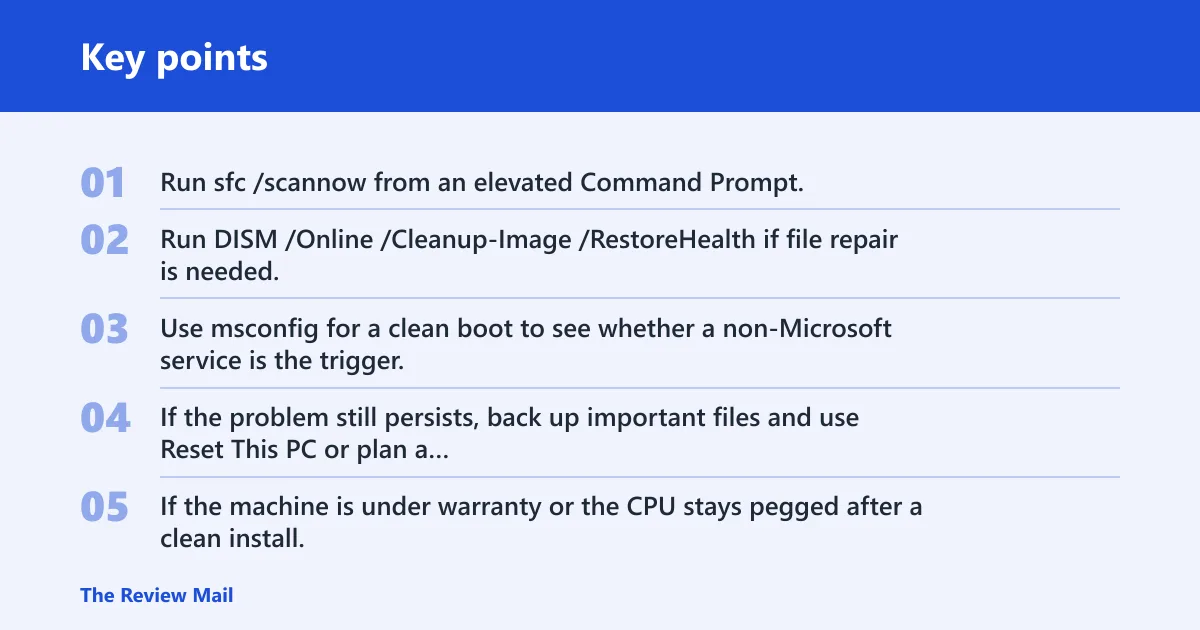
- Run
sfc /scannowfrom an elevated Command Prompt. - Run
DISM /Online /Cleanup-Image /RestoreHealthif file repair is needed. - Use msconfig for a clean boot to see whether a non-Microsoft service is the trigger.
- If the problem still persists, back up important files and use Reset This PC or plan a clean install of Windows.
- If the machine is under warranty or the CPU stays pegged after a clean install, contact the PC maker or a repair shop for hardware-level checks.
Frequently asked questions
How do I fix 100 cpu usage on Windows 11?
Start with Task Manager, sort by CPU, and identify the top process. If the PC is idle, run Windows Security scans and check Protection history. If the spike happens after boot, disable startup apps. If it appears during gaming or Windows Update, confirm whether that activity is the real cause before changing services.
Why is my Windows 11 CPU at 100% when idle?
Idle CPU at 100% usually points to a background process, malware, a stuck service, or a bad power setting. Check Processes in Task Manager first, then run a Full scan in Windows Security. If the load stays high, review SysMain, WMI Provider Host, and any process that reappears after reboot.
How do I find what is causing high CPU usage in Task Manager: open Task Manager, go?
Open Task Manager, go to Processes, and sort by the CPU column. The top entry is the first thing to inspect. If it is a browser, game launcher, sync tool, or update component, close only that item and watch whether the number drops. That tells you whether the cause is temporary or persistent.
Can malware cause 100 cpu usage on Windows 11?
Yes. Unknown processes can consume CPU while hiding in plain sight, especially when the PC is idle. Use Windows Security > Virus & threat protection > Scan options, run a Full scan, and check Protection history for blocked items. If a process returns after removal, treat it as suspicious until proven otherwise.
Is 100 cpu usage normal while Windows is updating?
Yes, temporarily. Windows Update can push CPU to 100% during installation, especially on slower hardware or after a large update. Check whether Settings > Windows Update shows active downloading or installing. If the spike ends when the update finishes, no further fix is needed.