Scanner Not Working Windows 11
Start by separating the fault into four buckets: Windows, driver, network, or scanning app. If the scanner appears in Device Manager but not in the app, the app or driver is usually the problem. Skipping that split wastes time on fixes that cannot work and can leave the device visible but still unusable. This guide shows how to identify the failing layer first, then apply the right fix.
The fastest first check is Windows Scan. If the scanner appears there, Windows can see it and the problem is more likely app-specific, driver-specific, or a TWAIN mismatch. If it does not appear there, start with Windows settings, WIA, cable or network checks, and driver recovery.
Likely causes
Most scanner failures on Windows 11 fall into a small set of layers. Start with the one that matches the symptom, not with every fix at once.
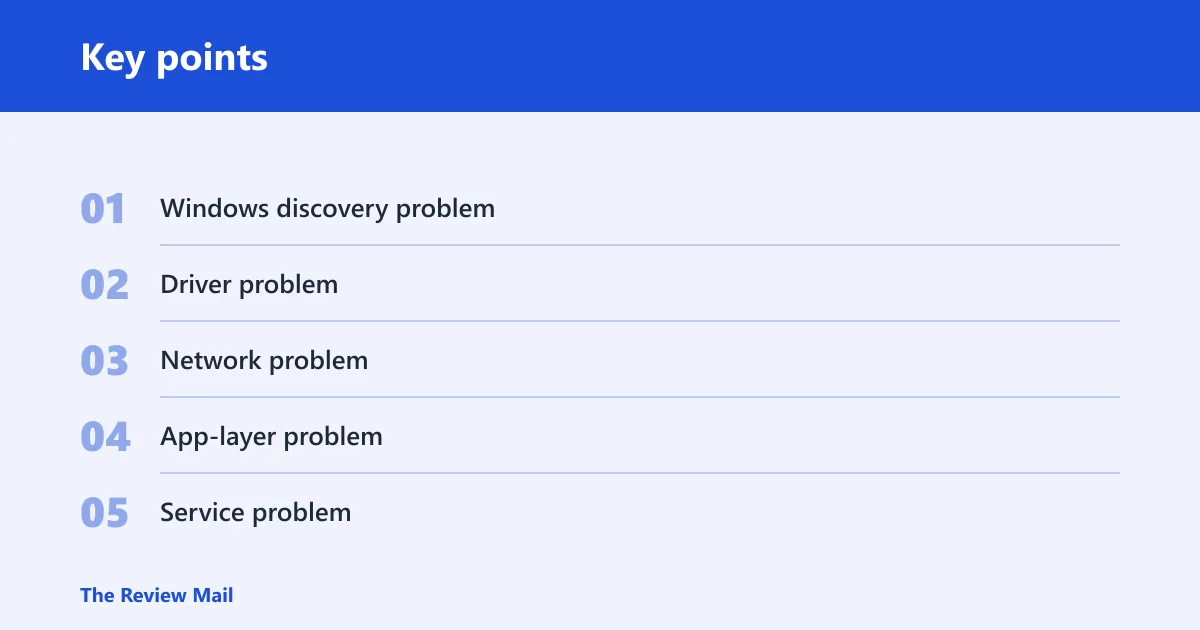
- Windows discovery problem: the scanner is not appearing in Settings or Windows Scan.
- Driver problem: Device Manager shows the device, but scanning fails or options are missing.
- Network problem: the scanner was reachable before, then vanished after a router change or lease renewal.
- App-layer problem: Windows Scan works, but a vendor utility or older TWAIN app does not.
- Service problem: Windows Image Acquisition (WIA) is stopped or disabled after an update or install.
📊 Microsoft’s scanner instructions apply to both Windows 11 and Windows 10. Source: Microsoft.
Scanner diagnosis matrix
| Symptom | Likely layer | Best first check | Next action |
|---|---|---|---|
| USB scanner not detected | USB, driver, or WIA | Unplug from hubs, try another USB port, then check Settings > Bluetooth & devices > Printers & scanners | Use Device Manager under Imaging devices to uninstall or update the driver, then restart WIA |
| Network scanner missing | Network discovery or IP address | Confirm the scanner’s IP address and whether the PC is on the same network | Check WSD discovery, then set a DHCP reservation or static IP and add the scanner again |
| Scanner visible in Windows Scan but not vendor software | App or TWAIN compatibility | Open Windows Scan and try a simple scan there | Install the manufacturer driver package and compare the app’s scanner selection and permissions |
| Scanner vanished after an update | WIA, driver, or Windows files | Check services.msc for Windows Image Acquisition and verify the scanner in Printers & scanners | Restart WIA, reinstall the vendor driver, then run SFC and DISM |
| Scanner works intermittently | USB power, network stability, or service state | Check cable seating, Wi-Fi stability, and whether WIA stays running | Set a DHCP reservation or static IP, then reinstall the correct driver if drops continue |
Verdict: reinstall the vendor driver when the scanner is visible in Windows but broken in the app; restart WIA when Windows sees nothing or the scanner disappears after a software change; fix network or IP settings when a wireless scanner vanishes, changes address, or returns only after a router reset.
Why can’t Windows 11 find my scanner?
Windows 11 usually misses a scanner because discovery failed, WIA stopped, or the driver is wrong or missing. Less often, the problem sits in the app or on the network. Start with the fastest checks in Settings and Windows Scan before moving to services, drivers, or repair tools.
Start with the fastest checks
- Open Settings > Bluetooth & devices > Printers & scanners.
- Select Add device and wait a few minutes if the scanner is local; Microsoft says local scanner discovery can take a few minutes. (Microsoft Support)
- Open Windows Scan and see whether the scanner appears there.
- Power-cycle the scanner, then check that it is plugged in, powered on, and connected to the same Wi-Fi network if wireless.
Microsoft says Windows automatically discovers and installs scanners in most cases, and its scanner instructions apply to both Windows 11 and Windows 10. Microsoft also notes that a multifunction printer may appear as a scanner.
Say your office multifunction unit appears in Printers & scanners but the scan button is missing in the vendor utility. That points away from basic discovery and toward the app or driver layer. If Windows Scan lists the device, Windows can see it.
USB scanner not detected in Windows 11
A USB scanner that is not detected usually points to the cable, port, driver, or WIA service before it points to the app. Fix the connection path first, then refresh the driver, then check the service. That order avoids reinstalling software for a dead cable or a blocked port.
Check the connection path
- Disconnect the scanner from any USB hub or dock.
- Plug it directly into a different USB port on the PC.
- Turn the scanner off, then back on.
- Open Settings > Bluetooth & devices > Printers & scanners and look for it again.
Refresh the driver in Device Manager
- Right-click Start and open Device Manager.
- Expand Imaging devices.
- Right-click the scanner and choose Uninstall device or Update driver.
- Restart Windows, then reinstall the manufacturer package from the support site for HP, Canon, Epson, or Brother if Windows Update does not restore full scanning.
Restart WIA if the scanner still does not appear
- Press Win + R, type
services.msc, and press Enter. - Find Windows Image Acquisition (WIA).
- Open its properties and set Startup type to Automatic if it is stopped.
- Select Restart if the service is running but the scanner still fails to show up.
Guiding Tech and Solve Tech Today both point to WIA, drivers, and network state as the main failure points. Their advice aligns with the common pattern: when Windows cannot talk to the scanner layer, no app fix will help.
Why does my network scanner disappear on Windows 11?
A network scanner often disappears because its IP address changed, discovery depended on WSD, or the router changed after a restart or lease expiration. This is common with multifunction devices that were reachable yesterday and missing today. The first question is whether the scanner still has the same address.
Check the scanner IP address
- Open the printer or scanner’s network screen or embedded web page.
- Note the current IP address.
- Compare it with the address saved in Windows or in the vendor utility.
- If the address changed, update the Windows entry or re-add the device.
Fix discovery and address stability
- Open Settings > Bluetooth & devices > Printers & scanners.
- Remove the old scanner entry.
- Add the device again and wait for discovery.
- In the router, create a DHCP reservation for the scanner, or set a static IP on the device if the vendor recommends that method.
WSD, or Web Services for Devices, can help Windows discover multifunction printers and scanners on a network, but it may expose fewer features than the maker’s software. If the scanner keeps vanishing after router changes, move away from a changing address and pin the device to one IP.
Why does Windows Scan work but vendor software does not?
If Windows Scan works and the vendor app does not, Windows detection is probably fine. That split points to TWAIN, app permissions, or a vendor package problem. Older software often relies on TWAIN, and that layer can behave differently from Windows Scan or newer vendor utilities.
Use Windows Scan as the split test
- Open Windows Scan.
- Choose the scanner and start a basic scan.
- If that works, leave Windows alone and move to the vendor app.
- If Windows Scan fails too, return to WIA, Settings, or the driver layer.
Check for TWAIN and app conflicts
- Open the vendor software and look for a device selector or scan source setting.
- Switch between TWAIN and any vendor-specific scan source if the app offers both.
- Install the manufacturer driver package from the support site rather than relying on a generic Windows Update driver.
- Update the app itself if the maker provides a newer build for Windows 11.
Suppose a 10-year-old document app sees only a flatbed source while Windows Scan detects both the flatbed and feeder. That usually points to the app’s scanning interface, not the scanner hardware. In that case, the vendor package or a newer scan app is the better path.
Scanner repair steps
Use these when the problem crosses layers or started after an update. They are the clean-up steps after connection, IP, and app checks.
Restart or enable Windows Image Acquisition
- Open
services.msc. - Find Windows Image Acquisition (WIA).
- Set it to Automatic if it is stopped.
- Restart the service.
Remove and re-add the scanner
- Open Settings > Bluetooth & devices > Printers & scanners.
- Select the scanner and choose Remove.
- Use Add device to add it again.
- Wait a few minutes for local discovery if needed.
Run system file repair
- Open Command Prompt as administrator.
- Run
SFC /scannow. - Run
DISM /Online /Cleanup-Image /CheckHealth. - Then run
DISM /Online /Cleanup-Image /ScanHealth. - Finish with
DISM /Online /Cleanup-Image /RestoreHealth.
Update or reinstall the maker’s driver
- Open Device Manager and expand Imaging devices.
- Uninstall the scanner driver if Windows keeps showing a broken or duplicate entry.
- Download the full package from the manufacturer support site.
- Install it, then reconnect the scanner and test again in Windows Scan.
Microsoft places scanner setup in Settings > Bluetooth & devices > Printers & scanners, and that is still the right place to verify whether the device is present before and after each repair step.
Why is my scanner not working after a Windows 11 update?
After an update, the most common breakpoints are WIA, the driver, or a damaged Windows file that now blocks scanning. If the scanner vanished right after patching or after another scanner-related install, start with the service and driver, then move to system-file repair.
- Open
services.mscand restart Windows Image Acquisition (WIA). - Check Settings > Bluetooth & devices > Printers & scanners to see whether the scanner still exists.
- Use Device Manager under Imaging devices to uninstall and reinstall the scanner.
- Run
SFC /scannow, thenDISM /Online /Cleanup-Image /RestoreHealth.
If the update also changed app behavior, test the scanner in Windows Scan before touching the vendor utility. That separates a Windows-side regression from a TWAIN or app-specific failure.
Still not working?
If the scanner still fails after WIA, driver, network, and Windows file checks, stop expanding the Windows-side repair list. The next move is vendor support, especially if the device is brand-specific, old, or only partly works in one app. A hard hardware fault becomes more likely when the same scanner fails on a second PC or the same USB port and cable are already known good.
Use the manufacturer package from the support site first, then contact the maker if the scanner still disappears or returns incomplete features. That is the point where Windows troubleshooting has given you the layer, and the remaining issue is likely device-specific.
Frequently asked questions
Is there a scanner in windows 11?
Yes. Windows 11 includes a built-in scanner path in Settings > Bluetooth & devices > Printers & scanners, and Microsoft also provides the Windows Scan app for testing. If the device appears there, Windows can see it even if another app cannot.
How do I get Windows 11 to detect my scanner?
Open Settings > Bluetooth & devices > Printers & scanners, choose Add device, and wait a few minutes for local discovery. If that fails, check services.msc for Windows Image Acquisition (WIA) and confirm the scanner in Windows Scan.
How do I restart the Windows Image Acquisition service?
Press Win + R, type services.msc, and open Windows Image Acquisition (WIA). Set Startup type to Automatic if needed, then choose Restart. That service handles communication with scanners and cameras.
Do I need manufacturer drivers or will Windows Update work?
Windows Update may be enough for basic detection, but the manufacturer package is often the better choice when features are missing or the scanner works only in some apps. Use the vendor site for HP, Canon, Epson, or Brother when Windows Scan works but the full utility does not.
How do I fix a USB scanner not detected in Windows 11?
Try a direct USB port, then check Settings > Bluetooth & devices > Printers & scanners, then use Device Manager under Imaging devices to reinstall the driver. If it still does not appear, restart WIA and test again in Windows Scan.