Pc Keeps Freezing Randomly Windows 11
If a Windows 11 PC freezes at random, start with the timing. Freezes under load often point to heat, GPU, or power trouble; freezes at idle often point to drivers, storage, or startup software. If you ignore when it happens, you can spend hours on the wrong fix and risk data loss. This guide shows how to narrow freezes by timing, triggers, and resource spikes before you change settings or replace parts.
Freeze patterns and likely causes
Random freezes are usually a symptom, not the fault itself. Start by restarting the PC, installing any pending Windows Update items, and opening Task Manager with Ctrl + Shift + Esc to check for CPU, memory, disk, or GPU spikes.
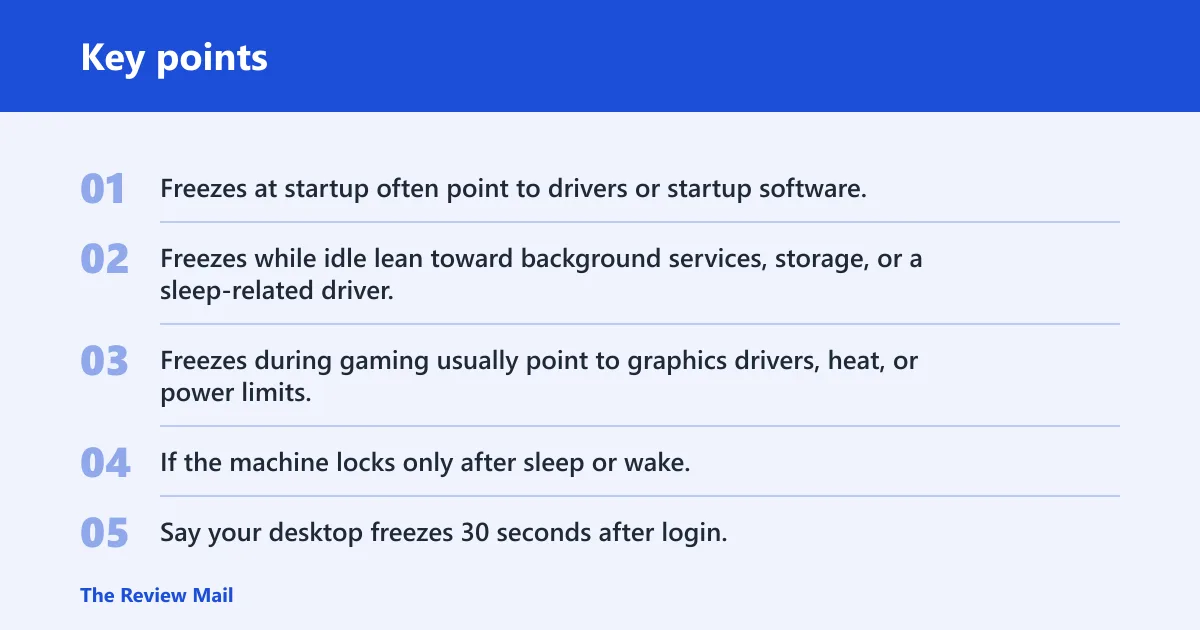
Use timing to separate causes. Freezes at startup often point to drivers or startup software. Freezes while idle lean toward background services, storage, or a sleep-related driver. Freezes during gaming usually point to graphics drivers, heat, or power limits. If the machine locks only after sleep or wake, the trigger is often a device driver that fails during power-state changes.
Say your desktop freezes 30 seconds after login, but only when OneDrive and a browser restore at once. That pattern points more toward startup software or a driver conflict than a bad SSD. Suppose a laptop locks after 10 minutes in a game and the fans are loud; that pattern puts heat and graphics higher on the list.
Freeze triage table
| Symptom pattern | Most likely cause | First check | Next escalation step |
|---|---|---|---|
| Freezes on startup | Startup app or driver conflict | Safe Mode and Task Manager startup items | Disable nonessential startup apps, then update drivers |
| Freezes while idle | Background service, storage, or sleep bug | Reliability Monitor and disk activity in Task Manager | Run CHKDSK and test in Safe Mode |
| Freezes during gaming | Graphics driver, heat, or power limit | GPU temperature, fans, and vendor driver version | Update Intel, AMD, or NVIDIA driver and lower load |
| Freezes after updates | Bad update, driver mismatch, or corrupted system files | Reliability Monitor event history | Run SFC, then DISM, then uninstall the latest update if needed |
| Browser-heavy freezes | Memory pressure or extension conflict | Task Manager memory use and browser extension count | Reduce tabs, disable extensions, and check paging file settings |
| Freezes after sleep or wake | Power-state driver issue | Device Manager and Reliability Monitor | Update chipset, graphics, and network drivers |
| Freezes with low disk space | Paging file pressure or update failure | Free space on C: and virtual memory settings | Free space, then review paging file configuration |
| Freezes under high RAM use | Faulty RAM or memory pressure | Windows Memory Diagnostic | Reseat RAM, then test each stick separately |
| No clear pattern | Mixed software or hardware fault | Reliability Monitor and Safe Mode | Run SFC, DISM, and CHKDSK before hardware testing |
| Freezes stop in Safe Mode | Third-party driver or app | Clean boot path and startup apps | Disable recent software, then update or remove the culprit |
What should you check first?
The first pass should be quick and low-risk. Restart the PC, install any pending Windows Update items, then check Task Manager for one process or category pegging CPU, memory, disk, or GPU. After that, open Reliability Monitor with perfmon /rel to see whether the same day lines up with app failures, driver faults, or Windows updates.
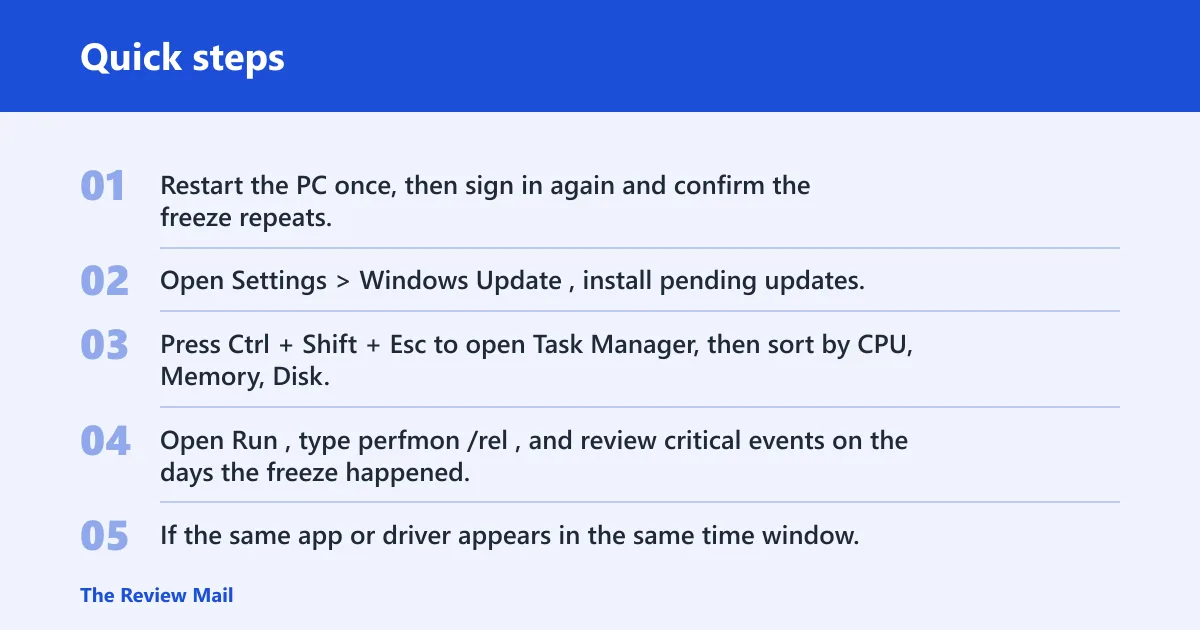
- Restart the PC once, then sign in again and confirm the freeze repeats.
- Open Settings > Windows Update, install pending updates, and check optional driver updates if they are offered.
- Press Ctrl + Shift + Esc to open Task Manager, then sort by CPU, Memory, Disk, and GPU one at a time.
- Open Run, type perfmon /rel, and review critical events on the days the freeze happened.
- If the same app or driver appears in the same time window, fix that item before broad repair scans.
If that did not help, move to Safe Mode. If freezing stops there, third-party software or a driver is the stronger suspect. If the machine still freezes in Safe Mode, hardware and system-file checks move up the list.
Why does my PC freeze only when gaming?
Gaming-only freezes usually point to the graphics path first. The strongest suspects are the GPU driver, heat, power delivery, overlays, or a launcher running in the background. Value 4 Wealth also identifies overheating as one of the most common causes of random freezing, and gaming freezes can point to heat or graphics issues.
- Install the latest vendor graphics driver from Intel, AMD, or NVIDIA rather than relying on a generic package.
- Open Task Manager and watch GPU, CPU, and memory use while the game loads.
- Check fans, vents, and dust buildup. On laptops, make sure the rear and side vents are not blocked.
- Turn off overlays from game launchers, recording tools, and frame counters.
- If the freeze starts after a driver change, roll back that graphics driver in Device Manager.
A common first-timer mistake is blaming the game itself when the freeze happens only after the GPU reaches a higher load. A graphics driver update or a temperature drop often changes the pattern quickly.
Could RAM or storage be causing it?
Yes. Bad RAM, a failing drive, file-system errors, and corrupted Windows files can all freeze the desktop without a blue screen. Windows Memory Diagnostic checks RAM. CHKDSK checks file-system errors and bad sectors. SFC plus DISM repair Windows files and the Windows image. These are the right tools when the pattern points away from a simple app conflict.
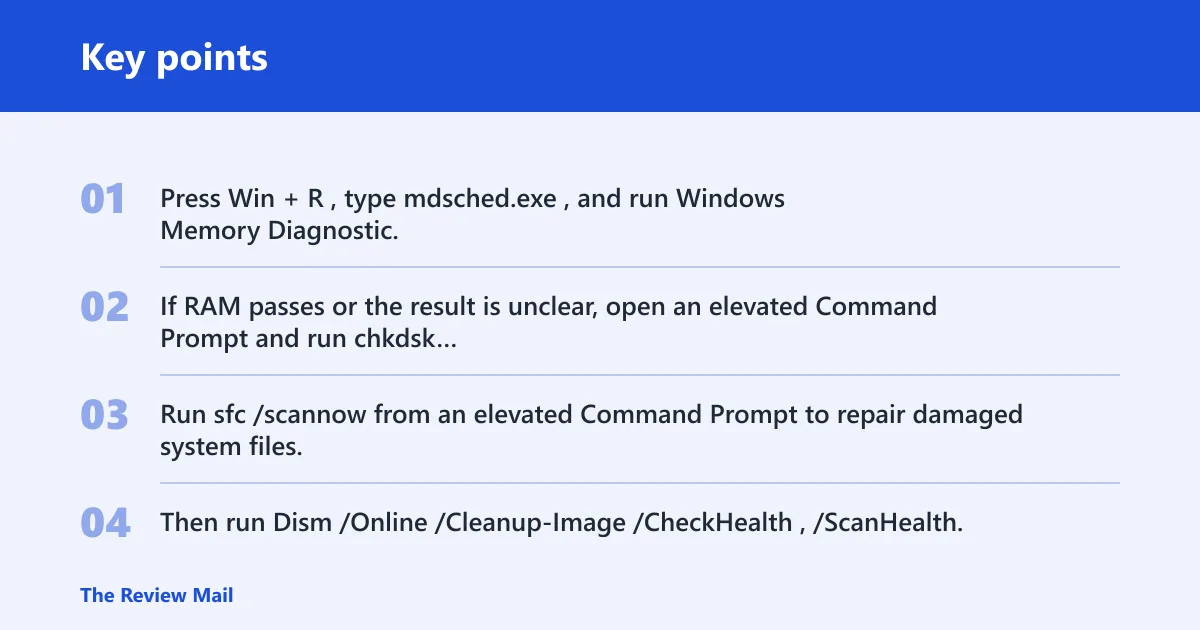
- Press Win + R, type mdsched.exe, and run Windows Memory Diagnostic; it requires a restart to begin.
- If RAM passes or the result is unclear, open an elevated Command Prompt and run
chkdsk /f /rorchkdskC: /f /r /x; Windows can schedule it on the next restart. - Run
sfc /scannowfrom an elevated Command Prompt to repair damaged system files. (Wikihow) - Then run
Dism /Online /Cleanup-Image /CheckHealth, /ScanHealth, and /RestoreHealth if SFC reports damage or the freeze pattern still points to system corruption.
If freezes happen under heavy browser use or when many apps are open, check virtual memory and paging file pressure. Competitor guidance often points to a custom paging file around 1.5–2× installed RAM, but that is guidance, not a fixed rule. Low free space on C: can make the problem worse.
Can overheating make a Windows 11 PC freeze?
Yes. Heat can stall the GPU, CPU, or both, especially on thin laptops and gaming PCs. Dust, weak airflow, dried thermal paste, and a blocked intake can push the system into thermal throttling or a hard freeze. A freeze that appears after the fans ramp up is a strong clue.
- Check vents, fans, and case airflow first; clear visible dust from intakes and exhaust points.
- Set power mode to Best performance if available, especially on desktops and plugged-in laptops.
- Watch for freezes after long load spikes, such as gaming, video export, or large file copies.
- If the machine still locks, test again with the side panel open only for diagnosis, then return it to normal use.
What if the freeze stops in Safe Mode?
If Safe Mode is stable, Windows itself is less likely to be the root cause. The stronger suspects are third-party drivers, startup software, background utilities, or a vendor tool that loads at sign-in. That makes the next step removal or isolation, not another broad repair scan.
- Press Shift while selecting Restart, then choose Troubleshoot > Advanced options > Startup Settings and boot into Safe Mode.
- If the freeze disappears, disable startup apps in Task Manager > Startup apps.
- Uninstall recent third-party utilities, RGB tools, overclocking software, and hardware monitors one by one.
- Restart after each change and recheck the same freeze pattern.
When should hardware testing move to the top?
Move hardware up the list when the freeze repeats after SFC, DISM, CHKDSK, driver updates, and Safe Mode checks, or when the pattern looks physical from the start. A freeze that appears in BIOS-adjacent loads, a machine that hard-locks under every OS session, or one that fails with a specific RAM stick removed should stop software-only troubleshooting.
Also watch for loose cables, a drive that vanishes and returns, or a system that freezes under light load with no app pattern. AOMEI identifies loose or faulty hardware connections as a cause of SSD freezing, which makes storage cabling and power connectors worth checking before replacing parts.
If that did not work, try this next: reseat RAM and storage cables, test each memory stick alone, and if possible test the drive in another system or with a known-good drive. If the freeze survives those checks, contact the PC or motherboard vendor for hardware diagnostics.
Frequently asked questions
Why does my PC keep randomly freezing?
The usual split is timing: freezes under load point to heat, graphics, or power; freezes while idle point to drivers, storage, or startup software. Check Task Manager first, then Reliability Monitor, then the targeted scan that matches the pattern. That order avoids wasting time on the wrong repair.
Why does my PC keep freezing randomly Windows 11?
On Windows 11, pending updates, graphics drivers, paging file pressure, and corrupted system files are common places to look first. Start with Windows Update, then Task Manager, then perfmon /rel. If the machine freezes after sleep or gaming, focus on drivers and heat before broad system repair.
How do I tell if bad RAM is causing the freezes?
Run mdsched.exe from Win + R and let Windows Memory Diagnostic complete after restart. If errors appear, test one RAM stick at a time and try different slots. Freezes that appear during heavy multitasking, browser use, or random app switches fit RAM pressure more than a single app fault.
Should I run CHKDSK or SFC for random freezes?
Run SFC first if you suspect damaged Windows files, then use DISM if SFC reports problems or the image needs repair. Use CHKDSK when the pattern points to drive errors, bad sectors, or a freezing PC with disk activity spikes. They solve different problems.
Can a driver update stop Windows 11 freezes?
Yes, especially for graphics freezes, sleep/wake problems, and some startup locks. Install the latest vendor driver from Intel, AMD, or NVIDIA before relying on a generic package. If the freeze began right after a driver update, try a rollback from Device Manager instead of updating again.