0xc00002a Error Windows 11
0xc00002a on Windows 11 needs a code check first: if the screen also names a different stop code such as STATUS_SYSTEM_PROCESS_TERMINATED or HALT: c000021a, you are likely looking at a separate boot failure path, so the safest first move is to match the exact on-screen text before you repair anything. Then choose the least risky WinRE fix that fits when the crash began.
Boot error triage matrix
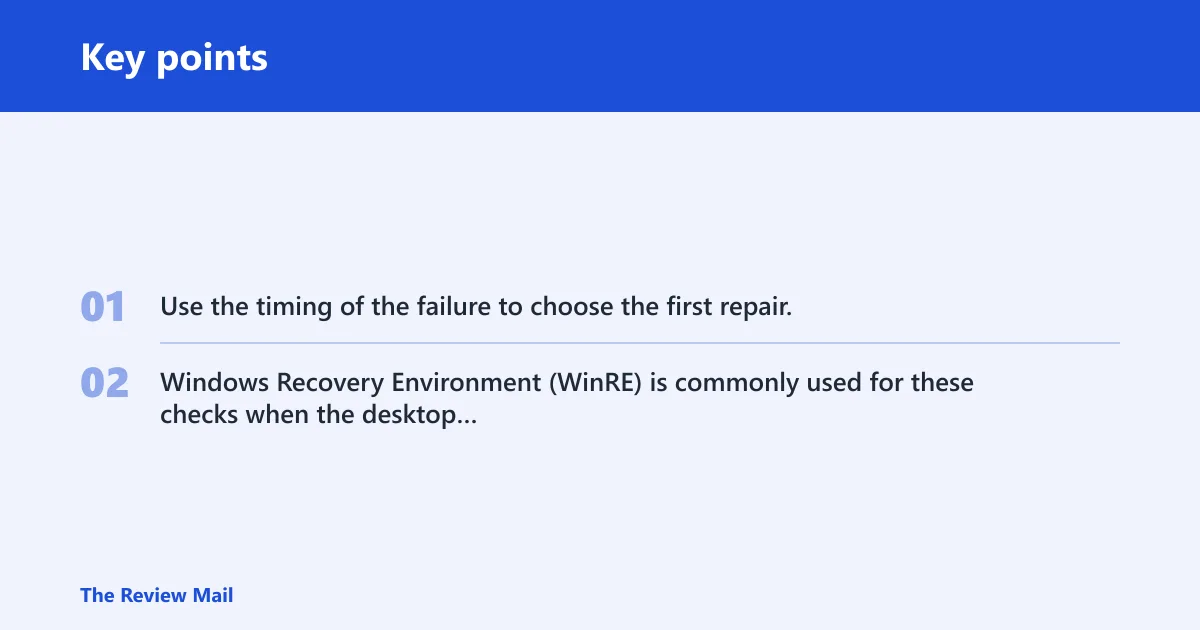
Use the timing of the failure to choose the first repair. Windows Recovery Environment (WinRE) is commonly used for these checks when the desktop will not load, because it provides Startup Repair, update removal, System Restore, and Command Prompt in an offline environment.
| Symptom pattern | Most likely cause | Safest first fix in WinRE | When to escalate |
|---|---|---|---|
| Boot loop starts right after Windows Update finishes | Bad quality or feature update | Uninstall the latest quality update first | Escalate to the latest feature update rollback if the problem began after a major release change |
| Crash appears only when a USB drive, dock, or printer is attached | External device or driver conflict | Remove nonessential USB devices and retry startup | Escalate if the same code returns with only keyboard, mouse, and display connected |
| Command Prompt in WinRE does not show the expected Windows drive letter | Wrong volume mapping in recovery | Find the real Windows volume before running SFC or DISM | Escalate if you cannot identify the offline Windows partition at all |
| Startup Repair runs, then the same stop screen returns | Corruption that automatic repair could not fix | Run offline SFC, then DISM, then System Restore | Escalate if repair commands fail, or the loop returns after restore |
What does 0xc00002a error mean on Windows 11?
It means Windows is failing before the desktop loads, so the fix has to happen in WinRE or from installation media instead of inside the normal session. Treat it as a boot-state problem first, not a normal restart glitch, and confirm the exact on-screen wording before using fixes meant for nearby stop codes.
Microsoft describes stop-code crashes as serious restart failures on Windows 10 and Windows 11, and its support guidance notes that a stop code appears at the bottom of the screen. Other guides often mix this code with boot failures involving Winlogon.exe and Csrss.exe, so exact code matching matters before you pick a repair path.
What to note before you try anything
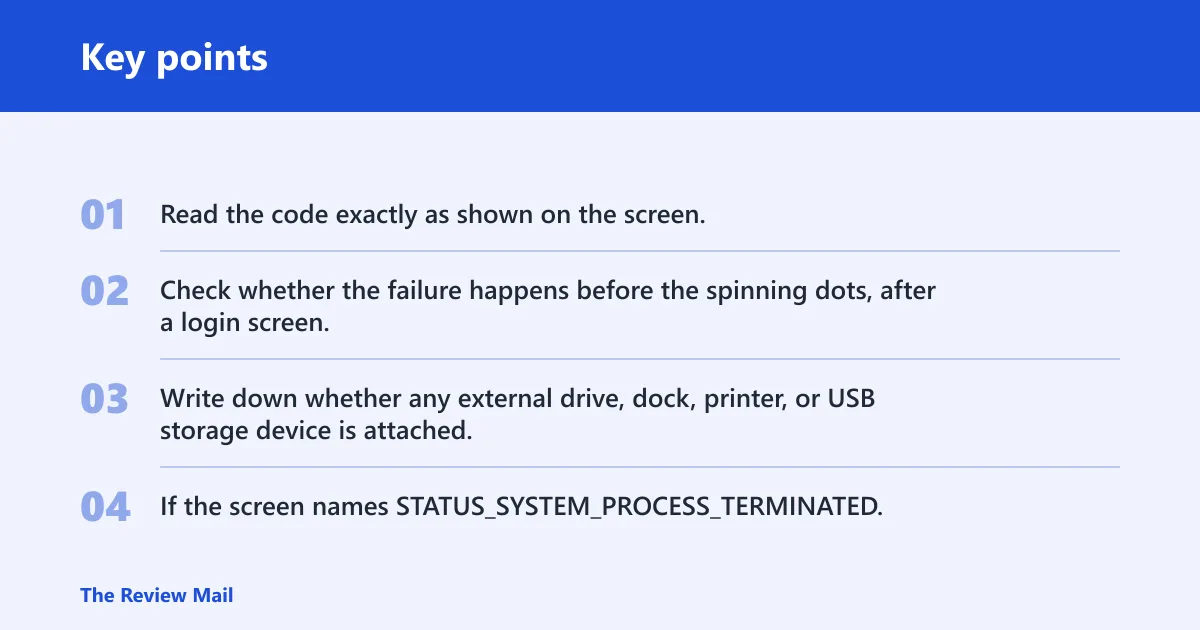
- Read the code exactly as shown on the screen.
- Check whether the failure happens before the spinning dots, after a login screen, or after an update finishes.
- Write down whether any external drive, dock, printer, or USB storage device is attached.
- If the screen names STATUS_SYSTEM_PROCESS_TERMINATED, that is a critical boot-process termination path often discussed with Winlogon.exe and Csrss.exe.
Say your PC boots normally until a cumulative update finishes, then it restarts into the same error screen. That points you toward update rollback before file repair. Suppose the error only appears when a USB SSD is attached. Remove the device first and confirm whether the boot loop stops.
Should you unplug USB devices first?
Yes. If the crash began with a newly attached device, remove nonessential USB hardware before anything else. That is the least risky first check, and Microsoft specifically recommends removing new hardware before restarting when an unexpected restart follows device changes.
Do this in order
- Shut the PC down completely.
- Disconnect every nonessential USB device: external drives, hubs, printers, dongles, game controllers, card readers, and docks.
- Leave only the keyboard, mouse, and display connected.
- Start the PC and watch whether the same code appears again.
- If Windows loads far enough to reach the desktop, reconnect one device at a time and reboot or sign out between changes to see which device re-triggers the failure.
If the loop stops with the extras removed, the likely issue is the detached device or its driver. If the loop remains, move to recovery tools rather than reconnecting everything at once.
How do I fix a 0xc00002a blue screen in WinRE?
Start with WinRE, then use the built-in tools in this order: Startup Repair, update uninstall, offline file repair, and System Restore. That sequence keeps the least invasive options first and avoids overwriting a fixable boot state with a broader repair too early.
Enter WinRE first
- Power on the PC, then interrupt startup as soon as Windows begins to load.
- Repeat that interruption until Windows opens Windows Recovery Environment (WinRE).
- If the machine will not enter recovery on its own, boot from Windows installation media and choose Repair your computer.
- Open Troubleshoot > Advanced options.
Run Startup repair
- Select Startup Repair.
- Choose the Windows installation if prompted.
- Let the scan finish before forcing another reboot.
- If Startup Repair reports no fix or the same screen returns, continue to update removal.
Startup Repair is the first repair to try, but it is not guaranteed. If it finishes and the machine still loops back to the stop screen, move on.
Can a bad Windows update cause 0xc00002a error?
Yes. A recent bad update is a common trigger in boot-loop cases, and the safest response is to remove the newest update from WinRE before trying deeper repairs. If the failure started after a major release change, roll back the latest feature update instead of a routine quality update.
Remove the update from WinRE
- Open Troubleshoot > Advanced options > Uninstall Updates.
- Choose Uninstall latest quality update first.
- If the problem began after a feature release, choose Uninstall latest feature update instead.
- Restart and check whether Windows passes the boot screen.
If update removal works, stop there and let Windows boot normally before adding anything back. If it does not, continue with offline repairs.
How do I run SFC and DISM offline for this error?
Run them from WinRE, not from a half-started desktop. First confirm the Windows volume letter, because WinRE often assigns a different drive letter than the one seen in normal Windows. Then point SFC and DISM at the offline image using the correct paths.
Find the Windows drive letter
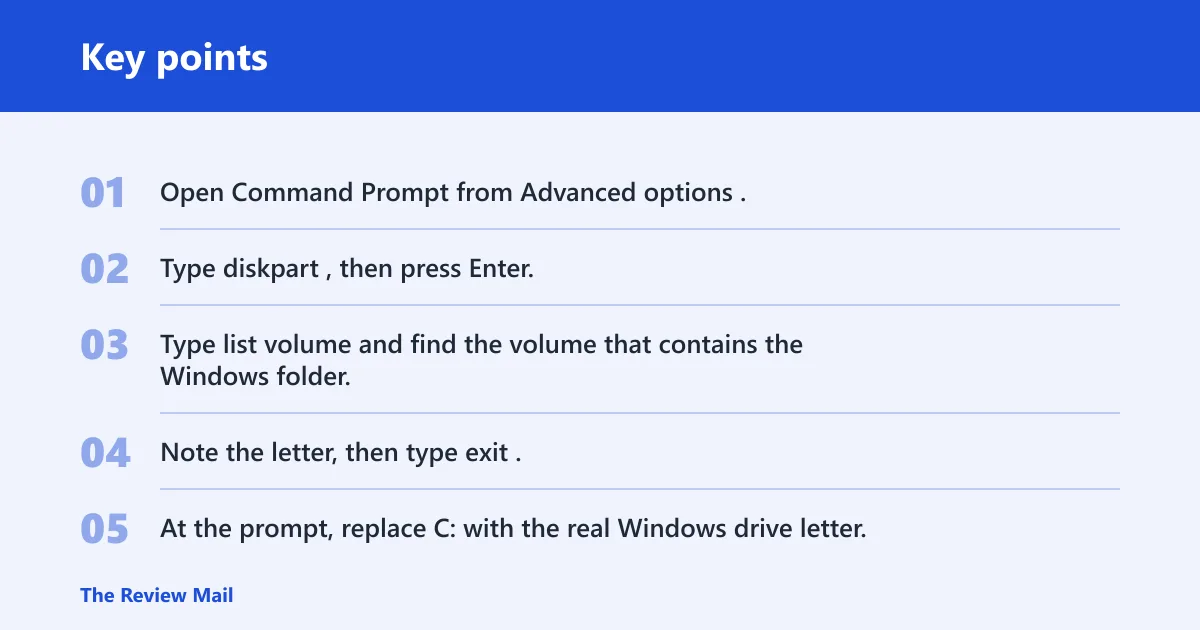
- Open Command Prompt from Advanced options.
- Type diskpart, then press Enter.
- Type list volume and find the volume that contains the Windows folder.
- Note the letter, then type exit.
Run offline SFC
- At the prompt, replace C: with the real Windows drive letter.
- Run:
sfc /scannow/offbootdir=C:\ /offwindir=C:\Windows - Wait for the scan to complete before rebooting.
- If SFC says it cannot access the offline image, recheck the drive letter and folder path.
Run offline DISM
- Use the same confirmed Windows drive letter.
- Run:
DISM /Image:C:\ /Cleanup-Image /RestoreHealth - Let DISM finish, then rerun offline SFC if Windows still will not boot.
- If DISM cannot complete, the recovery path is no longer a simple file repair.
If WinRE cannot find the correct volume, do not guess. Wrong drive letters are a common reason offline repairs fail without fixing anything.
When should you use system Restore or Safe Mode?
Use System Restore when the failure began after a driver, update, or other system change and you want to roll back the system state without touching personal files. Use Safe Mode with Networking only if Windows still reaches a minimal startup path and you need a stripped-down session for removal or verification.
Use System restore in winRE
- Open Advanced options > System Restore.
- Select a restore point from before the failed change.
- Confirm the rollback.
- Restart and check whether the boot loop is gone.
Use Safe Mode with Networking if Windows can still load
- From Advanced options, choose Startup Settings.
- Restart and select Safe Mode with Networking.
- Use it to remove a recent driver, review update history, or run repair tools that need limited network access.
- If Safe Mode is not available, return to WinRE and continue offline.
System Restore keeps personal files, but it rolls back drivers, updates, and system state. That makes it useful when the issue began right after a change and the machine still has a valid restore point.
What to do when WinRE repairs fail
If Startup Repair, update rollback, SFC, DISM, and System Restore all fail, the boot state is likely damaged beyond standard offline repair. At that point, move to a repair install or a clean reinstall rather than repeating the same short loop of fixes.
Escalation ladder
- Retry WinRE and confirm the Windows partition letter again.
- Rerun offline SFC and DISM with the exact drive path.
- Check whether Secure Boot or test-signing changes are blocking startup if you recently changed boot settings.
- Back up data from WinRE or another bootable environment, then use a repair install or Reset This PC if recovery keeps failing.
Prevention: after Windows is working again, keep a restore point before large updates and avoid attaching unfamiliar bootable USB drives during the next restart cycle.
Frequently asked questions
Why does Windows 11 keep restarting with a 0xc00002a error?
A boot loop usually points to a recent update, a bad driver, or corrupted system files. Check the timing first: if it began after Windows Update, use Uninstall Updates; if it began after hardware was added, remove that device and try again.
Will Startup Repair fix 0xc00002a on Windows 11?
It may, but not always. Run it first because it is low risk, then move to update removal and offline repairs if the same screen comes back. A failed Startup Repair is a sign to keep going, not to repeat the same step.
Should I unplug USB devices before troubleshooting 0xc00002a?
Yes. Shut the PC down completely, disconnect every nonessential USB device, and leave only keyboard, mouse, and display attached. If Windows starts normally, reconnect devices one at a time so you can spot the one that triggers the loop.