System Pte Misuse Windows 11
SYSTEM_PTE_MISUSE in Windows 11 usually points to a driver, firmware, or storage fault. Start by matching the crash to its timing: boot, a recent update, a BIOS or UEFI change, or new hardware. Microsoft’s bug check guidance and dump-file guidance make that order the fastest way to separate a bad driver from a broader system problem.
What SYSTEM_PTE_MISUSE means
SYSTEM_PTE_MISUSE is a Windows blue-screen stop code, commonly shown as 0x000000DA. It usually means Windows hit a memory-management failure it could not recover from, but the actual trigger is often a driver, firmware setting, storage issue, or corrupted system files.
What crash patterns should you sort first?
| Crash pattern | Most likely cause | First safe action | Escalation step | Why this pattern points there |
|---|---|---|---|---|
| Boot-loop crash | Firmware setting change, bad driver at startup, or damaged system files | Try Safe Mode or recovery options before changing BIOS settings | Check minidumps, then run DISM and SFC | Crashes before the desktop often implicate startup drivers or a recent firmware change. |
| Post-upgrade crash | Driver mismatch after a Windows update or feature update | Roll back the recent driver or update it from the OEM support page | Inspect dump files for the crashing module | A version change is the clearest clue when the crash starts right after installation. |
| Gaming load crash | GPU driver fault, thermal stress, or unstable graphics settings | Reinstall the GPU driver from the OEM support page | Check whether older driver versions are more stable | Games put the graphics stack under repeatable load, so the same workload can reproduce the fault. |
| After a new GPU | Graphics driver conflict or power-related hardware issue | Remove the new driver and install the manufacturer package cleanly | Test with the prior GPU if available | A new adapter changes both the driver stack and power draw, narrowing the suspect list. |
| After BIOS change | TPM or PTT setting conflict, or another firmware option changed at the same time | Return only the changed setting to its prior state | Document the exact setting before any other change | A crash that starts immediately after firmware edits makes BIOS or UEFI settings the strongest clue. |
| After SSD install | Storage driver problem, cabling issue, or disk corruption | Check the drive connection and run repair steps after boot access returns | Run disk checks and review dump files for storage clues | New storage hardware can expose controller, cabling, or file-system problems right away. |
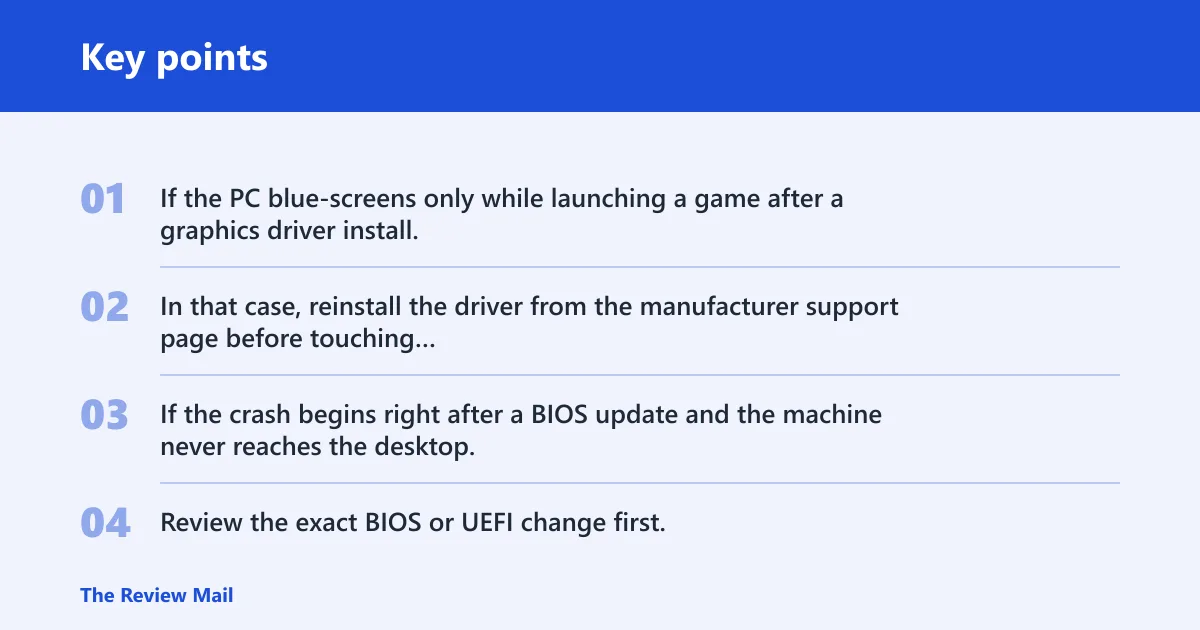
If the PC blue-screens only while launching a game after a graphics driver install, that pattern points more strongly to the GPU driver than to TPM or SSD settings. In that case, reinstall the driver from the manufacturer support page before touching firmware options.
If the crash begins right after a BIOS update and the machine never reaches the desktop, firmware settings become more suspicious than Windows itself. Review the exact BIOS or UEFI change first, then use dump files and repair tools to confirm whether the firmware change is the real trigger.
Should you change TPM or PTT settings?
TPM, or Trusted Platform Module, is a security component that may be hidden or configurable in BIOS or UEFI on some systems. PTT, or Platform Trust Technology, is Intel’s firmware TPM implementation. If SYSTEM_PTE_MISUSE appears right after a firmware change, TPM or PTT belongs in the diagnosis, but only as a targeted check.
BIOS or UEFI setup is where these settings usually live, and that same menu also holds other boot and security options. Change only one setting at a time, record the original value, and use your PC maker’s BIOS/UEFI help for the exact navigation steps on that model.
When firmware changes make sense
- Open BIOS or UEFI setup at startup.
- Find the security section and locate TPM or PTT.
- Change only the option that was recently altered, if any.
- Save changes and reboot.
- If the crash stops, treat that as a clue, not a final fix.
Leave security settings alone if the crash began after a driver install, a Windows update, or a new SSD. In those cases, changing firmware first can hide the original cause and make later diagnosis less reliable.
Run SFC and DISM first
DISM and SFC are the right early checks when the crash looks like corrupted system files rather than a firmware or hardware change. Microsoft’s repair guidance places DISM before SFC for image corruption, so use DISM.exe /Online /Cleanup-image /Restorehealth first, then run sfc /scannow.
Use this pair after you have sorted the crash pattern. They can repair protected files, but they do not rule out a driver, firmware, or storage problem that still needs attention.
Repair order that makes sense
- Open an elevated Command Prompt or Windows Terminal.
- Run DISM.exe /Online /Cleanup-image /Restorehealth.
- After DISM finishes, run
sfc /scannow. - Restart and retest the crash path.
Microsoft notes that corrupted files can make Windows malfunction or freeze. That is why these commands belong early in the process, especially when the PC still reaches the desktop or Safe Mode.
A clean result from SFC does not rule out a bad GPU driver, a failing SSD, or a firmware conflict. It only means protected system files were not the main problem, or they were repaired without touching the real trigger.
How do you check drivers and dump files?
Device drivers are a common cause, especially graphics and storage drivers. The safest path is to use the OEM or vendor driver documentation for your exact device, then reinstall or roll back only the driver that matches the crash timing. Microsoft’s dump-file guidance makes the minidump folder the first place to confirm the crashing module.
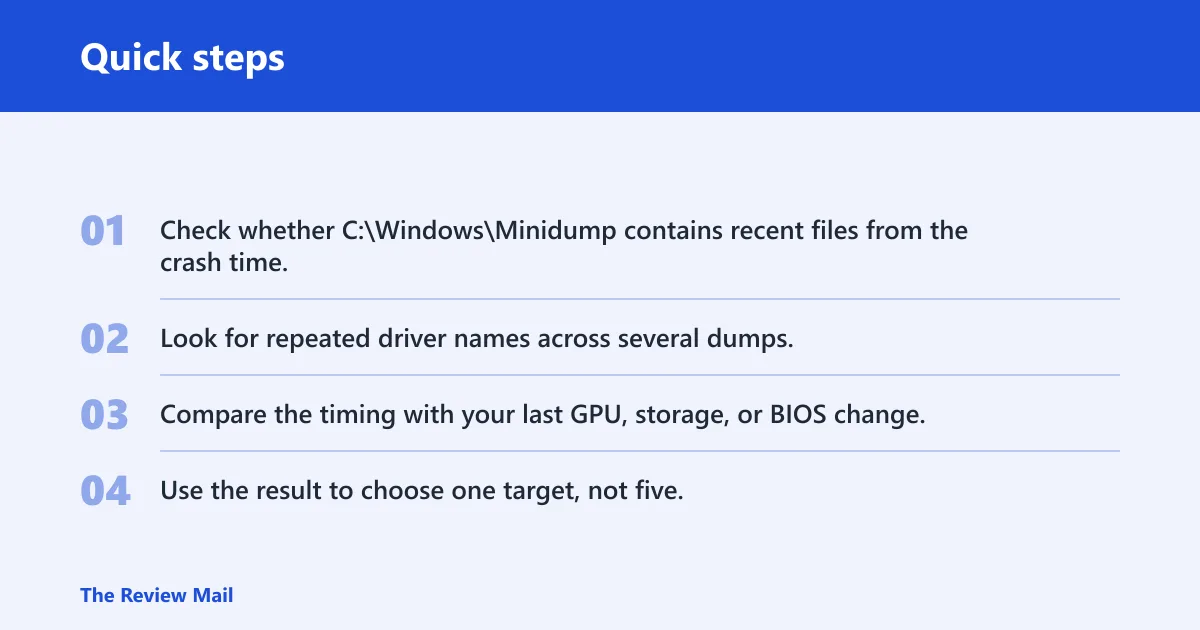
Windows Memory Dump files can show the crashing module. Look for MEMORY.DMP or the minidump files in C:\Windows\Minidump. These files are the practical bridge between a repeated blue screen and a specific driver or module name.
What to look for in dump files
- Check whether
C:\Windows\Minidumpcontains recent files from the crash time. - Look for repeated driver names across several dumps.
- Compare the timing with your last GPU, storage, or BIOS change.
- Use the result to choose one target, not five.
Microsoft’s bug check and dump-file guidance are most useful when the same module appears repeatedly across crashes. If the evidence points to the graphics stack, follow the GPU vendor’s documentation and install the recommended package from the OEM support page instead of using a third-party updater.
Reinstall GPU drivers from the OEM support page when the crash appears during games, video playback, or any workload that loads the graphics stack hard. If the issue started after a driver update, the vendor’s older package may be the stable one to test first.
If Windows 11 still will not boot
If the PC still will not boot, move to Safe Mode or Windows repair media before making deeper changes. Use the recovery environment to capture evidence, then follow Microsoft’s dump-file guidance and your device maker’s BIOS/UEFI help rather than guessing at settings.
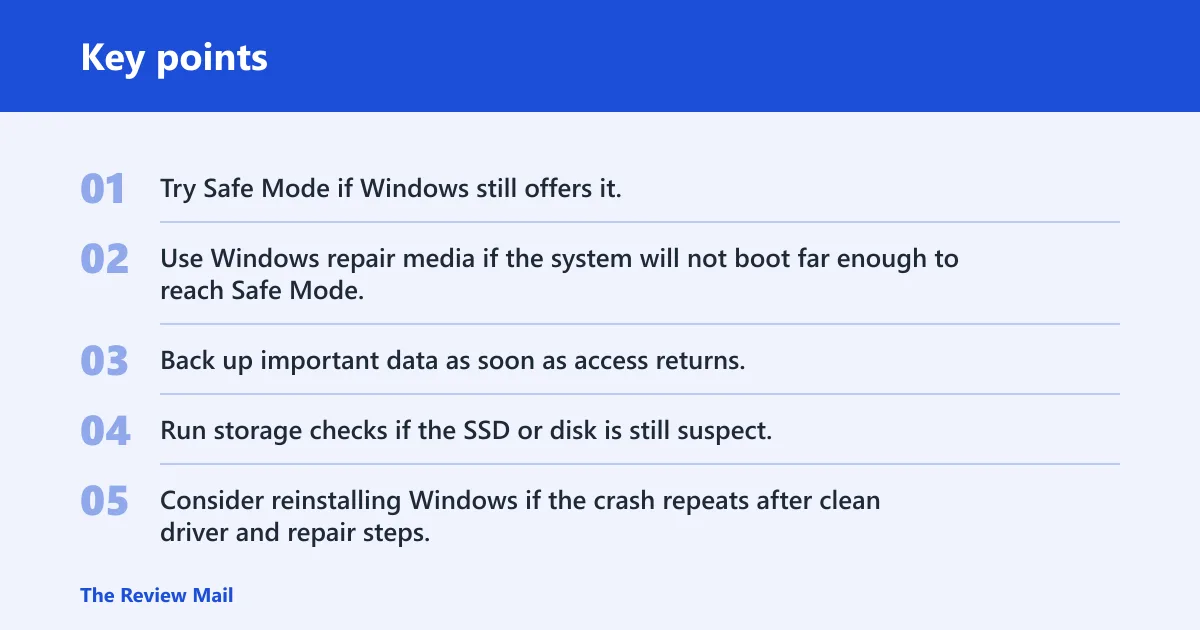
Run disk checks only after the basic repair steps, especially after DISM, SFC, and a driver review. A disk problem can be the cause, but going straight to disk repair can hide a driver or firmware clue that was still visible.
Escalation path for hard boots and repeat crashes
- Try Safe Mode if Windows still offers it.
- Use Windows repair media if the system will not boot far enough to reach Safe Mode.
- Back up important data as soon as access returns.
- Run storage checks if the SSD or disk is still suspect.
- Consider reinstalling Windows if the crash repeats after clean driver and repair steps.
If the desktop boots to the login screen, crashes after sign-in, and repeats after every restart, the problem often lives in a startup driver or service. That is the point to inspect dumps, review recent device changes, and use Safe Mode to remove the most likely startup cause.
On systems that cannot reach Safe Mode or Automatic Repair, a reinstall may be the fastest clean boundary after data is backed up. That step is not a first response, but it becomes reasonable when the crash survives repair media, driver cleanup, and file repair.
Frequently asked questions
What does system pte misuse mean in Windows 11?
It is a blue-screen stop code, usually shown as 0x000000DA, and it signals that Windows hit a fault it could not recover from. The trigger may be a driver, firmware setting, storage issue, or corrupted files, so the crash pattern matters more than the code alone.
How do I fix system pte misuse on Windows 11?
Start by matching the crash to the timing: boot, post-upgrade, gaming, or after hardware changes. Then run DISM before SFC, review recent drivers using the vendor’s documentation, and check TPM or PTT only if the crash began after a BIOS or UEFI change.
Can a BIOS or TPM setting cause system pte misuse?
Yes. TPM and Intel PTT are firmware features, and a recent BIOS or UEFI change can trigger the crash on some systems. Treat that as a targeted diagnostic step, not a blanket fix, and change only the setting that was altered last.
Should I run SFC or DISM for a system pte misuse BSOD?
Run DISM first, then SFC. Microsoft’s repair guidance uses DISM.exe /Online /Cleanup-image /Restorehealth before sfc /scannow when Windows image corruption is suspected. If both complete cleanly, the crash may still be a driver, firmware, or storage problem.
How do I collect dump files for a system pte misuse crash?
Check C:\Windows\Minidump for small crash dumps and look for MEMORY.DMP for a full dump. Microsoft’s dump-file guidance makes those files the key evidence for identifying the crashing driver or module when the system keeps rebooting after the same blue screen.
Does system pte misuse usually point to a driver problem?
Very often, yes. Driver documentation from the device maker is the best source for reinstalling or rolling back the relevant package. Still, firmware and storage belong in the diagnosis too, especially if the crash started after a BIOS or SSD change.
What should I do if Windows 11 keeps crashing with SYSTEM_PTE_MISUSE?
Stop changing multiple settings at once and work from the crash timing. Use Safe Mode or repair media, review recent drivers, run DISM and SFC, and inspect dump files for the same module repeating. If the issue started after a BIOS change, restore only that setting first.
Is SYSTEM_PTE_MISUSE related to hardware or corrupted files?
It can be either, and often both need to be checked. Corrupted system files can trigger the stop code, but faulty storage, a bad driver, or a BIOS or UEFI change can do the same. Use dump files and the crash timing to decide which path to test first.