No More System PTEs BSOD Fix Windows 11: Steps to Try
No More System PTEs is the blue-screen bug check with value 0x0000003F. It usually indicates that the system has performed too many I/O actions, resulting in fragmented system page table entries (PTE), and in almost all cases the machine is not actually out of PTEs. Start by checking the last change, then move through driver and debugger-based checks before replacing hardware. Ignore it, and the PC can fall into a crash loop or hide a failing part until data is lost. This guide walks through the fastest checks in the order most likely to isolate the fault and get Windows booting normally again.
This guide is part of our Windows BSOD stop codes: full list and fixes series.
What No More System PTEs means in Windows 11
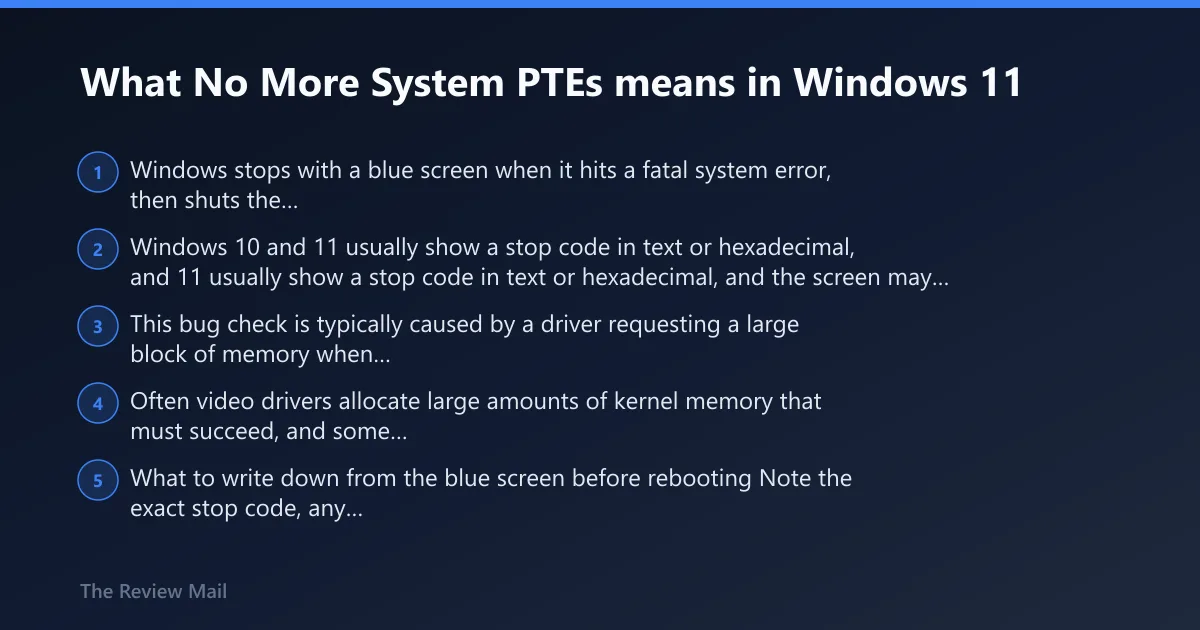
Windows stops with a blue screen when it hits a fatal system error, then shuts the system down to avoid more damage. Windows 10 and 11 usually show a stop code in text or hexadecimal, and the screen may also include a QR code you can scan. This bug check is typically caused by a driver requesting a large block of memory when there is no contiguous block of sufficient size to satisfy it. Often video drivers allocate large amounts of kernel memory that must succeed, and some backup programs do the same.
What to write down from the blue screen before rebooting
Note the exact stop code, any driver name, whether a QR code appears, and whether the PC reboots once or loops. That small record often decides whether the next step is Safe Mode, driver rollback, or memory testing.
When a QR code or driver name matters
A named driver on the crash screen is a strong clue. A QR code usually points back to Microsoft help pages, but the useful part is still the stop text and any driver shown beside it.
According to How to Fix Windows Blue Screen of Death (BSOD)? — Windows 10 and 11 BSODs show a specific stop code in text or hexadecimal.
What should I do first after a No More System PTEs blue screen?
First, stop changing settings at random and check whether the crash followed a driver, update, or new device. If the desktop still loads, save the stop code and minidump path before making repairs. If Windows keeps rebooting, go straight to Advanced startup and Safe Mode, because that separates startup-driver faults from deeper system trouble much faster.
Quick triage checklist
- Write down the stop code and any driver name shown on the blue screen.
- Open
C:\Windows\Minidump\and note the newest file name if Windows still opens. - Check Event Viewer > Windows Logs > System for repeated bug check or driver errors.
- If the PC loops, go to Settings > System > Recovery > Advanced startup > Restart now.
| Observed symptom | What it usually suggests | Next move |
|---|---|---|
| One crash, then normal boot | Recent driver or update | Check minidumps and Device Manager |
| Crash loop before desktop | Startup driver, service, or memory fault | Boot Safe Mode |
| Blue screen under gaming or load | Driver or large kernel-memory request | Test drivers first |
| Stop code after update or install | Corrupt driver or system file | Rollback, then run SFC |
Likely causes, ranked by how often they show up
Most often, No More System PTEs comes from a driver that asks for a large block of kernel memory and cannot get a contiguous block large enough to satisfy the request. Video drivers are a common trigger, and some backup programs can also cause it. The problem is usually fragmentation of system PTEs after too many I/O actions, rather than a literal shortage of PTEs.
Buggy graphics, storage, or chipset drivers
Video drivers are a frequent suspect because they can ask for large blocks of kernel memory that must succeed. Storage and chipset drivers matter too, especially if the crash began after a driver update, new GPU install, docking station change, or BIOS update.
RAM instability or a bad stick
If the system fails under load, crashes at random, or changes behavior after moving DIMMs, memory can still be a factor in the broader crash pattern. Test one stick at a time so you can isolate a bad module if memory errors appear.
Paging or memory-pressure problems
A misconfigured pagefile can add stress, but the main issue for this bug check is still fragmented system PTEs and a request that cannot fit contiguously. Check the pagefile if the crash happens during heavy I/O, large transfers, or backups.
Corrupted Windows files or a damaged system image
If the same stop code returns after driver work and memory checks pass, repair the Windows image next. SFC and DISM are the right pair when the operating system itself may be damaged.
How do I boot Windows 11 into Safe Mode for a BSOD fix?
Safe Mode loads only the basic drivers and services Windows needs to start, which makes it the quickest way to tell whether the crash is tied to startup software or to deeper system trouble. If Safe Mode works, the problem is usually outside the core Windows load path. If it still crashes, driver analysis, memory pressure, or a damaged system image moves higher on the list.
Enter Safe Mode from Advanced startup
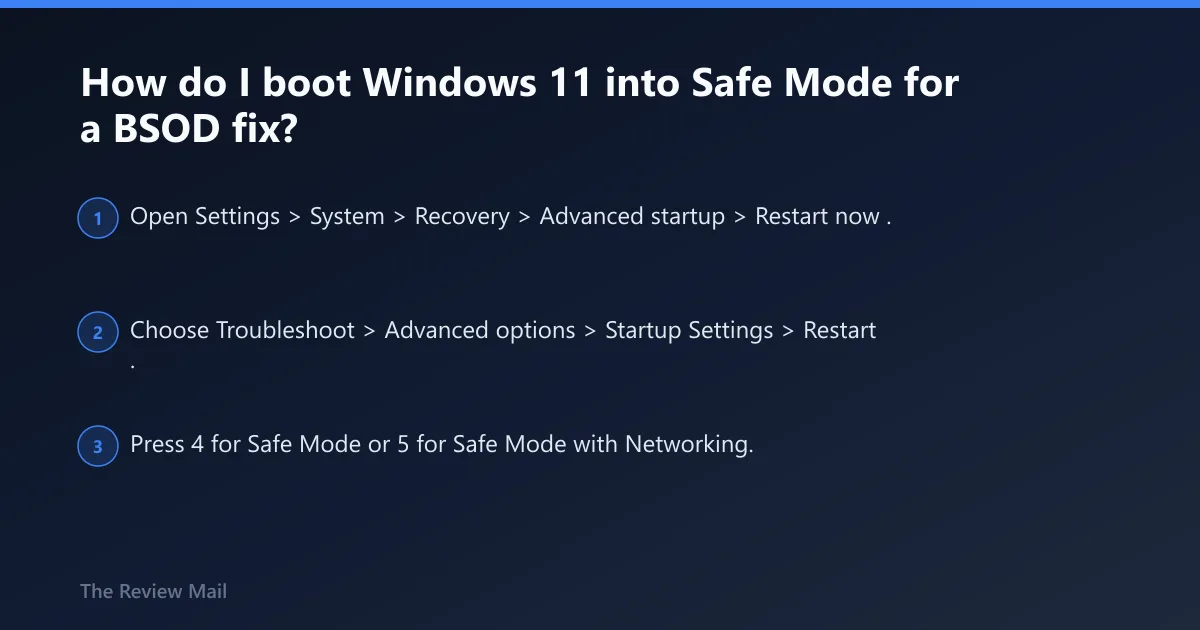
- Open Settings > System > Recovery > Advanced startup > Restart now.
- Choose Troubleshoot > Advanced options > Startup Settings > Restart.
- Press 4 for Safe Mode or 5 for Safe Mode with Networking.
What it means if Safe Mode works
If the PC boots there, the stop code often points to a driver or recent software change. Go after the last change first, then use Device Manager to roll back or remove the suspect item.
What it means if Safe Mode still crashes
If Safe Mode also fails, move away from normal driver cleanup and test memory, pagefile behavior, and Windows file repair. That pattern raises the odds of a driver, storage, or system-level issue.
Fix driver problems in Device Manager
If minidumps name a driver, or the crash began after a graphics, storage, or chipset update, use Device Manager before touching system files. A bad driver is the most practical fix path when Safe Mode works. Keep the change small and test after each step.
Update, roll back, or uninstall the suspect driver
- Open Device Manager.
- Expand Display adapters, Storage controllers, and System devices.
- Right-click the suspect device and choose Properties > Driver.
- Use Roll Back Driver if the problem started after an update.
- If rollback is unavailable, choose Uninstall device, then restart.
Focus on graphics, chipset, and storage first
Those are the best places to start for this stop code. A faulty graphics driver can absolutely cause this BSOD, especially when the system is under load or changing display states.
Should I run SFC or DISM for this stop code?
Yes, after the driver check above. Run SFC when you suspect corrupted system files; run DISM when Windows image repair is needed or SFC reports damage it cannot fully fix.
Run sfc /scannow and read the result
- Open Windows Terminal (Admin) or Command Prompt (Admin).
- Run
sfc /scannow. - Restart when it finishes, even if it reports no issues.
Use DISM to repair the Windows image
- Open Windows Terminal (Admin).
- Run
DISM /Online /Cleanup-Image /RestoreHealth. - Restart, then test the crash path again.
Collect the exact STOP code/parameters from the blue screen or C:\Windows\Minidump\*.dmp.
Safe Mode entry: Settings > Recovery > Advanced startup > Restart now > Troubleshoot > Advanced options > Startup Settings.
Driver rollback path: Device Manager > (device) > Properties > Driver tab > Roll Back Driver / Uninstall device.
Memory test: Windows Memory Diagnostic or another memory test tool.
System File Checker + DISM: sfc /scannow, DISM /Online /Cleanup-Image /RestoreHealth.
Use the decision table to choose the next step
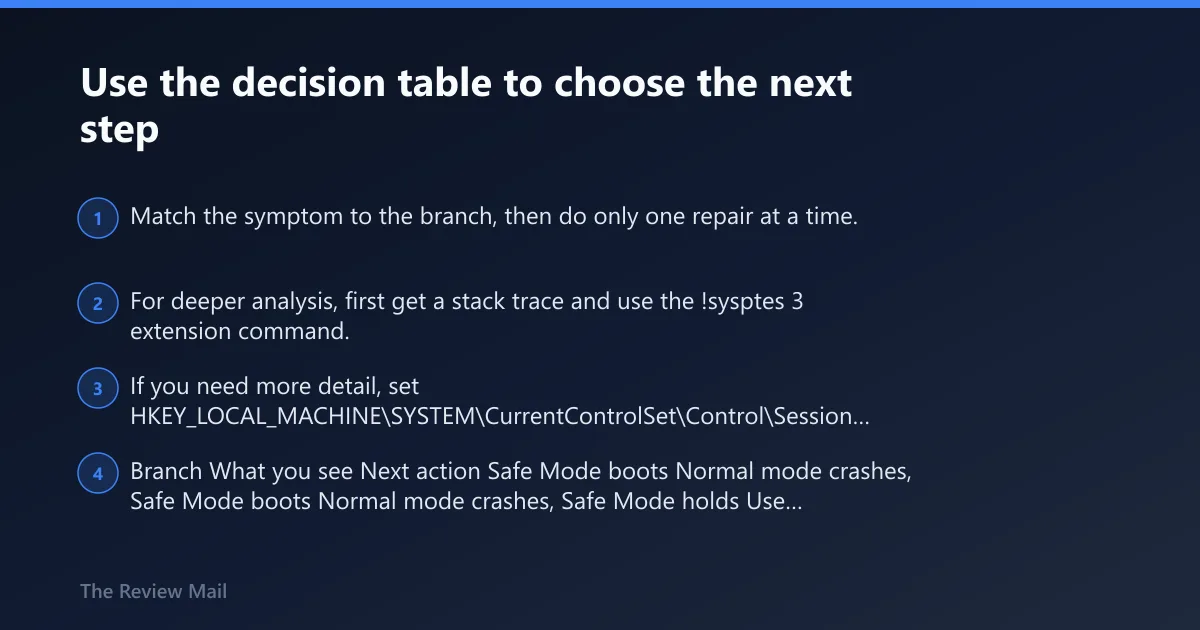
Match the symptom to the branch, then do only one repair at a time. For deeper analysis, first get a stack trace and use the !sysptes 3 extension command. If you need more detail, set HKEY_LOCAL_MACHINE\SYSTEM\CurrentControlSet\Control\Session Manager\Memory Management\TrackPtes to DWORD 1 before gathering more debugging data.
| Branch | What you see | Next action |
|---|---|---|
| Safe Mode boots | Normal mode crashes, Safe Mode holds | Use Device Manager to roll back or uninstall recent graphics, storage, or chipset drivers |
| Minidumps mention a driver | Same file or device appears in multiple dumps | Update once, then roll back if the crash returns; avoid changing several drivers together |
| Debugger analysis needed | You are checking PTE usage and stack traces | Get a stack trace first, then use !sysptes 3; set TrackPtes to DWORD 1 for deeper analysis |
| RAM test fails | Windows Memory Diagnostic or memtest86 reports errors | Reseat sticks, test one at a time, and replace the bad module |
| Recent software looks suspicious | The crash started after a backup or disk-intensive app was installed | Remove any recently-installed software, especially backup utilities or disk-intensive applications |
| PTE pressure is the main clue | Debugging shows fragmentation or allocation failure | Modify the registry to increase the total number of system PTEs |
Still not working?
If the crash keeps returning after driver work, SFC, DISM, and memory checks, move to a clean boot or System Restore Point. A restore point is the better next move when the failure started after a specific change and you need a fast rollback. If the system still fails in a clean boot, test the deeper debug path, then consider an in-place repair or technician help.
If that didn’t work, try this next
- Create or choose a System Restore Point if one predates the crash.
- Run a clean boot with msconfig, then retest.
- Use Windows Memory Diagnostic or memtest86 on one stick at a time.
- If crashes continue, use Reset This PC or an in-place repair before replacing parts.
Prevention: Before a driver or Windows update, create a restore point and change one item at a time so a bad update is easier to roll back.
Frequently asked questions
How do I fix No More System PTEs BSOD in Windows 11?
Start with Safe Mode, then check Device Manager for recent graphics, storage, or chipset driver changes. If that does not stop the crash, run sfc /scannow, then DISM /Online /Cleanup-Image /RestoreHealth. If minidumps keep naming the same driver, roll it back instead of updating more parts.
What causes No More System PTEs in Windows 11?
The usual causes are a driver requesting a large block of memory that cannot be satisfied contiguously, fragmented system PTEs after too many I/O actions, or software that places heavy demands on kernel memory. Video drivers and some backup programs are common examples.
Is No More System PTEs related to RAM or drivers?
Drivers are the primary suspect for this bug check, especially video drivers. Memory instability can still affect the crash pattern, so if memory tests report errors, treat RAM as part of the troubleshooting path.
What debugger steps help with No More System PTEs?
Get a stack trace first, then use !sysptes 3. For deeper investigation, set HKEY_LOCAL_MACHINE\SYSTEM\CurrentControlSet\Control\Session Manager\Memory Management\TrackPtes to DWORD 1 before collecting more analysis data.