Stop Code Driver Pnp Watchdog Windows 11
Start with the branch that matches when the crash appears: during boot, during a feature update, after you connect a device, or after sleep or wake. Ignore that timing and you can stay stuck in a boot loop, lose hours to failed repairs, or keep hitting the same failure path. DRIVER_PNP_WATCHDOG means Windows hit a Plug and Play timeout while starting, updating, or resuming. This guide puts the safest recovery steps first, then moves to rollback and driver checks.
What DRIVER_PNP_WATCHDOG means
DRIVER_PNP_WATCHDOG is a Windows stop code tied to a Plug and Play path timing out, and the family uses bug check value 0x000001D5. It does not point to one exact driver by itself. The failure usually appears during startup, after Windows Update, after a device change, or after sleep and wake.
Likely causes, ranked
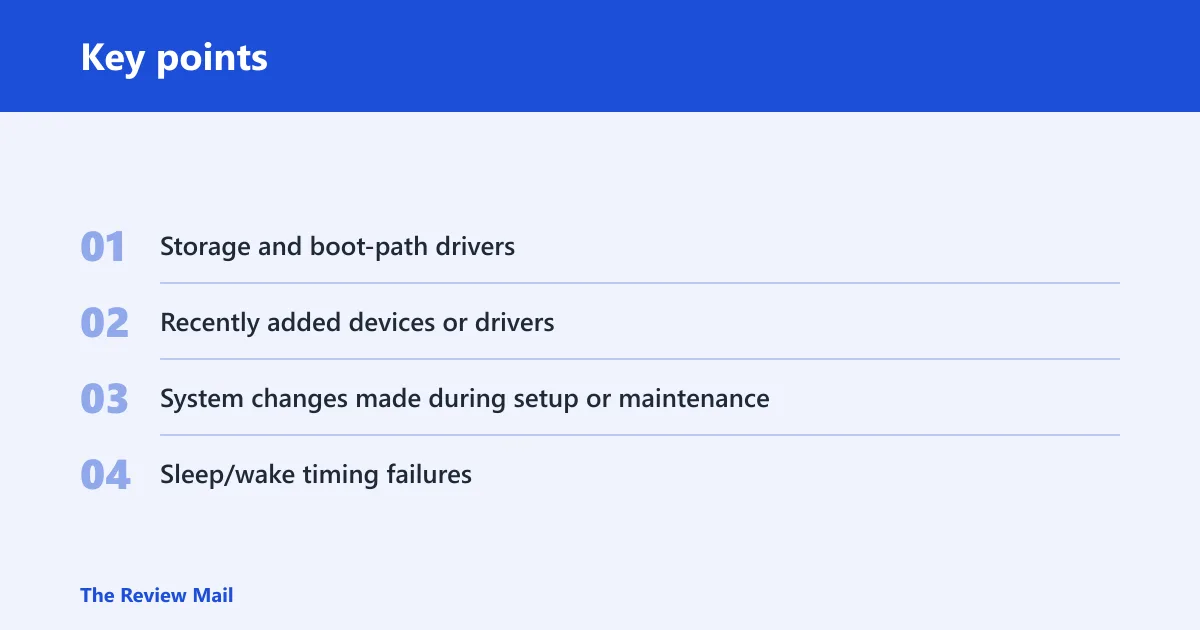
- Storage and boot-path drivers. A disk, controller, or boot storage driver can stall early enough to block Windows before the desktop appears.
- Recently added devices or drivers. A new USB device, docking station, printer, or driver package can hold the PnP path open.
- System changes made during setup or maintenance. Recent update installation, firmware work, or other system changes can alter how Windows interacts with storage or devices.
- Sleep/wake timing failures. A device that resumes badly after sleep can trigger the same timeout on the next wake.
Say your laptop restarts endlessly right after a feature update and never reaches the sign-in screen. That pattern points first to the update path, not to a random peripheral. Suppose the crash begins only after you plug in a USB SSD; that device path deserves the first check, not a BIOS change.
How do you get into WinRE?
Use Windows Recovery Environment when Windows will not boot normally. After repeated failed starts, WinRE usually appears with Troubleshoot and Advanced options. Start with the safest repair tools before changing drivers or firmware.
Use these steps first
- Turn on the PC and allow it to try starting Windows.
- If it fails, power it off during the startup attempt.
- Repeat the failed start and forced shutdown until WinRE opens.
- Choose Troubleshoot > Advanced options.
- Run Startup Repair first if the machine will not load Windows.
Startup Repair is a safe early check, but it may not fully fix a bad driver or a broken update path. If it does not help, move to rollback instead of repeating the same repair loop.
Update-triggered boot loop
If the crash started after Windows Update, the first rollback to try is Uninstall latest quality update, then the latest feature update if needed. Collect the update date and the crash time before you remove anything.
Rollback steps
- Open WinRE > Troubleshoot > Advanced options.
- Select Uninstall Updates.
- Choose Uninstall latest quality update first.
- If the problem remains, go back and remove the latest feature update.
- Restart and check whether Windows reaches the desktop.
Keep the rollback order strict. A quality update is the safer first removal because it is narrower and easier to reverse later if needed.
Device-triggered crash
If the stop code begins after you connect a device, treat that peripheral path as the lead suspect. Remove the new or recently changed hardware first, then inspect Device Manager for yellow exclamation marks. The Driver tab can help you decide whether to update or roll back a device that lines up with the crash timing.
Check the device path
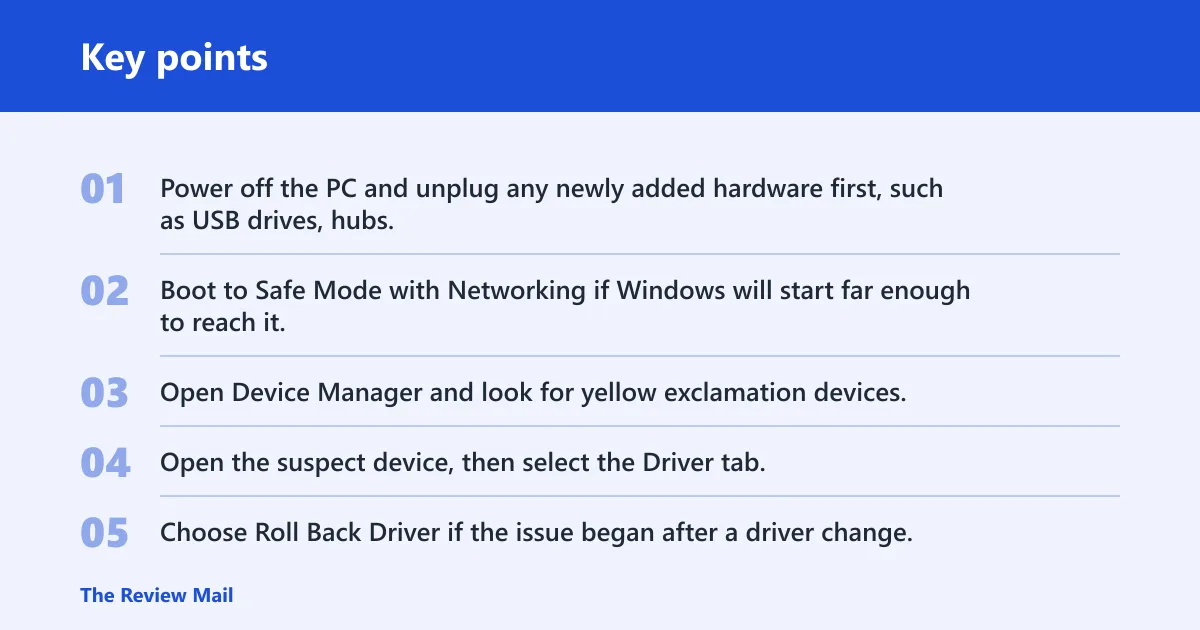
- Power off the PC and unplug any newly added hardware first, such as USB drives, hubs, printers, docks, external storage, and card readers.
- Boot to Safe Mode with Networking if Windows will start far enough to reach it.
- Open Device Manager and look for yellow exclamation devices.
- Open the suspect device, then select the Driver tab.
- Choose Roll Back Driver if the issue began after a driver change, or Uninstall device if the device was just added.
The safest move is to remove the new hardware before changing software. That keeps the test simple: one variable, one result.
Startup or sleep crash
If the failure appears during startup or after sleep and wake, prioritize the boot path and then the driver set that loads with it. Safe Mode with Networking starts Windows with minimal drivers and gives you a clean place to inspect Device Manager without loading the full device stack.
Use Safe Mode with Networking
- Open Settings > System > Recovery.
- Under Advanced startup, select Restart now.
- Go to Troubleshoot > Advanced options > Startup Settings.
- Select 5 or press F5 for Safe Mode with Networking.
- Open Device Manager and review storage, disk, chipset, and display entries.
Windows can show the stop code before the desktop during Preparing Automatic Repair. That timing puts storage and boot drivers first on the list, not a random peripheral.
PnP watchdog triage table
| Crash context | Safest first check | Evidence to collect | Rollback-safe next action |
|---|---|---|---|
| After update | Open WinRE and check Uninstall Updates | Update date, restart time, and whether the loop began after 24H2 or another update | Remove the latest quality update first, then the latest feature update if needed |
| After connecting a device | Unplug the newest peripheral and boot again | Device name, connection type, and whether the crash stops when it is removed | Use Device Manager to roll back or uninstall that device driver |
| During startup | Enter WinRE and run Startup Repair once | Whether the crash happens before login and whether Preparing Automatic Repair appears | Boot Safe Mode with Networking and inspect storage and disk drivers |
| After sleep/wake | Restart fully instead of resuming sleep | Wake time, power state, and which device was active before sleep | Check Device Manager for a driver tied to storage, Wi-Fi, or graphics resume |
Still not working?
If the rollback steps do not stop the reboot loop, move from timing-based triage to crash evidence. Minidumps in C:\Windows\Minidump can confirm which driver or storage path was active at the crash time.
Read the crash evidence
- Open
C:\Windows\Minidumpand sort by date and time. - Find the newest file timestamp and match it to the crash that just happened.
- Open Event Viewer and compare the system restart time with the minidump time.
- If the same storage or device path appears again, stop chasing random fixes and move to a deeper recovery path or vendor support.
Prevention: after recovery, keep a record of update dates and new hardware changes so the next crash can be matched to the right branch immediately.
Frequently asked questions
What does stop code DRIVER_PNP_WATCHDOG mean in Windows 11?
It points to a Plug and Play timeout, not a single driver name. The bug check family uses 0x000001D5, so the useful clue is timing: startup, update, new hardware, or wake from sleep. That timing decides whether you start with updates, devices, or storage checks.
Why did DRIVER_PNP_WATCHDOG start after a Windows 11 update?
An update can change storage, chipset, or device-driver behavior enough to trigger a boot loop. If the issue began immediately after a restart, open WinRE and use Uninstall Updates. Remove the latest quality update first, then the latest feature update only if the first rollback fails.
How do I fix DRIVER_PNP_WATCHDOG if Windows 11 keeps rebooting?
Go into WinRE, run Startup Repair once, then boot Safe Mode with Networking using 5 or F5. From there, check Device Manager for yellow exclamation entries and match the newest minidump in C:\Windows\Minidump to the crash time before rolling back a driver.
Can Safe Mode fix stop code Driver PNP Watchdog?
Safe Mode does not fix the stop code by itself, but it can break the boot loop long enough to inspect drivers and minidumps. Use Startup Settings to enter Safe Mode with Networking, then check Device Manager and remove or roll back the device that lines up with the crash.
How do I get into WinRE when Driver PNP Watchdog blocks boot?
Let Windows fail to start repeatedly until Windows Recovery Environment appears. Then choose Troubleshoot and Advanced options. If Windows still refuses to load, force it off during startup a few times until the recovery screen shows up.
Where are minidump files for Driver PNP Watchdog in Windows 11?
Look in C:\Windows\Minidump, then compare the newest timestamp with the crash you just saw. If a dump lands at the same minute as the reboot, it is the best clue for the next rollback step.