Can T Turn on Airplane Mode Windows 11?
Check the hardware radio key first: when Airplane mode is greyed out or won’t switch, the usual cause is a wireless adapter, OEM hotkey utility, or radio switch conflict, not the Windows toggle itself. If you guess wrong, you can waste time changing settings that Windows cannot apply. This guide shows how to identify which layer blocks Airplane mode and which fix fits each case.
This guide is part of our Windows performance problems: full list and fixes series.
Quick fixes for unresponsive airplane mode toggles
On Windows 11, Airplane mode controls Wi‑Fi, Bluetooth, and other wireless radios. When it gets stuck on, greyed out, or unresponsive, the problem is often in one of a few places: a physical key, a stale Quick Settings state, a vendor utility, a radio service, or the adapter itself. Start with the simplest state check before you touch drivers.
Turn on versus turn off: why the fix path changes
A “can’t turn on” case often points to a disabled control path or a missing tile, while a “can’t turn off” case more often points to something reasserting the off state after you change it. That difference matters. A laptop hotkey, for example, can override the Windows toggle even after the Settings app shows the opposite state.
Fastest checks before deeper changes
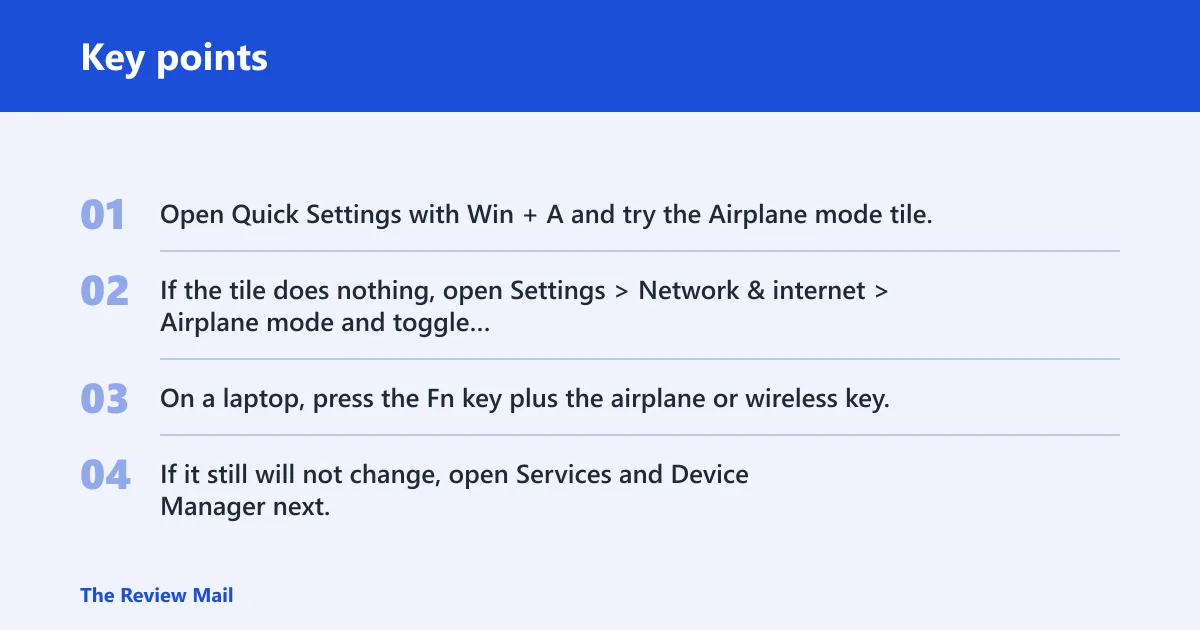
- Open Quick Settings with Win + A and try the Airplane mode tile. Winaero documents that Win + A opens Quick Settings.
- If the tile does nothing, open Settings > Network & internet > Airplane mode and toggle it there.
- On a laptop, press the Fn key plus the airplane or wireless key.
- If it still will not change, open Services and Device Manager next.
Suppose a 14-inch Dell laptop shows Airplane mode greyed out after sleep. If Win + A does nothing but Settings shows a normal toggle, that points first to a stale state problem, not a dead adapter.
What to check first by device type and symptom
This decision table separates laptops, desktops, and tablets because the likely blocker changes with the hardware. Use the symptom that matches what you see now, then start at the first fix listed. That keeps you from jumping straight to driver reinstall when a key or utility is the real source.
| Device type | Symptom | Likely cause | First fix | Escalation step |
|---|---|---|---|---|
| Laptop | Toggle greyed out | Physical key or OEM hotkey conflict | Press Fn + airplane key, then open Settings > Network & internet > Airplane mode | Restart Radio Management Service in Services |
| Laptop | Keyboard shortcut works | Quick Settings showing a stale state | Use Settings instead of Quick Settings | Disable and re-enable the Wi‑Fi adapter in Device Manager |
| Desktop | No Wi‑Fi tile | Wireless adapter or driver issue | Check Device Manager for the adapter | Update, uninstall, then reinstall the adapter driver |
| Tablet | Toggle flips back after sleep | Radio service hang after resume | Restart Radio Management Service | Check WLAN AutoConfig in services.msc |
Why is airplane mode stuck on my Windows 11 laptop?
On a Windows 11 laptop, the usual blockers are a stale Quick Settings state, a physical radio key conflict, or an OEM connectivity app that keeps reasserting the radio-off state. Fix the software state first, then move to services and hardware controls if the toggle still snaps back. FixTechUSA lists 8 fixes for this problem and says a physical function key conflict is often the cause; it also identifies a stuck radio management driver as another common cause.
Quick Settings is showing a stale state
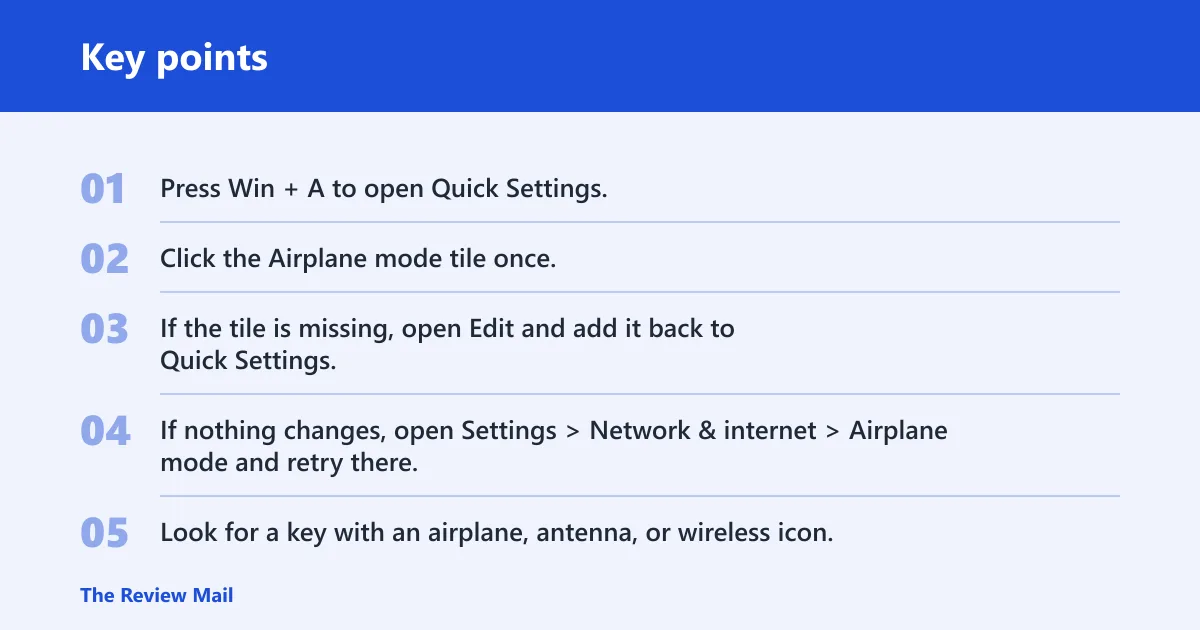
- Press Win + A to open Quick Settings.
- Click the Airplane mode tile once.
- If the tile is missing, open Edit and add it back to Quick Settings. Windows 11 doesn’t include a built-in tool to change the Airplane mode state, so the tile itself matters here.
- If nothing changes, open Settings > Network & internet > Airplane mode and retry there.
A physical radio key or Fn shortcut is overriding Windows
- Look for a key with an airplane, antenna, or wireless icon.
- Press Fn plus that key on the laptop keyboard. Common layouts on Dell, HP, Lenovo, and ASUS use this pattern.
- Recheck Settings > Network & internet > Airplane mode.
- If the hardware key still forces the radio off, move to the service checks below.
The same source recommends checking the physical WiFi/Airplane key first on laptops. Geek Rewind also notes that the quickest fix is often the physical wireless switch or Fn key.
An OEM utility is reasserting radio-off status
- Open Settings > Apps > Installed apps.
- Look for vendor connectivity or hotkey tools from Dell, HP, Lenovo, or ASUS.
- Close the utility if it is running, then retry the Airplane mode toggle.
- If the app keeps forcing the same state, disable it from startup in Task Manager > Startup apps.
A common first-timer mistake is to keep flipping the Windows toggle while a vendor app immediately turns the radios off again. In that case, the app is the conflict, not the tile.
Try the Settings app path first
The Settings app can refresh Airplane mode when Quick Settings is stale or ignores input. Use it before chasing drivers. Compare what happens in Settings with what happens in Quick Settings; if the Settings path works, you do not need to go deeper yet. Windows Central and Guiding Tech both use this path as a first fix.
- Open Network & internet.
- Select Airplane mode.
- Turn the switch on or off, then wait a few seconds before checking again.
- Return to Quick Settings with Win + A and confirm the tile now matches.
If the Settings page changes but the tile in Quick Settings does not, treat that as a display-state mismatch. If both stay stuck, move to the services layer.
Which Windows service controls airplane mode and wireless radios?
Radio Management Service is often the first service to check because it controls wireless radio state and may hang after sleep or an update. If it is missing or not enough on its own, check WLAN AutoConfig in services.msc. They are related, but they do different jobs. Radio Management Service manages the radio state; WLAN AutoConfig supports wireless networking UI and Wi‑Fi behavior.
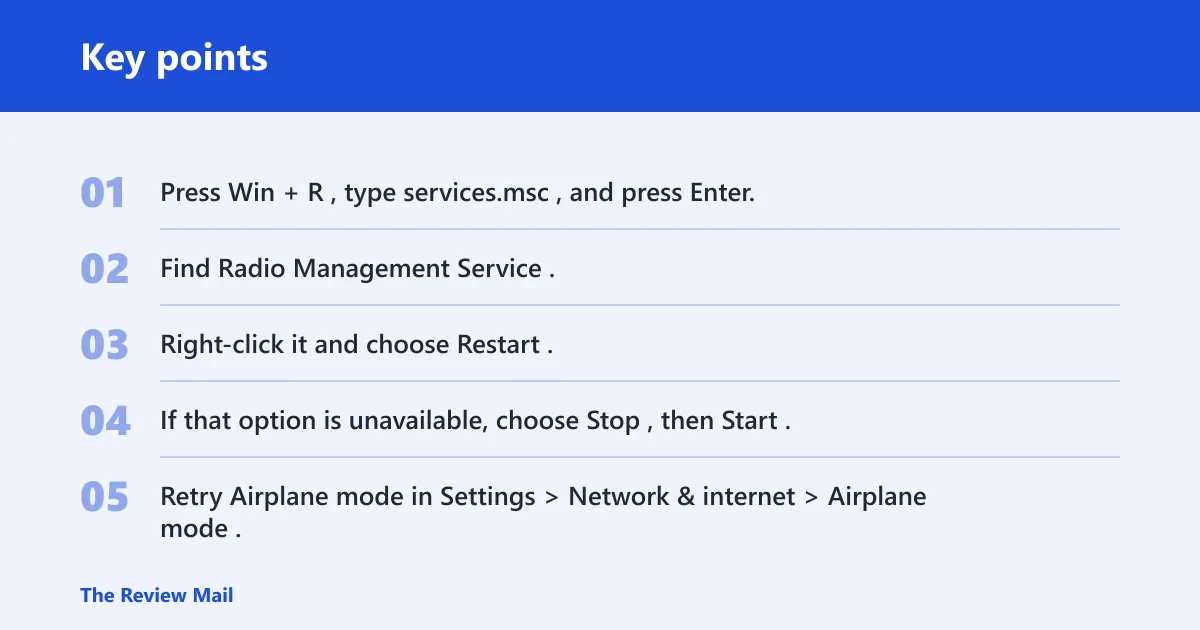
Radio Management Service: restart, then disable and enable if needed
- Press Win + R, type
services.msc, and press Enter. - Find Radio Management Service.
- Right-click it and choose Restart.
- If that option is unavailable, choose Stop, then Start.
- Retry Airplane mode in Settings > Network & internet > Airplane mode.
FixTechUSA includes restarting the Radio Management Service as a fix. Geek Rewind says these hangs can happen after a crash, failed update, or power event, and that restarting should be used instead of shutting down.
WLAN AutoConfig: check it if Radio Management Service is absent
- In
services.msc, find WLAN AutoConfig. - Open its properties and check that it is not disabled.
- If it is stopped, start it.
- Reopen Settings > Network & internet > Airplane mode and test the toggle again.
Guiding Tech also recommends the Network Adapter troubleshooter, which often lands on the same service and adapter layer.
Fix the wireless adapter
If the services look normal and the toggle still fails, the Wi‑Fi or Bluetooth adapter may be stuck or mismanaged by Windows power settings. Device Manager lets you update, disable and re-enable, or uninstall and reinstall the adapter. It also lets you change power management settings that can put the adapter to sleep too aggressively. Guiding Tech includes changing the Wi‑Fi adapter power management setting.
- Right-click Start and open Device Manager.
- Expand Network adapters.
- Right-click the Wi‑Fi or Bluetooth adapter and choose Update driver.
- If the problem remains, choose Disable device, then Enable device.
- If the toggle still fails, choose Uninstall device, restart Windows, and let it reinstall the driver.
- Open the adapter Properties page and check Power Management so Windows is not turning it off to save power.
Do not start here if the hardware key is clearly active. A driver reinstall will not fix an OEM utility that keeps forcing radios off.
Could a keyboard key or OEM app be blocking it?
Yes. On many laptops, the airplane or radio key can override software state, and some vendor apps can keep restoring the same radio setting after you change it. FixTechUSA calls the physical function key conflict one of the common causes. Windows 11’s tile can look fine while the laptop keyboard or vendor utility keeps winning the tug-of-war. That is why the keyboard and OEM layer belongs before a network reset.
- Try the laptop’s Fn plus airplane or wireless key again.
- Check for vendor connectivity apps in the system tray and close them.
- Open Task Manager > Startup apps and disable hotkey or radio-control utilities from Dell, HP, Lenovo, or ASUS.
- Test Settings > Network & internet > Airplane mode again.
If a tablet flips back to radio-off after resume, this same conflict may be tied to a dock, keyboard cover, or vendor control app.
What if nothing changes after that?
At this point, move to the broader network repair tools. Run the Network Adapter troubleshooter first. Use network reset only after the earlier checks fail, because it clears network configuration conflicts and removes saved Wi‑Fi passwords and VPN configs. It does not affect personal files, but it does create recovery work.
- Open Settings > System > Troubleshoot > Other troubleshooters.
- Run Network Adapter.
- If that fails, open Settings > Network & internet > Advanced network settings > Network reset.
- Confirm the reset, then sign back in to Wi‑Fi and re-enter VPN details.
Network reset is a blunt step. Use it when the state conflict is no longer limited to the toggle, services, or adapter.
How to turn on airplane mode on Windows 11 with keyboard
Use the laptop’s Fn key plus the airplane or wireless key. On some systems, that shortcut is the fastest path because it talks to the radio controller directly. If the key does not work, open Win + A and use the Quick Settings tile, or open Settings > Network & internet > Airplane mode instead. Windows Central reports this keyboard path for Windows 11.
Frequently asked questions
Can t turn off airplane mode windows 11?
Start with Settings > Network & internet > Airplane mode, not Quick Settings. If the toggle flips back, check the laptop’s airplane or Fn key and then restart Radio Management Service in services.msc. That sequence catches the most common state conflict before you move to the adapter.
Why is the airplane mode toggle greyed out in Windows 11?
A greyed-out toggle usually means Windows is not getting a clean signal from the radio layer. Check the physical key first, then open services.msc and restart Radio Management Service. If that service is absent, check WLAN AutoConfig and the adapter in Device Manager.
How do I fix airplane mode when the quick settings tile does nothing?
Use Settings > Network & internet > Airplane mode and compare the result with Win + A. If Settings works, the tile was stale. If neither works, restart Radio Management Service, then disable and re-enable the Wi‑Fi adapter in Device Manager.
Do I need to reinstall my Wi‑Fi driver to fix airplane mode?
Only after the key, Settings path, and services checks fail. In Device Manager > Network adapters, try Update driver first, then Disable device and Enable device. Reinstall the driver if the toggle still will not move.
Will resetting network settings delete my files?
No. Network reset does not affect personal files, but it does remove saved Wi‑Fi passwords and VPN configs. After the reset, you need to reconnect to wireless networks and re-enter VPN settings. Use it only after the simpler checks fail.