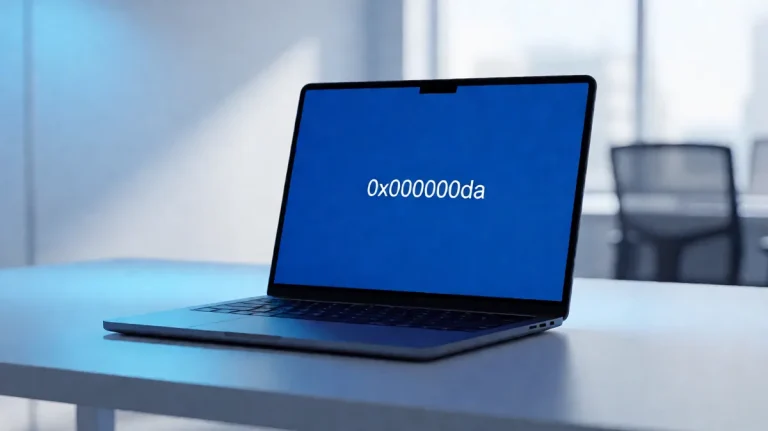
0x00000023: What It Means and How to Fix This BSOD
0x00000023 is the FAT_FILE_SYSTEM stop code in Windows, and according to official Microsoft documentation it indicates that a problem occurred in the FAT file system. The safest first move is to back up any readable data, disconnect nonessential storage, then run CHKDSK on the affected volume only if the drive does not already show failure signs.
This guide is part of our Windows BSOD stop codes: full list and fixes series.
This is a storage-focused Windows blue screen. Because search results for 0x00000023 can also surface unrelated non-Windows items, stay with Windows storage checks here. (minitool.com)
What usually causes a 0x00000023 blue screen?
Official Microsoft documentation lists disk corruption as one possible cause. It also states that corruption in the file system or bad blocks on the disk can induce this error, that corrupted SCSI and IDE drivers can cause it, and that depletion of nonpaged pool memory is another possible cause.
A practical order is to check the disk and file system first, then review storage-related drivers and logs, then continue with Windows repair steps if the volume is readable and stable.
Likely causes, ranked from most to least common
| Rank | Cause | Clues | Best next action |
|---|---|---|---|
| 1 | Logical file-system corruption | Crash after an improper shutdown, file activity, or restart | Run CHKDSK with /f first |
| 2 | Bad sectors or drive trouble | Read errors, repeated disk problems, or signs the drive is unstable | Back up first, then test the drive |
| 3 | Storage or controller driver problems | Relevant driver changes or storage-related log entries | Check Event Viewer and review the related driver |
| 4 | Windows file corruption | Disk check completes but Windows remains unstable | Run SFC, then DISM, then SFC again |
| 5 | Nonpaged pool memory depletion | Less common and often tied to low-level problems | Review recent drivers and crash information |
What to do before repairs
- Shut down and disconnect nonessential USB storage, docks, card readers, and other recent storage-related peripherals.
- If Windows boots and the drive is still readable, back up important files first. Copy personal folders such as Desktop, Documents, and Pictures, plus any other needed files, to another drive or cloud storage. If needed, use another PC or recovery media to copy readable files.
- Note any recent changes such as a storage driver update, antivirus install, backup tool, sync app, encryption tool, or new disk utility.
- If a new hard drive or controller was added, remove that recent addition first, then retest, as reported by bleepingcomputer.com.
- If the system can boot, open Event Viewer > Windows Logs > System and Application and look for SCSI, FASTFAT, or Autochk entries after the crash, which Microsoft specifically recommends checking.
According to How to Fix FAT_FILE_SYSTEM 0x00000023 BSOD Error — The FAT_FILE_SYSTEM bug check has a value of 0x00000023. (source)
How do I fix a 0x00000023 BSOD if Windows won’t boot?
If Windows will not boot, enter Windows Recovery Environment first, try Safe Mode only if it is available, then run an offline CHKDSK before SFC or DISM.
Boot into WinRE or Safe Mode
- If you can reach the sign-in screen, select Power, hold Shift, and choose Restart. If you cannot, interrupt startup three times to trigger recovery, or boot from a Windows installation USB and choose Repair your computer.
- Go to Troubleshoot > Advanced options > Startup Settings > Restart.
- Choose Safe Mode with Networking if Windows offers it in Startup Settings.
- If Safe Mode still fails, return to Troubleshoot > Advanced options > Command Prompt and work from there.
Run an offline disk check first
- In WinRE Command Prompt, identify the Windows volume letter if needed by checking common letters such as C: and D:.
- Run
chkdskC: /f first if the drive seems stable. - Before running
chkdskC: /f /r, pause if the drive clicks, drops offline, shows SMART warnings, or becomes abnormally slow during reads. Back up readable files first, then consider the drive maker’s diagnostic tool. - If
CHKDSKreports repeated bad sectors or read errors, stop repair passes and move to the drive manufacturer’s diagnostic tool. If that tool reports failure, replace the drive before more repair attempts.
Microsoft documents disk corruption, file-system corruption, bad blocks, and storage-driver problems as possible causes, so disk checks and storage diagnostics are the first branch to follow.
Should I run CHKDSK or SFC first for 0x00000023?
CHKDSK first in most cases. Microsoft documents this bug check as file-system related, and CHKDSK is the Windows tool used to check a volume for file-system problems. SFC belongs later, after the file system is readable enough for Windows file repair to complete.
When CHKDSK is the right first move
- If the crash appeared during boot, file copy, install, or external-drive access, open Command Prompt (Admin).
- Run
chkdskC: /f to fix logical errors. If prompted to schedule on restart, type Y and reboot. - Use
chkdskC: /f /r only when bad sectors are a real concern and the data is already protected. Reported by bleepingcomputer.com,CHKDSK/f checks for and fixes file-system errors, while /r checks for bad sectors and attempts recovery of readable data. - After restart, check Event Viewer > Windows Logs > Application for Autochk details if Windows boots again, which Microsoft specifically mentions.
When CHKDSK may be a data-risk choice
- Pause before running /r if the drive clicks, drops offline, throws SMART warnings, or becomes abnormally slow during reads.
- Back up readable files first, even if that means using another PC or recovery media.
- Run the drive maker’s diagnostic or SSD vendor tool next.
- If the vendor test fails, replace the drive before more repair attempts.
If you need the related Windows repair pages, start with CHKDSK, then SFC, then DISM.
Could Windows file corruption be triggering the crash?
Yes. If CHKDSK completes and Windows boots, run SFC first. If SFC finds damage it cannot fully fix, run DISM with RestoreHealth, then run SFC again. If disk errors block either tool, go back to storage checks first.
Run SFC in a bootable system
- Open an elevated shell, right-click Start and choose Windows Terminal (Admin) in Windows 11, or search for cmd, right-click Command Prompt, and choose Run as administrator in Windows 10.
- Run
sfc /scannow. - If SFC reports that it repaired files, restart and test the system.
- If SFC says it found corruption but could not fix all of it, continue to DISM next.
Run DISM, then SFC again
- Open Command Prompt (Admin).
- Run
DISM /Online /Cleanup-Image /RestoreHealth. - After DISM completes, run
sfc /scannowagain. - If DISM or SFC fails with disk-related errors, return to
CHKDSKresults and test the drive before repeating repairs.
Can bad sectors cause 0x00000023?
Yes. Microsoft lists file-system corruption or bad blocks on the disk as causes of this stop code. That is why repeated read errors or repeated file-system damage should be treated seriously. (Microsoft Learn)
Signs that point to drive failure, not simple corruption
- SMART warning in firmware or a vendor utility
- Clicking or repeated spin-up behavior from a hard drive
- Very slow
CHKDSKprogress during sector reads - Repeated
CHKDSKfindings after a clean reboot - BSODs returning during file copy or startup
How to check whether the hard drive is failing
- If Windows boots, back up important files first.
- Run the hard drive or SSD manufacturer’s diagnostic tool and complete the full test it offers.
- If the vendor tool reports failure, stop repair work and replace the drive.
- If the vendor tool passes but
CHKDSKkeeps finding damage, treat the disk as suspect and monitor for repeat errors.
SMART warnings, repeated read errors, or a failed manufacturer test are strong reasons to stop additional repair passes and protect data first.
Is 0x00000023 related to disk corruption or driver issues?
Both are possible. Microsoft lists disk corruption, file-system corruption, bad blocks, and corrupted SCSI and IDE drivers as possible causes. Start with disk and file-system checks, then review storage-related drivers and recent storage-related software.
Test removable storage and recent software first
- Shut down and unplug external drives, SD readers, USB docks, and other recent storage accessories.
- Boot and see whether the stop code clears.
- If the crash started after antivirus, backup, sync, encryption, or disk software was installed, uninstall that recent addition from Settings > Apps in Windows 11 or Settings > Apps > Apps & features in Windows 10, then retest.
Roll back or update only the storage-related driver
- Open Device Manager.
- Expand IDE ATA/ATAPI controllers, Storage controllers, and Disk drives.
- Open the recently changed controller, choose Properties > Driver, then use Roll Back Driver if available.
- If rollback is unavailable, choose Uninstall device, reboot, and let Windows reload the driver.
- Avoid changing unrelated devices while testing this stop code.
What if the error comes back after a reboot?
If the stop code returns after CHKDSK or after a clean restart, use the last result to decide the next step. Repaired file-system errors followed by a stable boot suggest logical damage. Repeated corruption, new read errors, or repeated blue screens point back to storage checks and hardware diagnostics.
Decision tree: which fix fits your case?
Use this branch table by checking whether the PC is bootable, whether the drive shows obvious warning signs, and whether CHKDSK is appropriate for the current condition of the disk.
| Start here | Branch | What that usually means | Do this next | Then branch to |
|---|---|---|---|---|
| PC status | Bootable | You can sign in, reach the desktop, or at least open an admin shell | Back up readable files first | Check for drive warning signs |
| PC status | Unbootable | BSOD loop, restart loop, or no usable desktop | Open WinRE and use Command Prompt | Check for drive warning signs |
| Drive health | Warning signs present | Higher risk of hardware trouble than simple file-system damage | Stop repair passes, back up what you can, run vendor diagnostics | If vendor test fails, replace drive |
| Drive health | No clear warning signs | Logical corruption may be more likely | Run chkdsk C: /f first | Decide whether CHKDSK remains appropriate |
CHKDSK risk | CHKDSK-safe case | No obvious failure signs and data backed up | Use chkdsk C: /f; add /r only if bad sectors are suspected and data is protected | If Windows stays unstable, run SFC then DISM |
CHKDSK risk | Data-risk case | Read errors, repeated bad sectors, freezing during scans, or the drive drops offline | Stop repeating CHKDSK, copy data if possible, then run vendor diagnostics | If diagnostics pass but corruption returns, treat the drive as suspect anyway |
| System state | Symptoms | Action now | Escalate if |
|---|---|---|---|
| Bootable | No obvious drive warning signs after an improper shutdown | Back up files, run chkdsk C: /f | Damage returns after reboot |
| Bootable | Windows unstable after CHKDSK, disk check passes | Run sfc /scannow | SFC cannot fix files |
| Bootable | SFC incomplete or repeated corruption | Run DISM /Online /Cleanup-Image /RestoreHealth, then sfc /scannow | Disk errors appear during repair |
| Unbootable | BSOD loop or storage crash during startup | Enter WinRE > Command Prompt, run chkdsk C: /f | CHKDSK hits read errors or repeats findings |
| Any state | SMART alert, clicking, new read errors, or very slow scans | Stop repair passes, back up, run vendor diagnostics | Vendor test fails |
If that did not work
- Open Event Viewer > Windows Logs > System and Application and review SCSI, FASTFAT, and Autochk entries around the crash time, as Microsoft recommends.
- Use Control Panel > Security and Maintenance > Reliability Monitor if available to match the stop code to a driver or disk event.
- If storage tests pass and the system still loops, use System Restore from WinRE > Troubleshoot > Advanced options.
- If that fails, consider Reset this PC only after storage checks are clean.
How does this apply to Dell systems, older PCs, and recurring loops?
The repair path is the same on Dell and other brands: check storage first, then Windows repair tools, then hardware checks. On older systems and removable media, this stop code can appear around FAT volumes. On newer Windows builds, the same storage logic still applies when the crash keeps looping.
Legacy versus modern Windows behavior
This stop code is older and is often associated with FAT volumes, removable media, and legacy setups. It can still appear on current Windows systems when storage corruption, bad blocks, or low-level storage drivers interrupt disk read and write operations. (usavps.com)
Prevention
After recovery, remove external storage cleanly, avoid forced power-offs during file activity, and be careful with new backup, sync, encryption, and disk tools. If CHKDSK had to fix errors once, watch the next few boots for repeat events and check the drive with the manufacturer’s tool if problems return.
Frequently asked questions
What does 0x00000023 mean in Windows?
Start with storage checks. If the PC still starts, back up files and run chkdsk C: /f. If it will not start, go to WinRE > Troubleshoot > Advanced options > Command Prompt and run CHKDSK there first.
Is 0x00000023 the same as FAT_FILE_SYSTEM?
Yes. The stop code name tied to bug check value 0x00000023 is FAT_FILE_SYSTEM, which is how Microsoft documents it.