WiFi Working Slow in Windows 11: Fix It
If Wi‑Fi is slower on one Windows 11 laptop than on other devices, check three fast causes first: power saving, the adapter driver, and band or channel settings. Skipping them can send you into resets that change nothing while throughput stays low. This guide gives a decision tree to isolate driver, power, service, and adapter-setting faults before you reset Windows or the router.
Start with a device check
Compare the laptop with a phone or another PC on the same Wi‑Fi. A Microsoft Q&A case showed a laptop around 3.46 Mbps while a phone hit 189 Mbps on the same network, and repeated laptop tests never passed 5 Mbps. That pattern points to the Windows device, not the line itself. (Microsoft Learn)
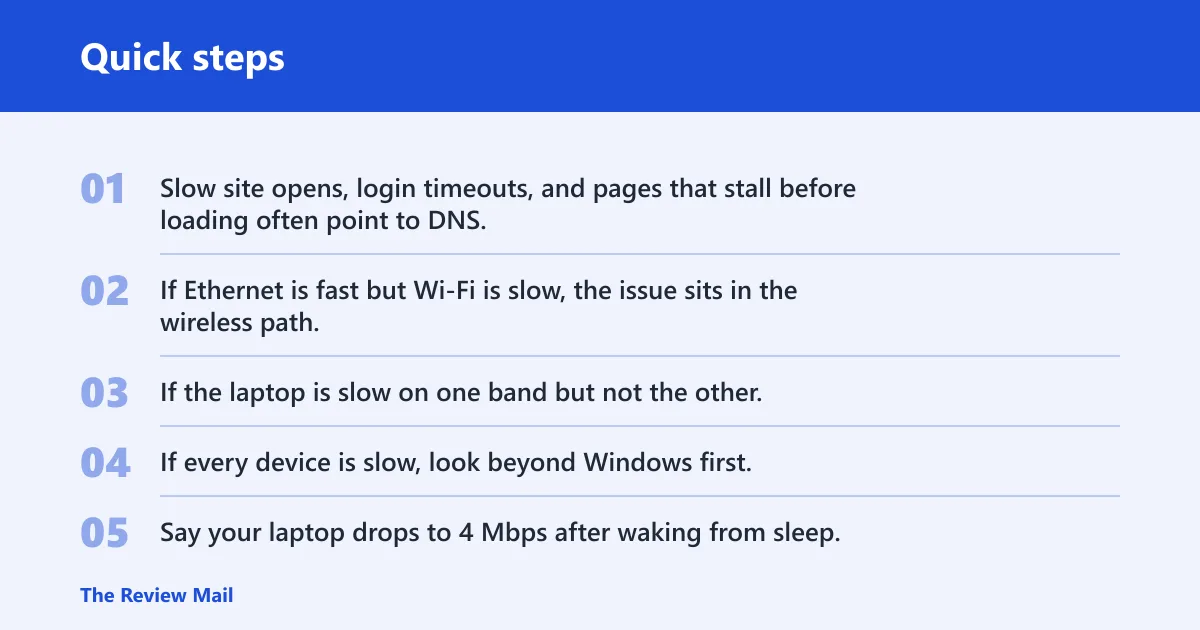
Also separate two symptoms. Slow downloads are a throughput problem. Slow site opens, login timeouts, and pages that stall before loading often point to DNS, service, or background traffic instead. The fix path is different.
Slow Wi-Fi on Windows 11 symptom-to-cause matrix
| Symptom | Most likely cause | Quickest test | Next action |
|---|---|---|---|
| Slow only on laptop | Adapter, driver, or power setting | Compare with phone on same SSID | Check driver, power management, and preferred band |
| Slow after sleep | Adapter state or power saving | Reconnect after waking and rerun a speed test | Disable adapter power-off in Device Manager |
| Slow on battery | Power plan lowers wireless performance | Plug in AC power and retest | Set Wireless Adapter Settings to Maximum Performance on battery |
| Slow sites but normal speed test | DNS or browser-side delay | Open several sites and note timeouts | Change DNS to Cloudflare, Google, or Quad9 |
| Slow after update | Driver regression or Windows 11 change | Check if the issue began after a Windows update | Install the Windows 11 driver from the adapter maker |
| Slow on 2.4 GHz but not 5 GHz | Interference or crowded 2.4 GHz band | Connect to the 5 GHz SSID | Prefer 5 GHz or Auto in adapter settings |
| Temporary fix after WLAN AutoConfig restart | Service-level or driver-state problem | Restart WLAN AutoConfig, then retest later | Update or reinstall the driver; if it returns, move to network reset only after other checks |
| Slow only when OneDrive or Windows Update is active | Background traffic or upload saturation | Pause sync and watch speeds change | Check Delivery Optimization and set Metered connection if needed |
Each quick test gives a clean clue. If Ethernet is fast but Wi‑Fi is slow, the issue sits in the wireless path. If the laptop is slow on one band but not the other, the radio or band choice is the likely culprit. If every device is slow, look beyond Windows first.
Say your laptop drops to 4 Mbps after waking from sleep, but a phone beside it stays near normal. That points to the adapter’s wake state or power management, not the router. One setting change can matter more than a full reset.
Why is my Wi-Fi slow on Windows 11 but fast on my phone?
When a phone is fast and the Windows 11 laptop is slow, the laptop is the main suspect. That usually means the adapter driver, power management, preferred band, or a Windows service is limiting throughput. A router fault is less likely unless multiple devices are also slow.
Check the Wi-Fi adapter first
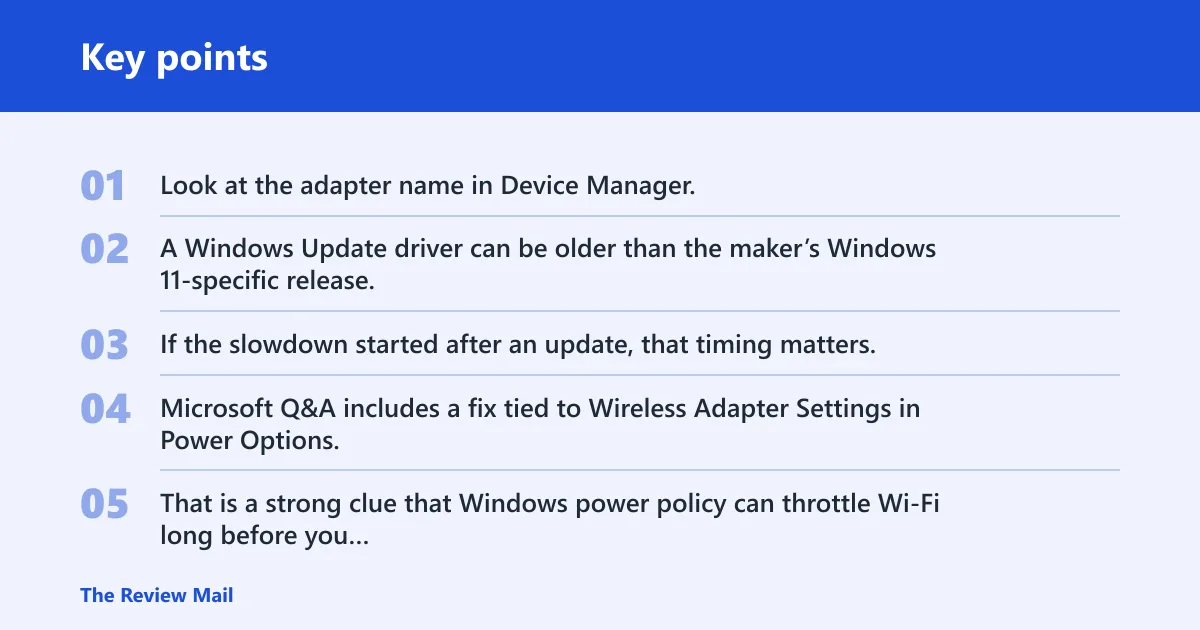
Look at the adapter name in Device Manager, then compare the driver source with the manufacturer’s support site. A Windows Update driver can be older than the maker’s Windows 11-specific release. If the slowdown started after an update, that timing matters.
Look for power-saving behavior on battery
Microsoft Q&A includes a fix tied to Wireless Adapter Settings in Power Options, with On Battery changed to Maximum Performance. That is a strong clue that Windows power policy can throttle Wi‑Fi long before you notice a full disconnect. This is common on laptops that feel slow only when unplugged.
Test the 2.4 GHz and 5 GHz bands
2.4 GHz usually reaches farther but is more exposed to interference from neighboring networks and household devices. 5 GHz often gives better speed at shorter range. If the laptop is slow on 2.4 GHz but fine on 5 GHz, the band choice matters more than the ISP line.
Adapter settings can matter too. Check Preferred Band, Transmit Power, and Roaming Aggressiveness in the adapter’s Advanced tab. SpeedTestHQ specifically calls out Preferred Band set to 5 GHz or Auto, which is a practical place to start.
Fix adapter power settings
Power management is one of the most common laptop-only causes. Windows can turn down or sleep the adapter to save battery, which may reduce throughput or make the connection sluggish after wake. Fixing this is quick and low risk.
Use Device Manager to stop power-off behavior
- Open Device Manager.
- Expand Network adapters.
- Open the Wi‑Fi adapter’s Properties.
- Go to the Power Management tab.
- Clear Allow the computer to turn off this device to save power.
- Restart the PC and retest on battery and AC power.
That setting commonly affects laptop battery-saving behavior. If speed improves after the change, the adapter was being managed too aggressively.
Should you update the Wi-Fi driver?
Yes, if the laptop is slower than other devices on the same network, or if the issue began after a Windows 11 update. A current driver from the manufacturer’s support site is usually the best first driver change. The built-in Device Manager path is still useful, but it is not always the newest option.
Use the manufacturer support site first
Look for a Windows 11-specific driver for the exact adapter model. If the maker offers a newer package than Windows Update, install that one. Restart after installation, then retest the same download or site load that felt slow before.
Use the Device Manager update path
If the support site does not offer a newer build, you can still try Update driver from Device Manager. That is a safe check, but it may simply reuse the current version. A restart after install matters because radio drivers often do not settle until Windows reloads the stack.
One Microsoft Q&A answer says restarting the WLAN AutoConfig service helps for a while. That pattern usually means the service or driver state is getting stuck, not that the router is failing. Temporary relief followed by relapse is a strong sign to update the driver before you reset Windows networking.
Check background traffic
Background transfers can make Wi‑Fi feel slow even when the radio is fine. The link may be busy with sync, update downloads, or peer-to-peer traffic, so pages open slowly and downloads stall. That matters most when the laptop is the only device feeling crowded.
Review Delivery Optimization
Delivery Optimization is a Windows Update feature that can use peer-to-peer downloads. It can also consume upload bandwidth, which may slow other traffic on the same connection. Check Windows Update > Advanced options and review the Delivery Optimization settings there.
If OneDrive is syncing or Windows Update is active, pause it and retest.
Use Metered connection when background activity crowds the link
The Metered connection setting lives in Wi‑Fi properties in Settings. It can throttle background activity, which is useful when downloads and sync feel slow because the laptop keeps pulling or pushing data in the background. It is a control lever, not a permanent fix for a bad driver.
Try DNS and network resets
Move to DNS and stack repair only after you have checked the adapter, power, and background traffic. DNS changes help when sites are slow to open or time out, even if raw speed tests look fine. Network resets are broader and should come later.
Change DNS to a known resolver
Open the Wi‑Fi adapter’s IPv4 properties and use manual DNS entries. Good public choices are Cloudflare 1.1.1.1 / 1.0.0.1, Google 8.8.8.8 / 8.8.4.4, and Quad9 9.9.9.9 / 149.112.112.112. If slow page opens improve, DNS was part of the delay.
Suppose downloads look normal, but a few sites hang for several seconds before the login page appears. That points more toward DNS or name resolution than toward raw throughput. Changing DNS is a sharper test than a full reset in that case.
Run the Windows network stack reset sequence
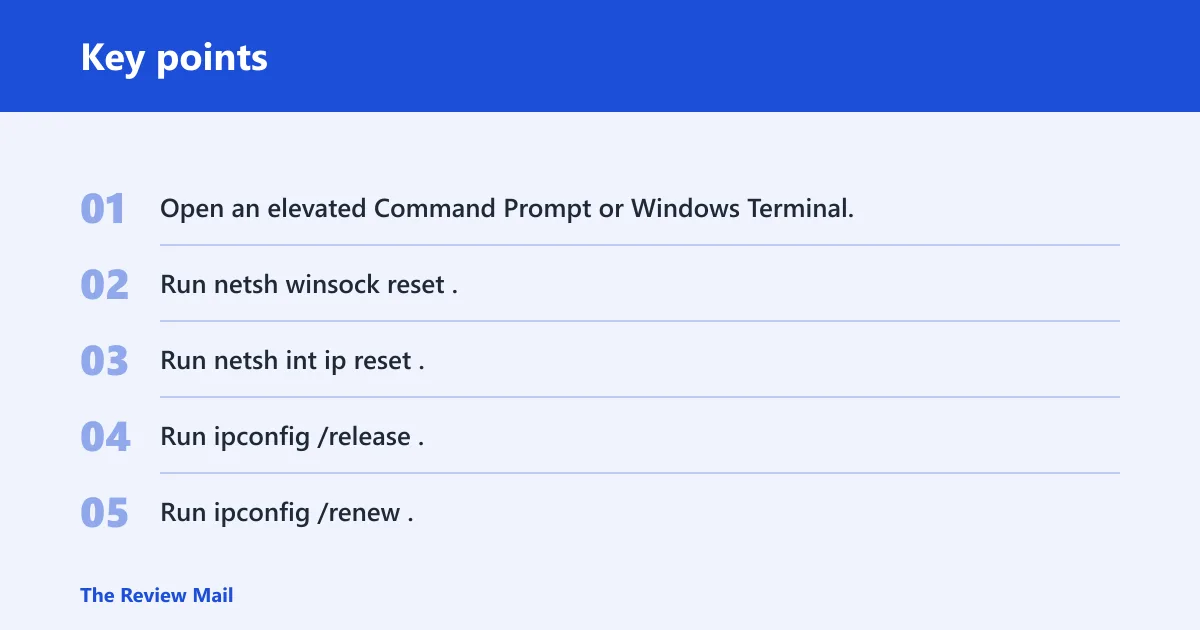
Microsoft Q&A recommends a repair sequence that includes netsh winsock reset and ipconfig /flushdns. Another answer recommends Network reset from Settings > Network & internet > Advanced network settings. SpeedTestHQ also lists netsh int ip reset, ipconfig /release, ipconfig /renew, and ipconfig /flushdns.
- Open an elevated Command Prompt or Windows Terminal.
- Run
netsh winsock reset. - Run
netsh int ip reset. - Run
ipconfig /release. - Run
ipconfig /renew. - Run
ipconfig /flushdns. - Restart the PC.
Use this when adapter and power checks do not explain the slowdown, or when the laptop has obvious network-stack symptoms such as broken name resolution, repeated disconnects, or a service that briefly helps after restart and then fails again.
Is my router or Windows causing the slow Wi-Fi?
Use a quick split test. If every device on the same Wi‑Fi is slow, the router, access point, or ISP is the likelier cause. If only the Windows 11 laptop is slow, focus on the adapter, driver, power settings, band choice, DNS, and background activity first. That avoids a lot of unnecessary resets.
What to do if all devices are slow
Restart the router and the Windows 11 PC, then retest. If speeds stay poor across multiple devices, the problem is probably outside the laptop. At that point, router firmware, WAN service, or ISP congestion deserves attention before any deeper Windows change.
Frequently asked questions
How do I fix slow internet speed on Windows 11?
Start with comparison tests, then check the Wi‑Fi adapter driver, power settings, and background traffic. After that, try DNS changes and, if needed, the Windows network reset sequence. Save a full reset for the point where simpler checks do not explain the slowdown.
Does Windows 11 power saving slow down Wi-Fi?
Yes. Power saving can make a laptop Wi‑Fi adapter sleep, wake slowly, or run at lower performance on battery. The Device Manager Power Management tab and the Wireless Adapter Settings power plan are both worth checking if the slowdown shows up after sleep or unplugging.
Should I update my Wi-Fi driver to fix slow Wi-Fi in Windows 11?
Yes, especially if the problem started after an update or only affects one laptop. Use the manufacturer’s support site first for a Windows 11-specific driver, then restart and retest. Device Manager is still useful, but it may not pull the newest package.
Can Delivery Optimization make Wi-Fi slow on Windows 11?
Yes. Delivery Optimization can use peer-to-peer downloads and consume upload bandwidth while Windows Update is working. That can crowd the link and make browsing or syncing feel slow. Check Windows Update > Advanced options if the slowdown lines up with update activity.
When should I reset the Windows network stack?
Use a network stack reset after adapter, driver, power, band, DNS, and background-traffic checks do not explain the issue. The repair sequence with netsh winsock reset, netsh int ip reset, and ipconfig /flushdns is useful when the connection is behaving inconsistently, not as the first step.