no_more_irp_stack_locations BSOD Fix for Windows 11
NO_MORE_IRP_STACK_LOCATIONS on Windows 11 has a value of 0x00000035 and occurs when the IoCallDriver packet has no more stack locations remaining. A higher-level driver may have called a lower-level driver through IoCallDriver with no space left in the packet, which can prevent the lower-level driver from accessing its parameters. Start by isolating the most recent driver, app, or update change, then move to connected devices and recovery options if Windows will not boot normally.
What no_more_irp_stack_locations means on Windows 11
This bug check usually points to a driver-chain problem during request handoff. In some cases, the higher-level driver has actually written off the end of the packet, and some other memory may also be corrupted. The blue screen may show little more than the stop code, so the timing of the crash is often more useful than the screen text itself.
If the stop screen appears during sign-in, after plugging in a dock, or right after an update, that clue is more useful than the code alone. On Windows, this can happen during an upgrade, at startup, or while using apps, and the system may label it as a stop error, system crash, or bug check.
What to note before you start fixing it
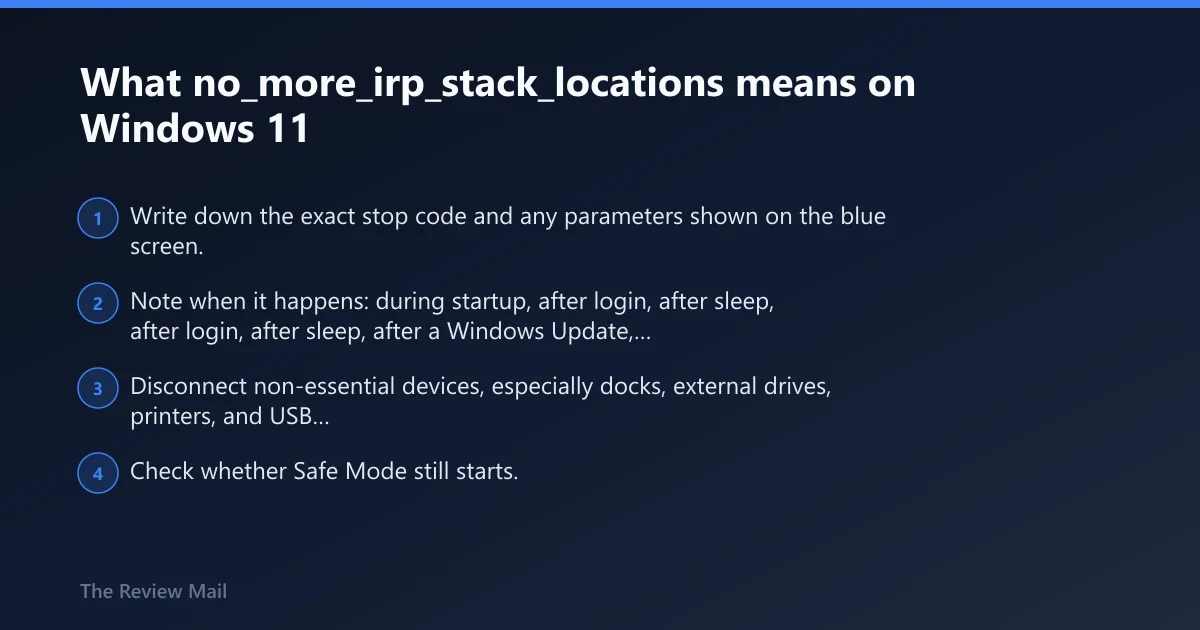
- Write down the exact stop code and any parameters shown on the blue screen.
- Note when it happens: during startup, after login, after sleep, after a Windows Update, or after plugging in a USB device.
- Disconnect non-essential devices, especially docks, external drives, printers, and USB hubs, before the next test.
- Check whether Safe Mode still starts. That single detail will split driver problems from broader Windows damage.
According to windowscentral.com — Windows 11 BSODs can happen during an upgrade, startup, or while using apps.
Likely causes ranked: driver stack, updates, devices, corruption
The most common pattern is a bad kernel-mode driver chain, often from storage, USB, antivirus, or other filter drivers. Less often, a recent Windows Update, a specific app, or damaged Windows files is the trigger. Hardware replacement is possible, but it should come after the driver layer has been checked.
| Crash timing | Recent change | Safe Mode boots? | Most likely cause | Exact next action |
|---|---|---|---|---|
| Right after a driver install or update | Yes: device driver | Yes | Bad driver or filter chain | Rollback or uninstall the newest driver in Device Manager |
| After a Windows Update | Yes: quality update | Yes | Update regression | Uninstall the latest update from Settings |
| When USB, dock, or storage gear is attached | Yes: peripheral change | Usually | USB, dock, storage, or security filter driver | Disconnect devices, then retest one at a time |
| At boot before the desktop | No clear change | No | Broken driver load or deeper Windows corruption | Use Windows Recovery Environment, then Startup Repair or System Restore |
| Random, across apps and reboots | No clear change | Yes or no | Broader Windows corruption or failing hardware | Run SFC, DISM, and then memory or disk checks |
How do I fix no_more_irp_stack_locations BSOD on Windows 11?
Start with the newest driver, app, or update change, then move to peripheral isolation. This stop code is usually a driver-stack problem first, so the fastest fix is to undo the last thing that touched kernel mode: a driver rollback, a device uninstall, or a Windows Update uninstall.
Start with the most recent driver or app change
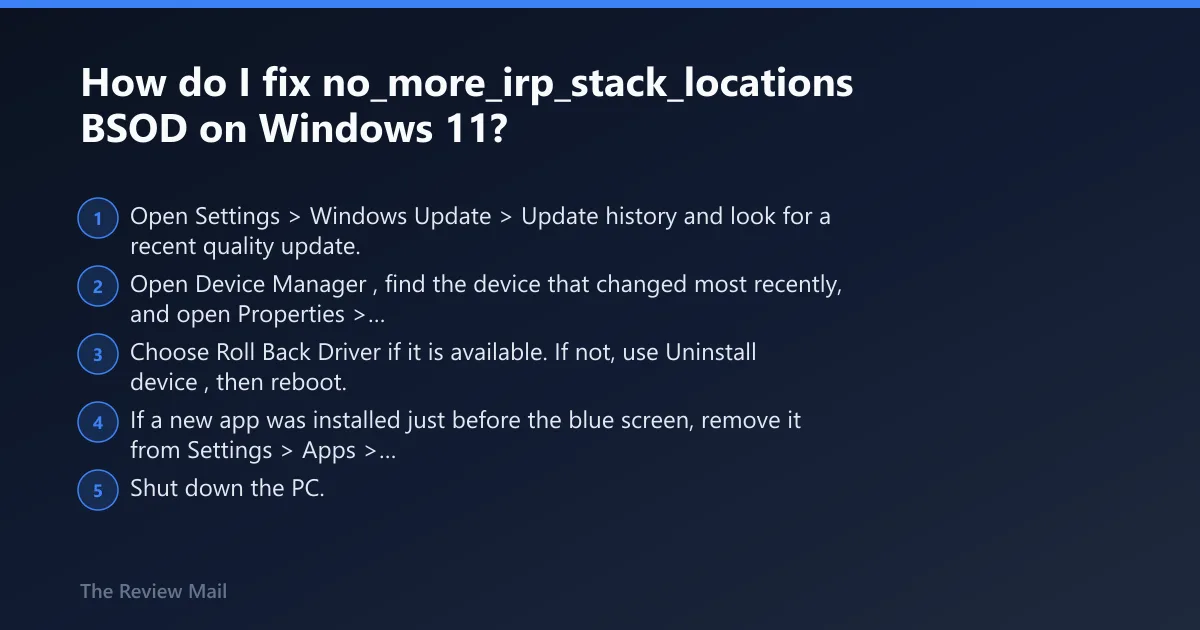
- Open Settings > Windows Update > Update history and look for a recent quality update.
- Open Device Manager, find the device that changed most recently, and open Properties > Driver.
- Choose Roll Back Driver if it is available. If not, use Uninstall device, then reboot.
- If a new app was installed just before the blue screen, remove it from Settings > Apps > Installed apps.
Remove non-essential USB devices and docks
- Shut down the PC.
- Unplug external drives, hubs, printers, card readers, and docks.
- Leave only keyboard, mouse, and display connected.
- Boot again and test for the blue screen before reconnecting anything.
Check for a Windows Update rollback or uninstall
- Open Settings > Windows Update > Update history.
- Select Uninstall updates.
- If the timing fits, try removing the newest quality update first, then reboot.
- If the crash started after a feature update, use System Restore or recovery tools before reinstalling the whole OS.
What causes the no_more_irp_stack_locations stop code?
This stop code can happen when an IRP packet runs out of stack locations while a higher-level driver calls a lower-level driver through IoCallDriver. Microsoft’s code reference also notes the possibility of a driver writing past the end of the packet or corrupting nearby memory. That is why filter drivers and chained device drivers are the first suspects.
Driver or filter driver chain exhaustion
- Open Device Manager.
- Check devices added or updated recently: storage controllers, network adapters, USB controllers, Bluetooth, and security software drivers.
- Use Properties > Driver to roll back the newest one.
- If rollback is unavailable, choose Uninstall device, reboot, and let Windows reload the inbox driver.
Recent Windows Update or driver change
- Go to Settings > Windows Update > Update history.
- Open Uninstall updates and remove the last quality update if the timing lines up.
- Then go to Settings > Windows Update and check for a newer fix if the uninstall stabilizes the PC.
- If the problem began right after a driver update, keep that device disconnected until a stable version is available.
USB devices, docks, storage, and security software
- Disconnect every non-essential USB device.
- Boot the PC with only the built-in hardware in use.
- Reconnect one device at a time after each successful boot.
- If a security suite was installed or updated recently, remove it and test again.
What if the crash happens during startup?
Use Safe Mode if Windows can still reach it, because Safe Mode skips many third-party drivers and can help separate driver trouble from broader corruption. If Windows will not boot normally, consider Windows Recovery Environment and try Startup Repair or System Restore before a full reset.
Boot into Safe Mode if Windows can reach it
- Open Settings > System > Recovery > Advanced startup > Restart now.
- Choose Troubleshoot > Advanced options > Startup Settings.
- Select Restart, then press the Safe Mode option when the list appears.
- In Safe Mode, remove the newest driver, app, or update that matches the crash timing.
Use Windows Recovery Environment when it cannot boot normally
- Force Windows into recovery by interrupting startup if needed, or use the recovery path from the sign-in screen.
- Choose Troubleshoot > Advanced options > Startup Repair.
- If Startup Repair does not help, open System Restore and roll back to a restore point made before the crashes.
- If restore points are unavailable, return to recovery and keep the machine offline while you remove recent hardware or driver changes.
When should I use Safe Mode or recovery tools for this BSOD?
Use Safe Mode when Windows still reaches the desktop or can at least start with fewer drivers loaded. Use Windows Recovery Environment when the machine loops on the blue screen before sign-in, or when normal boot fails after a driver removal. That split saves time and avoids random repairs.
Safe Mode versus recovery, in practice
- Safe Mode: best when the desktop appears and you can remove the suspected driver or app.
- Recovery tools: best when the machine will not stay up long enough to change anything inside Windows.
- System Restore: best when the crash began right after a driver, app, or update change.
- Startup Repair: best when boot files or load order look damaged.
Which drivers usually trigger this BSOD?
Storage, chipset, USB, dock, peripheral, antivirus, and other filter drivers are the usual suspects. These are the layers most likely to exhaust the IRP stack or break the chain when they sit between Windows and the device. The goal is to isolate one layer at a time, not to guess randomly.
Test one driver at a time
- Open Device Manager.
- Pick one recently changed device class only.
- Use Roll Back Driver first, then Uninstall device if rollback is unavailable.
- Restart and test before touching another device class.
Use crash artifacts to narrow the culprit
- Open Event Viewer and look under Windows Logs > System for the crash time.
- Open Reliability Monitor and inspect the red X at the crash time.
- Check
C:\Windows\Minidumpfor recent dump files. - If dumps exist, keep them for a technician or vendor support case; they are the best lead for a driver-chain failure.
Still not working?
If rollback, Safe Mode, recovery, and device isolation do not stop the blue screens, move to file repair and then a reset. Broader Windows corruption is less common than a bad driver chain, but it becomes more likely when the machine crashes in multiple phases or after repeated failed boots.
If that didn’t work, try this next
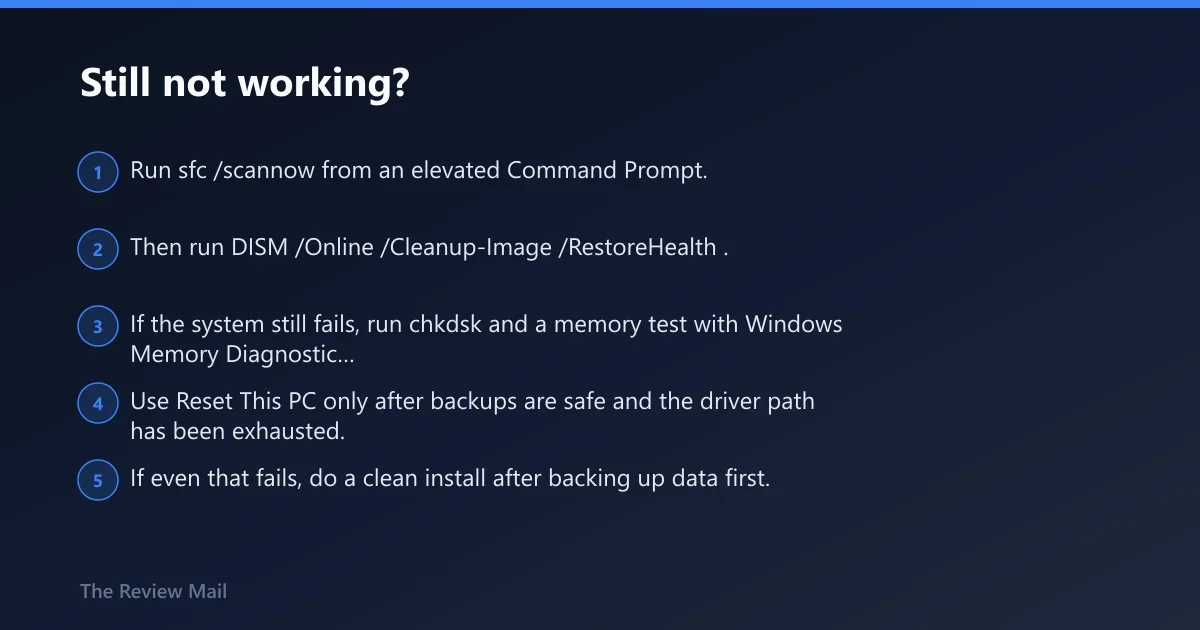
- Run
sfc /scannowfrom an elevated Command Prompt. - Then run
DISM /Online /Cleanup-Image /RestoreHealth. - If the system still fails, run
chkdskand a memory test with Windows Memory Diagnostic (mdsched.exe) or memtest86. - Use Reset This PC only after backups are safe and the driver path has been exhausted.
- If even that fails, do a clean install after backing up data first.
Prevention
After the machine is stable, add drivers one at a time and leave a restore point before major updates. On systems with repeated USB or dock crashes, keep firmware and security filters conservative until the device vendor ships a known-stable package.
Frequently asked questions
Is no_more_irp_stack_locations a driver problem or hardware problem?
Start with drivers and filters, not hardware. If Safe Mode works and the crash follows a driver, USB device, or update change, that points to software. If sfc /scannow, DISM /Online /Cleanup-Image /RestoreHealth, and driver rollback do nothing, then test memory and storage next.
Can I fix no_more_irp_stack_locations without reinstalling Windows?
Yes. In many cases, removing the newest driver, unplugging docks and USB devices, uninstalling a recent update, or rolling back with System Restore is enough. Reinstalling Windows is a last step after Safe Mode, recovery, and file repair have all failed.
Which drivers usually trigger no_more_irp_stack_locations on Windows 11?
Storage, chipset, USB, dock, printer, antivirus, and other filter drivers are the first ones to check. Roll back or uninstall one driver class at a time in Device Manager, then reboot after each change so you can see which removal stops the blue screen.
What should I do first after getting repeated blue screens on startup?
Disconnect all non-essential devices, then try Settings > System > Recovery > Advanced startup > Restart now and enter Safe Mode. If the PC cannot stay up long enough, move to Troubleshoot > Advanced options > Startup Repair and then System Restore.
How do I tell if the crash is from an update, app, or bad hardware?
Match the crash time to the last change. If it started right after Windows Update, use Update history and uninstall the latest patch. If it started after a new app, remove that app. If it survives driver rollback and file repair, test memory and storage for hardware trouble.