0x000000de: What It Means and How to Fix It in Windows
Stop code 0x000000de is a triage problem: if Windows boots, I check Event Viewer, Reliability Monitor, and the newest driver, update, or hardware change; if it will not boot, I start with Safe Mode, WinRE, and offline repair. Pick the wrong branch and you waste hours. I have seen a fixable driver fault turn into repeated crashes, and a disk issue turn into data loss, because someone chased the wrong clue. This guide maps each boot stage to the right checks, logs, tests, and repair steps for 0x000000de.
This guide is part of our Windows BSOD stop codes: full list and fixes series.
What 0x000000de means on a blue screen
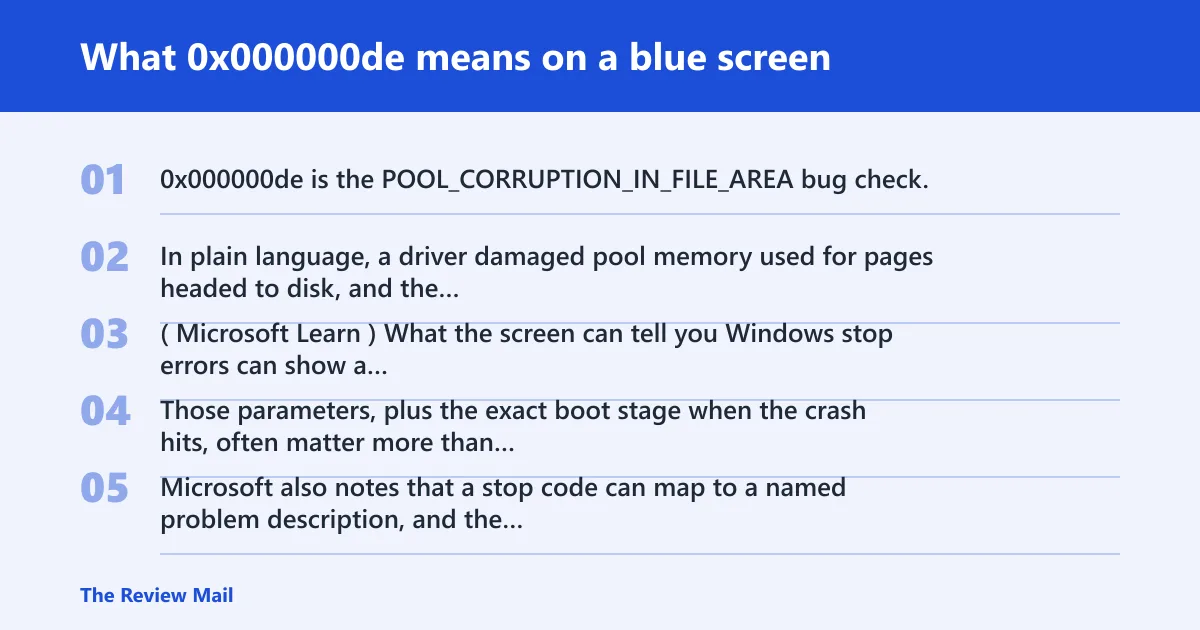
0x000000de is the POOL_CORRUPTION_IN_FILE_AREA bug check. In plain language, a driver damaged pool memory used for pages headed to disk, and the memory manager later found that damage when it touched the file path (per Microsoft support). (Microsoft Learn)
What the screen can tell you
Windows stop errors can show a four-parameter signature in the blue screen text. Those parameters, plus the exact boot stage when the crash hits, often matter more than the short message on screen. Microsoft also notes that a stop code can map to a named problem description, and the fault source can be a specific system file. (Microsoft Support)
What to capture before you restart again
Write down the exact stop code, any parameters shown, the boot stage, and whether the crash happened at startup, sign-in, or during normal use. If the machine still writes dumps, keep that evidence before making changes. Once the system restarts, that first screen is often gone.
| Worksheet field | What to record | Why it matters |
|---|---|---|
| Stop code | 0x000000de | Confirms the exact bug check |
| Parameters | All four values from the blue screen | Can point to the fault class |
| Boot stage | Startup, sign-in, or in-session | Changes the fix path |
| Recent changes | Driver, update, hardware, or software changes | Shows the best first branch |
| Evidence sources | Minidump, Event Viewer, Reliability Monitor | Gives clues beyond the screen text |
Likely causes, ranked by how often they show up
The most common first stop is a driver or startup software conflict. Less commonly, the problem is disk or file-system damage, bad memory or other hardware fault, or Windows corruption after an update or failed shutdown. The right branch depends on when the crash happens and what evidence Windows still leaves behind.
Triage worksheet: use this before changing anything
- Record the stop code, parameters, and boot stage.
- Check the newest driver install, update, software change, and hardware swap.
- Pull clues from Windows crash dump files, Event Viewer, and Reliability Monitor.
- Choose the next branch: driver, disk, RAM, or recovery.
Evidence sources to check in order
Start with crash dumps in C:\Windows\Minidump. A full dump or kernel dump can help more when the crash repeats and the minidump is too thin, but an analysis tool is needed to read the file. Then check Event Viewer System logs for bugcheck entries and time-matched disk, driver, or service errors. Reliability Monitor helps cluster failures by date and recent updates.
Can Safe Mode help with 0x000000de?
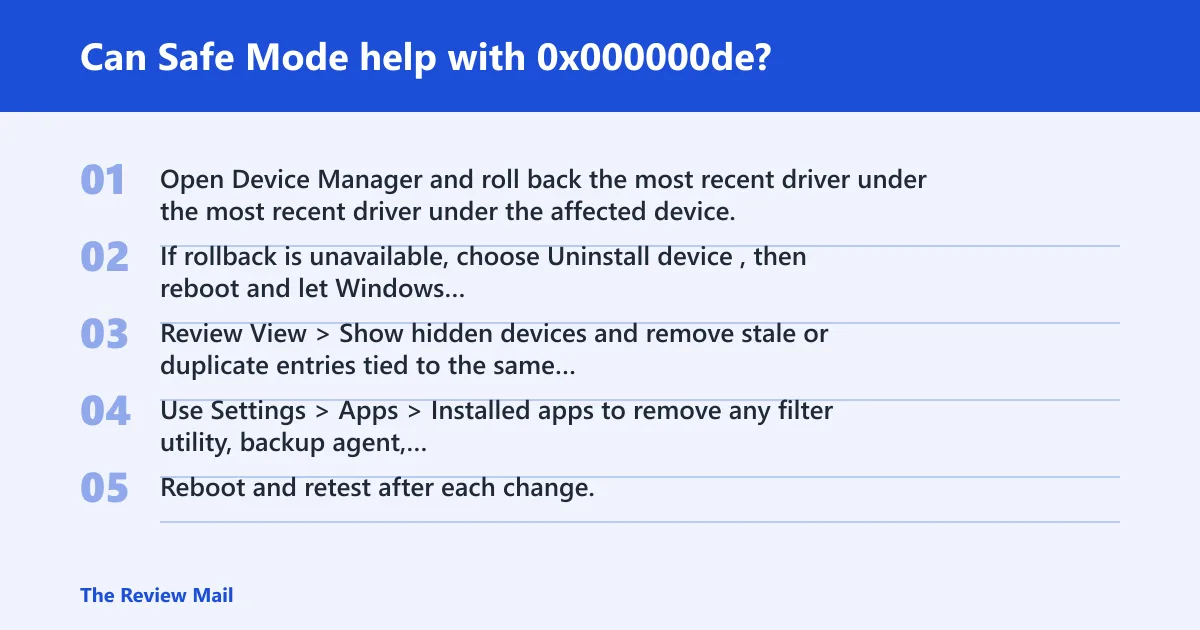
Safe Mode can help when the fault seems tied to a third-party driver, startup app, or filter utility. It loads fewer components, so a machine that crashes in normal boot but stays up in Safe Mode may point away from core Windows and toward recently changed software.
If Windows boots in Safe Mode, what to test first
- Open Device Manager and roll back the most recent driver under the affected device.
- If rollback is unavailable, choose Uninstall device, then reboot and let Windows redetect it.
- Review View > Show hidden devices and remove stale or duplicate entries tied to the same hardware.
- Use Settings > Apps > Installed apps to remove any filter utility, backup agent, antivirus, or storage tool added just before the crashes.
- Reboot and retest after each change.
If Safe Mode fails too, what that suggests
If the system cannot hold even in Safe Mode, the problem moves away from ordinary startup software and closer to storage corruption, memory trouble, or boot-path damage. At that point, jump to WinRE and offline checks rather than repeating the same driver changes.
How do I fix a BSOD with stop code 0x000000de?
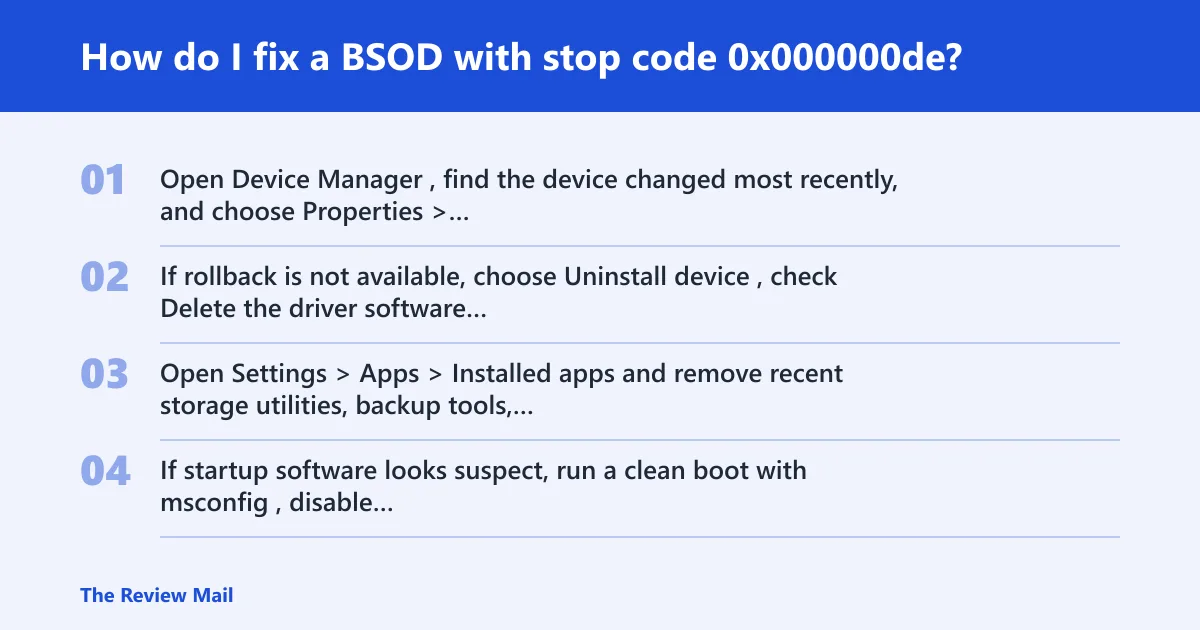
Start with the newest driver or software change, then move to file-system repair, then memory and recovery repair if the crash survives those steps. The order matters. A disk check on a bad driver problem wastes time, and a driver rollback on a damaged file system may never hold.
Fix driver and software causes first
- Open Device Manager, find the device changed most recently, and choose Properties > Driver > Roll Back Driver if the button is available.
- If rollback is not available, choose Uninstall device, check Delete the driver software for this device if offered, then restart.
- Open Settings > Apps > Installed apps and remove recent storage utilities, backup tools, or security software that installs filters.
- If startup software looks suspect, run a clean boot with msconfig, disable non-Microsoft services, and retest.
How to find the driver or hardware causing 0x000000de
Use Event Viewer and Reliability Monitor first, because the crash text is often too thin. Event Viewer may show a bugcheck entry at the crash time, plus disk or driver warnings nearby. Reliability Monitor can show whether the failure started after a driver install, Windows update, or device change. If a dump exists, a debugger with !analyze can point at the faulting module (per Microsoft support).
What if a specific device keeps reappearing
When a removed device keeps returning as a hidden entry or comes back after reboot, disconnect it if possible and test once more. A USB storage device, dock, NIC, or controller driver can trigger the same memory corruption pattern again as soon as Windows loads it.
Should I run chkdsk for 0x000000de?
Run chkdsk when the crash follows failed shutdowns, file copy errors, disk warnings, or a boot sequence that looks brittle. Use it as a targeted test, not as proof that storage is the only cause. This bug check can still come from a driver even when the disk is healthy.
How to run an offline check with repair flags
- Open Windows Recovery Environment or an elevated Command Prompt.
- Run
chkdskC: /f to check and repair file-system errors. - If Windows says the volume is in use, schedule the check for restart so it can run offline.
- After the check completes, boot normally and see whether
0x000000dereturns.
What to do if chkdsk finds errors but the blue screen returns
Do not keep repeating disk repair as the only answer. Move back to the driver branch, then to memory testing. If the same crash comes back after chkdsk repairs the file system, the disk was likely part of the damage path, not the root cause.
What if Windows will not boot past 0x000000de?
When Windows will not get far enough to troubleshoot from the desktop, open Windows Recovery Environment and use its repair tools first. If the machine crashes before Safe Mode, the next useful evidence usually comes from WinRE, offline dumps, and the boot path itself.
Use WinRE in this order
- Select Startup Repair first if the crash happens during early boot.
- Use System Restore if the failure started right after an update or driver install.
- Open Command Prompt for offline checks such as
chkdskC: /f or targeted boot repair. - Use boot repair commands only after evidence points to a startup-path problem, not as a first guess.
When to stop and look at hardware
If Startup Repair fails, System Restore fails, and the crash still returns after driver rollback and disk repair, the remaining candidates are memory or other hardware. At that point, run Windows Memory Diagnostic or memtest86, and inspect the storage controller, RAM seating, and any recently added card or device.
Is 0x000000de related to Windows 11 or older Windows versions?
The workflow is the same across Windows 11 and older Windows releases, but the menus differ. The bug check itself is not a Windows 11-only problem. What changes is where you click for Safe Mode, System Restore, Device Manager, and WinRE.
Windows 11 versus older versions
On Windows 11, most recovery paths start from Settings > System > Recovery. On older versions, you are more likely to use the classic Control Panel or legacy recovery menus. The evidence order does not change: dump, logs, changes, then targeted repair. (Microsoft Support)
Common fix path by symptom
| Symptom | Most likely branch | Next action |
|---|---|---|
| Crash after new driver install | Driver conflict | Roll back or uninstall in Device Manager |
| Crash after failed shutdown or file errors | Disk or file-system damage | Run chkdsk C: /f offline |
| Crash even in Safe Mode | Memory or hardware fault | Run Windows Memory Diagnostic or memtest86 |
| Crash after update or restore-point change | System corruption | Use System Restore or Startup Repair in WinRE |
Frequently asked questions
What does 0x000000de mean in Windows?
It is the POOL_CORRUPTION_IN_FILE_AREA bug check. In practical terms, Windows found damaged pool memory tied to pages meant for disk. The useful next step is not a blind reboot; it is to check the boot stage, recent changes, and any dump or log that Windows still wrote.
Is 0x000000de a driver problem or a disk problem?
Most often it starts with a driver, but disk or file-system damage can sit in the same path. If the crash appears right after a driver install, start there. If it follows failed shutdowns, file errors, or storage warnings, run chkdsk C: /f before assuming the driver is guilty.