
0x00020005 Bugcheck: What It Means and How to Fix It
0x00020005 appears in Windows crash handling when the file you expect after a BSOD may be missing or incomplete, but it is important to separate the original blue-screen stop code from the later dump-creation failure and any progress value shown during crash handling. If you ignore it, you can lose the best evidence for repeated crashes, which makes the cause much harder to pin down. This guide explains what 0x00020005 can indicate, why Event 161 appears, and how to recover useful evidence when normal minidump creation fails.
What 0x00020005 means in Windows
Windows reports this during crash handling, not as the original stop code that caused the blue screen. The key clue is that the system hit trouble while trying to write crash data, and the bugcheck progress value may stay at 0% or fail before the dump could finish. That points you toward the dump-writing path, but it does not by itself identify the original BSOD cause.
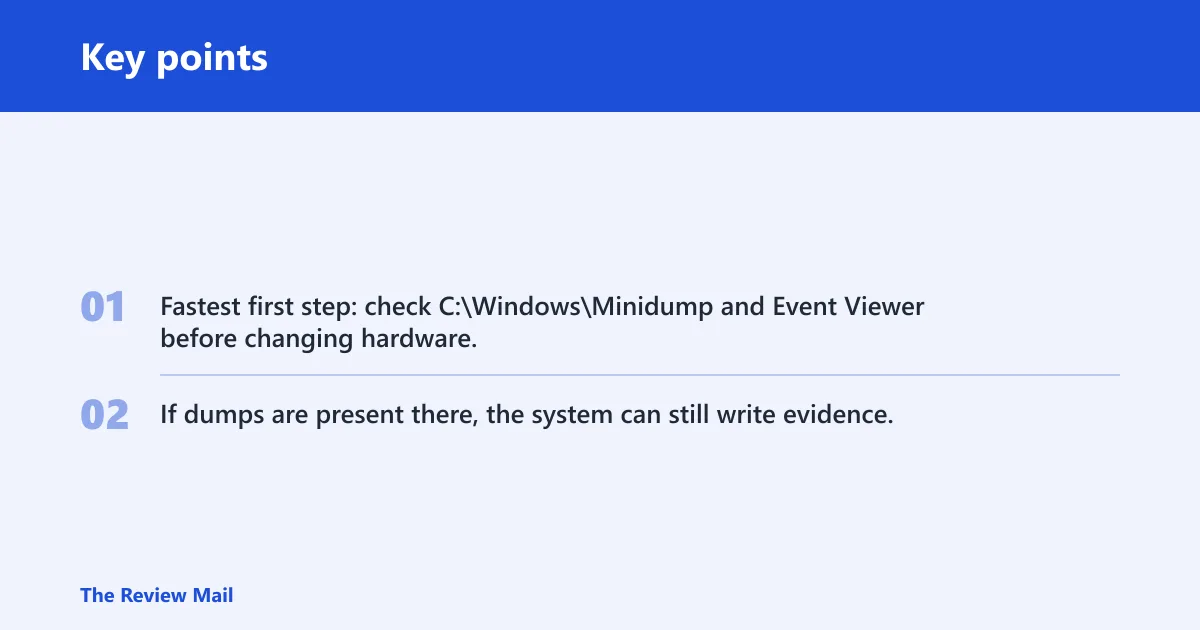
Fastest first step: check C:\Windows\Minidump and Event Viewer before changing hardware. If dumps are present there, the system can still write evidence, even if the screen looked stuck.
Bugcheck triage matrix
| Symptom | Likely failure layer | What to verify first | Dump absence: cause or consequence? |
|---|---|---|---|
| Repeated BSODs with storahci.sys in the stack | Storage driver or SATA path | Driver state, SATA cable, port, controller mode | Usually a consequence |
| Progress stays at 0% | Crash handling cannot complete | Paging file, disk space, dump settings | Consequence of the failure |
No new file in C:\Windows\Minidump | Write target unavailable | Free space, permissions, dump folder health | Can be either, depending on the block |
| Random restarts after memory-heavy use | RAM instability | Windows Memory Diagnostic or memtest86 | Usually a consequence |
| Event 161 plus missing dump | Dump configuration or file-system path issue | Dump type, paging file, security on the target path | Consequence of the failure |
Where does Event 161 fit?
Event 161 is the Windows event log entry that flags a dump file creation failure. It separates the crash itself from the later failure to write evidence. On a Windows 11 system, that distinction can help keep you from chasing the wrong part of the system when the screen freezes at 0%.
Suppose Windows shows UNEXPECTED_STORE_EXCEPTION one day and CRITICAL_PROCESS_DIED the next, then logs Event 161 after the reboot. Those stop errors are the crash symptoms; Event 161 is the clue that the dump step failed afterward. The storage driver in the example case is Microsoft’s default storahci.sys, which can point you toward the SATA path, but it does not prove the dump message alone or identify every cause.
What to note before changing hardware or drivers
- Open Event Viewer > Windows Logs > System.
- Look for Event 161 around the reboot time.
- Record the stop code shown on the blue screen if you saw it.
- Check whether the crash happened at 0% progress.
- Confirm whether
C:\Windows\Minidumphas any recent files.
Why no dump file was written
A missing dump is often the consequence of the failure, not the root cause. The write can fail because the paging file is absent or too small, disk space is tight, the dump folder cannot be written, or the crash happens before Windows can stage the file. A Small Memory Dump can be a useful troubleshooting compromise when larger dumps do not get written.
Windows normally saves minidumps in C:\Windows\Minidump. If that folder is empty after repeated crashes, check whether Windows is configured to write a small dump at all, and whether the target drive is healthy enough to accept a write during shutdown.
Fix dump settings and write targets
- Open Settings > System > About > Advanced system settings.
- Under Startup and Recovery, open Settings.
- Set Write debugging information to Small memory dump (256 KB). (Microsoft Learn)
- Check the dump directory path and keep it at %SystemRoot%\Minidump.
- Make sure the system drive has free space.
- Verify the paging file is enabled on the system drive.
Check the storage path first
The example case points to a SATA storage path because storahci.sys is the active Microsoft AHCI driver. That does not prove the drive is bad. It does mean the cable, port, controller settings, and SSD interface deserve the first round of checks.
Yes, bad SATA cables or ports can cause repeated BSODs on Windows 11. A flaky cable or a marginal port can break the storage path long enough to trigger store-related crashes or stop dump writing. An NVMe SSD may help if the SATA side is the weak point, but it is only a test or workaround unless the evidence points there.
Storage checks and rollback path
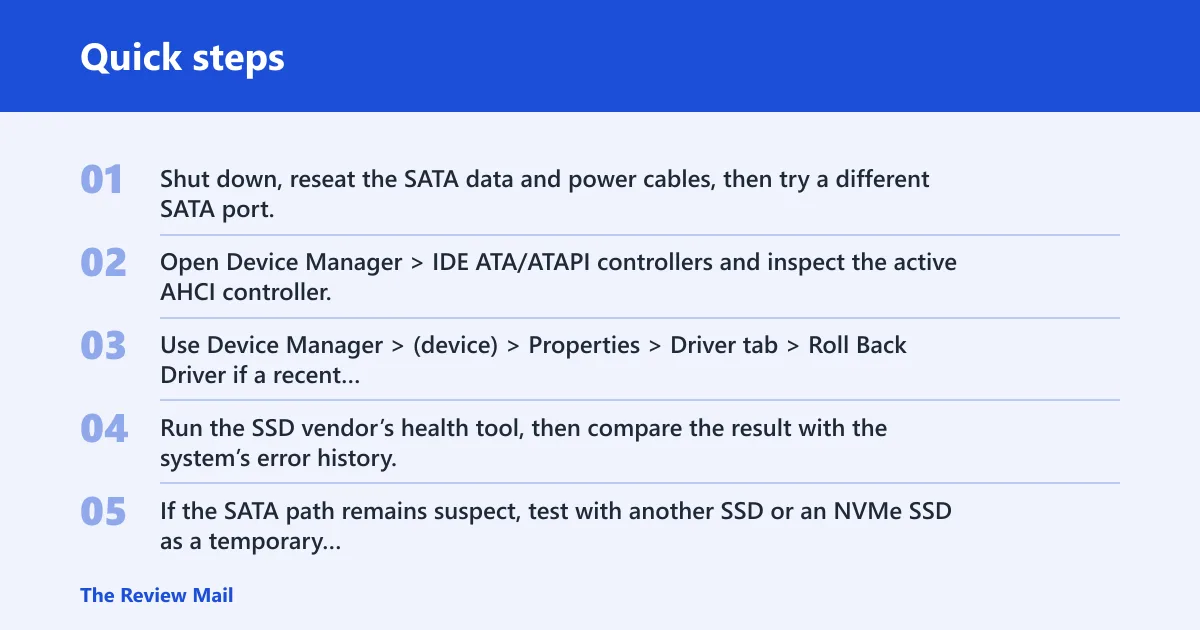
- Shut down, reseat the SATA data and power cables, then try a different SATA port.
- Open Device Manager > IDE ATA/ATAPI controllers and inspect the active AHCI controller.
- Use Device Manager > (device) > Properties > Driver tab > Roll Back Driver if a recent driver change preceded the crashes.
- Run the SSD vendor’s health tool, then compare the result with the system’s error history.
- If the SATA path remains suspect, test with another SSD or an NVMe SSD as a temporary comparison.
What switching to NVMe can and cannot prove
Does switching from SATA to NVMe fix storahci.sys crashes? Sometimes it can hide the issue by bypassing the SATA path, but that is not the same as proving the original cause. If the crashes stop after moving to NVMe, the old cable, port, controller path, or SATA drive becomes more suspicious. If the crashes continue, look elsewhere.
Check memory and crash settings
RAM instability can stop dump creation in some cases, and limited memory can leave less room to stage crash data. The system hardware matters less than the fact that memory errors can disrupt the dump path.
UEFI mode does not prevent dump failures by itself, so it is not a primary fix for Event 161 or 0x00020005. Keep the troubleshooting focus on Windows settings, firmware settings that affect storage, and the dump-writing path.
Memory and boot checks
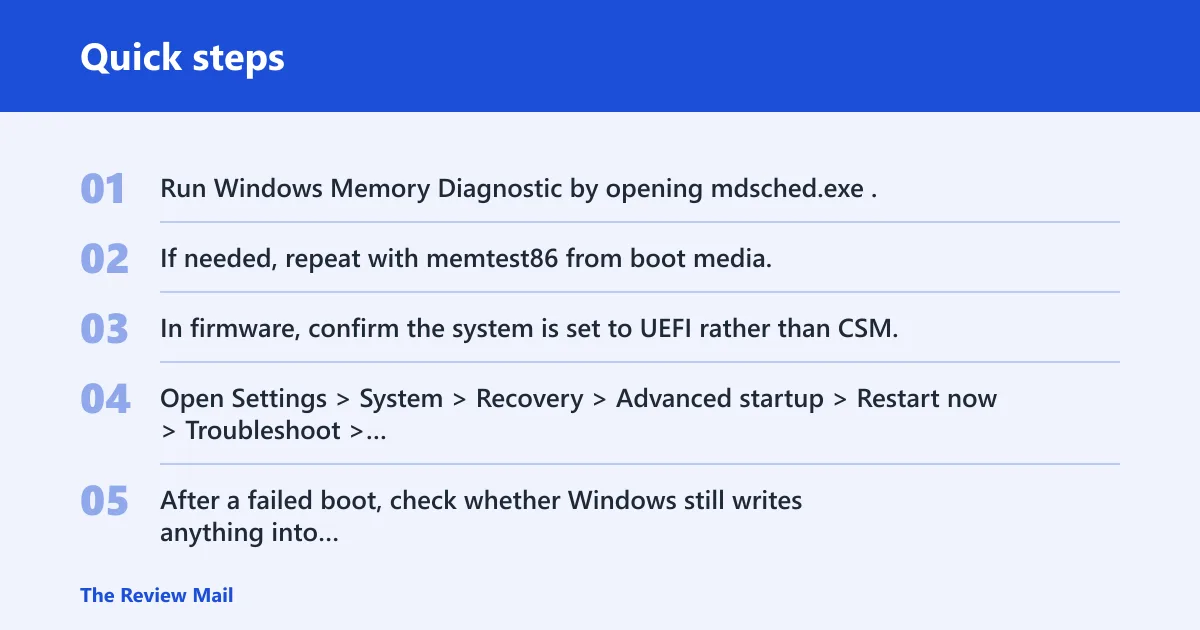
- Run Windows Memory Diagnostic by opening mdsched.exe.
- If needed, repeat with memtest86 from boot media.
- In firmware, confirm the system is set to UEFI rather than CSM.
- Open Settings > System > Recovery > Advanced startup > Restart now > Troubleshoot > Advanced options > Startup Settings to reach Safe Mode when needed.
- After a failed boot, check whether Windows still writes anything into
C:\Windows\Minidump.
If that didn’t work, try this next
Run sfc /scannow from an elevated Command Prompt, then follow with DISM /Online /Cleanup-Image /RestoreHealth. If the paging file, dump settings, and storage checks look normal, corrupted system files or a damaged dump configuration can block the write. A common first-timer mistake is replacing hardware before confirming those settings.
Command sequence:
sfc /scannow
DISM /Online /Cleanup-Image /RestoreHealth
What should you do next?
Collect the exact stop code and parameters from the blue screen if they are visible, then save any files already present in C:\Windows\Minidump\*.dmp. If the crash happens at 0%, focus on preserving evidence: Event 161 entries, dump settings, paging file status, and the storage path. That gives you a usable trail even when Windows refuses to finish the dump.
A common next step is to stop swapping parts once the same path fails twice in a row. If the machine is an OEM system, or if it was rebuilt and still fails the same way, vendor support may need the Event 161 record, the stop code history, and the dump configuration details. Clean installs and low-RAM builds can behave differently, so keep those facts together.
Prevention: keep the system drive with free space, leave the paging file enabled, and avoid changing storage drivers and firmware settings at the same time.
Frequently asked questions
What does bugcheck 0x00020005 mean in Windows?
It marks a failure during crash handling, usually when Windows tries to create a dump after a BSOD. Treat it as evidence that the dump step broke, not as the original stop code. Check the blue-screen stop code separately and look for any file in C:\Windows\Minidump.
Why does Event 161 say dump file creation failed with bugcheck progress 0x00020005?
That pairing means Windows logged a dump-writing failure while the crash process was underway. Event 161 records the failure in the System log, while the progress value reflects the crash-handling stage that did not complete. Verify the paging file, free space, and dump settings first.
Can a BSOD at 0% prevent memory dumps from being created?
Yes. If the crash stalls at 0%, Windows may never reach the point where it can write a full or small dump. Check whether Small memory dump (256 KB) is selected, whether the system drive has space, and whether the paging file is enabled.
Does switching from SATA to NVMe fix storahci.sys crashes?
It can help if the SATA path is the weak link, but it is not a guaranteed fix. A move to NVMe bypasses the SATA cable, port, and AHCI path, which can hide the problem. If the crashes continue on NVMe, look beyond the storage interface.
What should I check when Windows keeps crashing with CRITICAL_PROCESS_DIED or UNEXPECTED_STORE_EXCEPTION?
Start with Event 161, then check C:\Windows\Minidump, the paging file, and the active storage driver. If the machine uses storahci.sys on SATA storage, inspect the cable and port. Then run mdsched.exe or memtest86 if the pattern still points to memory.
Where are Windows minidumps saved after a BSOD?
By default, Windows saves them in C:\Windows\Minidump. If that folder stays empty, open Startup and Recovery and set Small memory dump. Also check disk space and permissions on the system drive before assuming the crash is purely hardware-related.