
0x000000fc: What It Means and How to Fix It in Windows
0x000000FC is ATTEMPTED_EXECUTE_OF_NOEXECUTE_MEMORY. Start with the last change before the crash, then decide whether to roll back a driver, undo a firmware or memory-profile change, or isolate hardware. If you skip that order, the stop can keep returning while the underlying fault stays hidden.
What 0x000000fc means
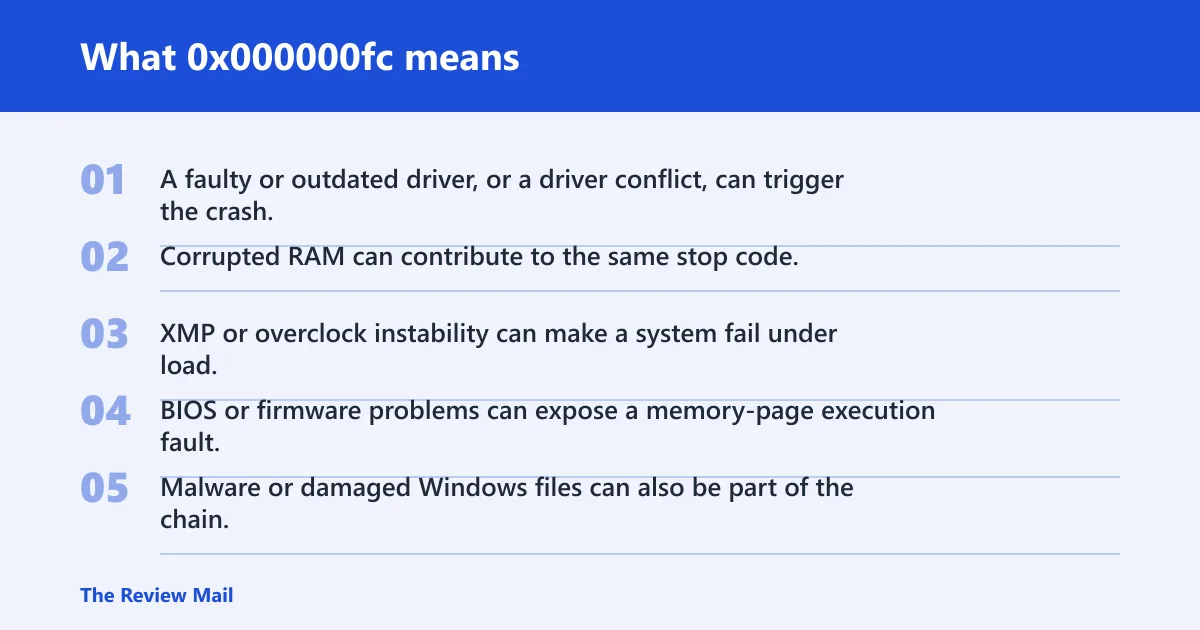
This stop code means Windows tried to execute code from memory marked non-executable. That points to an execution fault, so the first checks are usually the most recent driver change, firmware setting, or new hardware.
If the crash began right after a driver install, Windows Update, a BIOS change, or new hardware, start there. If it still happens in Safe Mode or after you undo the last change, move toward memory, firmware, or device isolation.
Likely causes
- A faulty or outdated driver, or a driver conflict, can trigger the crash.
- Corrupted RAM can contribute to the same stop code.
- XMP or overclock instability can make a system fail under load.
- BIOS or firmware problems can expose a memory-page execution fault.
- Malware or damaged Windows files can also be part of the chain.
According to Bug Check 0xFC: … — 0x000000FC means an attempt was made to execute non-executable memory. (source)
What should I check first after a 0x000000fc BSOD?
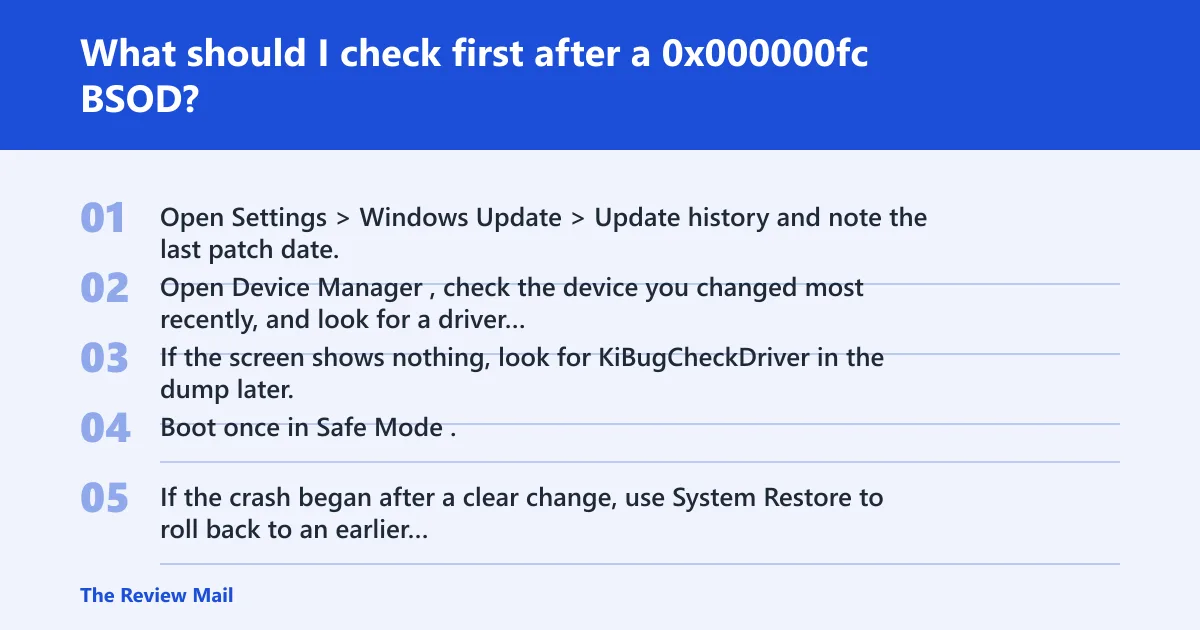
Start with the last change made before the crash, then test the simplest reversal first. If the failure started after a driver install, update, BIOS change, or new hardware, that clue is more useful than a generic repair step because it tells you whether to stay on the software side or move to hardware isolation.
- Open Settings > Windows Update > Update history and note the last patch date.
- Open Device Manager, check the device you changed most recently, and look for a driver name on the blue screen.
- If the screen shows nothing, look for KiBugCheckDriver in the dump later.
- Boot once in Safe Mode. If the crash stops there, keep testing software changes before blaming RAM.
- If the crash began after a clear change, use System Restore to roll back to an earlier restore point.
Triage table: last change, next test, and next branch
| Last change made | Next test | Expected evidence | Keep testing software or move to hardware isolation? |
|---|---|---|---|
| Driver install or update | Device Manager: roll back, disable, or uninstall that device | Crashes stop, or the dump names the same driver again | Stay on software until the rollback test fails |
| Windows Update or cumulative patch | Check Update history, then try System Restore | Failure begins right after the patch or disappears after restore | Stay on software if the restore changes behavior |
| BIOS, XMP, or overclock change | Load BIOS defaults, disable XMP, remove the overclock | Stability returns, or the crash keeps happening under memory load | Move toward hardware isolation if defaults do not help |
| New RAM, GPU, SSD, or peripheral | Remove the new part, or test one part at a time | The old configuration runs clean again, or the same fault returns | Move to hardware isolation quickly |
How do I read the crash dump and bug check parameters?
Open the dump in WinDbg and run !analyze. The output can show the stop code, stack trace, and the module that was active when the crash happened. If the dump points at one driver over and over, that is stronger evidence than a random device name on the screen.
What to look for in WinDbg
- !analyze output: the faulting module, probable cause, and stop-code summary.
- Stack trace: the path leading to the crash, especially the last third-party driver.
- Current instruction pointer: the code location that was executing when the fault happened.
- KiBugCheckDriver: useful when the blue screen does not name a driver.
WinDbg can help show whether the crash keeps pointing at the same module, but the dump still needs to be matched against what changed recently. That keeps the next step grounded in the actual system state instead of guesswork.
How do I fix a driver-related 0x000000fc?
If the dump or the blue screen points to one driver, treat that driver as the first suspect. A bad driver can corrupt execution state without being the only thing broken, so test the driver change first and retest after each step. If the machine stabilizes, you have evidence. If it does not, move on to the next isolation step.
- Open Device Manager, right-click the device, and choose Update driver after checking the vendor site for a newer package.
- If the crash began after a new driver, choose Roll Back Driver first.
- If rollback is not available, choose Disable device and retest.
- If the device still crashes, choose Uninstall device, then install the vendor driver from the hardware maker rather than relying on Windows Update.
- If the change was recent and obvious, use System Restore to return to the point before the driver or hardware change.
If the system still stops after those steps, stop repeating the same driver loop and move to the next branch of testing. Rechecking the same driver without a new change rarely adds anything.
Should I run SFC or DISM for 0x000000fc?
Run DISM before SFC, if that fits your troubleshooting flow. DISM repairs the Windows image, and SFC checks protected system files against that image, so the order matters when you want a clean read on corruption. If the crash survives both repairs, stop treating file damage as the main explanation and keep testing the driver or hardware path.
- Open an elevated Command Prompt.
- Run
DISM /Online /Cleanup-Image /RestoreHealth. - When DISM completes, run
sfc /scannow. - Restart and test the same workload that used to crash.
- If the system still stops, move on instead of repeating the repair loop.
Corrupt Windows system files can be part of the cause chain, but they are not the same thing as a bad driver or failing RAM. That separation matters because a clean SFC result does not clear the hardware side, and a repaired image does not prove the memory path is stable.
How do I check RAM, firmware, and stability settings?
If the driver path does not hold, test memory and firmware next. Run mdsched.exe first as a quick check. If the crash continues after that, especially with XMP or an overclock enabled, move to longer memory testing and review the BIOS or UEFI version.
- Run mdsched.exe and choose to restart and check for problems.
- In BIOS or UEFI, load defaults and turn off XMP or any overclock.
- Check whether the crash stops with stock memory settings.
- On Windows 11, also review vendor chipset, storage, and GPU drivers from the device maker, not only Windows Update.
- If Windows Memory Diagnostic is clean but the crash continues, move to longer memory testing and firmware updates.
Can Windows Update trigger 0x000000fc?
Yes. A cumulative patch can expose a driver conflict, change hardware behavior, or surface a bug that was already sitting in the stack. If the crash starts right after a Windows Update, check Update history, then consider rolling back through System Restore or removing the recent driver package before assuming RAM is the cause.
Can overclocking or XMP cause attempted execute of noexecute memory?
Yes. XMP and overclock instability can sometimes corrupt execution state without implying a permanent hardware defect. Turn both off in BIOS or UEFI, return memory to default speed and timings, and test again. If the system becomes stable only at stock settings, that points to a stability problem rather than a bad module by itself.
Still not working?
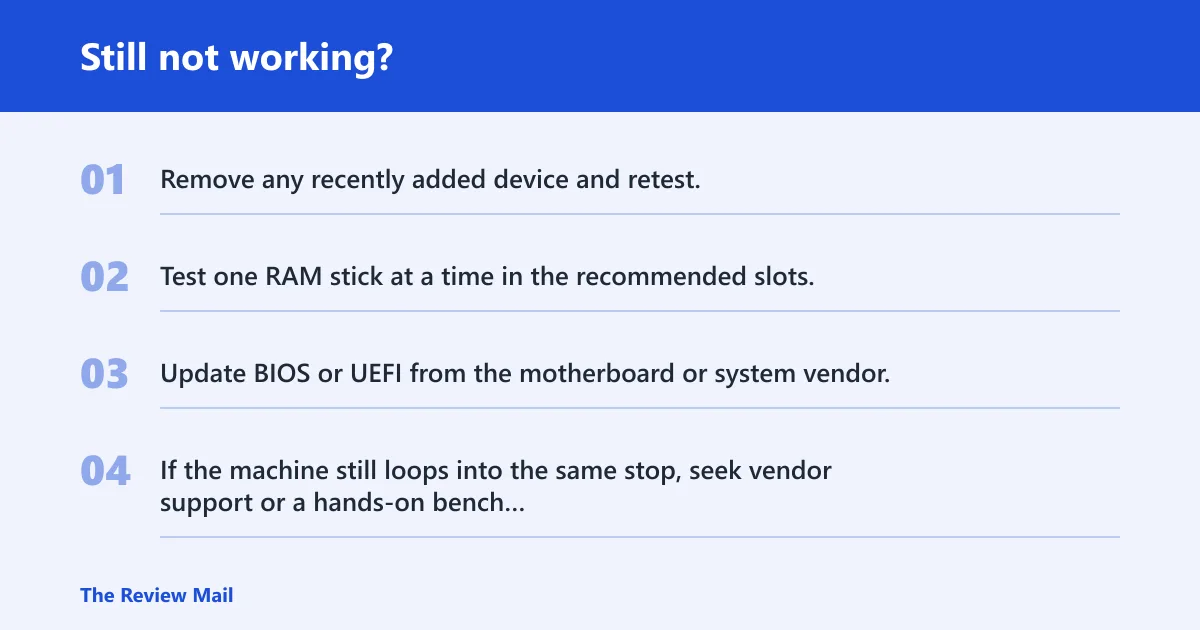
If the crash survives driver rollback, DISM, SFC, Safe Mode, and memory testing, stop treating it as a simple Windows repair. At that point, isolate hardware one component at a time, test with known-good RAM if available, and check the motherboard firmware and vendor support paths before replacing parts.
- Remove any recently added device and retest.
- Test one RAM stick at a time in the recommended slots.
- Update BIOS or UEFI from the motherboard or system vendor.
- If the machine still loops into the same stop, seek vendor support or a hands-on bench test.
Prevention: after any driver, BIOS, or memory-profile change, keep a restore point and note the exact date. That makes the next rollback fast when 0x000000FC shows up again.
Frequently asked questions
What does stop code 0x000000fc mean in Windows?
It means Windows tried to execute code from memory marked non-executable. The quickest practical response is to check the last driver, firmware, or hardware change, then inspect the dump in WinDbg with !analyze instead of guessing from the blue screen alone.
Is 0x000000fc caused by bad RAM or a driver?
Either can be involved. Start with the driver named on the blue screen or in KiBugCheckDriver, then test memory only if the crash survives rollback, Safe Mode, and driver removal.
How do I fix ATTEMPTED_EXECUTE_OF_NOEXECUTE_MEMORY?
Use Device Manager to update, roll back, disable, or uninstall the suspect driver, then run DISM /Online /Cleanup-Image /RestoreHealth followed by sfc /scannow. If the issue began after a change, use System Restore first. If the crash persists, test memory with mdsched.exe.
What driver usually causes 0x000000fc?
No single driver is guaranteed to be the culprit. Focus on the most recently installed or updated storage, chipset, GPU, or security driver first, and use the dump plus KiBugCheckDriver to see whether one module keeps appearing.
How do I know if the crash is driver-related or hardware-related?
If the crash follows a driver install, Windows Update, or a rollback changes the behavior, treat it as driver-related first. If it still appears in Safe Mode, survives file repair, and keeps returning with XMP or overclocking off, move to memory, firmware, and hardware isolation.