Memory Management BSOD Fix Windows 11: First Checks
For a Windows 11 MEMORY_MANAGEMENT BSOD, start with the most recent change: a new driver, update, device, or memory setting can be involved, and unexpected restarts can also be caused by hardware, its driver, or software. The MEMORY_MANAGEMENT bug check has a value of 0x0000001A and indicates that a severe memory management error occurred. This guide shows practical Windows checks you can use to narrow down the cause without guessing.
What the MEMORY_MANAGEMENT stop code means on Windows 11
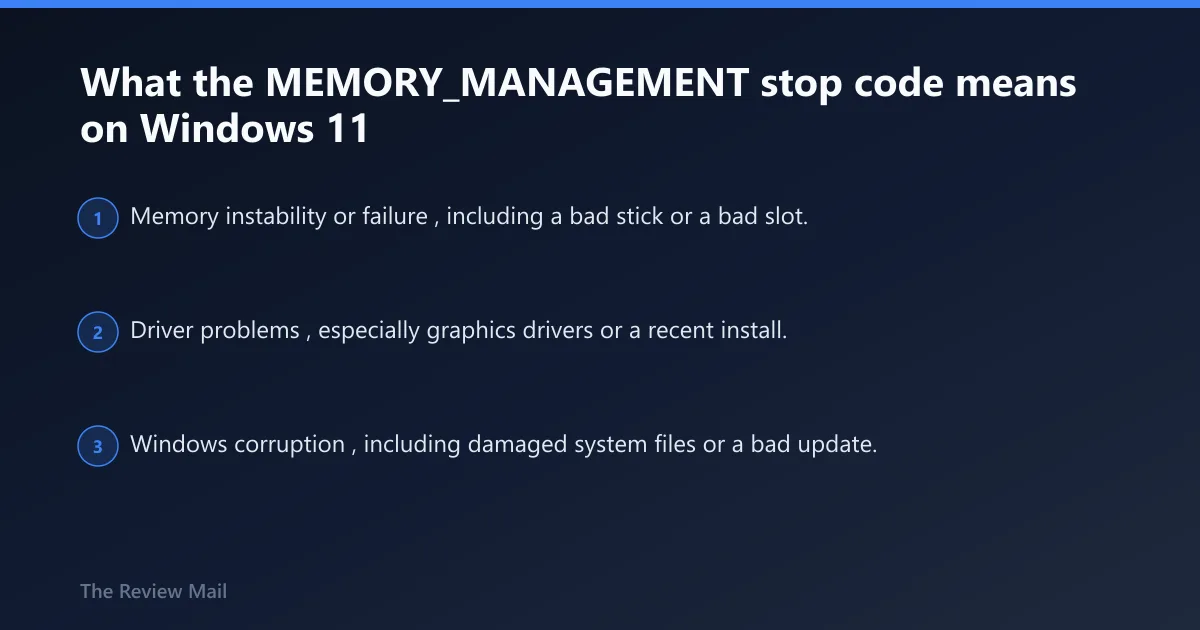
The MEMORY_MANAGEMENT stop code means Windows detected a severe memory management error and stopped to protect the system. In practice, the issue can be related to memory, a driver, or another software or hardware problem. Parameter 1 identifies the exact violation.
If the PC boots normally after one crash, treat it as a sign to check what changed. If it fails during startup again and again, collect the STOP code and any minidump files from C:\Windows\Minidump\ before trying random resets.
Likely causes, ranked by how often they show up
- Memory instability or failure, including a bad stick or a bad slot.
- Driver problems, especially graphics drivers or a recent install.
- Windows corruption, including damaged system files or a bad update.
According to How To Fix Memory Management BSOD Error on Windows 10 and 11 – … — The Memory Management BSOD is a common issue on Windows 10 and 11.
What causes MEMORY_MANAGEMENT BSODs most often?
Common triggers include memory instability, driver problems, and Windows file corruption. A bad driver can write into memory incorrectly, and a bad update can leave the system in an unstable state.
Common trigger patterns to watch for
- Crash after a driver update.
- Crash during startup before the desktop appears.
- Crash after a Windows update with no hardware change.
Is it RAM, driver, or Windows?
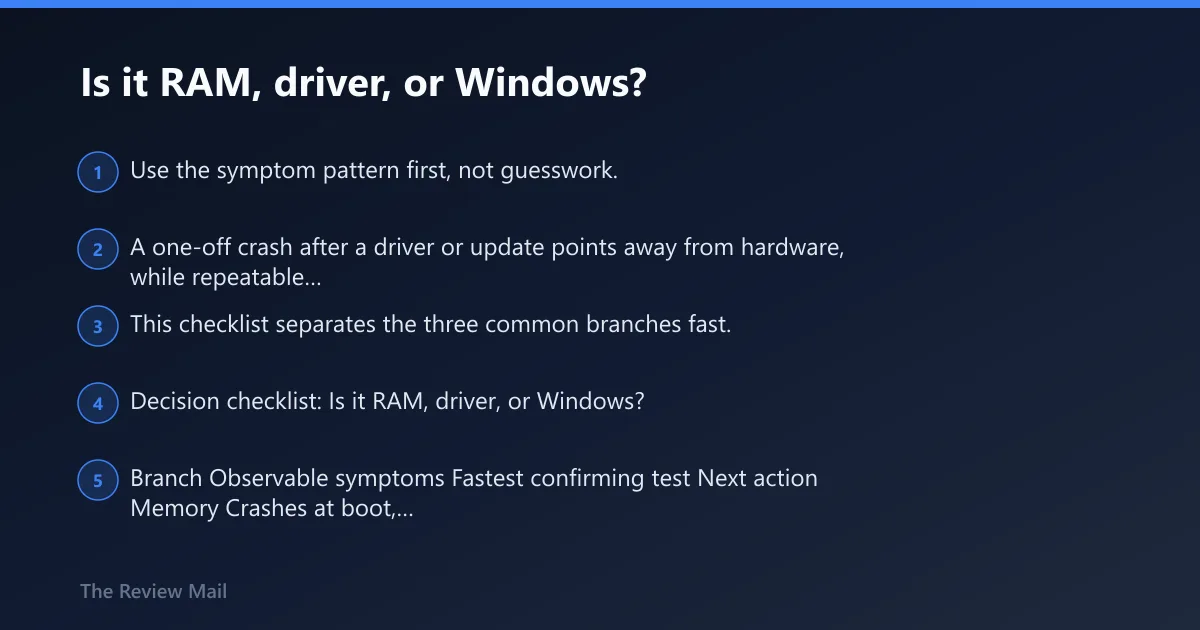
Use the symptom pattern first, not guesswork. A one-off crash after a driver or update points away from hardware, while repeatable startup failures or random reboots under load can point more toward memory, a slot problem, or software changes. This checklist separates the three common branches fast.
Decision checklist: Is it RAM, driver, or Windows?
| Branch | Observable symptoms | Fastest confirming test | Next action |
|---|---|---|---|
| Memory | Crashes at boot, random reboots, errors move when sticks are swapped, recent memory setting change | Windows Memory Diagnostic with mdsched.exe, then one-stick testing | Set memory settings to default, test each module and slot, replace the bad stick or service the board |
| Driver | Crash follows a graphics driver update, new device install, or happens mostly during sleep, gaming, or video | Safe Mode stability, then rollback or uninstall the suspect driver | Reinstall the graphics driver and check chipset drivers; remove the last device that changed |
| Windows | Crash started after a Windows update, minidumps point to system files, Safe Mode is more stable than normal boot | DISM and SFC repairs, then a clean normal boot test | Repair the image and system files; if it persists, consider Reset this PC |
How do I boot Windows 11 Safe Mode for BSOD troubleshooting?
Safe Mode is the fastest way to see whether third-party software or drivers are involved. If the PC stays stable in Safe Mode but not in a normal boot, the problem is usually a driver or startup software issue. Windows 11 exposes Safe Mode through Advanced startup.
- Open Settings > System > Recovery > Advanced startup, then select Restart now.
- On the blue screen, choose Troubleshoot > Advanced options > Startup Settings.
- Select Restart.
- Press 4 or F4 for Safe Mode, or 5 or F5 for Safe Mode with Networking.
- If the desktop is stable here, test the likely driver path next.
How do I check if my RAM is causing the crash?
Windows Memory Diagnostic is the built-in first test for suspected memory trouble. Run it with mdsched.exe, then let Windows restart and check the memory on reboot. If the result shows faults, move to single-stick testing before replacing parts.
- Press Win + R, type mdsched.exe, and press Enter.
- Choose Restart now and check for problems.
- After the test finishes, sign in and review the result notification.
- If the PC still crashes, shut it down and test one RAM stick at a time.
- Move the stick to another slot. A bad slot can look like bad RAM.
- If memory settings are enabled in BIOS, turn them off and retest at default settings.
If XMP or EXPO is involved
Memory profiles can push a stable kit over the edge without the modules being physically bad. Turn the profile off, boot at default settings, and retest. If the crashes stop, the issue is instability at the chosen profile.
How do I fix Windows files if DISM and SFC are the issue?
Run DISM and SFC together when the crash pattern points to corrupted Windows files or a broken image. DISM repairs the component store, and SFC checks system files against it. If both complete but the BSOD continues, the repair path was useful, but the root cause is probably elsewhere.
- Open Command Prompt as administrator.
- Run:
DISM /Online /Cleanup-Image /RestoreHealth - When that completes, run:
sfc /scannow - Restart the PC and test a normal boot.
- If crashes continue, check the Windows build with winver and note any recent update.
- If the problem started after an update, test a rollback path or a restore point before resetting.
DISM /Online /Cleanup-Image /RestoreHealth
sfc /scannow
Can drivers cause MEMORY_MANAGEMENT on Windows 11?
Yes. Device drivers can trigger memory faults, and graphics drivers are the first ones to check because they change often and touch system memory heavily. A recent install, an optional update, or a driver that started failing after sleep or video playback is the signal to focus on drivers first.
- Open Device Manager and find the graphics adapter and any recently changed devices.
- Right-click the device and select Update driver.
- If the crash began after a driver update, open Properties > Driver and choose Roll Back Driver or Uninstall device.
- Restart and test again.
- Check Windows Update > Advanced options > Optional updates and install relevant driver updates.
- After all updates finish, restart even if Windows did not ask for it.
Still not working? When to reset Windows or suspect hardware
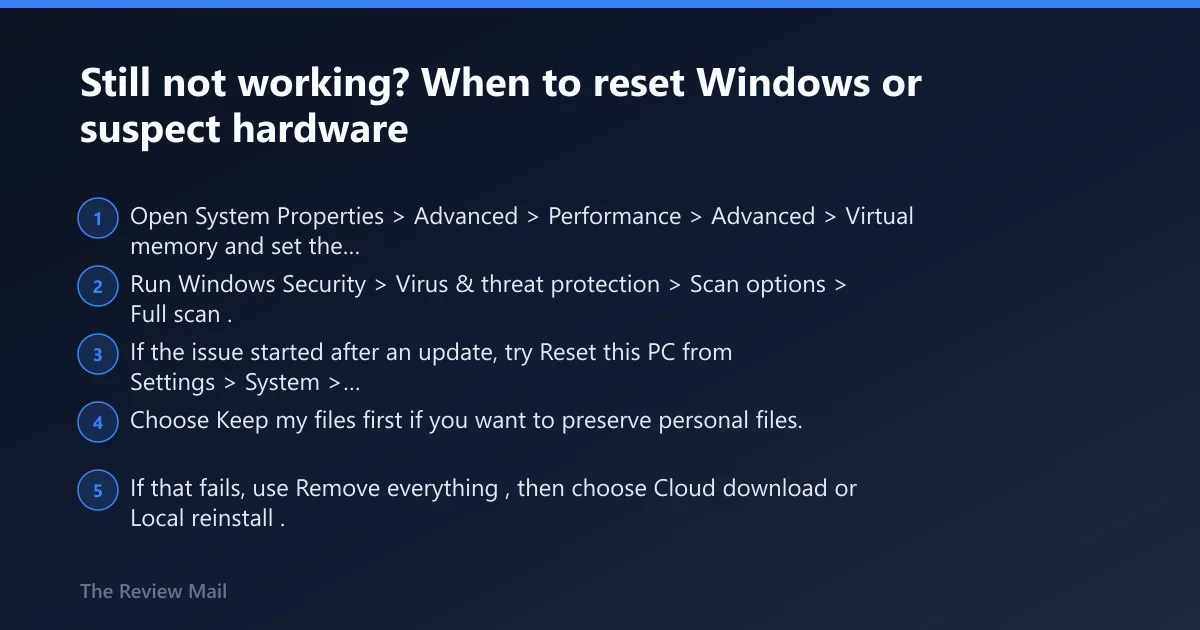
If the PC still crashes after Safe Mode, memory testing, DISM, SFC, and driver checks, reset the page file to automatic and run a full Windows Security scan. A damaged page file setting can add instability, and malware can also interfere with system memory. If the crash persists, the case moves toward hardware isolation or a Windows reset.
- Open System Properties > Advanced > Performance > Advanced > Virtual memory and set the page file to Automatically manage.
- Run Windows Security > Virus & threat protection > Scan options > Full scan.
- If the issue started after an update, try Reset this PC from Settings > System > Recovery.
- Choose Keep my files first if you want to preserve personal files.
- If that fails, use Remove everything, then choose Cloud download or Local reinstall.
- If crashes continue after reset, suspect failing memory, a bad motherboard slot, or board-level trouble.
When to stop software fixes
Stop the software path when the PC still blue-screens after a clean Safe Mode test, a memory test, driver rollback, DISM, SFC, and a page-file reset. At that point, one stick at a time in known-good slots is the next sensible isolation step. If no configuration holds, get hands-on hardware support.
How do I fix memory management BSOD on Windows 11?
Start with the fastest evidence checks: disconnect external devices, boot Safe Mode, run Windows Memory Diagnostic, then repair Windows files with DISM and SFC. If the crash began after a driver or Windows update, test those changes first. If the system still loops, move to one-stick memory testing before you reset Windows.
What should I do if DISM and SFC do not fix memory management BSOD?
If DISM and SFC finish cleanly but the BSOD keeps returning, the problem is less likely to be a damaged Windows file and more likely to be a driver, memory setting, or motherboard issue. The next step is Safe Mode, then driver rollback or memory isolation, then Reset this PC only if those fail.
Frequently asked questions
How do I know if it is hardware or software causing the BSOD?
Boot into Safe Mode first. If the PC is stable there, focus on drivers, updates, or startup software. If it still crashes in Safe Mode or during early startup, run Windows Memory Diagnostic and test memory one stick at a time. Hardware problems usually survive the software-only test.
Is MEMORY_MANAGEMENT on Windows 11 a memory problem?
Not always. Bad memory is common, but the same stop code can come from a graphics driver, a bad update, or corrupted Windows files. Use mdsched.exe first, then compare the result with Safe Mode behavior and any recent changes before replacing hardware.
How do I check if my RAM is causing BSOD?
Run mdsched.exe, choose the restart-and-check option, and then test each stick separately if the first pass finds trouble or the crashes continue. If one module fails in two slots, the stick is suspect. If one slot fails with multiple sticks, the motherboard slot is suspect.
Can drivers cause MEMORY_MANAGEMENT stop code?
Yes. A bad graphics driver is one of the first suspects, especially after a recent update, a new GPU install, or crashes tied to sleep and video. Use Device Manager to roll back or uninstall the driver, then install the latest stable version only after the system holds steady.
What causes MEMORY_MANAGEMENT blue screen in Windows 11?
Common causes include memory trouble, driver conflicts, and Windows file corruption. The key is to match the fix to the symptom. A crash after a driver change points one way; a loop at startup after no software change points another.
Should I reset Windows 11 if memory management keeps crashing?
Only after Safe Mode, Windows Memory Diagnostic, DISM, SFC, driver rollback, and page-file checks have failed. If you reach that point, use Reset this PC first with Keep my files, then Remove everything if needed. Persistent crashes after reset usually point to hardware.
What should I do for memory_management bsod fix windows 11 hp?
On an HP system, use the same symptom-first order: Safe Mode, Windows Memory Diagnostic, driver rollback, and DISM/SFC. If the issue started after a BIOS change or memory-profile change, load BIOS defaults and disable memory profiles before replacing memory. If the PC still fails after one-stick testing, the slot or board may need service.
How do I fix memory_management bsod fix windows 11 safe mode?
Safe Mode is the best branch point when Windows 11 keeps crashing. Use Settings > System > Recovery > Advanced startup, then Startup Settings, then 4/F4 or 5/F5. If the system holds there, focus on the last driver, update, or startup change instead of replacing memory first.
How do I fix memory_management bsod fix windows 11 on startup?
Startup crashes usually narrow the field fast. First, disconnect external devices, then open Advanced startup and choose Safe Mode. If that works, run mdsched.exe and check recent driver or Windows updates. If the crash happens before the desktop every time, move to memory isolation and default memory settings before a reset.
Prevention
After the system is stable, keep memory settings at known-good defaults unless there is a reason to tune them. If a BIOS change, driver update, or Windows update is followed by new BSODs, revert the last change first. That single habit cuts down repeat crashes.