BUGCODE_ID_DRIVER: What It Means and How to Fix It
Quick answer: BUGCODE_ID_DRIVER is stop code 0x000000D2. Microsoft documents it as a bug check tied to an NDIS driver problem. Start by isolating the newest network change, then check the active adapter driver and the crash dump for the exact module name and stack path. (Microsoft Learn)
Quick answer
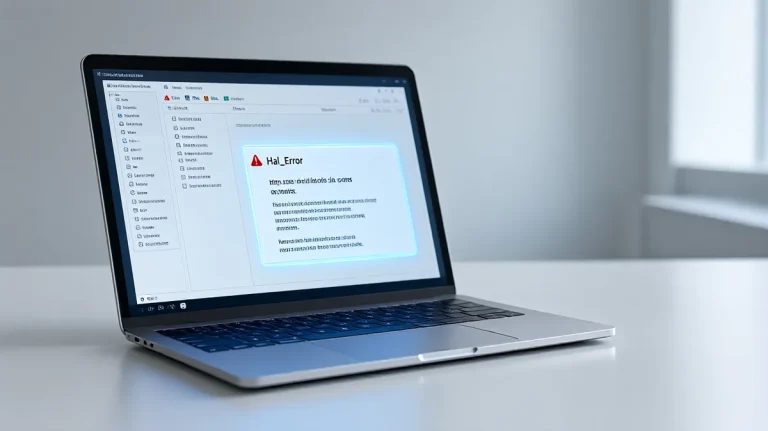
BUGCODE_ID_DRIVER is stop code 0x000000D2. Microsoft documents it as a bug check that indicates a problem occurred with an NDIS driver. (Microsoft Learn)
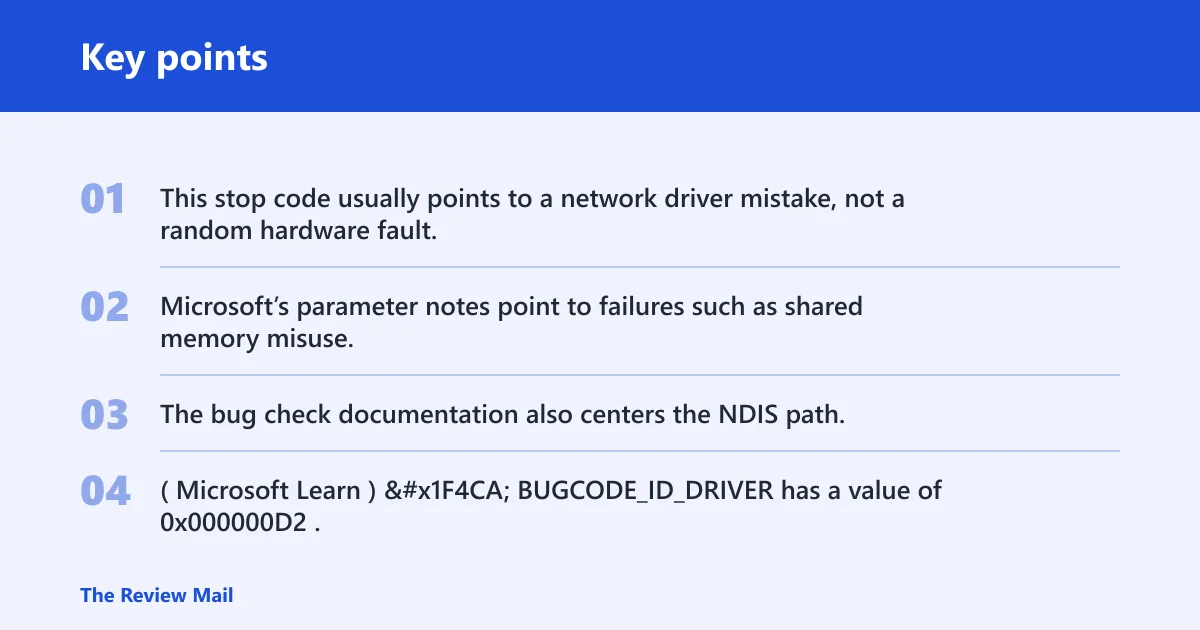
The useful part is not the name. It is the pattern. This stop code usually points to a network driver mistake, not a random hardware fault. Microsoft’s parameter notes point to failures such as shared memory misuse, packet-array corruption, and other driver-state errors. The bug check documentation also centers the NDIS path, so the first suspect is usually a network driver, filter, or related add-on rather than storage or display code. (Microsoft Learn)
📊 BUGCODE_ID_DRIVER has a value of 0x000000D2. Source: Bug Check 0xD2 BUGCODE_ID_DRIVER.
Likely causes by crash pattern
The crash pattern usually tells you where to look first. A boot-time blue screen can point toward the active adapter driver or a startup network component. A crash while joining Wi-Fi can point more toward the wireless stack. A crash after sleep or wake can suggest the driver did not resume cleanly. A crash after installing a VPN or packet filter can point to the newest network add-on.
Say your laptop blue-screens only when you click your office Wi-Fi, but it stays up on Ethernet. That narrows the first pass to the wireless adapter path, not every network component on the machine.
Suppose the system only crashes after sleep, then works normally until the next wake event. That pattern shifts attention to the wireless driver’s power-state handling.
| Crash scenario | Most likely subsystem | First two actions |
|---|---|---|
| Boot crash | Adapter driver or startup network component | Boot to Safe Mode; uninstall the newest network driver or add-on |
| Crash on Wi-Fi connect | Wireless adapter stack | Disable the adapter in Device Manager; reinstall the vendor package |
| Crash after sleep or wake | Wireless power-state handling | Roll back the wireless driver; check adapter power settings |
| Crash after VPN install | Network add-on or packet filter | Uninstall the new VPN or filter; test with no extra network software |
| Crash with a third-party network filter driver | Filter driver path | Remove the filter package; retest after a clean reboot |
How do I fix BUGCODE_ID_DRIVER blue screen?
A good first step is to isolate the newest networking change, then reinstall only the active adapter package if the crash stops. That keeps you from stacking two or three network utilities on top of one another and guessing at the wrong cause.
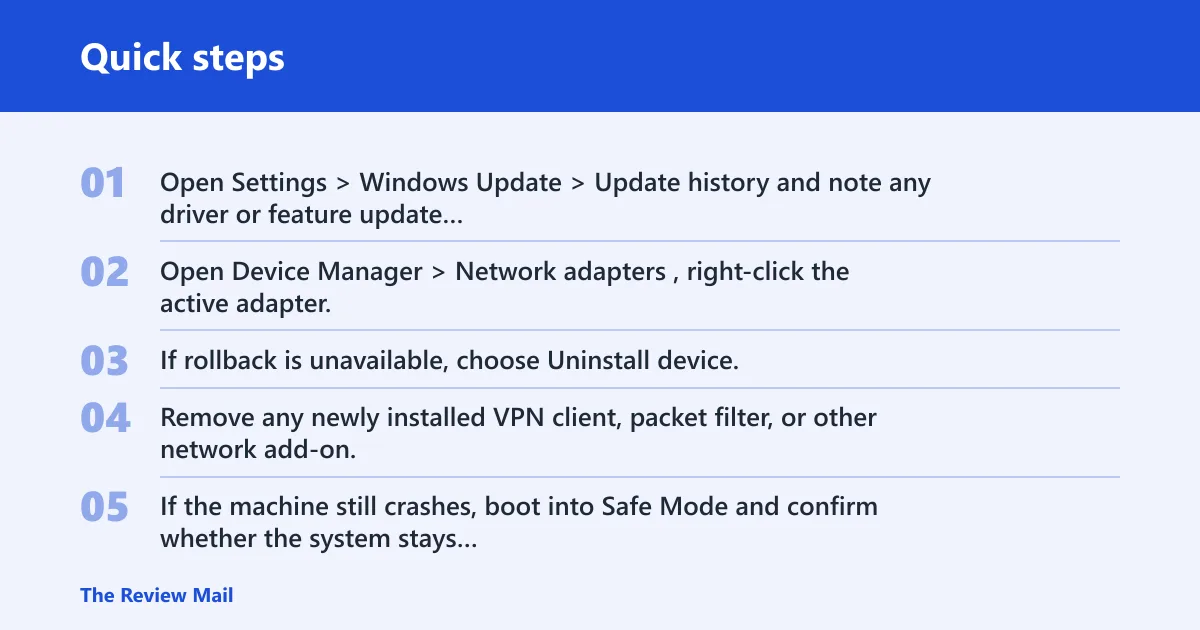
- Open Settings > Windows Update > Update history and note any driver or feature update that landed right before the crash.
- Open Device Manager > Network adapters, right-click the active adapter, and choose Properties > Driver. Use Roll Back Driver if the crash began after a driver change.
- If rollback is unavailable, choose Uninstall device, then reinstall the current vendor package from the PC maker or adapter maker.
- Remove any newly installed VPN client, packet filter, or other network add-on, then reboot and test again.
- If the machine still crashes, boot into Safe Mode and confirm whether the system stays stable there.
These steps line up with the driver failure types Microsoft lists for this bug check: if the crash points to shared-memory handling, the adapter package is the first place to retest; if it points to packet ownership or the miniport packet array, remove conflicting network add-ons and reinstall the adapter driver; if it points to reset handling, test the adapter after a clean reinstall and then review whether the same failure returns under the same network action. (Microsoft Learn)
Can a network driver cause BUGCODE_ID_DRIVER?
Yes. That is the core of this stop code. Microsoft ties 0x000000D2 to an NDIS driver problem, and the listed failure modes include allocating shared memory at raised IRQL, freeing memory that was not allocated, indicating a packet the driver does not own, and corrupting the miniport packet array. (Microsoft Learn)
That means the first repair target is usually the adapter driver itself. Look for the current wireless or Ethernet package, then remove stale copies before reinstalling one clean vendor package.
- Open Device Manager > Network adapters and identify the live adapter name.
- Check Properties > Driver for the provider and date. If the crash started after a recent change, use Roll Back Driver.
- If there are duplicate or unused network entries, uninstall them from Device Manager and reboot.
- Install the current driver package from the PC or adapter maker, not a bundled utility.
Why does BUGCODE_ID_DRIVER happen on Windows 10 or Windows 11?
On Windows 10 or Windows 11 report, treat this stop code as a network-driver crash path and verify which driver actually failed rather than assuming the first screen message tells the whole story. The practical difference is that you may be dealing with a newer wireless stack or a more recent adapter package. (Microsoft Learn)
The issue may still come back to the active adapter driver, a network filter, or another component in the NDIS path. That is why checking the exact driver name in the dump matters more than the simple stop-screen label.
- Go to Settings > Windows Update and install pending updates.
- Open Device Manager > Network adapters, remove the current wireless driver, and reinstall the vendor package that matches your PC model.
- If the issue began after a driver update, use Roll Back Driver before you try anything more invasive.
What should I check in a crash dump for BUGCODE_ID_DRIVER?
Open the minidump or kernel dump and run !analyze -v in WinDbg. That command surfaces the bugcheck details, the stack trace, and the module name that was active when the system stopped. It is the fastest way to see whether the crash points at the adapter, a filter, or another software layer.
Then go beyond the summary. Check the bugcheck parameters themselves, because they often point at the failure type and the component path. After that, use lmvm <driver> to get the module timestamp, path, and vendor metadata, and use kv to inspect the full stack with parameters. If the stack shows a third-party network filter, that matters even when the top frame is inside Windows code.
Use the dump to answer one question: which driver name appears in the failure path? If the dump names a third-party package, that package deserves the first removal test. If you see the active adapter name in the stack or parameter trail, the wireless or Ethernet package is the most likely repair target.
To separate the driver type, look at the module and the frames around it:
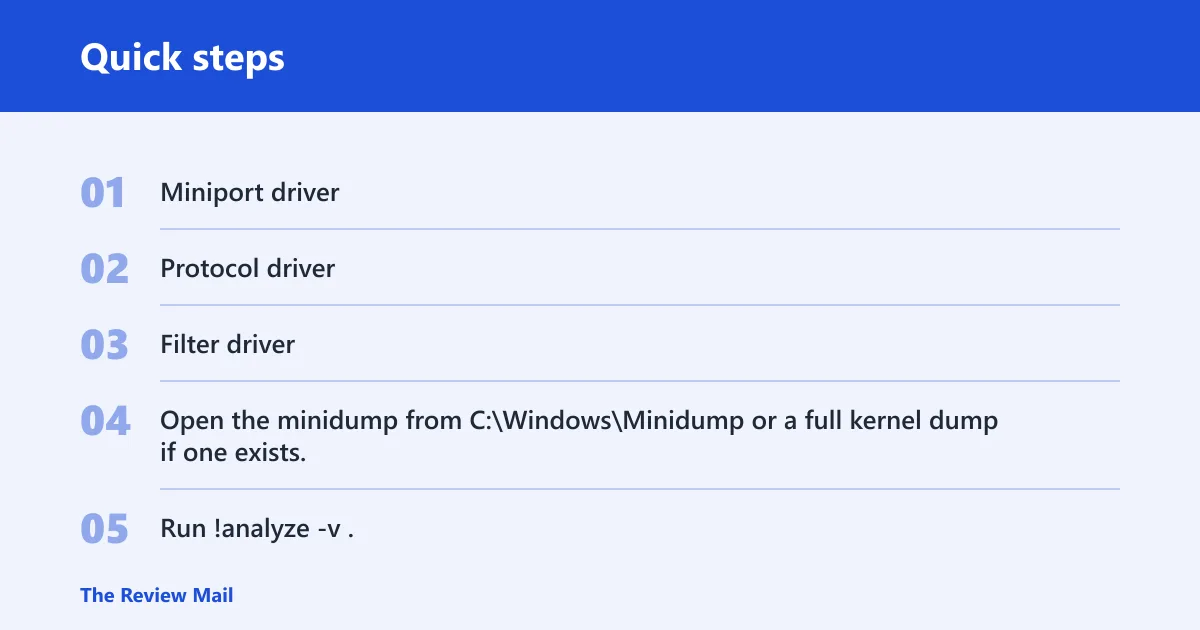
- Miniport driver: the adapter vendor’s low-level network driver often appears in MODULE_NAME, IMAGE_NAME, or the first failing stack frames.
- Protocol driver: a component that handles network protocols may show up above the miniport in the stack and can sit between Windows networking code and the hardware driver.
- Filter driver: VPNs, security tools, and packet inspection software often appear as extra frames or as the named image in IMAGE_NAME or lmvm output.
- Open the minidump from
C:\Windows\Minidumpor a full kernel dump if one exists. - Run !analyze -v.
- Check the bugcheck parameters, MODULE_NAME, IMAGE_NAME, and stack trace for the driver that was active at the crash.
- Run lmvm <driver> for the suspicious module and compare it with the adapter you use and any recently installed network add-ons.
- Use kv to inspect the full call stack and confirm whether the path looks like a miniport, protocol, or filter driver.
Should I use Safe Mode or driver verifier for BUGCODE_ID_DRIVER?
Use Safe Mode first. It starts Windows with a minimal set of drivers, which makes it easier to isolate a driver or app conflict before you touch deeper diagnostics. Driver Verifier is the later step, after the machine is stable enough to test driver code without trapping yourself in a boot loop.
GFlags belongs in the deeper-diagnostics bucket as well. If you need to recover the machine first, keep to the simplest boot path and return to verifier-style testing only after the system is stable.
- Hold Shift while selecting Restart, then choose Troubleshoot > Advanced options > Startup Settings.
- Start in Safe Mode.
- If the system is stable there, remove the newest network add-on or roll back the adapter driver.
- Use Driver Verifier only after the system boots normally again and you want to stress-test a suspect driver.
Frequently asked questions
What does BUGCODE_ID_DRIVER mean in Windows?
It is a blue-screen bugcheck with value 0x000000D2, and it points to a problem in an NDIS driver. The usual next step is to inspect the active network adapter, then check for a recent driver change, add-on, or corrupted network package before you move to dump analysis.
Is BUGCODE_ID_DRIVER the same as stop code 0x000000D2?
Yes. BUGCODE_ID_DRIVER is the name attached to stop code 0x000000D2. If you see either one on the screen or in a dump, the practical response is the same: check the network stack first, especially the adapter driver and anything that filters traffic.
Does BUGCODE_ID_DRIVER mean my Wi-Fi or NDIS driver is broken?
It means the crash occurred in the network driver path, so the wireless or NDIS side is the first place to check. That does not automatically prove the hardware is bad. Roll back or reinstall the adapter driver, then retest with the simplest network setup possible.