Stop Code Bad Pool Caller Windows 11
On Windows 11, BAD_POOL_CALLER usually points to a bad driver. If Safe Mode stays stable, begin with drivers and recent software; if crashes keep happening there too, look next at RAM or storage. Leaving it alone can turn a bootable PC into a restart loop and blur the clues you need. This guide shows how to sort the cause, check crash clues, and choose the next step without guesswork.
What the stop code means
BAD_POOL_CALLER is a BSOD stop code, and it may appear as 0xC2. In plain terms, Windows hit a kernel memory pool problem because something wrote where it should not have, or freed memory the wrong way. That usually traces back to a driver, software conflict, RAM trouble, a disk issue, or a bad configuration.
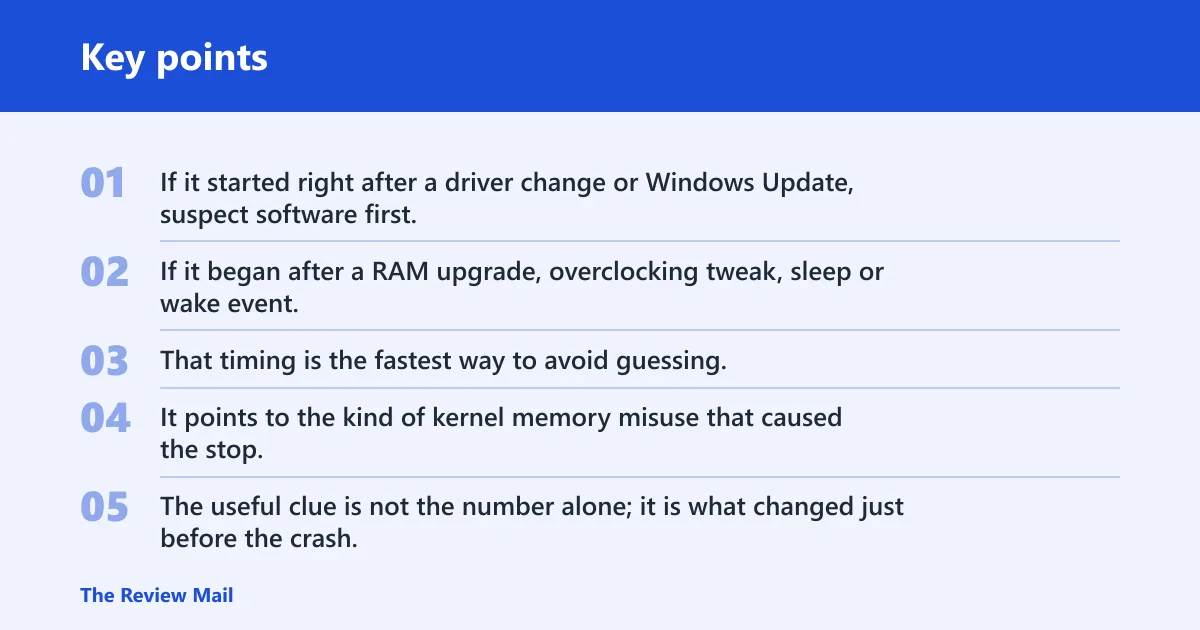
The crash timing matters. If it started right after a driver change or Windows Update, suspect software first. If it began after a RAM upgrade, overclocking tweak, sleep or wake event, or storage error, the order changes. That timing is the fastest way to avoid guessing.
Why 0xC2 matters
0xC2 does not name one exact part. It points to the kind of kernel memory misuse that caused the stop, which is why the same code can come from a display driver, a network driver, a security tool, or faulty memory. The useful clue is not the number alone; it is what changed just before the crash.
Collect the exact stop code and any parameters from the blue screen or from C:\Windows\Minidump\*.dmp if the system can boot far enough to save a dump. A minidump viewer or your IT support can use that to narrow the faulting module.
Likely causes on Windows 11
Most often, this error comes from a bad driver or a driver conflict. Less commonly, it comes from software that hooks deeply into Windows, such as security tools, backup tools, or hardware utilities. RAM problems, storage corruption, overclocking, and a bad device or firmware change are also common enough to check early.
Windows 11 makes recent changes especially important. Optional driver updates in Windows Update, chipset packages, display adapters, network adapters, and security software updates can all move this from rare to repeatable. Sleep and wake failures matter too, because the crash may only happen when the system resumes and reloads drivers.
Say your PC started crashing the same day an optional GPU driver landed in Windows Update. That points much more strongly to the display driver path than to storage. Suppose the crash began after a 32 GB RAM upgrade and now happens in the same game menu every time; memory testing moves higher on the list than driver reinstall.
Which recent change matters most?
Start with the last change that touched drivers, startup software, memory, or power state. That usually gives the shortest path to a fix. If you are not sure, review the timeline in this order: driver updates, new apps or security tools, RAM or hardware changes, Windows Update, then sleep or wake events.
After a driver update
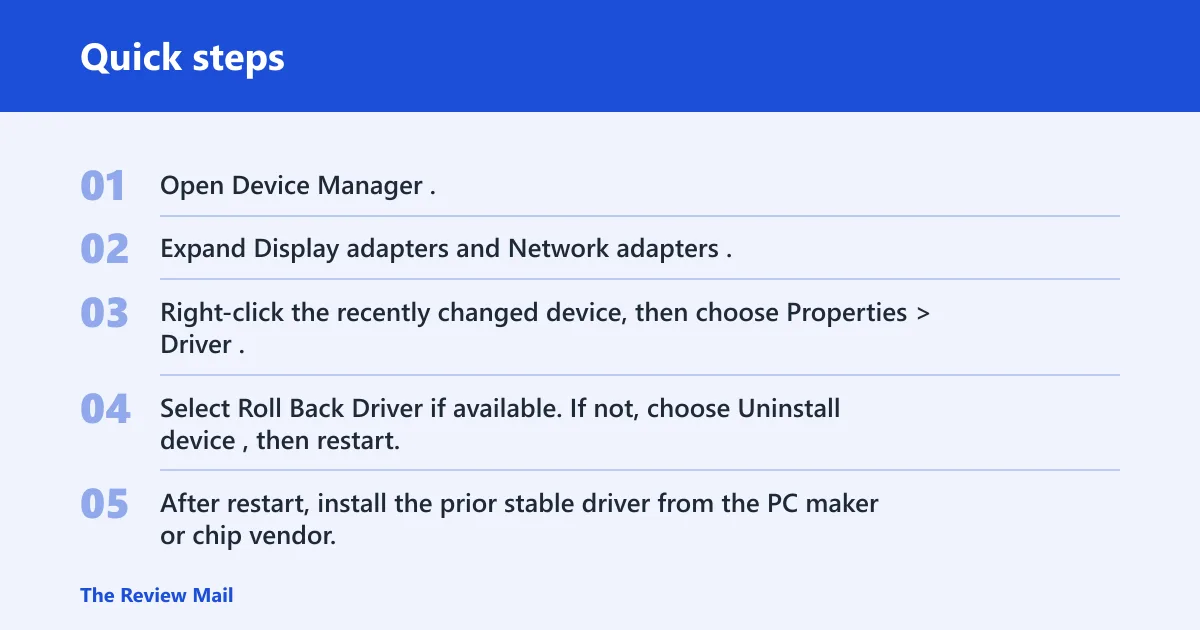
- Open Device Manager.
- Expand Display adapters and Network adapters.
- Right-click the recently changed device, then choose Properties > Driver.
- Select Roll Back Driver if available. If not, choose Uninstall device, then restart.
- After restart, install the prior stable driver from the PC maker or chip vendor, not a random package.
Optional Windows Update drivers matter here too. Check Settings > Windows Update > Advanced options > Optional updates > Driver updates, and install only the specific device package that matches the recent change.
After a new app or security tool
- Open Settings > Apps > Installed apps.
- Sort by install date.
- Uninstall the newest security tool, hardware utility, overclocking app, or backup filter driver.
- Restart and watch for a repeat crash.
- If the issue stops, leave the app off and check for a newer compatible build later.
Security tools can conflict with kernel drivers more often than they are direct malware symptoms. If the crash started right after endpoint protection, VPN, disk encryption, or a filter driver was added, remove that software first.
After a RAM upgrade or overclock
- Enter BIOS or UEFI and return memory settings to default.
- Turn off XMP, EXPO, or manual CPU/GPU overclock settings.
- Shut down and reseat the RAM modules.
- Boot Windows and run Windows Memory Diagnostics.
- If the test reports errors, test sticks one at a time and replace the faulty module.
After Windows Update or sleep
- Open Settings > Windows Update > Update history.
- Review recent quality updates and driver updates.
- If the issue started after a specific update, remove it from Control Panel > Programs > Installed Updates.
- For sleep or wake crashes, update chipset, storage, and network drivers from the system maker.
- Disable fast startup temporarily: Control Panel > Power Options > Choose what the power buttons do.
Bad pool caller triage checklist
This checklist helps you decide what to test first without treating every crash the same way. Use the trigger timing, then pick the fastest test. If the system still boots, start with the right-side action. If it does not, jump to Safe Mode or recovery.
| Trigger timing | Likely cause | Fastest test | Next action |
|---|---|---|---|
| Right after a display or network driver update | Driver mismatch | Roll back in Device Manager | Uninstall the device driver, then reinstall a stable version |
| Right after a new app, VPN, backup, or antivirus install | Software conflict | Uninstall the new app | Boot into Safe Mode and remove any related service or startup item |
| Right after a RAM upgrade | Bad module or seating issue | Windows Memory Diagnostics | Test one stick at a time, then replace the bad module |
| After enabling overclocking | Unstable CPU, GPU, or memory settings | Load BIOS defaults | Leave all clocks and memory on stock settings |
| After Windows Update or an optional driver update | Update regression | Remove the latest update | Pause updates until a fixed package is available |
| During sleep or immediately after wake | Power-state driver issue | Update chipset, storage, and network drivers | Disable fast startup and test sleep again |
| After a disk warning, file corruption, or slow boot | Storage fault or file corruption | Run CHKDSK and SFC | Back up data and replace the drive if errors repeat |
| At random, including Safe Mode | RAM or storage more likely than startup software | Memory test and disk scan | Inspect hardware and review dump files |
Fix driver problems first
If Windows still boots, this is the highest-value path. Use Device Manager to reverse the most recent driver change, then test the machine before moving deeper. Display adapters and network adapters are common targets because they are updated often and can trigger pool-memory faults when they misbehave.
- Open Device Manager.
- Check Display adapters, Network adapters, and any device with a warning icon.
- Right-click the suspect device and open Properties > Driver.
- Choose Roll Back Driver. If that is unavailable, choose Uninstall device and restart.
- Install the driver package from the PC or motherboard maker, then retest.
If the crash began after Windows Update, look under Settings > Windows Update > Optional updates for driver packages before hunting elsewhere. If the problem started after a hardware swap, remove the new device if practical and test again. Wintips recommends removing newly added hardware when the issue follows a hardware change, and RAM is a common example.
Should you test RAM or disk next?
Test memory first when crashes continue in Safe Mode, after a RAM upgrade, or when multiple unrelated programs fail. Move to storage checks when the blue screen follows disk warnings, corrupted files, or a very slow boot. If both suspect areas fit, run memory and integrity checks in that order.
Run Windows memory diagnostics
- Press Win + R, type
mdsched.exe, and press Enter. - Choose Restart now and check for problems.
- Let the test finish and note any error report after Windows reloads.
- If errors appear, test one RAM stick at a time and check both the slot and the module.
Run SFC and DISM
- Open Windows Terminal as administrator.
- Run
sfc /scannow. (Microsoft Support) - If SFC reports corruption it cannot fix, run
DISM /Online /Cleanup-Image /RestoreHealth. - If needed, run
DISM /Online /Cleanup-Image /ScanHealthbefore RestoreHealth. - Restart and check whether the crash returns.
sfc /scannow
DISM /Online /Cleanup-Image /ScanHealth
DISM /Online /Cleanup-Image /RestoreHealth
Use CHKDSK when storage looks suspicious
- Open Windows Terminal as administrator.
- Run
chkdsk C: /f. - If prompted, schedule the scan at next restart.
- After the scan, review whether Windows reported file system errors or bad sectors.
- If disk errors repeat, back up data and check the drive health in the PC vendor’s diagnostics.
How do you fix it if Windows will not boot?
Use Safe Mode first. If Windows crashes before normal desktop startup, a reduced driver set gives you the best chance to remove the last change without loading the same bad component again. If Safe Mode fails too, move into recovery and use rollback or System Restore before a reset.
Start in Safe Mode
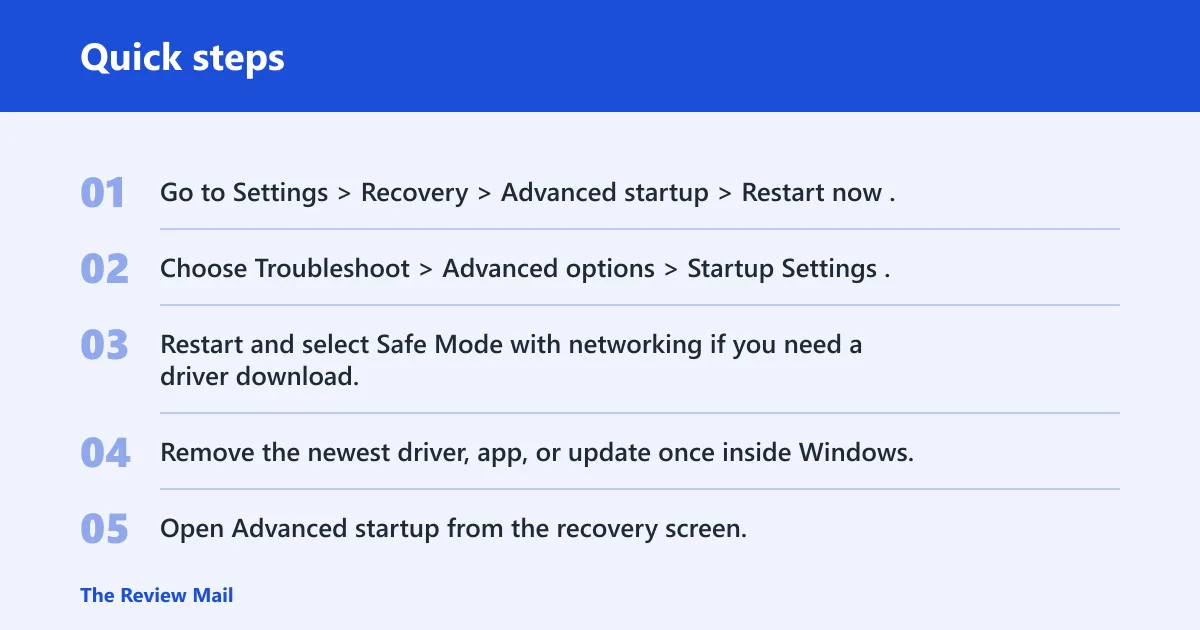
- Go to Settings > Recovery > Advanced startup > Restart now.
- Choose Troubleshoot > Advanced options > Startup Settings.
- Restart and select Safe Mode with networking if you need a driver download.
- Remove the newest driver, app, or update once inside Windows.
Settings > Recovery > Advanced startup > Restart now > Troubleshoot > Advanced options > Startup Settings
Use recovery to remove the last change
- Open Advanced startup from the recovery screen.
- Choose Uninstall Updates to remove the latest quality or feature update.
- If the issue started after a driver install, use Device Manager in Safe Mode to roll it back or uninstall it.
- If the system still will not stabilize, use System Restore from recovery.
Try System Restore before a reset
- Boot into Advanced startup.
- Choose Troubleshoot > Advanced options > System Restore.
- Select a restore point from before the crash cycle began.
- After restore, update only one suspect driver at a time.
If that still does not work: use a repair install or a reset only after data is backed up. Wintips separates normal boot fixes from WinRE recovery for a reason, and Help Desk Geek recommends Safe Mode when the BSOD happens often. If the machine crashes there too, hardware testing and vendor support move higher than more software changes.
Prevention: keep chipset, storage, display, and network drivers from the system maker current, and treat optional driver updates in Windows Update with care. That matters most after a fresh install, a hardware change, or a sleep-related crash.
Frequently asked questions
What is stop code bad pool caller?
It is a Windows BSOD stop code, and it may appear as 0xC2. The stop means Windows hit a kernel pool memory management failure, which usually traces back to a driver, a conflicting program, faulty RAM, storage corruption, or a bad device configuration. The crash timing is the best clue.
Why does BAD_POOL_CALLER happen on Windows 11?
On Windows 11, it usually happens after a driver change, a new app, a Windows Update package, or a power-state transition such as sleep and wake. Resource-heavy apps can also trigger it. If the system can boot, start with the newest change first and check Device Manager, optional updates, and startup software.
How do I fix bad pool caller on Windows 11?
Start with the last driver or app change, then run sfc /scannow and DISM /Online /Cleanup-Image /RestoreHealth if corruption is possible. Check Device Manager for display and network adapters, and use Windows Memory Diagnostics if crashes continue after driver rollback.
Is bad pool caller caused by drivers or RAM?
Drivers are the more common first suspect, but RAM is a real possibility when crashes continue after rollback, happen in Safe Mode, or start after a memory upgrade. Use mdsched.exe to test memory, then isolate sticks one at a time if Windows reports errors or the crash pattern stays unchanged.
Should I uninstall software after a bad pool caller BSOD?
Yes, if the crash began after a new app, antivirus, VPN, backup tool, or hardware utility was installed. Uninstall the newest item first, especially if Safe Mode is stable. Security software conflicts are more common than direct malware involvement, so remove the recent software before chasing a rare cause.
Could malware cause bad pool caller on Windows 11?
It can, but that is not the common path. A driver conflict from security software or another kernel-level tool is more typical. If you suspect malware, boot to Safe Mode with networking, update security definitions, run a full scan, and remove recent unknown software before treating it as a malware-only problem.