0x00000042: triaging the ATDISK_DRIVER_INTERNAL BSOD
BSOD 0x00000042 usually points to a storage-stack or low-level driver failure: if Windows is stable in Safe Mode, I start with storage, chipset, filter, and security drivers; if it also crashes there, I check system files, disk health, and RAM next. Pick the wrong path and you can turn a driver issue into repeated crashes, file corruption, or a disk that fails before you copy your data. This guide follows a practical triage path to separate storage faults, damaged Windows state, and hardware follow-up.
What does 0x00000042 mean on a Windows blue screen?
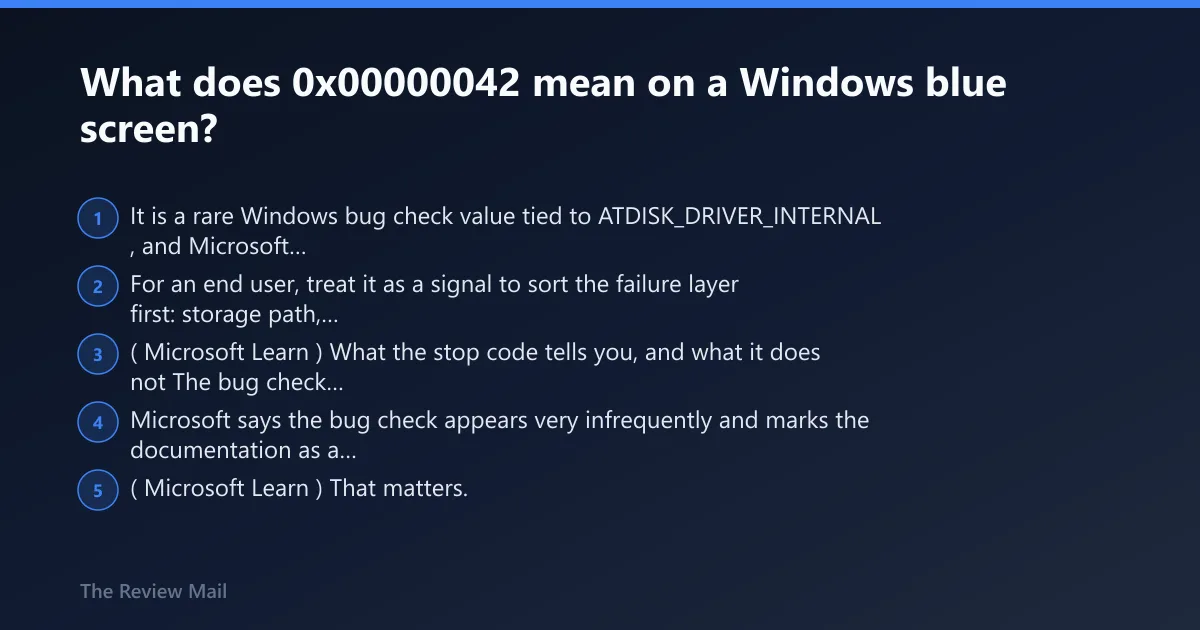
It is a rare Windows bug check value tied to ATDISK_DRIVER_INTERNAL, and Microsoft labels that page as a programmer topic rather than a consumer repair guide. For an end user, treat it as a signal to sort the failure layer first: storage path, damaged Windows state, or hardware follow-up. (Microsoft Learn)
What the stop code tells you, and what it does not
The bug check name used by Microsoft is Bug Check 0x42: ATDISK_DRIVER_INTERNAL, and the stop code value is 0x00000042. Microsoft says the bug check appears very infrequently and marks the documentation as a debugging topic. (Microsoft Learn)
That matters. The code points to an internal failure around the storage path or the state around it, but it does not prove the drive itself is bad. I have seen filter drivers, disk tools, security software components, damaged system files, and unstable memory trigger the same kind of stop. If you want a broader crash-workflow reference, see this Windows BSOD troubleshooting guide.
Why symptom-based triage works better here
Because this stop is uncommon, generic blue-screen advice burns time. The useful question is whether the crash changes with boot mode, attached devices, and recent low-level changes such as storage drivers, chipset packages, antivirus, virtualization tools, or disk software.
If normal boot crashes but Safe Mode holds, suspect drivers first. If Safe Mode also fails, move damaged files, disk health, and RAM higher on the list. Microsoft documents Safe Mode in Windows, and that distinction is one of the fastest ways I narrow 0x42 down.
According to Bug Check 0x42 ATDISK_DRIVER_INTERNAL — The ATDISK_DRIVER_INTERNAL bug check has a value of 0x00000042. (source)
Likely causes, ranked by probability
1) Storage stack or low-level driver fault
Most often, this is where I start. Recent driver installs, storage utilities, security software, docking stations, USB storage, or an update that changed controller behavior all push this cause higher. If the stop began right after an update, that timing matters. In practice, a storage filter or controller clue in a dump does not automatically mean a failing SSD; it often means the implicated layer sits between Windows and the disk.
2) Corrupted system state or damaged Windows files
Next comes Windows state that broke during an update, rollback, forced shutdown, or malware event. MiniTool lists outdated Windows versions and drivers as possible BSOD triggers, and incorrect system settings are also a plausible cause. File repair steps make sense when the system still boots, or at least stays up in Safe Mode. Microsoft documents both SFC and DISM repair commands.
3) RAM faults or unstable attached hardware
Less commonly, bad memory or flaky external hardware causes storage-related crashes by corrupting data in transit. Random app failures, changing stop codes, freezes outside boot, and crashes that ignore driver changes push RAM and peripherals higher. Microsoft includes Windows Memory Diagnostic as a built-in check.
0x00000042 triage table: symptom to next safe step
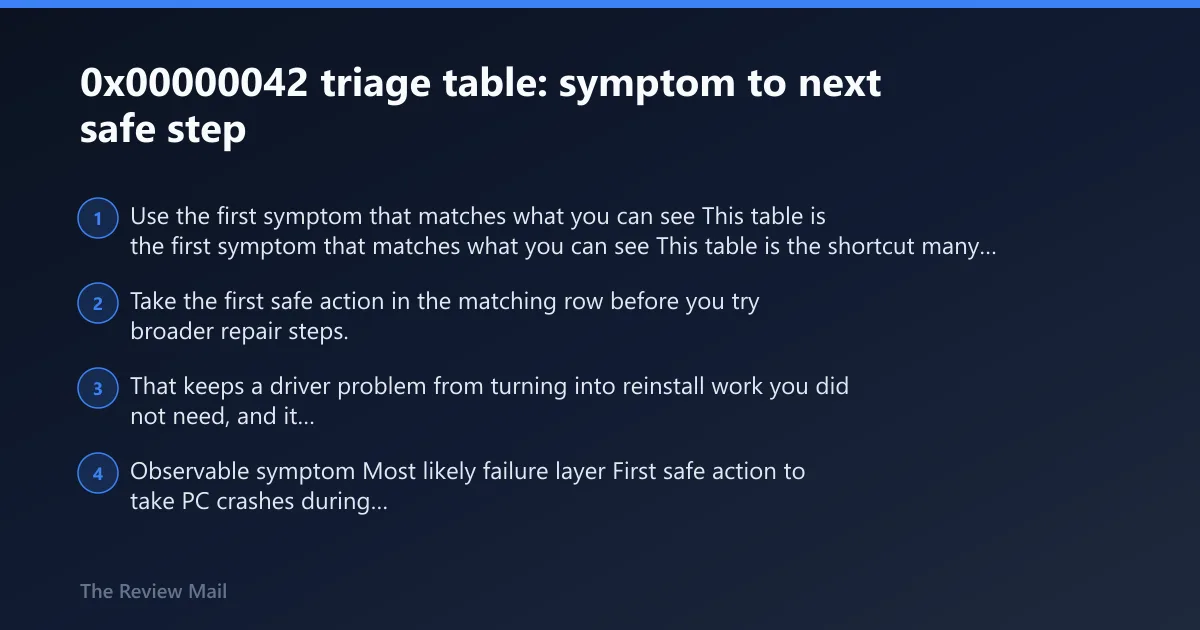
Use the first symptom that matches what you can see
This table is the shortcut many pages miss. Take the first safe action in the matching row before you try broader repair steps. That keeps a driver problem from turning into reinstall work you did not need, and it puts backup first when storage symptoms start to pile up.
| Observable symptom | Most likely failure layer | First safe action to take |
|---|---|---|
| PC crashes during normal boot, but reaches desktop in Safe Mode | Driver | Disconnect unnecessary peripherals, then check recent driver, antivirus, VPN, disk-tool, and update changes before rolling back or updating storage-related drivers |
| Crash started right after a Windows update, chipset package, SSD utility, or controller driver install | Driver | Open Device Manager and roll back or uninstall the recent storage or chipset item, then reboot and retest |
| Safe Mode also crashes, or Windows will not stay up long enough to load apps | Files | Run sfc /scannow first, then DISM /Online /Cleanup-Image /RestoreHealth from Safe Mode with Command Prompt if needed |
| Explorer errors, missing files, failed updates, or odd Windows behavior appeared before the BSOD | Files | Open Command Prompt as administrator, run sfc /scannow, then run DISM /Online /Cleanup-Image /RestoreHealth; if the trouble started after a specific update, driver install, or disk utility change, go to Control Panel > Recovery > Open System Restore and return to the last known-good restore point (Microsoft Support) |
| Random restarts, app crashes, changing stop codes, or freezes during gaming | RAM | Press Win+R, type mdsched.exe, choose Restart now and check for problems, then remove recently added RAM or overclock-related changes |
| BSOD appears only when a dock, USB drive, external SSD, or adapter is attached | Storage | Remove the external device, boot with only essential hardware, and retest before updating any driver |
| Disk warnings, SMART alerts, repeated boot failures, file-system errors, or very slow file access | Storage | Back up data immediately, run chkdsk, and move to vendor diagnostics or hardware service before deeper software repair |
Is this a storage stack or driver problem?
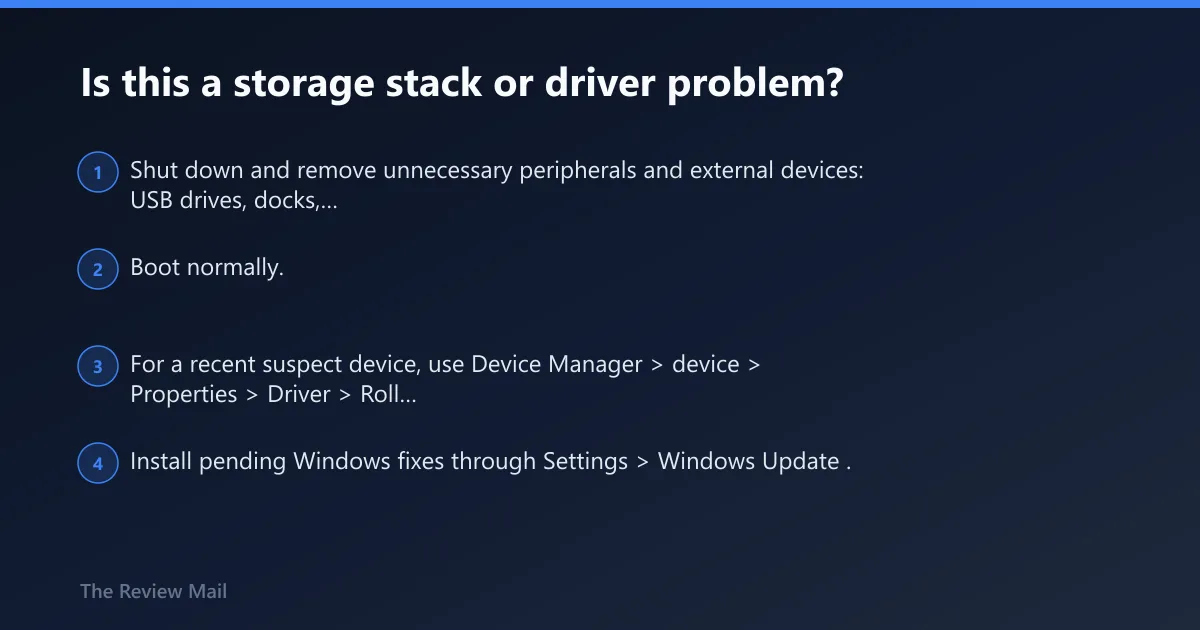
If the machine becomes stable in Safe Mode or after unplugging nonessential hardware, a storage-path or low-level driver issue moves to the top of the list. Start by isolating devices, then check recent storage-related changes, and only after that move to driver rollback, update, or dump analysis.