
0x00000051 Registry Error BSOD: Fast Fixes by Cause
0x00000051 REGISTRY_ERROR usually means one of three things: a damaged registry hive, disk I/O corruption, or a recent driver or software change; identify the bucket first, then use the shortest repair path. I have seen people pick the wrong branch, lose hours, overwrite hives that were still recoverable, or miss a drive that was already starting to fail. This guide maps the checks for each cause on Windows 10, Windows 11, and older builds, with legacy-only notes where older F8-era recovery differs from modern Windows.
What does stop code 0x00000051 mean?
The practical reading is simple: if it happens before sign-in, start with hive damage or disk reads; if Safe Mode works, start with rollback or System Restore; if it appears after login, start with a recent change. The blue screen’s four parameters help sort those branches fast.
What the stop screen is telling you
Bug Check 0x51 has the value 0x00000051, and Microsoft names it REGISTRY_ERROR. Microsoft also says the registry may have encountered an I/O error while reading one of its files, and that hardware problems or file system corruption can be involved. (Microsoft Learn)
That is why I do not read this as “the registry is bad,” full stop. A damaged hive is one branch. A bad read from storage is another. A newer driver, update, security tool, or cleanup utility that loads around sign-in is a third, especially when normal boot fails after login rather than during early boot.
What the four parameters mean in plain English
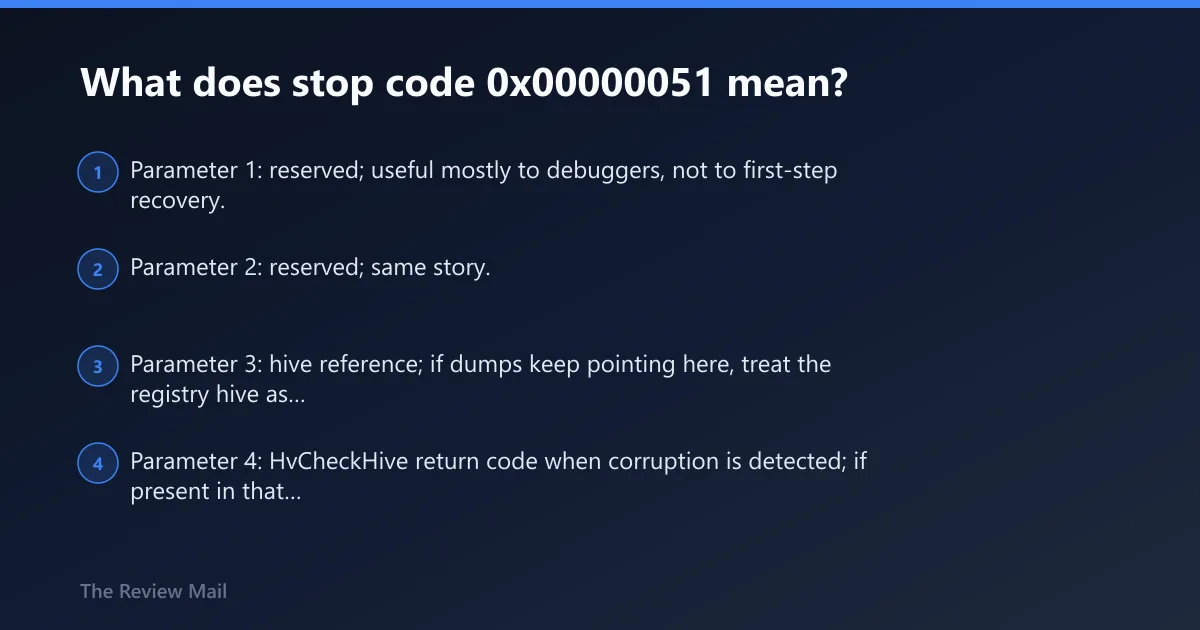
Microsoft documents parameters 1 and 2 as reserved. Parameter 3 is a pointer to the hive. Parameter 4 is the return code of HvCheckHive if the hive is corrupt. For end users, the decision value is simple: parameter 3 tells you a registry hive is directly in play, while parameter 4 matters more when corruption is suspected instead of a straight read failure. (Microsoft Learn)
- Parameter 1: reserved; useful mostly to debuggers, not to first-step recovery.
- Parameter 2: reserved; same story.
- Parameter 3: hive reference; if dumps keep pointing here, treat the registry hive as central to the fault.
- Parameter 4: HvCheckHive return code when corruption is detected; if present in that context, it pushes the case toward hive damage instead of a one-off read error.
According to Bug Check 0x51 REGISTRY_ERROR – Windows drivers — The bug check value is 0x00000051. (source)
Which recovery path fits your 0x00000051 crash?
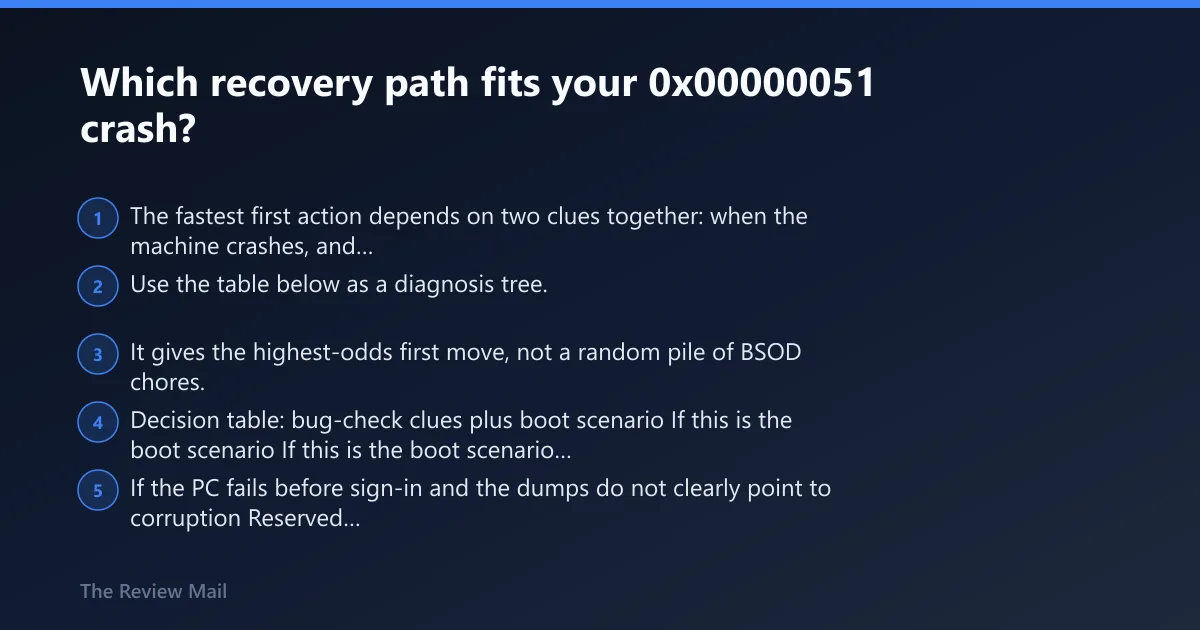
The fastest first action depends on two clues together: when the machine crashes, and whether the parameters suggest a hive integrity problem or a read problem. Use the table below as a diagnosis tree. It gives the highest-odds first move, not a random pile of BSOD chores.
Decision table: bug-check clues plus boot scenario
| If this is the boot scenario | Parameter 1 | Parameter 2 | Parameter 3 | Parameter 4 | Then the likeliest branch is | Then do this first |
|---|---|---|---|---|---|---|
| If the PC fails before sign-in on every normal boot | Reserved | Reserved | Hive is referenced | HvCheckHive code present in corruption context | Boot-time registry hive corruption | Open Windows Recovery Environment, run System Restore, then test normal boot. |
| If the PC fails before sign-in and the dumps do not clearly point to corruption | Reserved | Reserved | Hive is referenced | No useful corruption clue, or inconsistent dumps | Storage or file-system read corruption | Open recovery Command Prompt, identify the Windows drive letter first if recovery changed it, then run chkdsk on that Windows volume before changing drivers or apps. |
| If Safe Mode works | Reserved | Reserved | Hive is referenced | Any value | Recent driver or software change, or recoverable hive issue | Use System Restore first; if unavailable, remove the newest driver, security tool, or cleanup utility. |
| If the crash appears after login | Reserved | Reserved | Hive is referenced | Often less decisive than timing | Driver, security software, or low-level service loading at sign-in | Boot Safe Mode, uninstall or roll back the last change in Device Manager or Settings > Apps. |
| If recovery tools open and the dump points to hive corruption | Reserved | Reserved | Hive is referenced | HvCheckHive code points to corruption | Registry damage with offline recovery still possible | Run System Restore; if that fails, back up data before deeper offline repair. |
If the PC is stuck in a 0x00000051 loop and neither Safe Mode nor recovery opens | Reserved | Reserved | Unknown from screen alone | Unknown from screen alone | Drive, file-system, or hive issue with limited recovery access | Boot external recovery media, copy data first, then run chkdsk and try System Restore if available. |
How Safe Mode changes the plan
Safe Mode matters because it separates early boot failure from login-triggered failure. On Windows 10 and Windows 11, the reliable modern path is through recovery: Shift + Restart > Troubleshoot > Advanced options > Startup Settings > Restart > 4. On older Windows versions, the F8 Advanced Boot Options method may still apply, but treat that as legacy-only guidance rather than a standard path on current builds.
Likely causes of 0x00000051, ranked
Most often, the shortest path starts with boot-time hive corruption, then storage or file-system read trouble, then a recent software or driver change. I have also seen bad drives and flaky memory throw this stop even when the first clue looked like registry damage. That order fits Microsoft’s wording and the way this stop tends to split by boot timing.
Priority order
- Registry hive corruption: strongest fit when the machine fails before login and recovery tools still see Windows.
- Storage or file-system I/O corruption: strong fit when the crash is erratic, repeats during boot, or disk checks find errors. Microsoft says registry file reads can fail because of hardware problems or file system corruption. (Microsoft Learn)
- Recent driver or software change: strong fit when Safe Mode works or the blue screen appears after login.
- Less common hardware faults: failing storage, memory trouble, power issues, or firmware settings can sit underneath the registry symptom.
Is 0x00000051 related to registry corruption?
Yes, but the useful distinction is whether the registry itself is damaged or Windows is failing while reading registry files. If parameter 3 keeps showing a hive and the crash happens before sign-in, treat hive corruption as the first branch. If repair tools cannot read the volume cleanly, treat storage first.
Fix steps for likely hive corruption
- Boot to recovery: on Windows 10 or 11, hold Shift and select Restart, then go to Troubleshoot > Advanced options > System Restore. Pick a restore point from before the first blue screen.
- If Windows still reaches Safe Mode, use Control Panel > Recovery > Open System Restore, then restart normally after the restore completes.
- If the system is older and Safe Mode is reachable through F8, try that path first, then use System Restore from inside Safe Mode. Treat this as legacy-only guidance for older Windows versions, not a standard Windows 10 or Windows 11 workflow.
- If recovery options are missing, boot external installation or recovery media, copy user data off the drive first, and stop short of registry edits unless a verified backup exists.
Where LastKnownGood fits now
LastKnownGood Configuration is relevant mainly to older Windows behavior and manual recovery cases. It is not a standard menu path on modern Windows 10 or Windows 11. I treat it as legacy-only, and not as a first-line step on current builds.
Could storage or file-system corruption be triggering 0x00000051?
Yes. This branch moves up fast when startup repair acts inconsistently, System Restore cannot read restore points, or the machine loops on every normal boot. Microsoft says the registry can hit an I/O error while reading one of its files, and that hardware problems or file system corruption can be behind it. (Microsoft Learn)