unexpected_store_exception BSOD fix for Windows 11
For unexpected_store_exception on Windows 11, start by checking the most recent changes to storage drivers, updates, and drive health. If the PC stops before login or after a restart, note whether the crash happens consistently and use the built-in recovery tools to gather more information before changing anything major. This guide separates software corruption, driver faults, and possible storage hardware problems, then walks through the relevant checks and fixes.
What are the most likely causes?
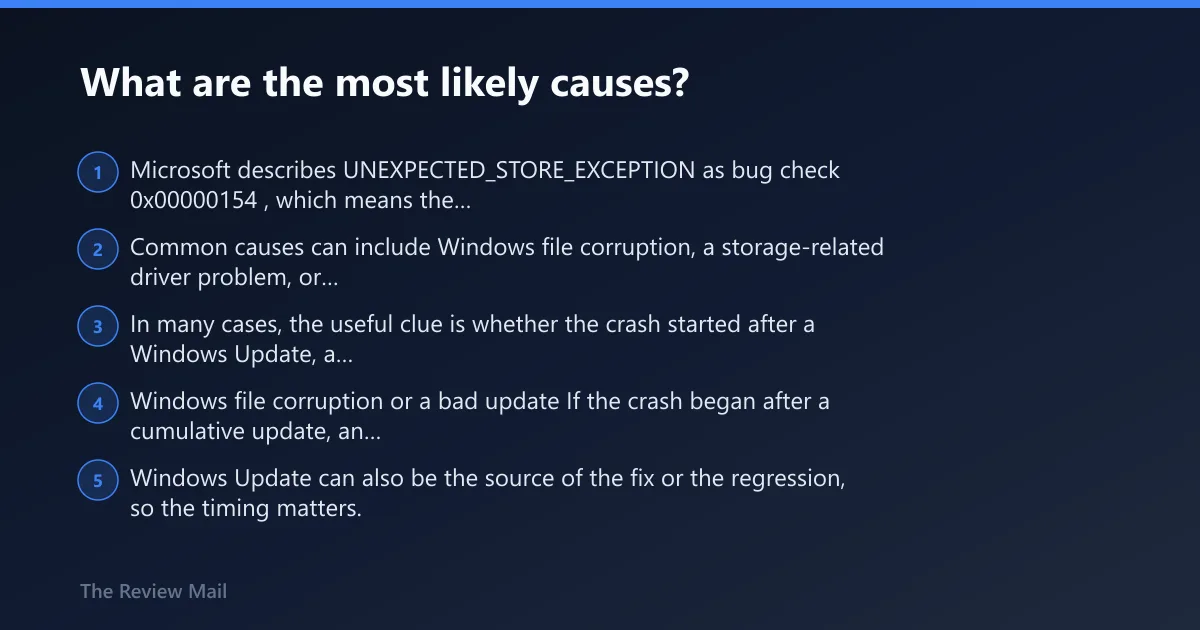
Microsoft describes UNEXPECTED_STORE_EXCEPTION as bug check 0x00000154, which means the kernel memory store component caught an unexpected exception. Common causes can include Windows file corruption, a storage-related driver problem, or a storage device issue. In many cases, the useful clue is whether the crash started after a Windows Update, a driver change, or repeated disk errors.
Windows file corruption or a bad update
If the crash began after a cumulative update, an app install, or a sudden power loss, damaged system files are a strong possibility. Windows Update can also be the source of the fix or the regression, so the timing matters.
Storage driver trouble
NVMe, SATA, chipset, and controller drivers sit in the middle of every disk read and write. A recent driver change that lines up with the first crash is a strong clue.
SSD or NVMe health problems
Repeated I/O stalls, SMART warnings, or a boot loop that keeps coming back after repairs can point to drive trouble. If the disk is reporting errors, software repair may only buy time.
Fast startup and power-state issues
Fast startup can preserve a bad storage state across shutdowns. That matters when the machine looks fine on a warm reboot, then fails again after a full power-off.
Which symptom points to which cause?
The fastest triage comes from matching the crash pattern to the most likely layer in the system. Boot-loop behavior points you toward startup and disk health; a one-off crash after a recent update points more toward Windows or a driver change; disk warnings push the drive higher on the list. Use this before running broad repair steps.
| Symptom pattern | Most likely cause | Next action |
|---|---|---|
| Boot loop after the Windows logo | Storage driver conflict, broken boot files, or SSD trouble | Enter Safe Mode, remove recent driver or update changes, then run SFC and CHKDSK |
| SMART warning or disk health alert | SSD or NVMe wear, controller trouble, or failing drive firmware | Back up files, check vendor diagnostics, update firmware, and plan for replacement if errors persist |
| Repeated freezes during file copy or app install | Disk I/O errors or storage-path corruption | Run CHKDSK /f /r, then review Event Viewer for disk or controller errors |
| Crash after a recent Windows Update or driver install | Bad update, incompatible driver, or broken rollback point | Use System Restore or Device Manager rollback before deeper repairs |
How do I boot Windows 11 far enough to work on it?
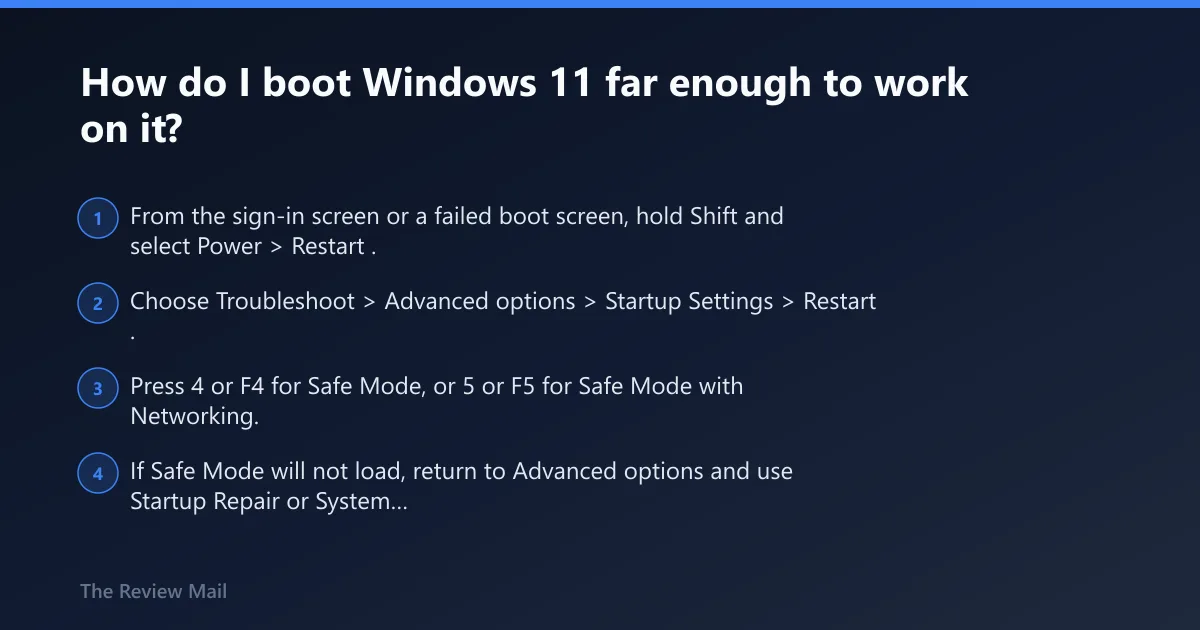
If normal boot fails, go straight to Windows 11 Safe Mode and Recovery options. That is the shortest path to update rollback, driver removal, and file repairs. If the machine still reaches the sign-in screen, use Shift + Restart; if it does not, use the built-in recovery path from Windows or interrupt startup to reach Recovery.
- From the sign-in screen or a failed boot screen, hold Shift and select Power > Restart.
- Choose Troubleshoot > Advanced options > Startup Settings > Restart.
- Press 4 or F4 for Safe Mode, or 5 or F5 for Safe Mode with Networking.
- If Safe Mode will not load, return to Advanced options and use Startup Repair or System Restore.
Settings > Recovery > Advanced startup > Restart now
Troubleshoot > Advanced options > Startup Settings
Shift + Restart from the sign-in screen also opens the same recovery path
Check drivers and recent changes
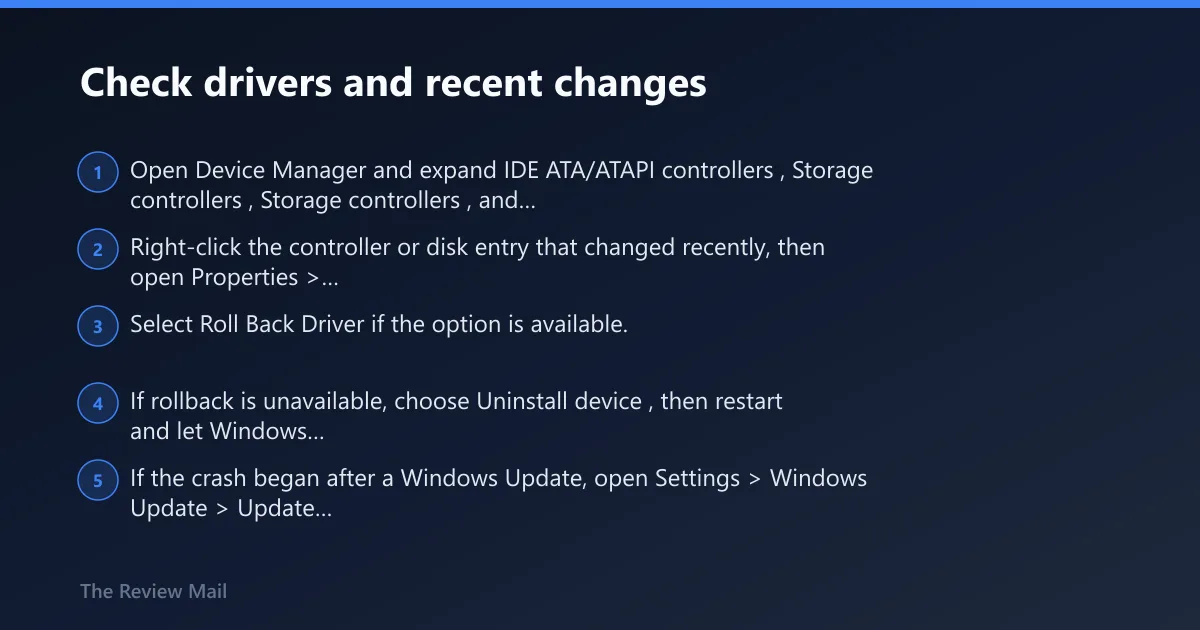
Recent driver or update changes are one of the few clues that can narrow this problem fast. Use Device Manager first, because storage controller, disk, and chipset drivers sit closest to the crash path. If the blue screen started right after a change, undo that change before touching deeper repairs.
- Open Device Manager and expand IDE ATA/ATAPI controllers, Storage controllers, and Disk drives.
- Right-click the controller or disk entry that changed recently, then open Properties > Driver.
- Select Roll Back Driver if the option is available.
- If rollback is unavailable, choose Uninstall device, then restart and let Windows reinstall the driver.
- If the crash began after a Windows Update, open Settings > Windows Update > Update history and note the timestamp against the first crash.
- If a restore point exists, open Control Panel > Recovery > Open System Restore and roll back to a stable point.
Event Viewer helps here too. Microsoft says to open it with Win+R, enter eventvwr.msc, then inspect the System log for critical errors in the same time frame as the blue screen. Match the clock, not just the message text.
Run the Windows file and disk repairs
If the crash pattern still points to software corruption, repair Windows files before assuming the drive is dead. Start with SFC, move to DISM if protected files still look damaged, then use CHKDSK if the symptoms point to file system errors or repeated disk freezes. Keep the order. It matters.
- Open an elevated terminal: Start, type cmd, then choose Run as administrator.
- Run
sfc /scannow. - If SFC reports corruption it cannot fix, run
DISM /Online /Cleanup-Image /RestoreHealth, then runsfc /scannowagain. - If the system has repeated disk freezes or file system errors, run
chkdsk C: /f /rand allow the restart. - Let
CHKDSKfinish. Do not interrupt it.
sfc /scannow
DISM /Online /Cleanup-Image /RestoreHealth
chkdsk C: /f /r
Should I run CHKDSK for unexpected_store_exception?
Yes, when the crash lines up with file system errors, boot trouble, or repeated disk I/O freezes. CHKDSK is not a cure-all, but it is the right test when Windows can read the drive inconsistently or when bad sectors may be corrupting files on the way in and out.