Kernel_mode_heap_corruption BSOD fix in Windows 11
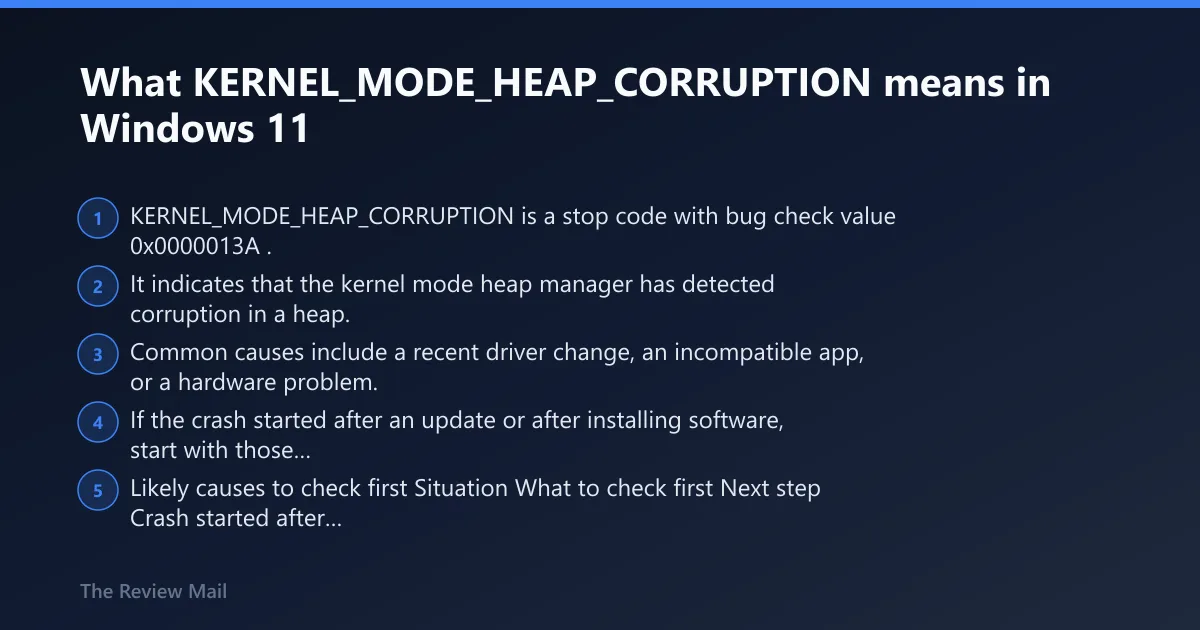
KERNEL_MODE_HEAP_CORRUPTION is a stop code with bug check value 0x0000013A. It indicates that the kernel mode heap manager has detected corruption in a heap.
Common causes include a recent driver change, an incompatible app, or a hardware problem. If the crash started after an update or after installing software, start with those recent changes first.
What KERNEL_MODE_HEAP_CORRUPTION means in Windows 11
Likely causes to check first
| Situation | What to check first | Next step |
|---|---|---|
| Crash started after a driver update | Recently changed driver | Roll back or reinstall the device driver |
| Crash started after installing an app | Recently installed app | Uninstall the app and test again |
| Crash happens during an upgrade or after an update | Recent update or setup change | Remove the latest change and retest |
| Crash keeps returning after software changes | Possible hardware issue | Run memory and storage checks |
Which cause is most likely from your crash pattern?
Start with the most recent change. If the stop code appeared after a driver update, that driver is a strong suspect. If it appeared after installing an app, check for application compatibility. If it began during or after an upgrade or update, remove the newest change and test again before moving to hardware checks.
Gaming crashes and GPU-heavy workloads
- Open Device Manager > expand Display adapters.
- Right-click the GPU > Properties > Driver tab.
- Select Roll Back Driver if the problem began after a recent update.
- If rollback is unavailable, choose Uninstall device, restart, then install the manufacturer package.
Crashes right after a driver update
- Open Device Manager and find the device that changed recently.
- Use the Driver tab to check the driver date and version.
- Select Roll Back Driver if the option is available.
- If rollback is not available, choose Uninstall device, restart, then install the manufacturer package.
- Reboot and test before updating anything else.
Random idle crashes
- Run Windows Memory Diagnostic from the Start menu.
- Restart and let the memory test complete.
- Open an elevated Command Prompt and run
chkdskc: /r for disk errors. - If either tool reports errors, back up data first and retest after the repair or hardware swap.
Boot-loop or repeated startup crashes
- Enter Settings > System > Recovery > Advanced startup > Restart now.
- Go to Troubleshoot > Advanced options > Startup Settings, then boot Safe Mode.
- Remove the most recent driver or app change before normal boot testing.
- If the crash began during an installation, disconnect non-essential devices, re-download the setup files, or perform a clean installation as needed.
Did the BSOD start after a GPU or device driver update?
If the crashes started right after a driver update, treat that update as the first suspect. A bad or incompatible driver is one common cause here, and rolling it back is safer than piling fixes onto a broken driver (reported by windowscentral.com).
- Open Device Manager.
- Right-click the affected device and open Properties.
- On the Driver tab, select Roll Back Driver if it is available.
- If rollback is not available, choose Uninstall device, then restart and install the OEM driver package.
- Reboot and test before updating anything else.
For GPU issues, use the graphics vendor’s package or the PC maker’s driver set, not a generic Windows Update replacement. If the crash appeared during an upgrade or right after install, that timing also fits a buggy update or a driver conflict (reported by windowscentral.com).
Could bad RAM or a disk problem be behind the crash?
Yes. 0x6 means a corruption was detected with features consistent with a buffer overrun, 0x7 means a corruption was detected with features consistent with a buffer underrun, 0xB means the heap detected an error whose features are consistent with using a block after freeing it, and 0xD means the heap detected a corrupt free list. If crashes happen at idle or keep returning after driver changes, check memory and the storage drive before chasing more software fixes.
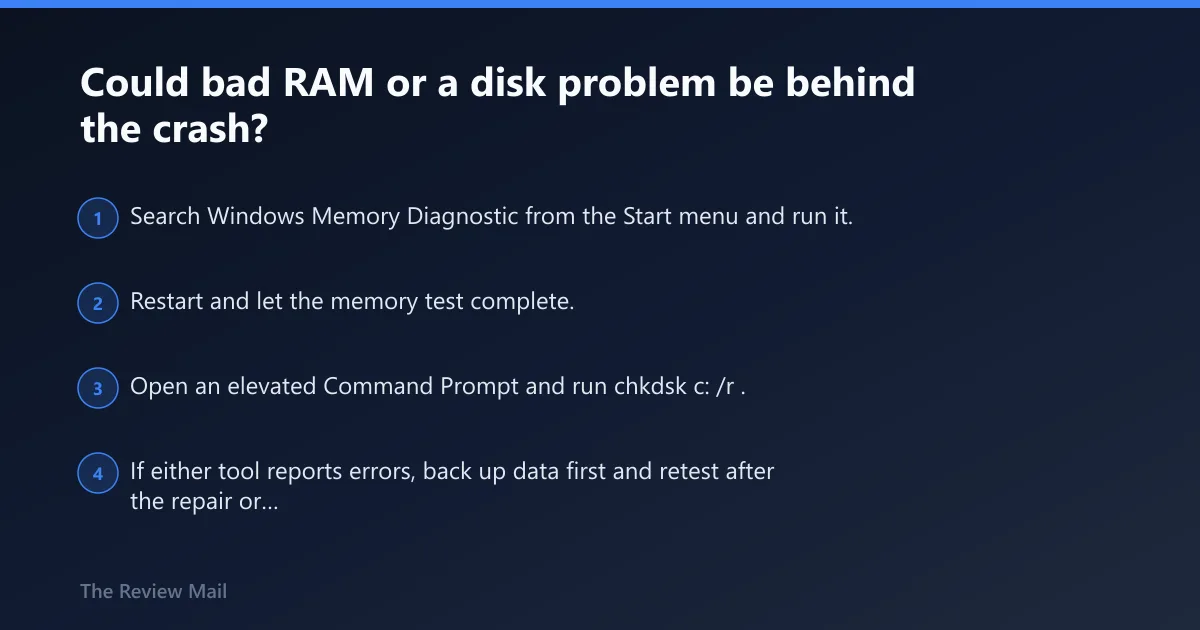
- Search Windows Memory Diagnostic from the Start menu and run it.
- Restart and let the memory test complete.
- Open an elevated Command Prompt and run
chkdskc: /r. - If either tool reports errors, back up data first and retest after the repair or hardware swap.
For a malware check, a full scan in Windows Security is reasonable, especially if the machine changed behavior after new software or a download.
Are Windows files damaged?
Run file repair when the driver path did not fix the crash, or when Windows starts misbehaving after repeated failures. SFC repairs corrupt system files, and DISM repairs the Windows image if SFC cannot finish the job or reports issues it cannot correct.
- Open Command Prompt as administrator.
- Run
sfc /scannow. - If SFC finds damage or cannot repair everything, run
Dism /Online /Cleanup-Image /RestoreHealth. - Reboot and retest the same activity that triggered the blue screen.
Do not skip the reboot. If the image is damaged, partial repairs can leave the system unstable until the next startup.
Should you use Driver Verifier for this BSOD?
In most cases, focus on the recent driver change, the app you installed most recently, and basic system checks instead of extra diagnostic tools. If the crash began after a driver or app change, undo that change first, then test again.
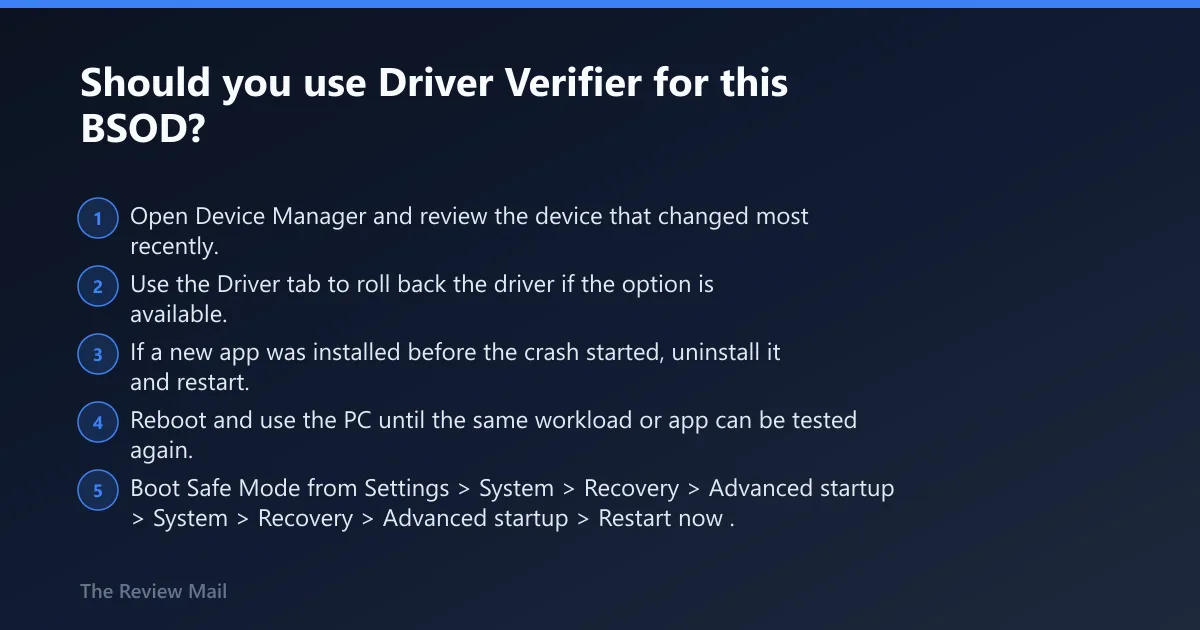
- Open Device Manager and review the device that changed most recently.
- Use the Driver tab to roll back the driver if the option is available.
- If a new app was installed before the crash started, uninstall it and restart.
- Reboot and use the PC until the same workload or app can be tested again.
If the system is failing during startup, use Safe Mode from Advanced startup and remove the most recent driver or app change before normal boot testing.
If Driver Verifier makes the system worse
- Boot Safe Mode from Settings > System > Recovery > Advanced startup > Restart now.
- Remove the most recent driver change.
- Uninstall the last app you added if the crash began after software installation.
- Reboot and confirm the machine is stable before deeper testing.
Still crashing after a clean driver reinstall?
If the rollback or reinstall did not stop the crashes, move to the recent app you installed, then to memory and storage checks. Windows 11 blue screens can also appear during or after updates, so a broken install path remains on the table (reported by windowscentral.com).
- Boot Safe Mode if normal startup fails.
- Open Settings > Apps > Installed apps, select the suspicious app, click the menu button, and choose Uninstall.
- Install the computer maker’s driver package instead of a generic one if the crash began after a driver change.
- If crashes continue after driver and app removal, back up data and consider hardware replacement if memory or storage checks report errors.
Prevention: keep the last known-good driver package saved before updating graphics or chipset software. That makes rollback faster when the next update breaks stability.
Frequently asked questions
How do I fix kernel mode heap corruption in Windows 11?
Start with the most recent driver change, especially graphics. Roll it back in Device Manager, then run sfc /scannow, Dism /Online /Cleanup-Image /RestoreHealth, and chkdsk c: /r if the problem survives. If the crash started after installing an app, uninstall that app first.
What causes KERNEL_MODE_HEAP_CORRUPTION BSOD?
The stop code appears when Windows detects heap corruption in kernel mode. A recent driver change, an incompatible app, or hardware errors can trigger it. If the crash started after an update or app install, treat that change as the first suspect.
Is kernel mode heap corruption a driver problem?
Often, yes. A driver mismatch, a bad update, or a corrupted device package can trigger it. Open Device Manager, check the Driver tab, and use Roll Back Driver first if the issue started after an update. Install the OEM package if rollback is not offered.
Can RAM cause kernel mode heap corruption?
Memory problems can contribute to this stop code. Run Windows Memory Diagnostic first, then follow up with disk and file checks if memory passes. If memory errors appear, back up data and replace the failing module.
Can I boot into Safe Mode to fix this BSOD?
Yes. Go to Settings > System > Recovery > Advanced startup > Restart now > Troubleshoot > Advanced options > Startup Settings. Safe Mode lets you remove a bad driver, uninstall a recently added app, or run repair commands when normal startup keeps failing.
What if the crash started after installing an app?
Open Settings > Apps > Installed apps, find the app, click the menu button, and choose Uninstall. Restart the PC and test again. If the crash stops, the app was likely incompatible.