
0x000000c7: Meaning and Fixes for Windows Stop Code
STOP 0x000000C7 means the TIMER_OR_DPC_INVALID bug check has a value of 0x000000C7. Windows issues it if a kernel timer or deferred procedure call (DPC) is found somewhere in memory where it is not permitted. If you ignore it, a reboot loop can turn into corrupted work, failed updates, or a machine that only stays up in Safe Mode. This guide explains the bugcheck in plain English and maps each parameter to the fastest recovery path.
What 0x000000c7 means on Windows
0x000000C7 is the bug check value for TIMER_OR_DPC_INVALID, and Windows raises it when a kernel timer or deferred procedure call (DPC) is found in memory where it is not allowed. Plainly, something in kernel mode was cleaned up too early, placed in the wrong memory, or left in an invalid state.
The stop screen usually gives you parameter 1 through parameter 4. Write those down. They are the quickest clue to whether the problem points to a timer object, a DPC object, a DPC routine, a CPU-number mismatch, or an APC disable-count change.
What the stop screen tells you to note right away
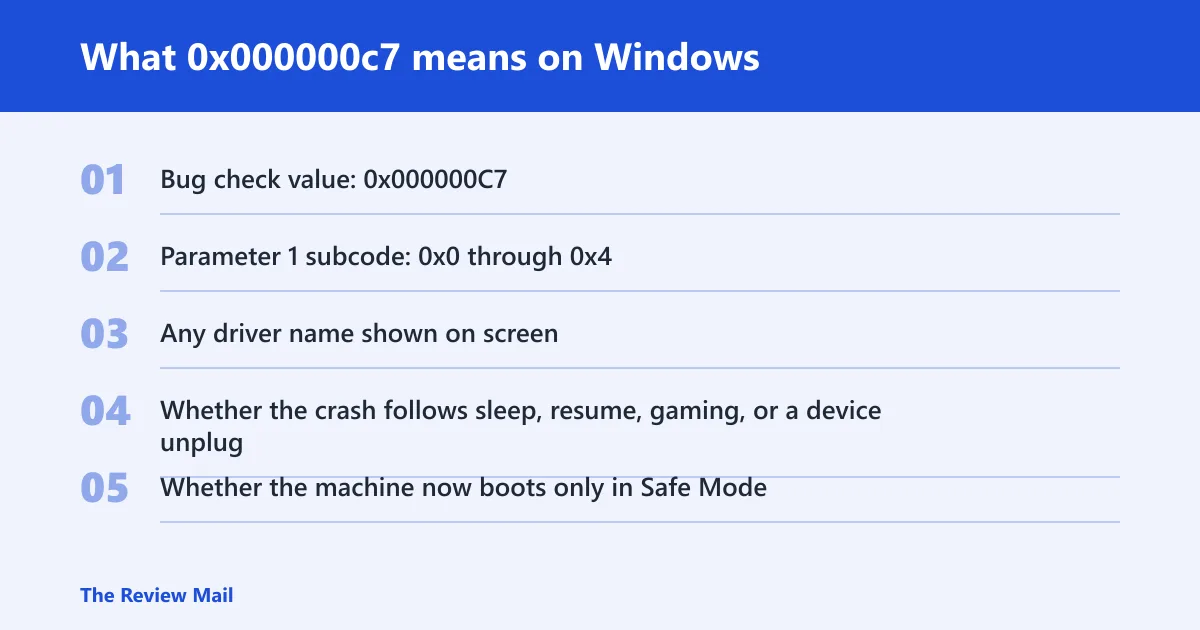
- Bug check value:
0x000000C7 - Parameter 1 subcode: 0x0 through 0x4
- Any driver name shown on screen
- Whether the crash follows sleep, resume, gaming, or a device unplug
- Whether the machine now boots only in Safe Mode
Which cause is most likely?
The most likely cause is a driver teardown mistake: a timer or DPC was not canceled before the memory that held it was freed. Less often, the trigger is a recent device change, firmware or BIOS update, security software filter, virtualization tool, or a bad interaction after sleep and resume.
Driver teardown bug or early memory free
That pattern fits the kernel cleanup failure best. A driver can leave a timer object or DPC object live after its device is gone, then Windows finds that object in the wrong place and stops the system.
- Boot to Safe Mode: Settings > System > Recovery > Advanced startup > Restart now on Windows 11, then Troubleshoot > Advanced options > Startup Settings.
- Open Device Manager and roll back the newest driver you changed: right-click the device > Properties > Driver > Roll Back Driver.
- If rollback is unavailable, choose Uninstall device, then check Delete the driver software for this device if offered.
- Reboot and test before you install anything else.
Recent device, BIOS, or firmware change
If the crash began right after a BIOS, chipset, storage, or dock update, isolate that last change before you chase generic driver updates. A bad firmware handoff can trigger the same timer or DPC cleanup fault with no obvious new app in sight.
- Disconnect nonessential USB devices, docks, and external storage.
- Revert the most recent firmware or BIOS change if your vendor offers a rollback path.
- In Device Manager, disable the most recent hardware add-on one at a time.
- Retest after each change so you know which device shifts the crash pattern.
Security software, virtualization, or filter driver conflict
Security suites, backup filters, disk encryption, and virtualization layers can keep kernel objects alive longer than they should. If the blue screen began after installing or updating one of those tools, remove or disable that layer first.
- Use Settings > Apps > Installed apps to uninstall the security or virtualization package.
- Reboot and test in a normal boot.
- If the system stabilizes, reinstall only the version approved for Windows 11.
- If the crash remains, leave the tool off until dump analysis confirms it is safe to retry.
Read the bug check parameters
Parameter 1 is the subcode, and it tells you what kind of invalid object Windows found. Parameters 2 and 3 often point to the memory address of the timer, DPC object, or DPC routine. Parameter 4 can show CPU number or APC disable-count details, which matter most when the crash happens during routine execution.
Copy the exact values from the blue screen or the minidump summary before you reboot too many times. A repeat crash can wipe out useful clues.
| Subcode | What it means | What to inspect in logs | Fastest next step for a non-technical user | Fastest next step for an admin |
|---|---|---|---|---|
| 0x0 | Timer object found where a timer object is not permitted. | Minidump, Event Viewer > Windows Logs > System, recent driver installs. | Rollback or uninstall the last driver tied to the affected device. | Check which driver owns the freed timer object and confirm teardown order. |
| 0x1 | DPC object found where a DPC object is not permitted. | Minidump and any driver or filter added before the crash started. | Remove the last device software or security filter that changed. | Trace whether the DPC was canceled before the memory block was freed. |
| 0x2 | DPC routine found where a DPC object is not permitted. | Dump analysis and driver stack around the routine address. | Boot Safe Mode and uninstall the newest kernel-level app. | Review the routine address in the dump and the caller that set it up. |
| 0x3 | Processor number for the DPC object is not correct. | System event log, firmware updates, CPU-affinity changes. | Undo recent BIOS or firmware changes and retest. | Check CPU affinity, scheduler interactions, and vendor firmware notes. |
| 0x4 | APC disable count changed during DPC routine execution. | Minidump, kernel debugger details, APC disable-count values. | Remove the last security or storage filter added before the crash. | Compare before-and-after APC disable counts and the routine path. |
How do I fix STOP 0x000000c7 on Windows 11?
Start with Safe Mode, then undo the last driver or device change before you try broad repair tools. On Windows 11, the best first move is usually rollback or clean uninstall, not a full driver refresh across the whole system. If the crash only began after sleep, updates, or a peripheral change, isolate that device first.
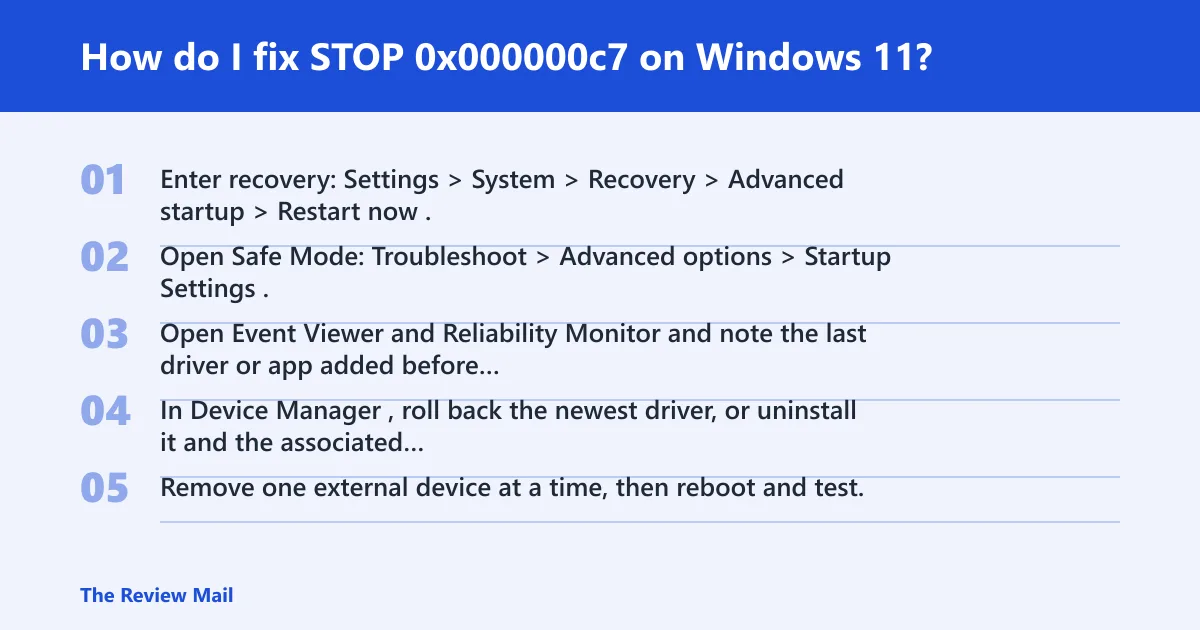
- Enter recovery: Settings > System > Recovery > Advanced startup > Restart now.
- Open Safe Mode: Troubleshoot > Advanced options > Startup Settings.
- Open Event Viewer and Reliability Monitor and note the last driver or app added before the crashes started.
- In Device Manager, roll back the newest driver, or uninstall it and the associated device software.
- Remove one external device at a time, then reboot and test.
When a driver update is not the first move
Rollback is safer than update when the crash began right after a new driver, security suite, or dock package. Clean uninstall is better when the bad behavior started after device removal, because leftover filter drivers can keep the invalid timer or DPC path alive.
- Open Device Manager and identify the last changed device.
- Use Roll Back Driver if available.
- If the rollback button is disabled, choose Uninstall device.
- Reboot, then reinstall only after the machine stays stable.
When to isolate security software, storage filters, or virtualization tools
If the blue screen started after antimalware, backup, disk encryption, or virtualization changes, remove that package before chasing chipset or graphics updates. Those tools often sit in the path where kernel objects are created and freed.
- Use Settings > Apps > Installed apps to remove the newest security or virtualization package.
- Restart and test without it.
- If the machine stabilizes, reinstall only a version that supports Windows 11.
- If it still crashes, leave the tool out until the dump is reviewed.
What should I check first after a 0x000000c7 blue screen?
Check the last software or hardware change, then inspect Event Viewer and Reliability Monitor for the exact crash time. If you can boot, grab the minidump from C:\Windows\Minidump and note parameter 1. That usually gets you to the right branch faster than random updates.
- Open Event Viewer > Windows Logs > System.
- Open Reliability Monitor and match the crash time to the last change.
- Look in
C:\Windows\Minidumpfor a fresh dump file. - Write down the subcode, then match it to the table above.
What causes TIMER_OR_DPC_INVALID BSOD?
The usual cause is failure to cancel a timer or DPC before freeing the memory that contains it. A timer object must be canceled before its storage goes away. The same idea applies to a DPC object or DPC routine that is still reachable when the driver tears down.
Sleep and resume, device removal, USB dock changes, security filters, and virtualization stacks are common places where that cleanup sequence goes wrong. That is why the crash often shows up right after a change rather than during idle use.
Can a bad driver cause bug check 0x000000c7?
Yes. A bad driver can cause it when cleanup order is wrong, a timer survives past device removal, or a DPC routine runs from memory that is no longer valid. That is the most direct explanation for subcodes 0x0, 0x1, and 0x2.
- Boot into Safe Mode.
- Use Device Manager to roll back the driver tied to the change.
- If rollback fails, uninstall the device and remove its software.
- Reconnect the device only after the system stays stable.
Does 0x000000c7 happen after uninstalling a driver or device?
Yes, that can happen when uninstall leaves behind a filter driver or when the device was removed while its timer or DPC was still active. The crash often appears on the next boot or the next sleep-resume cycle, because the kernel discovers the object in the wrong place only then.
- Disconnect the device completely.
- Remove the related software from Settings > Apps > Installed apps.
- In Device Manager, choose View > Show hidden devices, then uninstall leftover entries.
- Reboot before reconnecting anything.
How do I know if 0x000000c7 is a kernel timer or DPC issue?
If parameter 1 is 0x0 or 0x1, it points to a timer object or DPC object case; 0x2 points to a DPC routine case, and 0x4 points to APC disable-count changes during execution. That pattern means the kernel cleanup path is the place to focus.
- Record parameter 1 from the stop screen.
- Match it to the parameter table above.
- Open the minidump in your analysis tool or send it to the vendor.
- Check the owning driver before changing hardware.
Why does 0x000000c7 keep happening?
Repeated crashes usually mean the same bad driver, filter, or firmware path is still loading at boot. If the machine survives in Safe Mode but not normal mode, the next step is to remove the newest device software, isolate external hardware, and inspect the dump before you try more updates.
Prevention: after recovery, add one device or one driver back at a time so the next failure points to a single change.
Still not working?
If the crash returns after rollback, clean uninstall, and device isolation, move to dump collection and vendor support. At that point the issue may need driver analysis, firmware notes, or a deeper look at the device stack rather than another generic update pass.
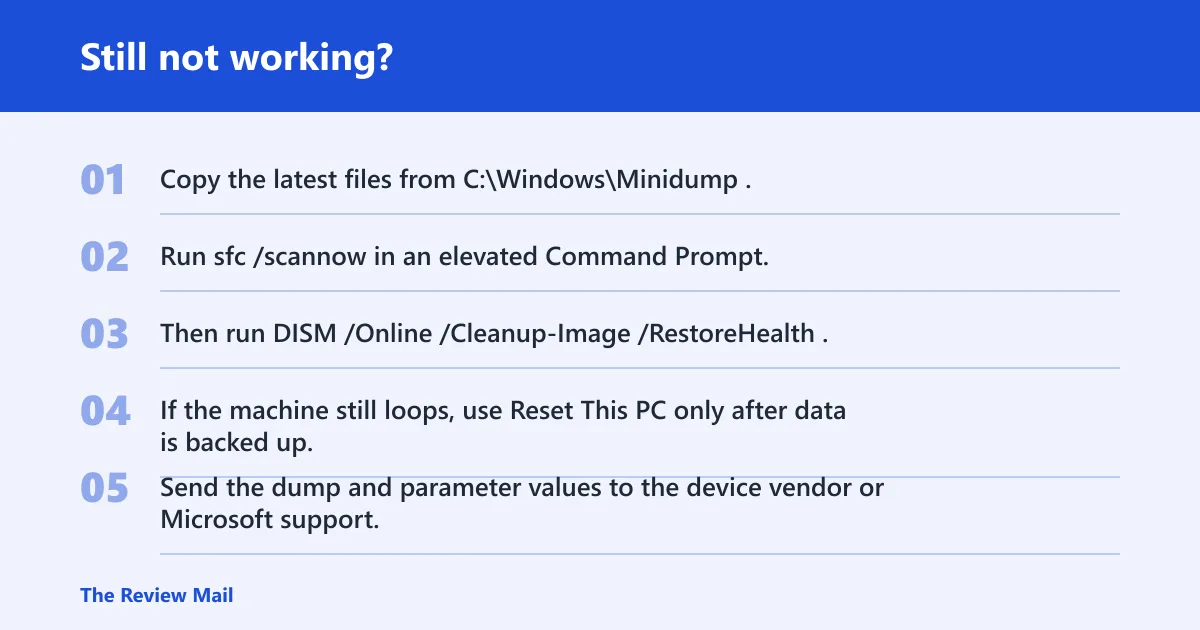
- Copy the latest files from
C:\Windows\Minidump. - Run
sfc /scannowin an elevated Command Prompt. - Then run
DISM /Online /Cleanup-Image /RestoreHealth. - If the machine still loops, use Reset This PC only after data is backed up.
- Send the dump and parameter values to the device vendor or Microsoft support.
Frequently asked questions
What does 0x000000c7 mean on Windows?
It is a stop code for a timer or DPC cleanup failure in kernel mode. The fastest first step is to record parameter 1, boot Safe Mode, and roll back the newest driver tied to the crash. If the system only fails after a device change, that change is the better starting point.
Is 0x000000c7 a driver problem or hardware problem?
Start with driver cleanup, not hardware replacement. This stop code usually points to a kernel object being freed or placed incorrectly, and hardware is a later suspect unless the crash follows a BIOS change, a dock, or a new device that touches low-level timing.
How do I fix STOP 0x000000c7 on Windows 11?
Use Advanced startup, boot Safe Mode, and undo the newest driver or device change. Then check Event Viewer and Reliability Monitor, and remove one external device at a time. If the error started after security software or virtualization changes, uninstall that package before anything else.
What causes TIMER_OR_DPC_INVALID BSOD?
The usual cause is failing to cancel a timer or DPC before freeing the memory that contains it. That can happen during driver removal, device unplug, sleep-resume, or when a filter driver still owns a kernel callback path after its storage is gone.
Can a bad driver cause bug check 0x000000c7?
Yes. A bad driver can leave a timer object, DPC object, or DPC routine in the wrong memory block, which is exactly the kind of state this stop code flags. Roll back first. If that is unavailable, uninstall the driver and its software package.
What should I check first after a 0x000000c7 blue screen?
Check parameter 1, the last driver or device change, and the minidump folder. Then open Event Viewer and Reliability Monitor to match the crash time. If the machine only crashes after sleep or resume, that detail is worth recording before any reinstall.