0x000000cb: What It Means and How to Fix It on Windows
Stop code 0x000000cb is a DRIVER_LEFT_LOCKED_PAGES_IN_PROCESS bug check. Microsoft says it has a value of 0x000000CB and can indicate that a driver or the I/O manager failed to release locked pages after an I/O operation; it can also be issued by Driver Verifier when the Pool Tracking option is enabled. Start by identifying the most recent driver or verifier-related change, then use the dump file and the crash timing to decide the next step. Ignoring the most recent change can waste time and make recovery harder.
What 0x000000cb means on Windows
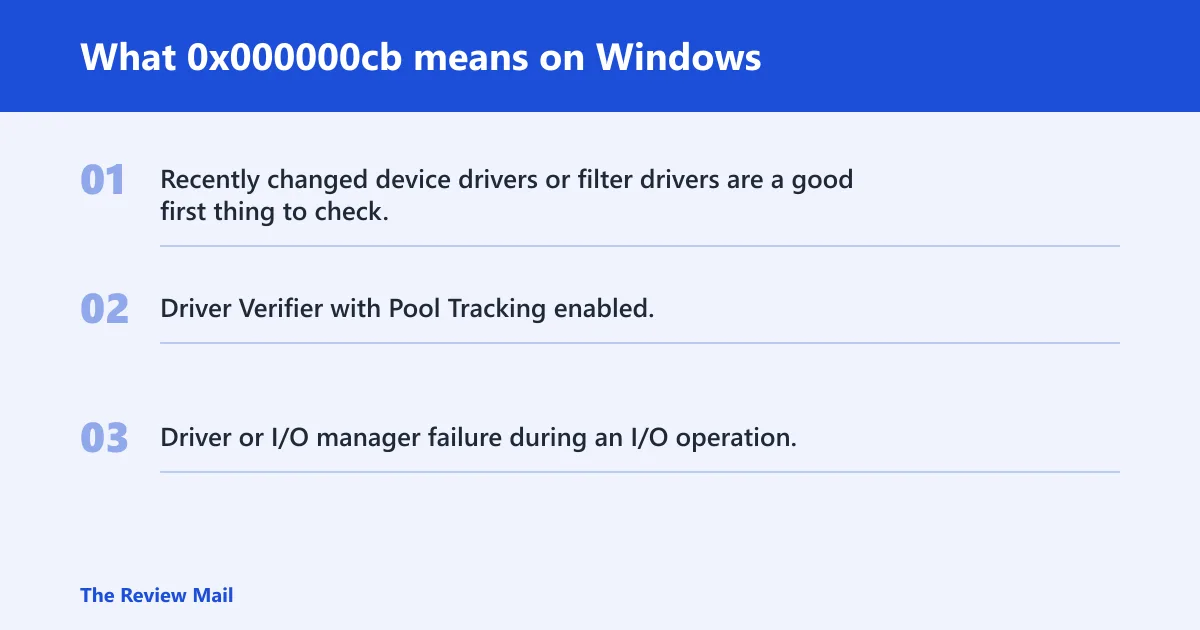
0x000000cb is a Windows stop error shown on a BSOD. In plain English, a driver or the I/O manager failed to release locked pages after an I/O operation.
A BSOD is a Windows error screen for a fatal system fault. Windows may halt, write out data, and then shut down or reboot automatically, depending on the build and settings.
The screen alone does not identify the exact component that triggered the crash. The next useful clue is whether the system recently changed a driver, a filter package, or Driver Verifier settings.
Likely causes, ranked by probability
- Recently changed device drivers or filter drivers are a good first thing to check. This is the first branch to check, especially after GPU, storage, chipset, VPN, backup, or antivirus changes.
- Driver Verifier with Pool Tracking enabled. This bug check can also be issued by Driver Verifier when Pool Tracking is enabled.
- Driver or I/O manager failure during an I/O operation. Use the dump file and the timing of the crash to narrow which driver was active.
Is 0x000000cb a driver problem or hardware problem?
It is primarily a driver-and-verifier stop code. The quickest way to narrow it down is to check whether the crash started after a driver install, after enabling verifier settings, or after another software change that affects drivers.
Signs it points to a driver
- The first crash appeared after a new driver, update, or security tool.
- The same machine boots in Safe Mode but not normal mode.
- The minidump names a recently changed storage, network, GPU, or antivirus filter driver.
Signs it points to Driver Verifier
- The crash began after Driver Verifier was enabled.
- The system was configured with Pool Tracking for verifier testing.
- The issue appears only while verifier is active and stops when verifier is turned off.
How do I fix a blue screen with stop code 0x000000cb?
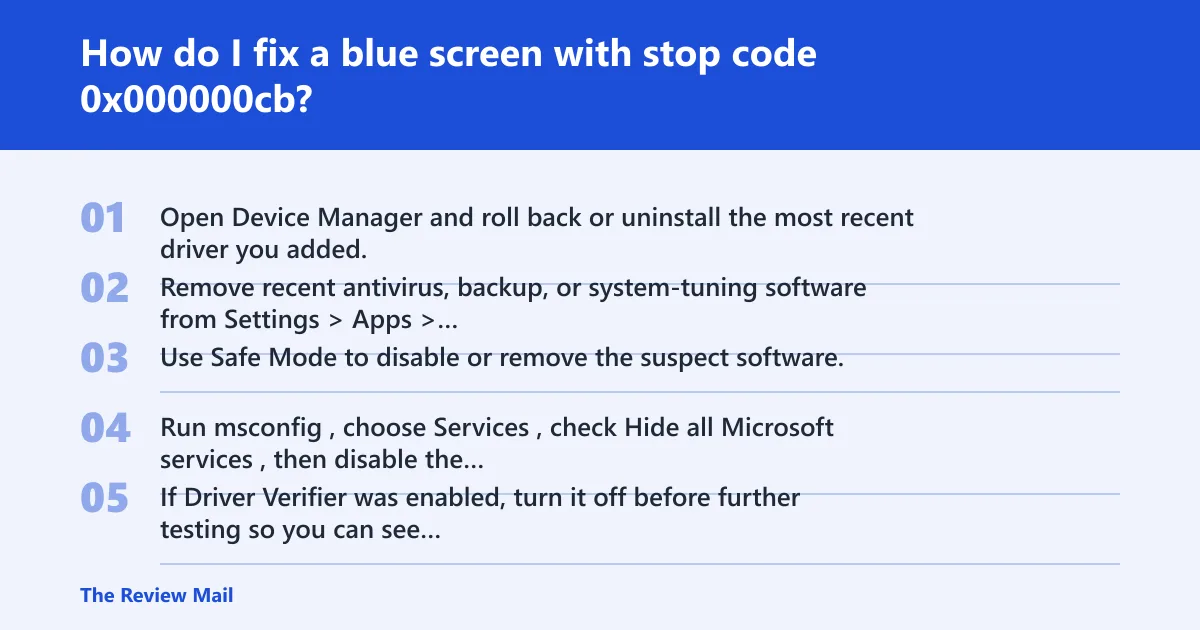
Start by removing the last driver or filter change, or by checking whether Driver Verifier was enabled with Pool Tracking. If Windows will not stay up long enough to make the change, use Safe Mode. After that, use the dump file to identify the driver involved.
Driver-caused 0x000000cb: the first fixes to try
- Open Device Manager and roll back or uninstall the most recent driver you added. Right-click the device, then choose Properties > Driver > Roll Back Driver or Uninstall device.
- Remove recent antivirus, backup, or system-tuning software from Settings > Apps > Installed apps, then reboot.
- Use Safe Mode to disable or remove the suspect software. On Windows 11: Settings > System > Recovery > Advanced startup > Restart now, then Troubleshoot > Advanced options > Startup Settings. On Windows 10: Settings > Update & Security > Recovery > Advanced startup > Restart now, then Troubleshoot > Advanced options > Startup Settings.
- Run msconfig, choose Services, check Hide all Microsoft services, then disable the rest for a clean boot test.
- If Driver Verifier was enabled, turn it off before further testing so you can see whether the crash still occurs without verifier involvement.
Safe Mode gives you a stripped-down startup path for removing bad software. It does not fix the underlying issue by itself. If the machine is stable there, the next step is to isolate the exact driver or setting that breaks normal startup.
Hardware or disk-caused 0x000000cb: checks that matter
- Run Windows Memory Diagnostic, or use memtest86 if the machine keeps crashing before Windows tools finish.
- Open an elevated Command Prompt and run
chkdskC: /f /r, then allow the restart if Windows schedules it. - Unplug newly added USB devices, extra drives, docks, or adapters, then test again.
- Check SATA, NVMe, and power connections, and verify controller settings in firmware if the disk is intermittently missing.
Use these checks only after you have ruled out a recent driver change or verifier setting. They are standard Windows troubleshooting steps, but the stop code itself does not prove a disk or memory fault.
Can 0x000000cb be caused by RAM or disk issues?
Windows may show the same stop code while it is writing a dump, but the code itself points to a failed release of locked pages after I/O. If the crash keeps happening after you roll back the newest driver or turn off verifier testing, then memory and storage checks are reasonable next steps.
Run memory and storage tests when the crash survives driver rollback, appears during installs, or comes back after Safe Mode cleanup. If the system cannot stay up long enough for software repair, use the dump file and the verifier state to decide what to test next.
What should I do first after a BSOD with 0x000000cb?
Write down the exact stop code and note whether the crash happened at sign-in, during boot, or after login. Then check whether a driver change or Driver Verifier setting was the last thing modified. That gives you the fastest path to the next step.
- Write down the exact stop code and whether the crash occurred at sign-in, during boot, or after login.
- Uninstall the last driver or system tool added from Settings > Apps or Device Manager.
- If Windows will not stay up, enter recovery with Settings > System > Recovery > Advanced startup on Windows 11, or Settings > Update & Security > Recovery > Advanced startup on Windows 10.
- Check whether the machine created a dump file before the next restart.
Where do I find the minidump after a stop error?
The default dump location is C:\Windows\Minidump. If the folder is empty, the system may not have finished writing the dump, or dump creation may be disabled.
Open C:\Windows\Minidump in File Explorer, sort by date, and look for the newest .dmp file. That file helps identify the driver involved or confirm whether verifier was active.
Dump-analysis workflow that actually narrows the cause
- Copy the newest file from
C:\Windows\Minidumpto a safe location. - Open it in a debugger such as WinDbg, or hand it to support with the crash time and the exact stop code.
- Look for the faulting driver, recent filter stacks, and any repeated module across multiple dumps.
- If the dump points to a driver path and verifier was enabled, review the verifier settings before reinstalling anything else.
Can Safe Mode help fix stop code 0x000000cb?
Yes, but as a removal and isolation environment, not as a cure. Safe Mode loads a reduced set of drivers, which makes it useful for uninstalling the last bad package or removing software that hooked the boot path too early.
On older Windows releases, pressing F8 may still bring up Safe Mode selection. On Windows 10 and Windows 11, use recovery startup options instead: Settings > System > Recovery > Advanced startup > Restart now, then choose Startup Settings.
Decision table: how to choose the next step
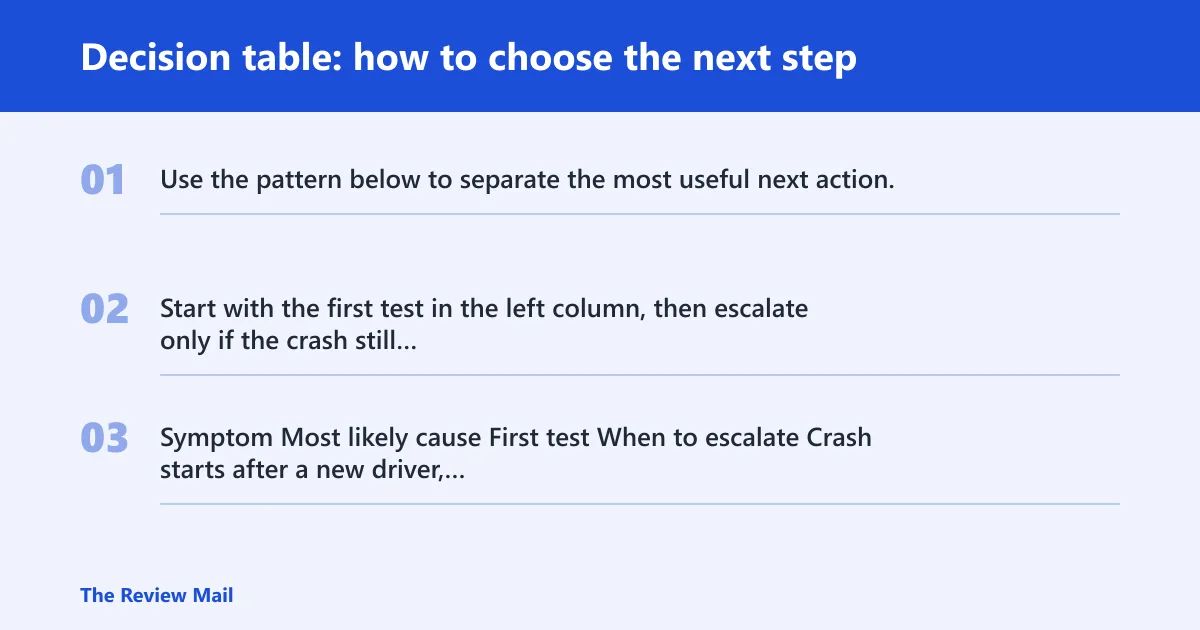
Use the pattern below to separate the most useful next action. Start with the first test in the left column, then escalate only if the crash still occurs.
| Symptom | Most likely cause | First test | When to escalate |
|---|---|---|---|
| Crash starts after a new driver, VPN, backup tool, or antivirus install | Driver or filter conflict | Device Manager rollback or uninstall | Boot to Safe Mode and remove the software if normal boot still fails |
| Crash happens during startup before the desktop | Driver or verifier issue | Startup Repair from recovery options | Check minidumps and verifier settings if the boot loop continues |
| Crash repeats after driver cleanup | Driver still present or verifier still enabled | Review loaded drivers and verifier configuration | Turn off verifier and retest if it was enabled |
| Only one device change was made before the BSOD | Defective or incompatible hardware | Disconnect the new device and retest | Test with known-good memory, ports, or storage if the crash returns |
| Minidump points to the same third-party module more than once | Repeat driver fault | Remove that driver or related package | Escalate to dump analysis if the module keeps recurring |
Still not working?
If the crash survives Safe Mode cleanup, driver rollback, and verifier review, move to recovery tools rather than random reinstall attempts. A system restore point can back out a bad change. Startup Repair can fix startup problems. Reset This PC is the heavier option when the machine is stuck in a loop and the dump does not point to a clean software fix.
Before going further, save the minidump, note the last driver or verifier change, and test the machine with all nonessential peripherals removed. If the same stop code returns on a clean system image, vendor support or a technician should inspect the affected driver and any connected storage or controller hardware.
Prevention
Keep driver updates tied to a reason, not a habit. Install one change at a time, then verify the machine boots normally before adding another package. That makes the next crash far easier to trace.
Frequently asked questions
Should I uninstall new drivers after a BSOD?
Yes, if the crash began after that install. Use Device Manager to roll back the driver first, then uninstall it if rollback is unavailable.