0x000000d3 BSOD: Meaning, Causes, and Fixes for Windows
0x000000d3 can appear when Windows attempts to access pageable memory at a process IRQL that is too high. The DRIVER_PORTION_MUST_BE_NONPAGED bug check has a value of 0x000000D3.
This guide is part of our Windows BSOD stop codes: full list and fixes series.
What does 0x000000d3 mean?

This bug check usually means a driver accessed memory that should not have been pageable at that IRQL. A blue screen may show a driver name, and a memory dump can help identify the stack path that led to the failure.
What the screen and dump usually show
On the BSOD, check the driver name if one is shown. If the driver responsible for the error can be identified, its name is printed on the blue screen. In dump analysis, use a kernel debugger to get a stack trace: run !analyze to display information about the bug check, then use kb (Display Stack Backtrace) to get a stack trace.
How it maps to DRIVER_IRQL_NOT_LESS_OR_EQUAL
Some stop codes are related to driver memory access problems at elevated IRQL. For 0x000000D3, the most useful clue is the module name and stack trace, not a broad label by itself.
What usually causes 0x000000d3?
This bug check is usually caused by drivers that have incorrectly marked their own code or data as pageable. The most useful first step is to look for the driver named on the blue screen and in the dump, then compare it with the most recent driver or software changes.
Why the driver path is the first place to look
Microsoft notes that this bug check is usually caused by drivers that have incorrectly marked their own code or data as pageable. That makes the driver shown in the crash details the best starting point for troubleshooting.
What to check first after the first crash
Check the driver name on the blue screen, then review the most recent driver or software change before the crash. If the issue began after a driver installation or update, that change is the most likely place to start.
How do I tell whether it is a driver or hardware problem?
Read the dump and the crash details first. If the stack points to a specific driver, that is the lead. If the same driver appears across multiple crashes, focus on that driver and its recent changes before looking elsewhere.
When Afd.sys matters
Afd.sys is not identified in the supplied facts for this stop code, so it should not be treated as the default explanation. Use the driver name shown on the blue screen and the stack trace instead.
When repeated crashes suggest a broader pattern
If the same driver appears in several crashes, review its version, recent installation date, and whether it was updated or replaced shortly before the issue started. That is more reliable than guessing at hardware causes from the stop code alone.
Fix NIC driver problems first
Start with the driver named in the crash details, because that is the most direct path supported by the stop code itself. If a recent driver change lines up with the first crash, roll that change back or remove the driver package and test again.
- Open Device Manager.
- Find the device associated with the driver named in the crash details.
- Open Properties and review the Driver tab.
- Select Roll Back Driver if it is available; otherwise choose Uninstall device, then reboot.
- Reinstall a newer vendor driver only if the rollback or removal changes the behavior.
Verify under load
After the change, use the system normally and repeat the same action that usually leads to the crash if you can do so safely. If the stop code returns during that activity, the driver path is still the best lead.
Check VPN and security filters next
If the crash began after installing VPN software, endpoint protection, or another filter-type driver, remove the newest package and retest. Keep the focus on the most recent driver-related change rather than assuming the networking stack is always the cause.
- Open Settings > Apps > Installed apps or Apps & features.
- Uninstall the most recent VPN, endpoint security, or network filter component.
- Restart the system.
- Use normal network activity and, if possible, the same action that triggered the crash.
- If the system is stable, reinstall only a newer package that includes an updated driver.
Why TDI drivers matter
References to TDI drivers are not supported by the supplied facts for this bug check, so they should not be treated as a required suspect. A recent driver installation or update is still worth checking because the stop code is commonly tied to driver paging mistakes.
Did a Windows update or hotfix trigger it?
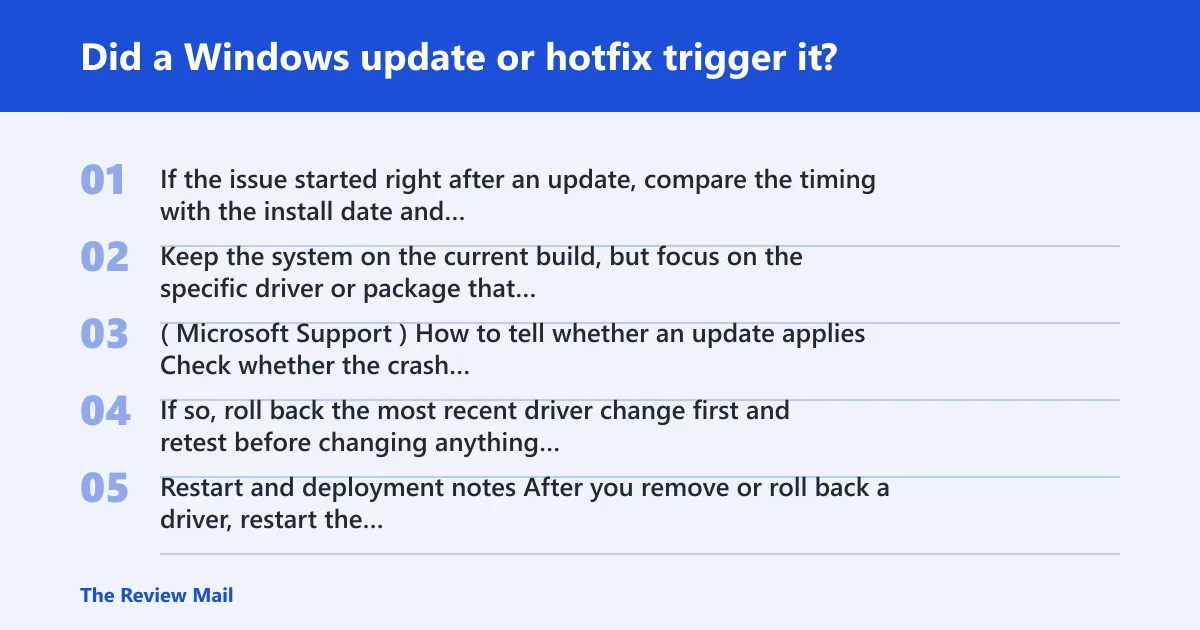
If the issue started right after an update, compare the timing with the install date and the crash details. Keep the system on the current build, but focus on the specific driver or package that changed around the same time. (Microsoft Support)
How to tell whether an update applies
Check whether the crash began immediately after a driver or Windows update. If so, roll back the most recent driver change first and retest before changing anything else.
Restart and deployment notes
After you remove or roll back a driver, restart the computer so the old driver is not left loaded. Then test the same workload again to see whether the crash returns.
| Trigger | Likely subsystem | First test | Escalation path |
|---|---|---|---|
| New driver installation | Driver path shown in the dump | Device Manager > Driver tab > Roll Back Driver | Uninstall device, then install a newer vendor driver package if needed |
| VPN or security filter install | Filter driver path | Uninstall the newest VPN or endpoint component | Retest without the filter; reinstall only after confirming a newer driver package |
| Recent Windows or driver update | Updated driver path | Confirm the crash started after the change | Roll back the related driver or remove the update if the timing matches |
How to use the table
Start with the item that changed most recently before the first crash. Do not try every fix at once. The stop code points to a paging problem in a driver, so the best match is the one named in the crash details and aligned with the timing.
What should I check first after a stop code crash?
Check the exact stop text, the driver name on the blue screen, and the most recent driver or software change. Then open the dump and the Event Viewer record for the crash time. Those three items usually tell you whether the next move is rollback, removal, or a newer driver package.
Use the dump to confirm the path
Microsoft recommends a kernel debugger for the first pass. Run !analyze to see the bug check summary, then kb for the stack backtrace. If the stack lands in one driver right before the failure, that is the path to fix.
When to escalate beyond software checks
If the same pattern returns after rollback and removal of the most recent driver-related change, collect more dump information and review the driver with the hardware vendor or software vendor that supplied it.
What if the crash keeps coming back?
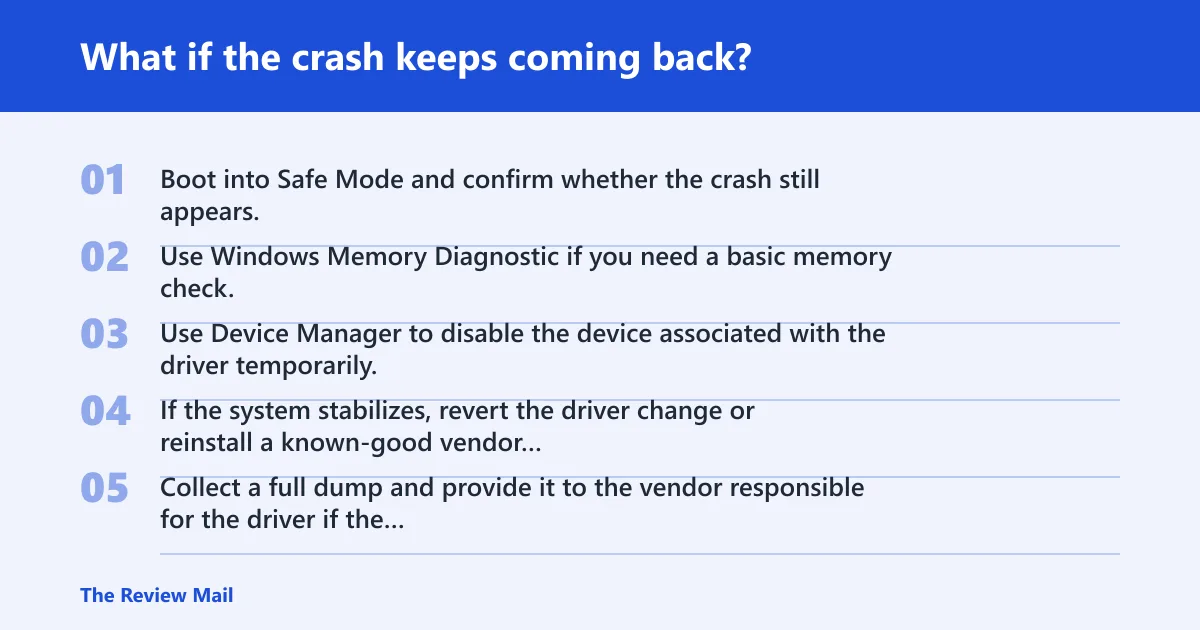
If the stop returns after checking the driver named in the crash details and the most recent related change, collect a full memory dump and save the event logs. At that point, the next step is to work with the device or software vendor that owns the driver.
If that didn’t work, try this next
- Boot into Safe Mode and confirm whether the crash still appears.
- Use Windows Memory Diagnostic if you need a basic memory check.
- Use Device Manager to disable the device associated with the driver temporarily.
- If the system stabilizes, revert the driver change or reinstall a known-good vendor package.
- Collect a full dump and provide it to the vendor responsible for the driver if the failure remains.
Prevention
When the machine is stable again, keep one known-good driver version on hand and avoid stacking several driver or filter changes in the same maintenance window.
Frequently asked questions
What does 0x000000d3 mean in Windows?
It is the DRIVER_PORTION_MUST_BE_NONPAGED bug check. The system attempted to access pageable memory at a process IRQL that was too high. In practice, the next step is to inspect the driver name, then the stack trace with !analyze and kb.
How do I fix a blue screen with stop code 0x000000d3?
Start with Device Manager and review the driver named in the crash details. Roll back or remove the most recent related driver change, restart, and test the same workload again. If the crash began after security or VPN software was installed, remove that package next.
Is 0x000000d3 a driver problem or hardware problem?
The supplied facts point first to a driver problem. The usual cause is a driver that marked code or data pageable when it should not have. Use the dump and the blue-screen driver name to narrow the cause before moving to other explanations.
What Windows versions can get this stop error?
The stop code can occur on supported Windows versions when a driver hits this paging problem. The specific stop code value is 0x000000D3.
Can a memory dump confirm the cause of a BSOD?
Yes. Use a kernel debugger, run !analyze, then kb. If the stack lands in one driver, that usually narrows the cause enough to choose rollback, uninstall, or an updated driver package instead of guessing.
How do I tell if an update applies to my BSOD?
Match the crash timing with the installation date of the most recent driver or Windows change. If the issue started right after that change, test a rollback or removal first, then retest after restart.
Which drivers commonly trigger BSOD stop codes?
For this stop, the driver named in the crash details is the one to inspect first. The important clue is the module identified by the blue screen or dump, because the stop code itself points to a driver paging fault.