Inaccessible_boot_device BSOD fix Windows 11: stop code 7B
Stop code 0x0000007B means Windows lost access to the system partition during startup, so the boot process cannot reach the normal drive or boot files (per Microsoft support). I start by checking whether the boot drive still appears in BIOS/UEFI, because that tells me if I should stay with software repair or move toward hardware recovery.
This error often follows a boot-device failure, a BIOS or storage-controller change, a disk clone or migration, or storage hardware problems. If the machine was updated recently, switched from IDE to AHCI or RAID, or had a new SSD installed, that detail matters more than generic “repair Windows” advice.
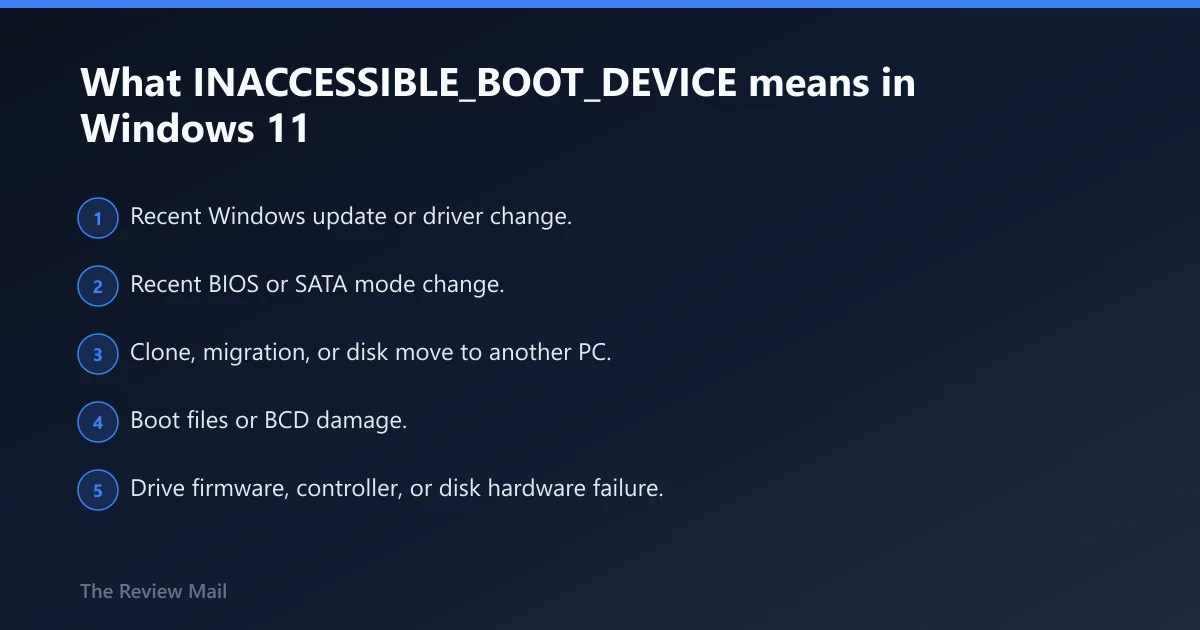
What INACCESSIBLE_BOOT_DEVICE means in Windows 11
Fix INACCESSIBLE_BOOT_DEVICE on Windows 11 by checking three branches in order: boot path, storage controller, then physical drive. Repair only the branch that fails.
Likely causes, ranked for triage
- Recent Windows update or driver change.
- Recent BIOS or SATA mode change.
- Clone, migration, or disk move to another PC.
- Boot files or BCD damage.
- Drive firmware, controller, or disk hardware failure.
Which cause is most likely?
Use the symptom pattern to choose the safest next step. If the drive still shows in BIOS/UEFI and the failure started after an update, begin with WinRE repair tools. If the failure started right after a BIOS or SATA mode change, put the old storage-controller setting back before you try anything else. If the disk is missing or unreadable everywhere, stop repairs and protect data.
| What you see | Most likely branch | Safest next action |
|---|---|---|
| Drive visible in BIOS/UEFI; boot loop started after update | Software path or boot files | WinRE > Startup Repair, then System Restore |
| Failure started after BIOS setup change or SSD move | Storage controller mismatch | Return SATA mode to the setting used before the failure |
| System cloned or migrated to another SSD | Boot files or controller mismatch | Confirm the target PC’s controller mode, then repair BCD or use bcdboot |
| Drive absent in BIOS/UEFI or not readable on another PC | Hardware path | Stop repairs; copy files if possible or use vendor/pro recovery support |
| Clicking, repeated dropouts, or file read errors | Failing drive | Protect files first, then replace the drive |
How do I fix INACCESSIBLE_BOOT_DEVICE in WinRE?
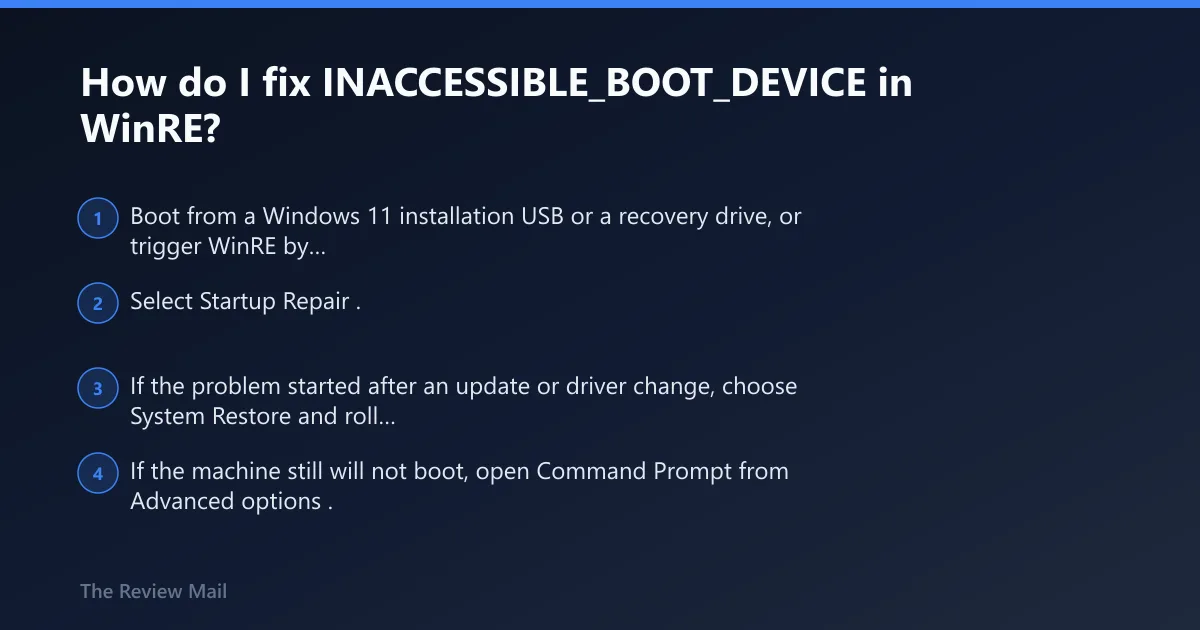
Boot into Windows Recovery Environment, run Startup Repair first, then use System Restore if the loop began after a recent change. If those fail, open Command Prompt in WinRE and repair the boot records or check the file system. WinRE is the right place when Windows will not boot far enough to use normal desktop tools.
- Boot from a Windows 11 installation USB or a recovery drive, or trigger WinRE by repeated failed startups. In WinRE, select Troubleshoot > Advanced options.
- Select Startup Repair. This is usually the first automated pass for boot-loader and BCD problems.
- If the problem started after an update or driver change, choose System Restore and roll back to a restore point from before the failure (reported by Windows Club; per Microsoft support).
- If the machine still will not boot, open Command Prompt from Advanced options.
Exact WinRE path for Safe Mode and recovery
If you need Safe Mode, do not use the desktop Settings path on a machine that will not boot. Use Troubleshoot > Advanced options > Startup Settings > Restart, then press the Safe Mode key shown on screen. That path works only after WinRE is open.
How do I rebuild BCD and boot files?
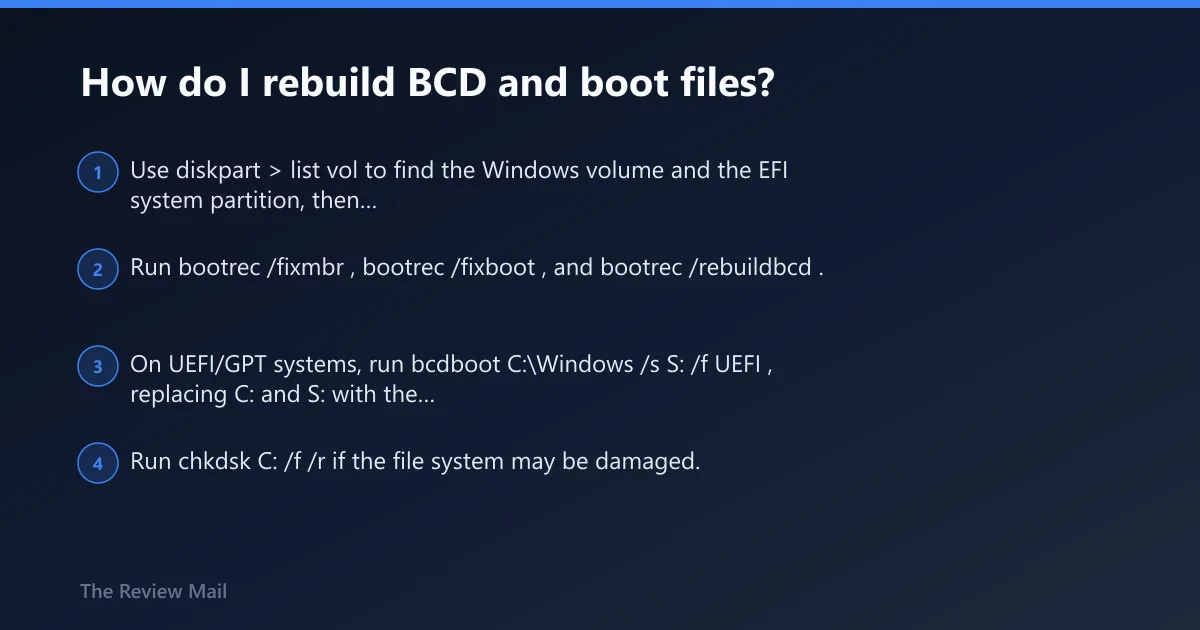
Use Command Prompt in WinRE after confirming the Windows partition letter, because WinRE may assign a different drive letter than a normal boot does. On legacy BIOS/MBR systems, bootrec is often the usual path; on UEFI/GPT systems, bcdboot is often a cleaner repair. Damaged, corrupt, or invalid BCD is a known trigger, and file-system startup can fail to recognize the boot device data (per Microsoft support; reported by Tom’s Hardware).
Repair commands for boot records and BCD
diskpart
list vol
exit

bootrec /fixmbr
bootrec /fixboot
bootrec /rebuildbcd

bcdboot C:\Windows /s S: /f UEFI

chkdsk C: /f /r
- Use diskpart > list vol to find the Windows volume and the EFI system partition, then note the correct letters in WinRE.
- Run bootrec /fixmbr, bootrec /fixboot, and bootrec /rebuildbcd.
- On UEFI/GPT systems, run bcdboot C:\Windows /s S: /f UEFI, replacing C: and S: with the letters you found.
- Run
chkdskC: /f /r if the file system may be damaged. In WinRE, the Windows letter may differ, so use the letter you confirmed.
For a clone or migration, run the boot repair only after verifying the target system’s partition style and the correct EFI or system partition. Mixing UEFI/GPT steps with legacy BIOS/MBR steps wastes time and can hide the real problem.
What should I do if the error started after a BIOS or SATA change?
If the blue screen began right after a BIOS change, storage-controller mode mismatch is one of the first things I check. Switching SATA mode between IDE, AHCI, and RAID can trigger the failure, and the safest fix is to return the mode to the setting used before the failure (reported by windowscentral.com and Amagicsoft).
- Enter BIOS/UEFI setup.
- Open the storage or SATA controller setting.
- Return the mode to the one used before the failure: IDE, AHCI, or RAID.
- Save changes and reboot.
- If you moved an SSD to another PC, check that other system’s controller mode before changing anything else.
Microsoft also flags recent hardware changes, including added controllers, as a cause. If the error started immediately after a hardware swap, remove the added device and test again before moving deeper into Windows repair (per Microsoft support).
Can Safe Mode fix stop code 0x7B?
Yes, but only when Windows can reach Safe Mode through WinRE. Safe Mode is useful for rolling back a bad driver, undoing a recent change, or removing a problematic update after a boot loop starts. It will not help if the storage controller is wrong or the drive is not accessible.
- Open WinRE and go to Troubleshoot > Advanced options > Startup Settings > Restart.
- Choose the Safe Mode option on the startup menu.
- In Safe Mode, open Device Manager, select the storage or chipset device, and use Properties > Driver > Roll Back Driver or Uninstall device if a driver change came before the crash.
- If the crash followed a recent update, use WinRE again and choose Uninstall Updates > Uninstall latest quality update only for that update-related case (reported by windowscentral.com).
How do I recover files before repairing an inaccessible boot device?
If the drive opens on another PC, copy the files there first and then continue with repairs. If the disk is not readable anywhere, stop the repair loop and use vendor or professional recovery support. A drive that is unreadable on multiple systems is a data-recovery problem, not a Windows repair problem.
- Remove the SSD or connect the drive to another working computer with the proper adapter or enclosure.
- Copy the user profile, desktop, documents, pictures, and any business data to a safe location.
- Only after the files are safe, return to boot repair or reinstallation.
- If the disk does not mount on the second PC, do not keep retrying commands; seek recovery support.
If that didn’t work
Escalate in this order: repeat WinRE repair once, then check the drive on another PC, then replace the drive if it is missing, unreadable, or shows hardware-failure signs. Reset this PC or reinstall Windows only after files are safe, because those steps can finish off a marginal drive.
Should I run Startup Repair or System Restore first?
Run Startup Repair first when the boot loop looks like a boot-loader or BCD problem. Choose System Restore first if the failure started soon after a Windows update or driver change and a restore point is available. That order keeps you on the least risky path first.
- WinRE > Troubleshoot > Advanced options > Startup Repair.
- If Startup Repair fails and the issue began after a change, select System Restore.
- If both fail, open Command Prompt and run the boot commands above.
Is INACCESSIBLE_BOOT_DEVICE a sign my SSD is failing?
Sometimes, yes. If the drive is missing in BIOS/UEFI, cannot be read on another PC, or keeps showing read errors, treat it as possible hardware trouble rather than a Windows issue. Microsoft lists incompatible disk hardware and failed storage hardware as possible causes.
- Check whether the drive is visible in BIOS/UEFI.
- Try the drive in another PC.
- If it is unreadable everywhere, stop repair attempts and use recovery support.
- If it works elsewhere, copy the data first and replace the original drive if needed.
Frequently asked questions
How do I fix INACCESSIBLE_BOOT_DEVICE in Windows 11?
Start in WinRE, run Startup Repair, then System Restore if the crash followed a recent update or driver change. If the drive was moved or BIOS settings changed, return the storage controller mode to its previous setting before trying bootrec or bcdboot. That sequence keeps you from repairing the wrong branch first.
What causes INACCESSIBLE_BOOT_DEVICE after a Windows update?
A bad update, a changed driver, or boot-file damage can block Windows from reaching the system partition. In WinRE, select Troubleshoot > Advanced options > System Restore or, for specific update cases, Uninstall Updates > Uninstall latest quality update (reported by Windows Club; reported by windowscentral.com).
How do I rebuild BCD for INACCESSIBLE_BOOT_DEVICE?
Open Command Prompt in WinRE, confirm the Windows and EFI letters with diskpart > list vol, then run bootrec /rebuildbcd. On UEFI systems, finish with bcdboot C:\Windows /s S: /f UEFI using the correct letters. That rebuilds the boot files and boot metadata.
What should I try first if Windows 11 won’t boot after a BIOS change?
Go straight back into BIOS/UEFI and restore the previous SATA or storage-controller mode. A switch between IDE, AHCI, and RAID is a common trigger. If the SSD was moved to another PC, compare that PC’s controller mode before changing anything else.