0x00000119 VIDEO_SCHEDULER_INTERNAL_ERROR Fixes on Windows
0x00000119 is the VIDEO_SCHEDULER_INTERNAL_ERROR stop code. This guide helps you separate driver, settings, and hardware factors when the crash repeats on a Windows PC. (Microsoft Learn)
What does stop code 0x00000119 mean?
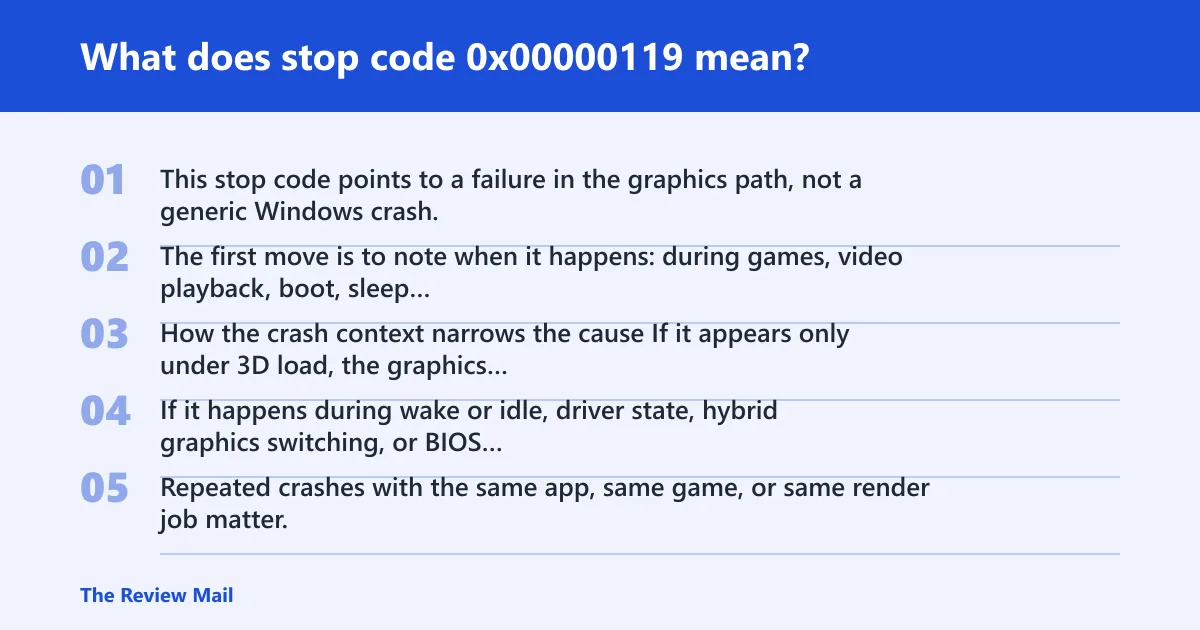
This stop code points to a failure in the graphics path, not a generic Windows crash. The first move is to note when it happens: during games, video playback, boot, sleep wake, or idle.
How the crash context narrows the cause
If it appears only under 3D load, the graphics card, display driver, or power delivery moves to the top of the list. If it happens during wake or idle, driver state, hybrid graphics switching, or BIOS settings deserve a closer look.
Repeated crashes with the same app, same game, or same render job matter. That pattern tells me more than the blue screen itself.
Likely causes, ranked from most common to least common
| Crash pattern | Most likely cause | Next test |
|---|---|---|
| Starts after a driver or patch change | Corrupt or wrong display driver | Safe Mode uninstall, then clean reinstall |
| Only under gaming or rendering load | Overclock, heat, or power instability | Reset BIOS/UEFI tuning and check temperatures |
| Still happens after clean driver steps | GPU, VRAM, motherboard slot, or PSU fault | Test another slot, cable, or known-good PSU |
What should you try first after a 0x00000119 BSOD?
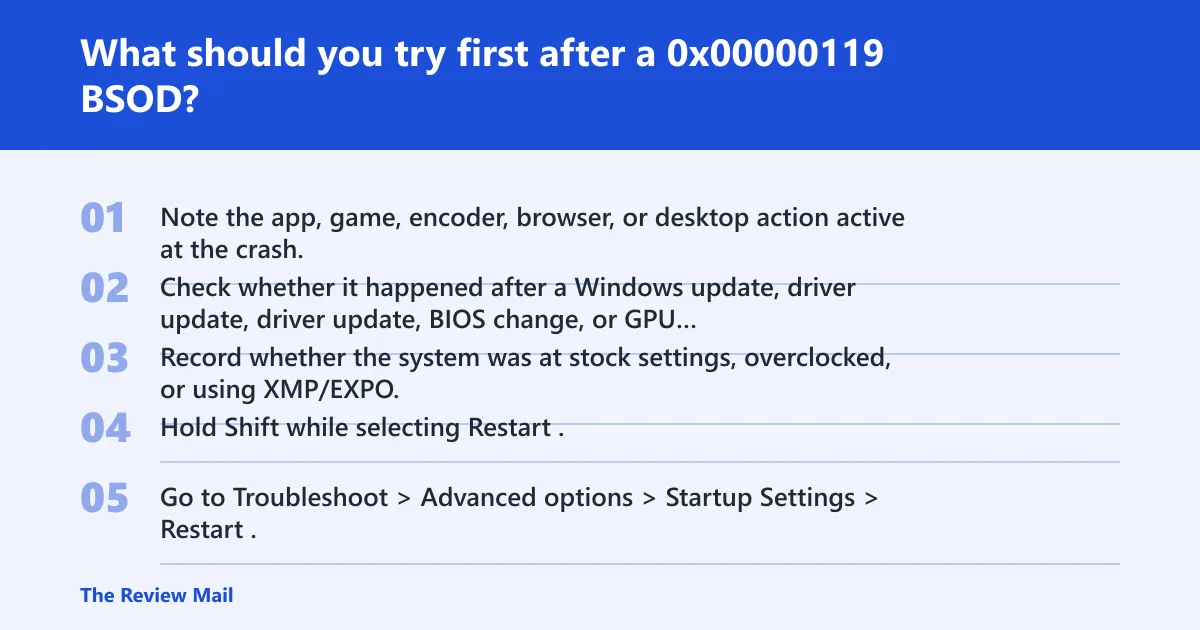
First, record what was running and whether the crash hit on load, wake, or idle. Then boot into Safe Mode if normal startup loops, because Safe Mode loads fewer display components and helps separate software from hardware.
Write down the crash context
- Note the app, game, encoder, browser, or desktop action active at the crash.
- Check whether it happened after a Windows update, driver update, BIOS change, or GPU utility change.
- Record whether the system was at stock settings, overclocked, or using XMP/EXPO.
Use Safe Mode if Windows will not stay up
- Hold Shift while selecting Restart.
- Go to Troubleshoot > Advanced options > Startup Settings > Restart.
- Choose 4 or F4 for Safe Mode.
- If the system stays stable there, move to the display driver branch next.
Check recent changes
- Open Settings > Windows Update > Update history.
- Open Device Manager > Display adapters and note the driver version.
- Enter BIOS/UEFI and note any recent overclock, XMP/EXPO, or primary GPU setting changes.
Can a bad graphics driver cause 0x00000119?
Yes. A bad display driver is one of the most common causes, especially after a vendor update, Windows patch, or a forced generic driver swap. NVIDIA, AMD, and Intel stacks can all trigger the fault if the driver package is corrupt or mismatched.
Should you update, rollback, or reinstall the display driver?
- Open Device Manager > Display adapters.
- For a crash that began right after an update, choose Properties > Driver > Roll Back Driver if the button is available.
- For older drivers or unknown state, choose Uninstall device and check Attempt to remove the driver for this device if offered.
- Reboot, then install the latest graphics driver package from the GPU vendor.
- If the new version fails too, test the previous stable version instead of repeating the same one.
Use Safe Mode to remove the current driver package
- Boot into Safe Mode.
- Open Device Manager, expand Display adapters, and uninstall the adapter.
- Restart normally.
- Install the chosen vendor driver without extra tuning utilities at first.
Test the driver stack without extras
- Install only the base graphics driver and restart.
- Skip overlay, tuning, and capture tools for the first test pass.
- Run the same app or game that triggered the crash.
Can overheating or overclocking trigger 0x00000119?
Yes. GPU and CPU overclocks, XMP/EXPO memory profiles, and heat spikes can sometimes push the graphics path into failure. Sudden load changes in games and renders are the usual trigger.
Reset BIOS/UEFI tuning first
- Enter BIOS/UEFI during startup.
- Load optimized defaults or equivalent vendor defaults.
- Disable GPU overclocks, CPU overclocks, and memory profiles such as XMP or EXPO.
- If the system uses both integrated and discrete graphics, confirm the intended adapter is selected as primary.
Check temperatures and fan response under load
- Open the vendor GPU utility or a hardware monitor.
- Run a normal workload that previously caused the fault.
- Watch for sudden temperature spikes, fan stalls, or abrupt clock drops.
- Stop the test if the system resets or artifacts appear.
How do you tell whether the GPU, VRAM, or PSU is involved?
Use the crash pattern, not the blue screen alone. Software faults usually track to one driver version or one app. Hardware faults often follow load, temperature, or power demand, and they keep returning after a clean driver install.
Look for hardware-style symptoms
- Artifacts, checkerboards, or flashing blocks before the crash
- Black screens or sudden resets under gaming or rendering load
- Crashes that return after rollback, reinstall, and driver cleanup
- Failures that get worse as the card heats up
Use app and power-state testing
- Test a different game, a video editor, and plain desktop use.
- Repeat the same action after a cold boot and again after 20 to 30 minutes of load.
- If the fault appears only during load spikes, suspect heat or PSU behavior.
- If it happens across all apps after a clean driver path, suspect GPU or VRAM.
What logs or dump files help diagnose 0x00000119?
Event Viewer and minidumps are the main evidence sources for repeated crashes. They help tie the blue screen to a driver name, device reset, or the exact time the system failed.
Check Event Viewer for matching timestamps
- Open Event Viewer.
- Go to Windows Logs > System.
- Look for display, kernel, or device errors at the crash time.
- Match those entries against the last driver update, game launch, or wake event.
Find and use minidump files
- Open
C:\Windows\Minidump. - Confirm that new dump files appear after each crash.
- If you repeat the same crash, look for the same module or driver name each time.
- If no dump is written, that itself can point toward a harder reset or hardware fault.
Decision checklist: match the crash pattern to the next test
This checklist turns the symptom into a branch. Pick the path that matches the crash pattern, then stop when the result is clear.
- Driver corruption branch: crashes began after a patch or driver update, and Safe Mode is stable. Next test: uninstall the display driver, reboot, then install a clean vendor package.
- Overclock instability branch: crashes happen after gaming, rendering, or a BIOS change. Next test: return BIOS/UEFI to defaults, disable XMP/EXPO, and remove GPU tuning.
- Heat or power branch: crashes appear only under load or after the system warms up. Next test: check GPU temperatures, fan behavior, and PSU cabling; try a different power connector if available.
- Hardware branch: crashes continue after clean driver steps and stock settings. Next test: try another GPU slot, cable, or known-good PSU; if it still fails, suspect the card or VRAM.
Still not working? next steps before repair or replacement
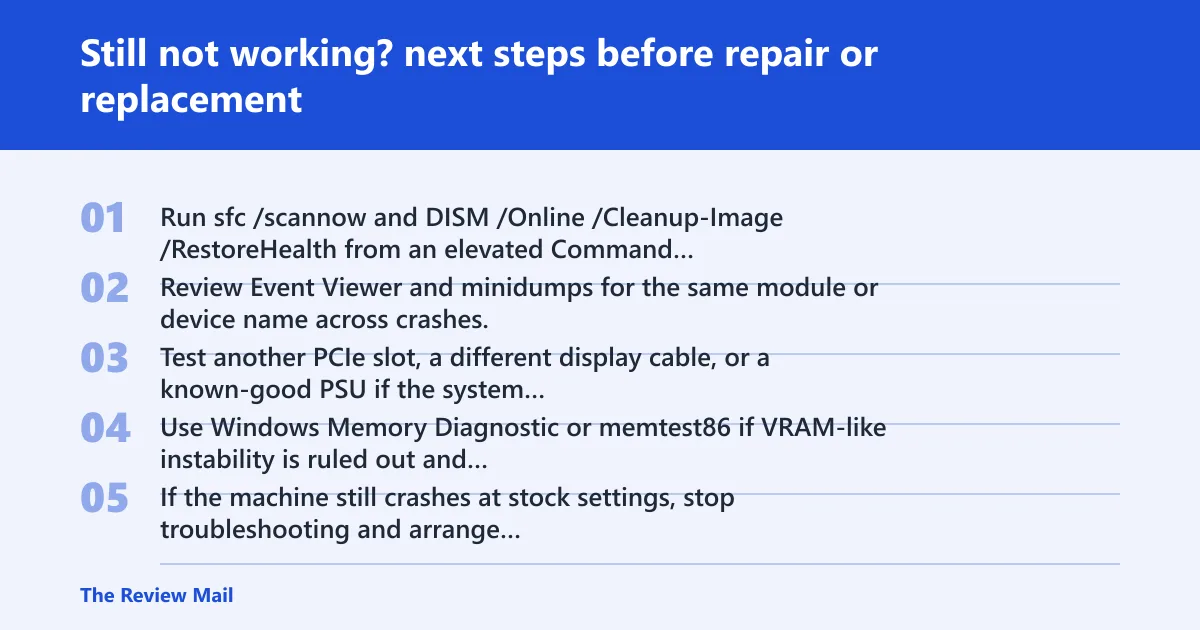
If the problem survives clean driver work and stock BIOS settings, stop repeating the same fix. Move to hardware isolation, because at that point the evidence points away from software.
Escalation ladder
- Run
sfc /scannowandDISM /Online /Cleanup-Image /RestoreHealthfrom an elevated Command Prompt. - Review Event Viewer and minidumps for the same module or device name across crashes.
- Test another PCIe slot, a different display cable, or a known-good PSU if the system allows it.
- Use Windows Memory Diagnostic or memtest86 if VRAM-like instability is ruled out and system memory is still in doubt.
- If the machine still crashes at stock settings, stop troubleshooting and arrange board-level repair or graphics card replacement.
Prevention: after the system is stable, avoid stacking a new driver, a BIOS tweak, and a memory profile change at the same time. Change one variable, then test the same game or render job again.
Frequently asked questions
What does stop code 0x00000119 mean?
It is a graphics-path bug check, so the next step is to treat the system like a display-stack problem, not a random Windows failure. Check whether the crash happens in games, video playback, sleep wake, or at the desktop, then inspect the display driver and Event Viewer.
How do I fix VIDEO_SCHEDULER_INTERNAL_ERROR in Windows 11?
Start with Safe Mode, remove the current display driver, then install the latest NVIDIA, AMD, or Intel package. If the crash started after an update, try Roll Back Driver first in Device Manager > Display adapters > Properties > Driver. Keep BIOS/UEFI at stock settings during testing.
Can a bad graphics driver cause 0x00000119?
Yes. A corrupt, mismatched, or newly broken display driver is a common cause, especially after a patch or vendor update. Use Device Manager to roll back or uninstall the adapter, then reinstall a clean package. If Safe Mode is stable, that makes the driver path more likely.
Is 0x00000119 a GPU hardware failure?
Sometimes, but not always. If crashes survive a clean driver reinstall, stock BIOS settings, and normal Windows updates, then the GPU, VRAM, motherboard slot, or PSU rises on the list. Look for artifacts, sudden resets, or failures that appear only under load.
What should I try first after a 0x00000119 BSOD?
Write down the exact app or task running, then check whether the machine crashes during load, wake, or idle. If Windows will not boot reliably, enter Safe Mode. From there, inspect the display driver version, recent updates, and any BIOS changes before you touch anything else.
How do I check whether the GPU, VRAM, or PSU is causing the crash?
Test the same workload at stock settings, then again after the machine has warmed up. Look for artifacting, black screens, or instant resets. If possible, try another PSU or another PCIe slot. Repeating the crash under the same load, with a clean driver, points away from software.