driver_overran_stack_buffer BSOD fix on Windows 11
To address DRIVER_OVERRAN_STACK_BUFFER on Windows 11, start with the most recent driver change, then use Safe Mode if needed, and finally roll back, uninstall, or reinstall the suspect driver. This bug check means a driver has overrun a stack-based buffer. Chasing the wrong driver turns one crash into a boot loop fast, and it burns time on dead ends. This guide shows how to trace the bad driver, pick the quickest repair, and get the PC stable again.
This guide is part of our Windows BSOD stop codes: full list and fixes series.
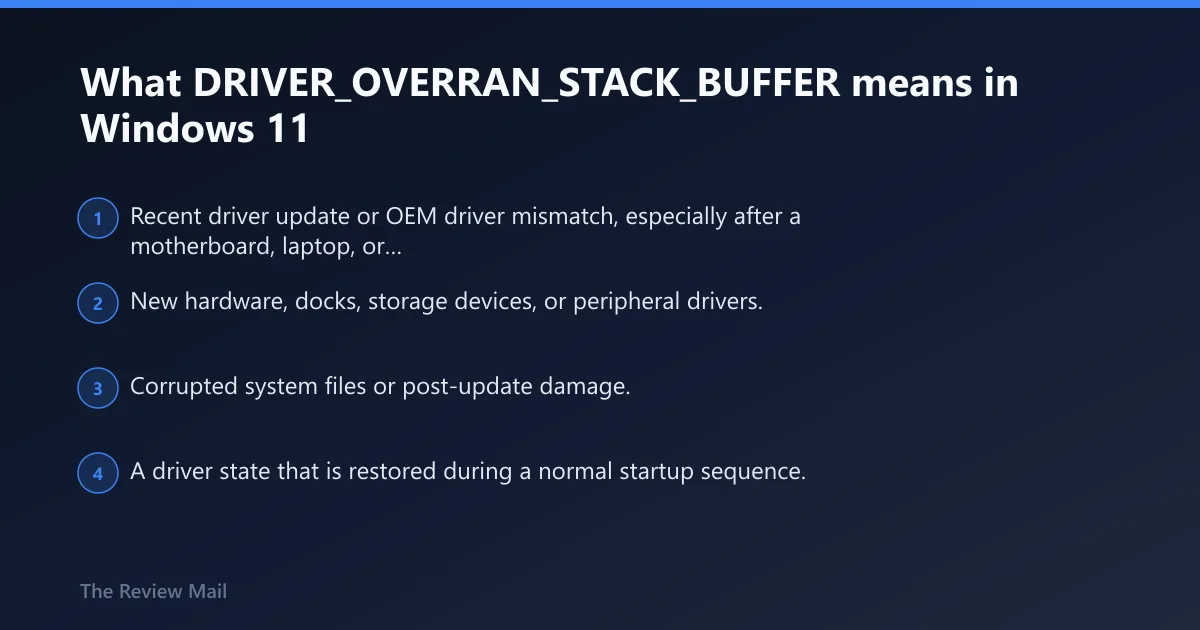
What DRIVER_OVERRAN_STACK_BUFFER means in Windows 11
This stop code can appear when a driver writes past a stack buffer or local variable, which may overwrite the function’s return address and cause Windows to stop the system. Windows 11 is protecting the system, not freezing at random.
The main clue is the driver boundary. A kernel-mode driver is often the first thing to inspect. If the crash happens during boot, that driver may load before the desktop appears.
Likely causes, ranked
- Recent driver update or OEM driver mismatch, especially after a motherboard, laptop, or vendor package update.
- New hardware, docks, storage devices, or peripheral drivers.
- Corrupted system files or post-update damage.
- A driver state that is restored during a normal startup sequence.
Use the cause that fits the last change first. That avoids replacing healthy drivers and keeps recovery focused.
| Trigger pattern | Most likely next action | Why this comes first |
|---|---|---|
| Crash started right after a driver update | Roll back the device in Device Manager | The newest driver is the best suspect |
| Crash started after adding hardware or a dock | Uninstall the device, reconnect, then install the vendor package | New hardware often brings the bad driver with it |
| Boot loop after a Windows update | Use Safe Mode, then SFC, DISM, and startup changes | Corruption or a bad startup state may be involved |
| Nothing obvious changed, but dumps point nowhere useful | Check the dump files and the stack trace | The stack trace can show which routine ran last |
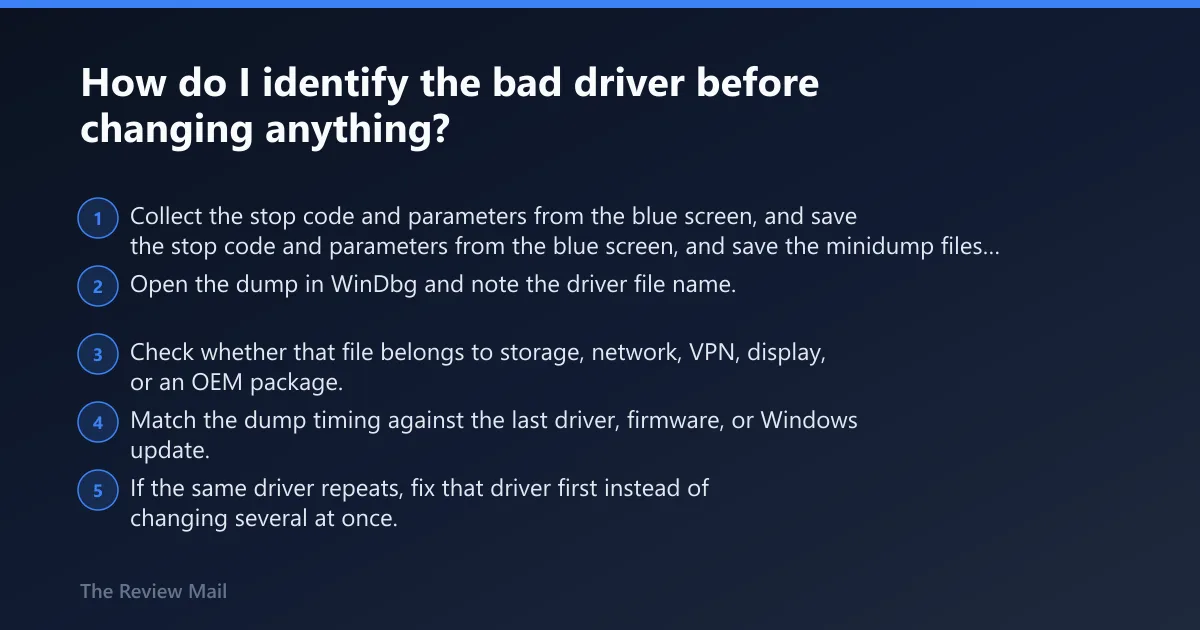
How do I identify the bad driver before changing anything?
Start with dump files, not guesses. Open the dump in WinDbg, use kb to display the stack backtrace, and note the driver file name shown near the stop. If the same file shows up across multiple crashes, that is a good first target.
- Collect the stop code and parameters from the blue screen, and save the minidump files from the system crash folder.
- Open the dump in WinDbg and note the driver file name.
- Check whether that file belongs to storage, network, VPN, display, or an OEM package.
- Match the dump timing against the last driver, firmware, or Windows update.
- If the same driver repeats, fix that driver first instead of changing several at once.
Microsoft’s debugger guidance says to use kb to get a stack trace, then look at the last routine before the bug check call; that routine is the one that overran its local variable. That is the shortest path from blue screen to the driver that needs attention.
How to read the result differently by driver type
If the dump points to a graphics, storage, network, or VPN file, treat that device class as the lead suspect. If it points to an OEM package, use the vendor’s current package page for that device category. A generic inbox driver can still appear in the trace, but the last third-party routine on the stack is the better clue to follow.
Did a recent driver update or new hardware trigger it?
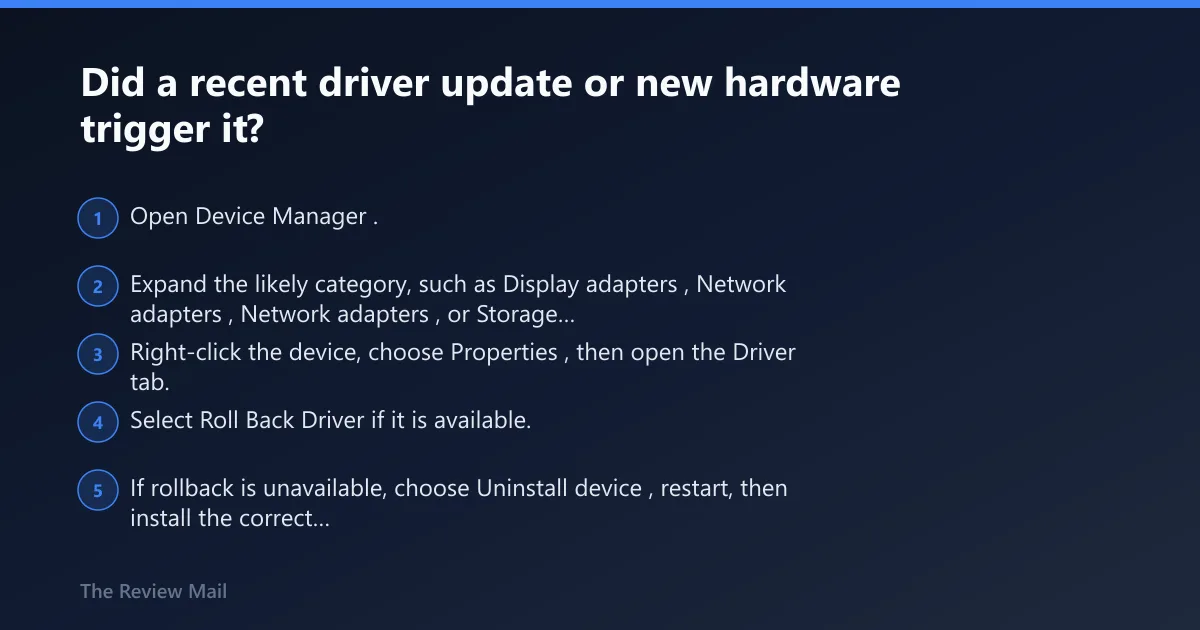
If the crash started right after a driver update or new device, roll back or remove that device before touching unrelated parts of the system. A clean reinstall is safer when rollback is unavailable, especially when the old package is gone or the device came from the PC maker rather than the device vendor.
- Open Device Manager.
- Expand the likely category, such as Display adapters, Network adapters, or Storage controllers.
- Right-click the device, choose Properties, then open the Driver tab.
- Select Roll Back Driver if it is available.
- If rollback is unavailable, choose Uninstall device, restart, then install the correct vendor package.
- Use the manufacturer download page when the driver came from the PC maker or peripheral vendor.
Windows Update can also push driver packages. Check Settings > Windows Update > Advanced options > Optional updates and install pending updates only after you have confirmed the bad driver. Update the wrong thing last, not first.
OEM driver versus inbox driver
An OEM driver from HP, Dell, Lenovo, a motherboard maker, or a laptop vendor may behave differently from a Microsoft inbox driver. If the crash began after the PC maker’s support app or a bundled update, use that vendor’s package page rather than a generic search result. On some systems, the OEM version is the correct fix even when Windows says the device is working properly.
What if Windows will not boot, or the error started after an update?
When Windows crashes before the desktop, use the Windows Recovery Environment to get into Safe Mode, then repair files and startup state in a careful order. This is the right path for boot loops, post-update failures, and machines that never stay up long enough for normal troubleshooting.
- Go to Settings > Recovery > Advanced startup > Restart now.
- Choose Troubleshoot > Advanced options > Startup Settings.
- Press 4 for Safe Mode or 5 for Safe Mode with Networking.
- Run
sfc /scannowfrom an elevated command prompt. - If SFC reports damage it cannot fix, run
DISM /Online /Cleanup-Image /RestoreHealth. - Open Control Panel > Power Options > Choose what the power buttons do, then turn off Fast Startup.
- Check Settings > Windows Update for pending updates and optional driver updates.
If the system keeps returning to the same crash after a normal shutdown and restart, turning off Fast Startup is worth trying. If the stop appeared after a patch cycle, repair the image first, then revisit drivers.
Safe Mode entry:
Settings > Recovery > Advanced startup > Restart now > Troubleshoot > Advanced options > Startup Settings
Press 4 for Safe Mode
Press 5 for Safe Mode with Networking

Repair commands:
sfc /scannow
DISM /Online /Cleanup-Image /RestoreHealth

Driver rollback path:
Device Manager > (device) > Properties > Driver tab > Roll Back Driver / Uninstall device
Do SFC and DISM help with DRIVER_OVERRAN_STACK_BUFFER?
They can help when the crash follows corruption, a bad update, or an unstable shutdown state. SFC checks and replaces damaged Windows files, and DISM repairs the Windows image when SFC cannot finish the job (reported by thewindowsclub.com). Use them after the likely driver is identified, not before.
- Open an elevated Command Prompt.
- Run
sfc /scannow. - Restart and test.
- If the problem remains, run
DISM /Online /Cleanup-Image /RestoreHealth. - Restart again, then recheck whether the same dump file still appears.
If SFC and DISM report clean results, move back to the driver path. Corruption repair is useful, but it is rarely the whole story when the same module appears in the dump.
How do I fix DRIVER_OVERRAN_STACK_BUFFER in Windows 11?
Use a ranked path: identify the driver from the dump, then use Safe Mode, rollback or uninstall, and only after that move to SFC, DISM, and vendor reinstall steps. That order avoids random driver swaps and shortens recovery when the crash is tied to one module.
- Check the dump file name in WinDbg.
- Match it against the last driver or hardware change.
- Boot Safe Mode from Windows Recovery Environment if the PC loops.
- Rollback or uninstall the suspect device in Device Manager.
- Run
sfc /scannowandDISM /Online /Cleanup-Image /RestoreHealthif corruption is possible. - Disable Fast Startup, then retest.
For devices that were added recently, remove the new device first, then reinstall the correct vendor driver.
Should I boot into Safe Mode for this BSOD?
Yes, if the machine crashes repeatedly or never reaches the desktop. Safe Mode loads a minimal set of drivers, which makes it the best place to roll back the suspect package, remove a broken driver, or run repair commands when normal startup keeps collapsing.
Use Safe Mode with Networking only when you need a download before the system is stable. If the machine is already on the right driver package or you are only rolling back locally, plain Safe Mode is cleaner.
How do I identify which driver caused the blue screen?
Open the dump in WinDbg and look for the file attached to the stop. Then compare that file with the last driver or hardware change you installed. Microsoft’s debugger notes say the last routine on the stack before the bug check call is the one that overran its local variable.
If the dump names a storage, network, display, or VPN file, go to that device category in Device Manager and repair only that package first. If the file belongs to an OEM package, use the vendor’s current release for that device.
Frequently asked questions
What causes DRIVER_OVERRAN_STACK_BUFFER BSOD?
A driver that writes outside its stack buffer or local variable can trigger this stop code. If the timing lines up with a recent update, new hardware, or a vendor package, that driver is the first place to look before you touch system files.
Can Fast Startup matter here?
Yes. Turn it off in Control Panel > Power Options > Choose what the power buttons do, then clear Turn on fast startup. If that reduces repeat crashes, keep it off until the offending driver is fixed.
What should I do first if the crash started after a change?
Start with the last driver or hardware change, then use Device Manager to roll back or uninstall that device. If rollback is unavailable, reinstall the correct package from the device or PC vendor.
What is the best built-in tool for reading the dump?
WinDbg is the primary tool to use here. Use kb to view the stack trace and focus on the last routine before the bug check call.
Which Windows versions are affected?
No affected Windows versions are stated on the page.