0x0000013D Fixes for CRITICAL_INITIALIZATION_FAILURE
Stop code 0x0000013D has a value of 0x0000013D. It indicates that early kernel initialization has failed. Leave it alone, and you can end up in a reboot loop, chasing the wrong fix, or making data recovery harder. This guide lays out the fastest triage path, how to separate user-level repairs from firmware and driver debugging, and what to test next.
This guide is part of our Windows BSOD stop codes: full list and fixes series.
What 0x0000013D means
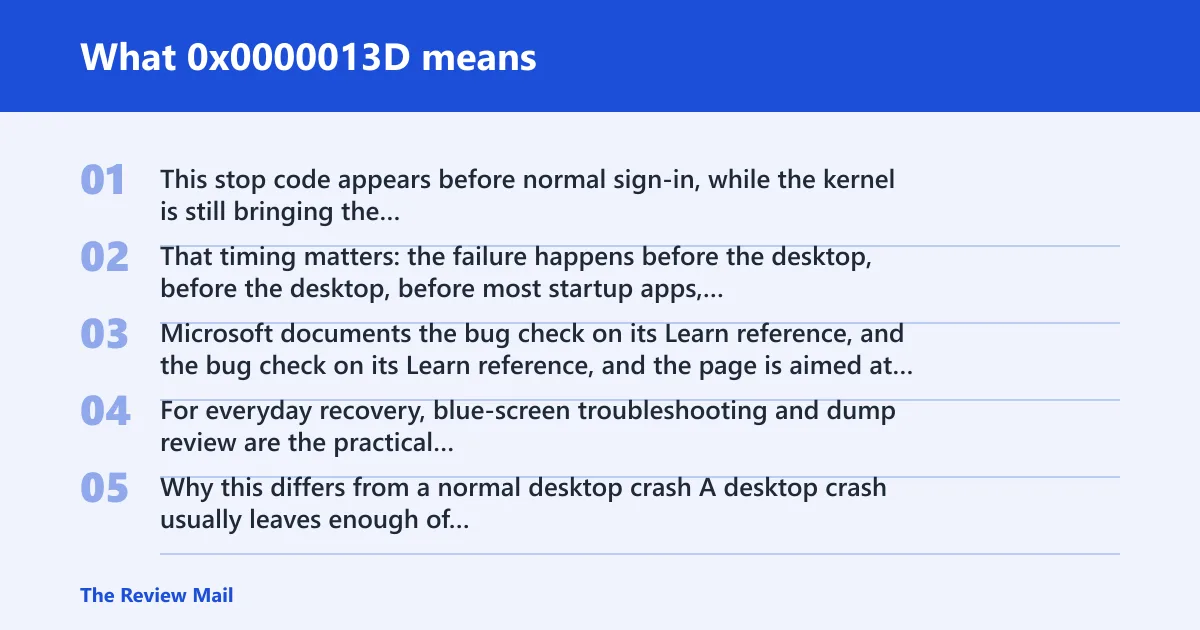
This stop code appears before normal sign-in, while the kernel is still bringing the system up. That timing matters: the failure happens before the desktop, before most startup apps, and often before a user can do much from inside Windows.
Microsoft documents the bug check on its Learn reference, and the page is aimed at programmers. For everyday recovery, blue-screen troubleshooting and dump review are the practical next steps.
Why this differs from a normal desktop crash
A desktop crash usually leaves enough of Windows alive to open Event Viewer, Device Manager, or Settings. This one often does not. The startup path is shorter, the recovery window is smaller, and every reboot can erase useful clues if the machine keeps changing state.
That is why the first task is evidence collection, not random repair.
According to Bug Check 0x13D Critical_Initialization_Failure – Windows… — Bug check 0x13D has the value 0x0000013D. (source)
What usually causes 0x0000013D?
A recent boot-time change is often the first thing to check. The issue can follow a driver change, a storage-device change, firmware work, or a Windows update that affected startup behavior. In some cases, failing hardware only shows itself when the kernel starts probing devices.
Recent driver install or update
A filter driver, storage driver, GPU driver, or security tool can break the initialization chain. If the machine reached this point right after a driver change, that change should be checked first.
Storage or boot-device changes
Changed SATA/NVMe ports, a loose cable, a new SSD, or a BIOS storage mode mismatch may stop boot before sign-in. If Windows cannot see the boot disk the same way it did before, startup can fail early.
BIOS or firmware update problems
Firmware changes can alter secure boot, storage mode, memory training, or device enumeration. A system that failed immediately after firmware work should be treated differently from one that failed after a normal Windows update.
Windows Update side effects
A cumulative update, driver package, or servicing change may leave boot files or startup components in a bad state. If the system worked yesterday and broke after a reboot into updates, start with rollback and recovery options.
Less common hardware faults
Bad RAM, a failing drive, or an unstable motherboard can surface during early kernel work. These cases usually resist simple rollback because the failure returns even after software changes are reversed.
What should you check first?
Check the last change before the crash, look for a dump file, and note whether Safe Mode starts. If this is a managed business device, stop improvising and follow the company’s support path so changes stay traceable.
- Write down the last change: driver install, BIOS update, disk swap, or Windows Update.
- Look for
C:\Windows\MinidumpandC:\Windows\MEMORY.DMP. - Try Safe Mode. If it starts, the problem is usually closer to software than hardware.
- On a work PC, hand the incident to IT before making more changes.
Evidence to collect before the machine worsens
Save the stop-code photo, note the exact reboot sequence, and copy any dump files off the machine if you can still reach them from recovery media. If startup is unstable, take the evidence first and repair second.
For end users, the blue-screen troubleshooting path is the right starting point; for crash analysis, the dump files matter more than guesswork.
Can a driver cause this stop code?
Yes. A bad or incompatible driver can break boot before the desktop appears, especially if the system loops only after a new install or update. Treat the newest driver or software change as the first rollback candidate.
- Boot into Safe Mode if possible.
- Open Device Manager.
- Find the newest device change, then choose Properties > Driver > Roll Back Driver or Uninstall Device.
- Reboot and test before installing anything else.
- If Windows will not boot, enter recovery and use Troubleshoot > Advanced options to reach startup repair or restore options.
If that did not work, try a clean boot
Use msconfig, open Services, hide Microsoft services, disable the rest, then restart. That trims third-party startup code without permanently removing it.
If the machine only fails with one specific device attached, remove that device and test again.
What if the crash started after a BIOS update or storage change?
Recheck firmware settings that control boot order, storage mode, and device detection. If the system changed only after a firmware flash or disk swap, the problem may be configuration, not corruption.
- Enter BIOS/UEFI setup and compare storage, boot order, and Secure Boot settings with known-good values.
- Confirm the boot disk is detected consistently.
- Reconnect SATA or power cables on desktops; reseat the drive if the platform allows it.
- Undo the most recent storage hardware change if the failure began immediately afterward.
- Reboot once after each correction and stop if the machine becomes unstable.
Collect the firmware version, the exact drive model, and any storage-controller mode you changed before touching anything else. That evidence matters if the machine goes to the OEM or internal support, including Dell support for Dell systems.
Boot-stage troubleshooting decision table
| Situation | Most likely branch | Next action | Evidence to collect |
|---|---|---|---|
| No Safe Mode | Boot path is failing very early | Use recovery options, copy dump files, then move to offline repair | Photo of the stop code, C:\Windows\Minidump, C:\Windows\MEMORY.DMP, last successful change |
| Loops after driver install | Driver or software regression | Rollback or uninstall the newest driver, then retest | Device name, driver date, install time, whether Safe Mode works |
| After BIOS update | Firmware setting or compatibility issue | Compare BIOS settings, verify boot order, check storage mode | BIOS version, setting changes, boot-device detection, whether defaults help |
| After storage change | Disk detection or cabling issue | Inspect cables, ports, and drive seating; revert the hardware change if possible | Drive model, port used, cable condition, whether the disk is seen in firmware |
| After Windows Update | Update-side boot regression | Remove the update or use restore/recovery options | Update KB if known, update timing, restore point availability, dump files |
How to use WinDbg and Microsoft references
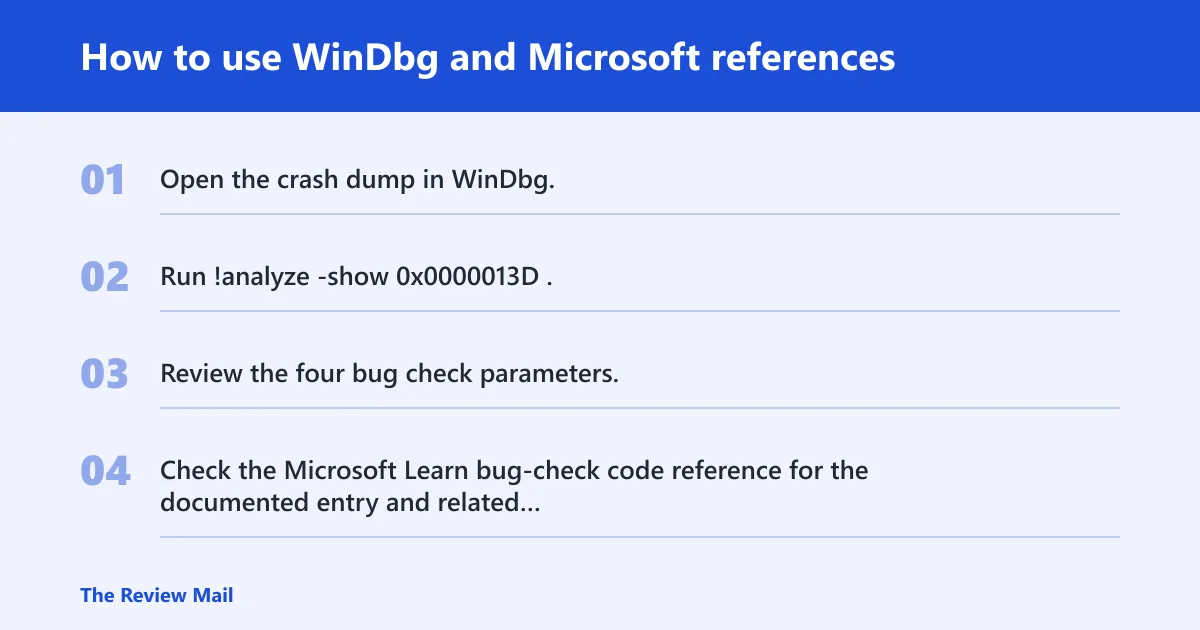
WinDbg can display information about a bug check code, and the basic command syntax is !analyze -show <code>. That is the debugger path when you have a dump file and need more than guesswork.
- Open the crash dump in WinDbg.
- Run !analyze -show
0x0000013D. - Review the four bug check parameters.
- Check the Microsoft Learn bug-check code reference for the documented entry and related codes.
The parameter table for this stop code appears simple: Microsoft lists all four parameters as reserved for 0x13D. That usually means the dump analysis, surrounding changes, and boot context matter more than trying to read a parameter as a standalone clue.
How to translate debugger output into normal troubleshooting
If WinDbg points at a driver, remove or roll it back. If it points at boot storage, inspect the disk path and controller settings. If it points nowhere useful, treat firmware, disk health, or RAM as the next branch and collect more evidence first.
What should I check if Windows fails during early kernel initialization?
Start with the last change, then move to Safe Mode, dump files, and recovery options. If Windows fails before normal sign-in, the problem is usually in the startup chain, so later desktop fixes often waste time.
Offline repair checklist
- Boot from Windows recovery media or the recovery environment.
- Run
sfc /scannow/offbootdir=C:\ /offwindir=C:\Windows from an offline repair context, adjusting the drive letter if Windows is on a different volume. - Run
DISM /Online /Cleanup-Image /RestoreHealthonly when Windows is reachable enough to service the image. - Use
chkdskif the storage path looks suspicious. - If the system still fails, move to dump review or vendor support.
For a home PC, that order is usually enough. For a managed device, hand off the boot evidence and let IT decide whether to image, repair, or replace.
Still not working?
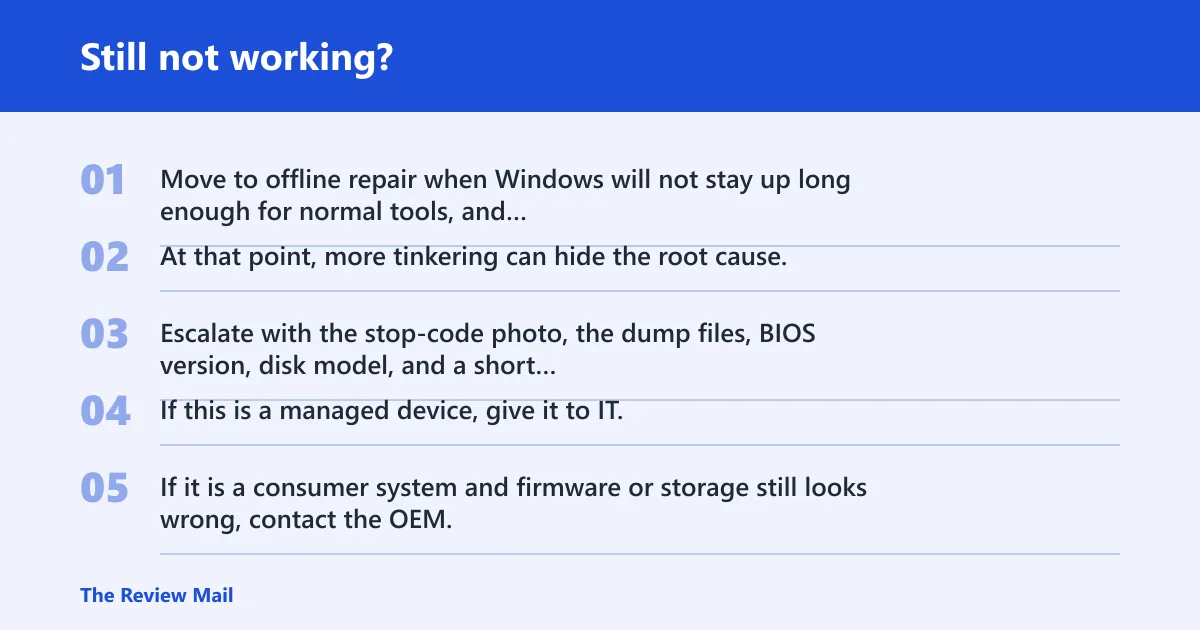
Move to offline repair when Windows will not stay up long enough for normal tools, and use dump review or vendor support if the failure survives rollback, restore, and boot repairs. At that point, more tinkering can hide the root cause.
Escalate with the stop-code photo, the dump files, BIOS version, disk model, and a short timeline of changes. If this is a managed device, give it to IT. If it is a consumer system and firmware or storage still looks wrong, contact the OEM.
Prevention: before any driver, BIOS, or storage change, create a restore point or full backup and note the current firmware version. That gives you a clean way back if the next boot fails.
Frequently asked questions
What does stop code 0x0000013d mean?
It points to a startup failure during early boot, before normal logon. The fastest first check is whether Safe Mode starts. If it does, the problem usually sits closer to a driver or software change than to a dead machine.
Is 0x0000013d the same as Critical_Initialization_Failure?
Yes. The stop code and the bug check name refer to the same documented entry. If you see either label, collect the latest change, any dump file, and the Safe Mode result before making more changes.
What causes a CRITICAL_INITIALIZATION_FAILURE BSOD?
It can follow a driver change, a storage-device change, a BIOS or firmware update, or a Windows update. The practical next step is to reverse the newest change first, then use recovery tools only if the machine still will not boot.
Can a driver cause bug check 0x13d during boot?
Yes. A boot-time driver can break the startup chain before the desktop loads. Open Device Manager in Safe Mode, roll back the newest driver, or uninstall the device, then restart and test once before adding anything else back.
How do I troubleshoot a 0x0000013d blue screen?
Start with the last change, then check for C:\Windows\Minidump or C:\Windows\MEMORY.DMP. If Windows still boots in Safe Mode, remove the newest driver or update. If it does not, use recovery options and offline repair next.
Why is 0x0000013d stuck in a reboot loop?
That can happen when the same startup failure returns on every boot before Windows can finish initialization. A loop usually means the last boot-time change, the boot device path, or firmware settings still need to be checked.
Can WinDbg identify the exact cause of 0x0000013d?
Sometimes. Run !analyze -show 0x0000013D on the dump file and read the surrounding stack and parameter data. If the dump is too small or corrupted, the debugger may narrow the branch without naming one exact culprit.
Should I contact Dell support?
If the machine is a Dell and the failure continues after basic rollback and recovery steps, Dell support can help with model-specific firmware, storage, and hardware service options.