
0x00000102 Error: What It Means and How to Fix It Fast
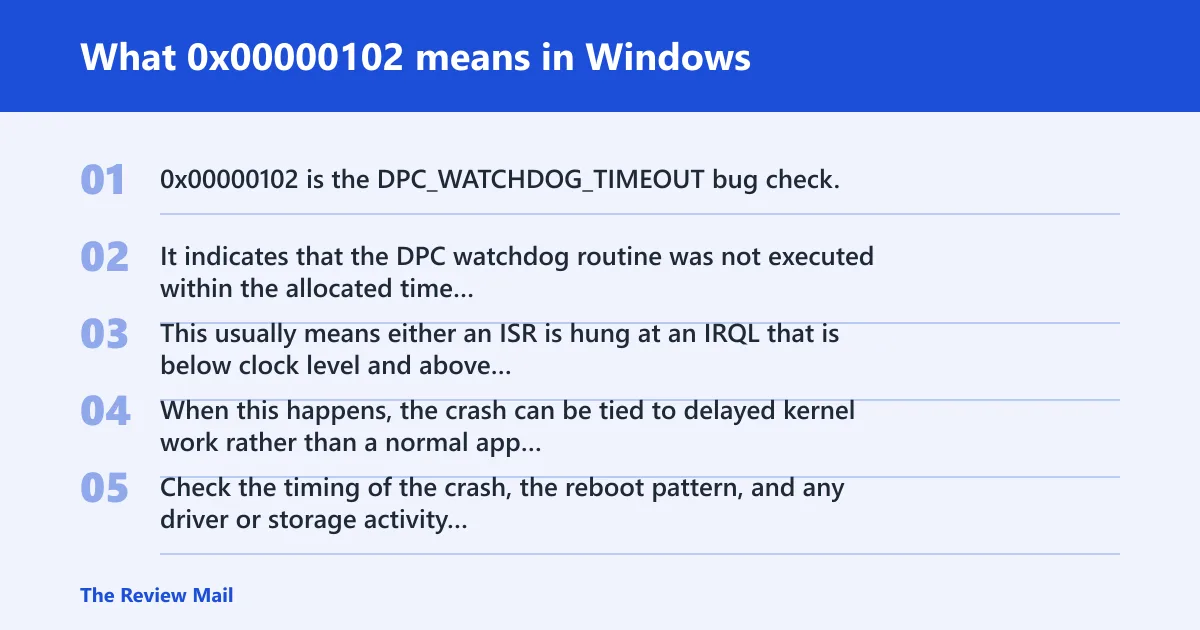
0x00000102 is the DPC_WATCHDOG_TIMEOUT bug check. It indicates that the DPC watchdog routine was not executed within the allocated time interval. This usually means either an ISR is hung at an IRQL that is below clock level and above dispatch level, or a DPC routine is hung on the specified processor.
When this happens, the crash can be tied to delayed kernel work rather than a normal app error. Check the timing of the crash, the reboot pattern, and any driver or storage activity around it to narrow the cause.
What 0x00000102 means in Windows
What the post-reboot pattern tells you
If the machine restarts and then throws the same code again, that points to an ongoing fault. Repeating crashes, especially at the same stage of startup or workload, usually narrow the cause faster than a full reinstall. Reboot it, then write down the exact point where the next crash appears.
What usually causes 0x00000102?
The most grounded causes here are driver-related delays, storage-path delays, and timing problems in kernel work. StorPort.sys handles I/O completions in a routine that runs at DISPATCH_LEVEL, and if I/O completion routines singly or together take too much time, the keyboard and/or mouse may stop responding. It is also possible that the Windows DPC Watchdog timer routine will decide that the StorPort routine has taken excessive time to finish.
Recent driver changes and bad driver state
Check the most recent driver changes first, especially storage-related drivers and other drivers that handle I/O or interrupts. A bad or mismatched driver can stall completion work long enough to contribute to the crash. If the problem began right after a driver change, that is the first place to look.
Storage-related delays
Storage stack delays can contribute when completion processing takes too long. A kernel driver in the storage stack can reduce the problem’s likelihood by efficient coding of the driver’s I/O completion routine. If it is still not possible to do all necessary processing in the completion routine in enough time, the routine can create a work element for the I/O work.
Queue up the element to a work queue and return STATUS_MORE_PROCESSING_REQUIRED; a worker thread of the driver should then find the work element, do the work and do IoCallerDriver for the IRP to ensure the IRP’s further I/O processing.
Driver, firmware, and hardware timing problems
Timing-sensitive driver work can be exposed by system startup, heavy I/O, or background processing. When the same crash repeats, treat it as a persistent condition and use logs and basic system isolation to identify which device path is involved.
Use this crash-context triage table first
| Observed symptom | Likely cause | First test and next action |
|---|---|---|
| During boot, especially before sign-in | Storage or driver work taking too long | Enter Safe Mode, check for recent driver changes, then review the storage path and logs |
| Under load, during games, exports, or updates | Driver or I/O completion delay | Look for the device or driver active at the time of the crash, then test with minimal startup |
| At idle or after the PC sleeps | Driver or service timing issue | Use a clean boot, remove recent driver changes, and inspect Event Viewer around the crash timestamp |
| Right after Windows or firmware update | Driver state changed at the same time | Rollback the newest driver if available, then test again with minimal startup |
How do I check logs after the crash?
Check Event Viewer and Reliability Monitor soon after reboot. Useful clues include the bugcheck time, the Kernel-Power entry that follows an abrupt reset, and any driver or service warning that appears just before the failure. Those timestamps tell you whether the crash was isolated or part of a repeating pattern.
Event Viewer: bugcheck and Kernel-Power timing
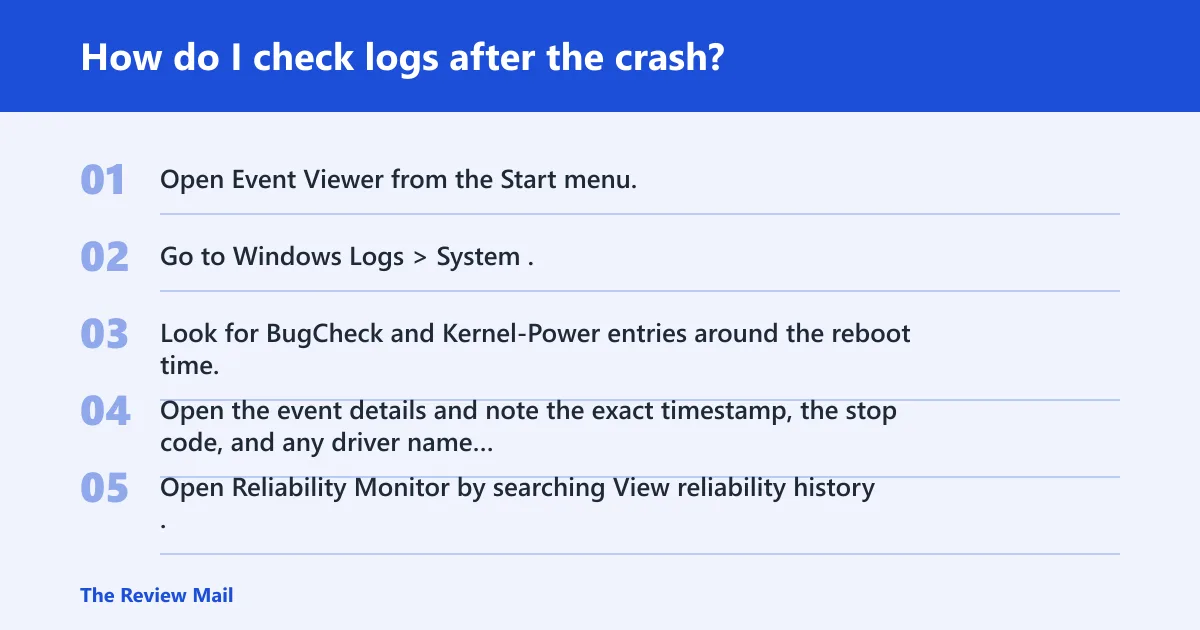
- Open Event Viewer from the Start menu.
- Go to Windows Logs > System.
- Look for BugCheck and Kernel-Power entries around the reboot time.
- Open the event details and note the exact timestamp, the stop code, and any driver name mentioned.
Reliability Monitor: repeated failures across reboots
- Open Reliability Monitor by searching View reliability history.
- Find the red X entries on the day of the crash.
- Click the event and compare the failure time with driver installs, Windows updates, or hardware changes.
- If the same failure repeats after repeated BSODs, treat it as an ongoing fault, not a one-time glitch.
Fix driver-related causes first
Start with the most recent driver change, then move to the drivers involved with storage and other kernel-level I/O. If a rollback clears the issue, the trigger was likely that driver state. If rollback does nothing, a clean reinstall is the next sensible step for the affected device stack.
- Open Device Manager.
- Check the devices most likely involved in the crash path, especially storage-related entries and other recently changed devices.
- Right-click the device installed or updated last, then choose Properties > Driver > Roll Back Driver if available.
- If rollback is unavailable, choose Uninstall device, then reboot and reinstall the vendor driver cleanly.
- Update the driver only from the system or device vendor if you have confirmed a newer package for that exact device.
If that did not work, try a clean boot so third-party services are out of the picture. Open msconfig, choose Services, check Hide all Microsoft services, click Disable all, then restart. If the crash stops, re-enable services in batches until the bad one returns.
Test memory and storage for instability
Memory and storage checks are useful when crashes appear under load, during startup, or during heavy I/O. Start with Windows Memory Diagnostic, then use a longer memory test if the crash continues. For storage, use standard disk checks and confirm the drive’s health with vendor tools if available.
- Run Windows Memory Diagnostic from the Start menu and restart when prompted.
- If errors appear, return the system to default memory settings and retest.
- Use
chkdskon the affected volume from an elevated Command Prompt. - Check SSD or HDD health in the vendor utility if available.
- If the machine still crashes, run a longer memory test such as memtest86 before replacing parts.
Prevention
Keep memory at known-stable defaults unless the system has been stress-tested after every change. If a memory profile or other performance setting was changed recently, record the original settings first so they can be restored quickly after a crash.
Could BIOS or firmware be the reason?
Firmware settings can affect timing and device behavior, so BIOS or UEFI defaults are worth checking if the crash began after a hardware change or a memory setting change. Start by loading defaults, then test the machine before changing anything else.
- Enter BIOS or UEFI setup during startup.
- Choose Load Optimized Defaults or the equivalent reset option.
- Disable CPU, RAM, or GPU overclocking and turn off any memory profile that was enabled.
- Apply the settings, save, and test the machine before changing anything else.
- If the issue continues, use only the board vendor’s recommended firmware update path for your exact board revision.
Do not update BIOS just because a crash happened once. If the crash repeats after reboot and still appears after defaults are restored, then compare the behavior with the board vendor’s notes for your platform.
Still not working?
If the crash survives driver rollback, memory defaults, disk checks, and firmware resets, the failure is leaning toward a deeper device or hardware path. At that point, stop broad repair loops. Repeated watchdog crashes are a sign to isolate the subsystem, not to keep reinstalling Windows blindly.
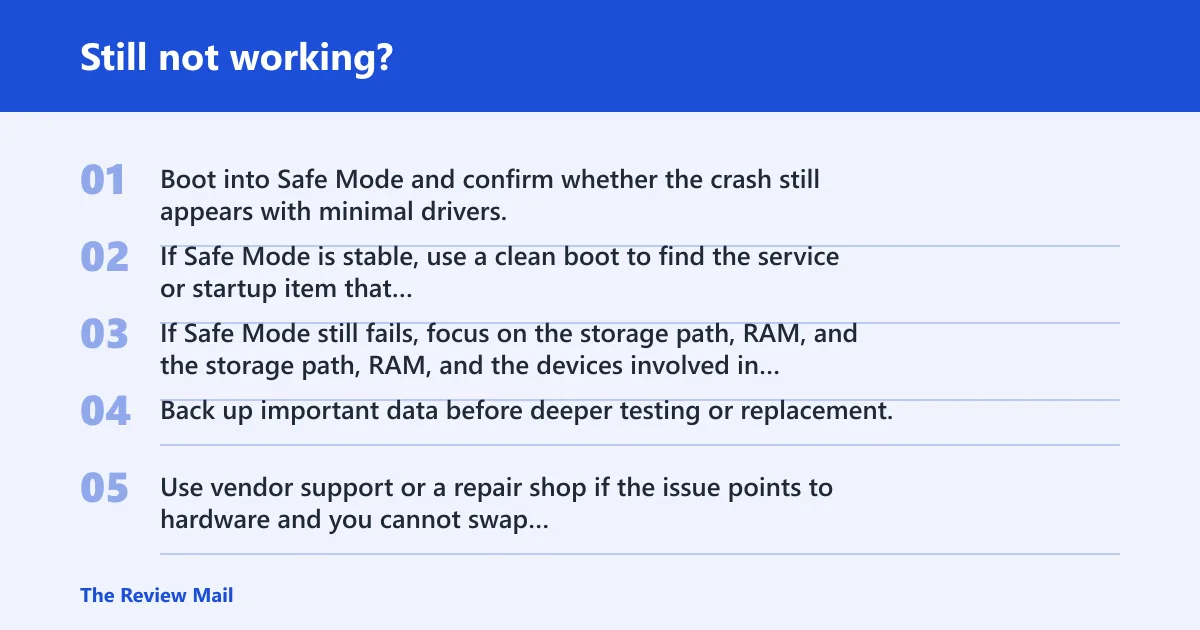
- Boot into Safe Mode and confirm whether the crash still appears with minimal drivers.
- If Safe Mode is stable, use a clean boot to find the service or startup item that triggers it.
- If Safe Mode still fails, focus on the storage path, RAM, and the devices involved in the crash.
- Back up important data before deeper testing or replacement.
- Use vendor support or a repair shop if the issue points to hardware and you cannot swap parts for verification.
If that didn’t work, try this next: retest the affected device stack in a minimal startup state, then work from the most recent change backward. If the problem remains after defaults and clean drivers, the next step is replacement or professional diagnosis.
How do I know if 0x00000102 is a one-time crash or recurring issue?
A one-time crash usually does not leave a clear repeat pattern after reboot. A recurring issue often shows similar timing, the same device area, or repeated BugCheck and Kernel-Power events in Event Viewer. Reliability Monitor is the quickest way to spot that repetition.
Can storage, drivers, or hardware cause 0x00000102?
Yes. Driver changes and storage-path delays are both plausible causes, especially when crashes happen under load or during startup. Use timing, logs, and repeatability to sort software from hardware before replacing parts.
Does updating BIOS help stop code 0x00000102?
It can, but only when the board vendor’s firmware notes match your problem. The safer first move is loading BIOS defaults and testing again before making any other change. Update firmware only if the crash persists and the vendor has a relevant release for your exact board revision.
Should I use Safe Mode for 0x00000102 troubleshooting?
Yes. Safe Mode strips the system to minimal drivers, so it is a clean way to test whether a third-party driver or service is involved. If the system is stable in Safe Mode but not in normal startup, use msconfig clean boot next and re-enable items in small groups.
What logs should I check after a 0x00000102 crash?
Check Event Viewer under Windows Logs > System for BugCheck and Kernel-Power entries, then open Reliability Monitor for the same date. Match the crash time with driver installs, updates, or sleep/wake events. That timestamp pairing usually points faster than generic repair steps.