driver_power_state_failure bsod fix windows 11 guide
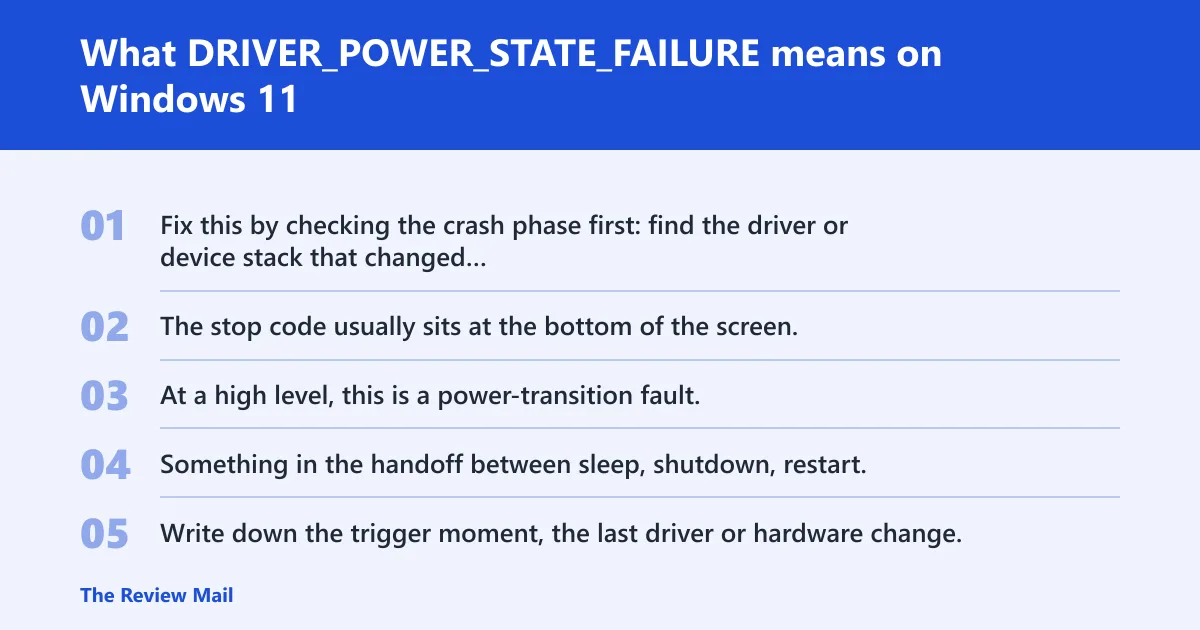
Fix this by checking the crash phase first: find the driver or device stack that changed last, then update or roll it back before you widen the search. The stop code usually sits at the bottom of the screen, and Windows 11 can show it as a Blue Screen or Black Screen error (per Microsoft support).
This guide is part of our Windows BSOD stop codes: full list and fixes series.
At a high level, this is a power-transition fault. Something in the handoff between sleep, shutdown, restart, or boot did not finish cleanly, so Windows stopped the machine instead of letting it hang.
What DRIVER_POWER_STATE_FAILURE means on Windows 11
What to note before changing anything
Write down the trigger moment, the last driver or hardware change, and whether the PC reaches the desktop at all. Remove any new hardware if the crash started after installation, and check free space on C: before you do deeper repair. Microsoft recommends 10% to 15% free disk space. (Microsoft Support)
Phase-based troubleshooting matrix
| Trigger moment | Likely subsystem | Fastest safe action | Roll back or update? |
|---|---|---|---|
| Boot / first logon | Storage, chipset, or a newly added device | Enter Safe Mode and remove the last driver or device change | Roll back if the crash started right after an update; update from the OEM if the driver is old |
| Sleep resume | Graphics, Wi‑Fi, Bluetooth, or USB | Open Device Manager and roll back or uninstall the most recent driver change | Roll back first after a recent update; clean reinstall if rollback is unavailable |
| Shutdown / restart | Storage, chipset, or fast startup behavior | Update the OEM storage or chipset package, then retest shutdown | Update if the driver is behind; roll back only if the failure started after a known change |
📊 Safe Mode is one of Microsoft’s basic steps for Windows 11 blue screens. Source: Troubleshooting Windows unexpected restarts and stop code….
Likely causes, ranked by what to check first
Recent graphics changes are usually the first place I check, especially vendor packages from NVIDIA, AMD, or Intel. After that, I look at wireless, Bluetooth, storage, USB, and chipset drivers. Low disk space or a bad Windows update can make recovery harder, and hardware can still be the root cause when a device stalls during a power handoff.
Recent graphics driver changes
- Open Device Manager from Start > Device Manager.
- Expand Display adapters.
- Right-click the GPU > Properties > Driver.
- Choose Roll Back Driver if the crash started after a driver update.
- If rollback is unavailable, choose Uninstall device, restart, then install the OEM package.
Wireless, Bluetooth, storage, USB, and chipset drivers
- In Device Manager, expand Network adapters, Bluetooth, Disk drives, Universal Serial Bus controllers, and System devices.
- Look for a yellow exclamation point or the most recent device change.
- Open Properties > Driver, then use Update driver first if the package is older than the OEM build.
- If the problem began after a change, use Roll Back Driver or Uninstall device.
Low free space or a bad update
- Open Settings > System > Storage and check the system drive.
- Leave 10% to 15% free space.
- Move large media files off the system drive.
- Then open Settings > Windows Update > Check for updates.
How do I fix DRIVER_POWER_STATE_FAILURE on Windows 11?
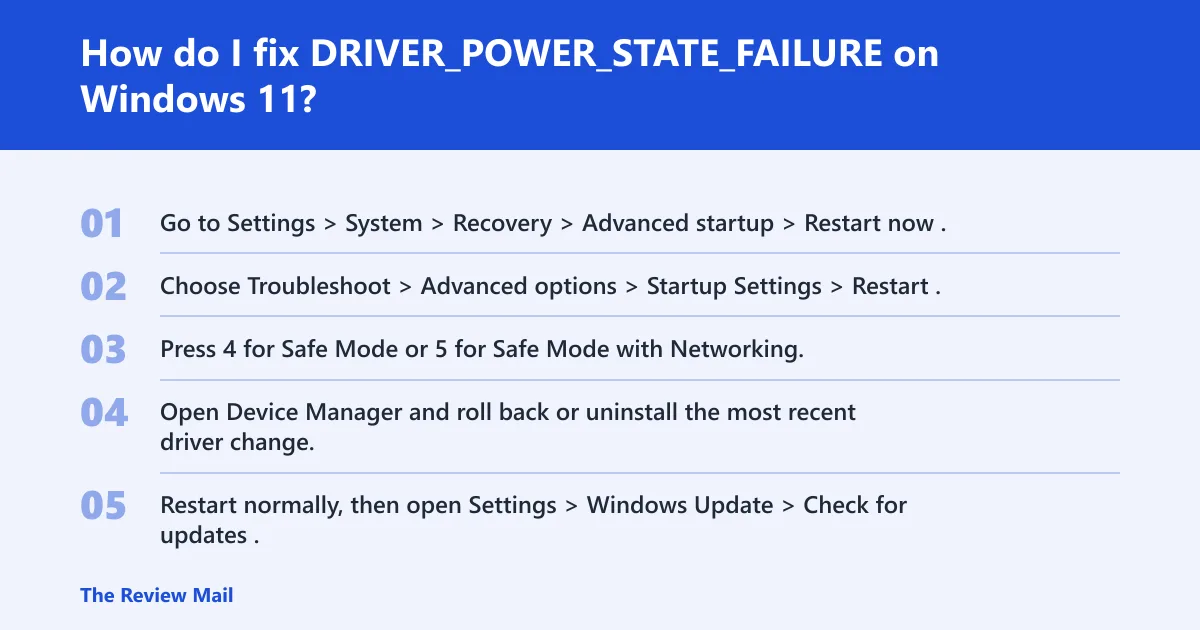
Start in Safe Mode, remove the last driver change, then install Windows Update before you chase vendor packages. If the crash began after a recent driver install, rollback is safer than a fresh update. If Windows Update has not been applied yet, install it before deeper repair because it can fix known compatibility issues (per Microsoft support).
- Go to Settings > System > Recovery > Advanced startup > Restart now.
- Choose Troubleshoot > Advanced options > Startup Settings > Restart.
- Press 4 for Safe Mode or 5 for Safe Mode with Networking.
- Open Device Manager and roll back or uninstall the most recent driver change.
- Restart normally, then open Settings > Windows Update > Check for updates.
- If the crash returns, install the OEM driver package from the system maker or device vendor.
Safe Mode entry
Settings > System > Recovery > Advanced startup > Restart now
Troubleshoot > Advanced options > Startup Settings > Restart
4 = Safe Mode
5 = Safe Mode with Networking
Can a graphics driver cause driver_power_state_failure bsod windows 11?
Yes. Display drivers are a common place to start when the crash follows sleep or a graphics update, especially with NVIDIA, AMD, or Intel packages. If the machine was stable before the update, roll back first. If rollback is not available or does nothing, remove the driver and install the OEM package again.
- Open Device Manager > Display adapters.
- Right-click the adapter > Properties > Driver.
- Choose Roll Back Driver if the issue started after an update.
- If that option is missing, choose Uninstall device.
- Restart, then install the vendor package from NVIDIA, AMD, or Intel.
- Retest the same action that failed: sleep, shutdown, or restart.
What should I check in Device Manager for stop code errors?
Look for warning icons, recently changed hardware, and any device that appears after the crash started. Device Manager is where you decide whether to update, roll back, disable, or uninstall. If a driver update fails, Microsoft suggests disabling or uninstalling the device (per Microsoft support).
- Open Device Manager.
- Expand the suspect category.
- Right-click the device > Properties > Driver.
- Use Update driver if the driver is old or came from Windows Update.
- Use Roll Back Driver if the problem started right after a change.
- Use Disable device or Uninstall device if update fails.
- Restart and retry the exact trigger.
What causes DRIVER_POWER_STATE_FAILURE on startup or sleep?
Startup crashes usually come from a device stack that cannot finish power handoff during boot, while sleep crashes usually involve a device that does not resume cleanly. The practical split matters more than the label. Boot problems often begin with storage or chipset updates; sleep problems often begin with display, wireless, Bluetooth, or USB adapters.
Proof checklist: Event Viewer, Reliability Monitor, and minidumps
- Open Reliability Monitor from Start and find the crash timestamp.
- Open Event Viewer and match the same time with Windows Logs > System.
- Copy minidumps from
C:\Windows\Minidump\*.dmp. - Save the last change made before the crash: driver update, device install, or Windows Update.
Advanced escalation
!analyze -v
dx KiBugCheckDriver
dt nt!TRIAGE_9F_POWER
!irp fffffa800ab61bd0
What if the crash happens after sleep, shutdown, or restart?
Match the fix to the trigger moment. Sleep or resume failures are often worth checking for graphics, wireless, Bluetooth, and USB power behavior. Shutdown or restart failures deserve storage, chipset, and fast startup checks. Windows 11 support says to install the latest updates before deeper repair, then move to the OEM package if the fault repeats (per Microsoft support).
- If it fails after sleep, open Device Manager and test the display adapter first.
- If it fails after shutdown or restart, update storage and chipset drivers from the system maker.
- Open Settings > Windows Update > Check for updates.
- Retest the exact trigger: Sleep, Shut down, or Restart.
When should I use System Restore after a driver BSOD?
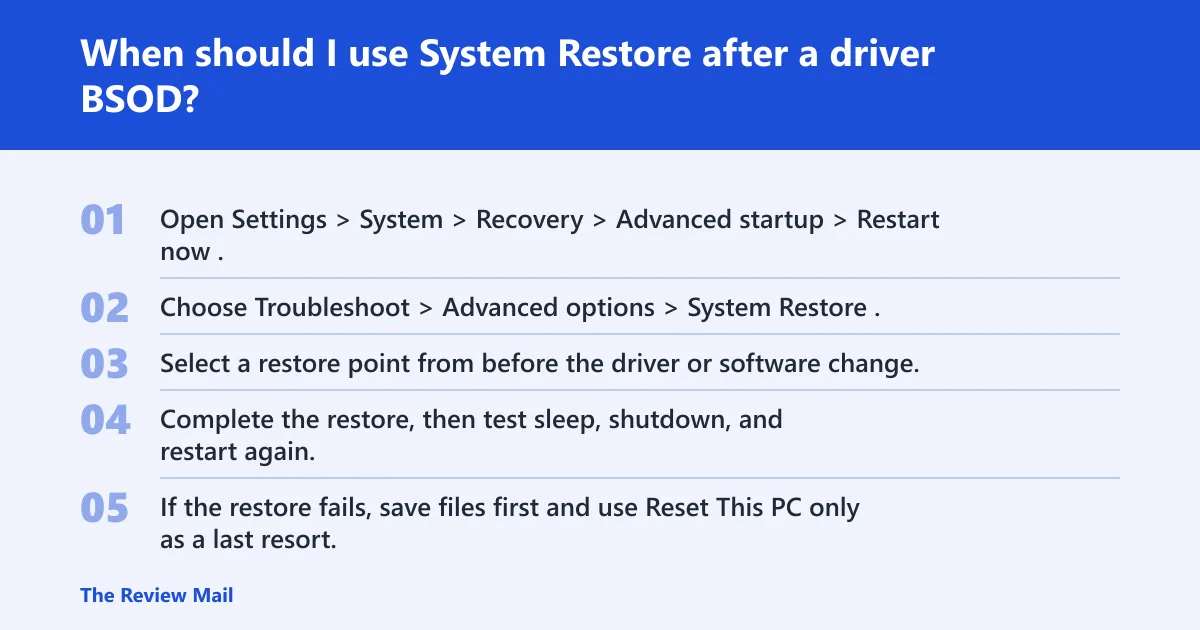
Use System Restore after driver rollback, uninstall, and Windows Update do not stop the crashes. It is the cleanest way to undo a bad change without chasing each package one by one. If basic steps fail, Microsoft recommends restoring Windows 11 using a system restore point (per Microsoft support).
- Open Settings > System > Recovery > Advanced startup > Restart now.
- Choose Troubleshoot > Advanced options > System Restore.
- Select a restore point from before the driver or software change.
- Complete the restore, then test sleep, shutdown, and restart again.
- If the restore fails, save files first and use Reset This PC only as a last resort.
How much free disk space should I leave to reduce BSODs?
Leave 10% to 15% free on the system drive. Low space can make paging, updates, and recovery less reliable, which is the last thing you want during a power-state problem. If C: is nearly full, move large media files off the system drive before trying another repair pass (per Microsoft support).
- Open Settings > System > Storage.
- Check the free space on the Windows drive.
- Delete temporary files or move large media files off C:.
- Reboot and retest the same crash trigger.
Frequently asked questions
How do I boot into Safe Mode when Windows 11 keeps crashing?
Use the recovery path from Settings, not the normal desktop. Go to Settings > System > Recovery > Advanced startup > Restart now, then choose Troubleshoot > Advanced options > Startup Settings. Press 4 or 5 after restart.
Should I update or roll back a driver for this BSOD?
Roll back first if the crash started right after a driver change. Update first if the driver is clearly older, or if Windows Update already flagged compatibility fixes. If rollback fails, use Uninstall device, restart, and install the OEM package next.
Which device drivers most often trigger DRIVER_POWER_STATE_FAILURE?
Start with display, Wi‑Fi, Bluetooth, storage, USB, and chipset drivers. Those are the usual suspects because they take part in sleep, shutdown, and resume handoffs. Check Device Manager for warning icons and recent changes before you touch anything else.
What should I check in Device Manager for stop code errors?
Look for yellow exclamation points, devices that changed recently, and adapters with a new driver date. Open Properties > Driver for each suspect device, then use Update driver, Roll Back Driver, Disable device, or Uninstall device as the situation fits.
How do I tell whether the crash is hardware, driver, or software?
Compare the crash time with the last change, then check Reliability Monitor, Event Viewer, and the minidump files in C:\Windows\Minidump\*.dmp. If the same device fails after rollback and reinstall, hardware moves higher on the list. If a restore point fixes it, software or driver change was the trigger.
Can I use vendor tools for graphics and chipset drivers?
Yes. Some vendors offer driver downloads and automatic update tools. AMD provides Windows 10/11 downloads and an auto-detect tool for Radeon graphics and Ryzen chipsets. Intel keeps drivers, BIOS, firmware, patches, and tools in its download center. (intel.com)