video_tdr_timeout_detected bsod fix on Windows 11 guide
For VIDEO_TDR_TIMEOUT_DETECTED BSOD fix Windows 11, I start with the trigger. If it began after a driver change or after wake-from-sleep, I clean-install the GPU driver first. If it hits under gaming load, I check temperatures, cooling, PSU power, and GPU stability next. Ignore it, and one blue screen can turn into repeat crashes, corrupted work, and hours lost swapping parts blind. This guide gives a symptom-based Windows 11 triage path to separate driver faults from thermal, power, and hardware problems.
This guide is part of our Windows BSOD stop codes: full list and fixes series.
What VIDEO_TDR_TIMEOUT_DETECTED means on Windows 11
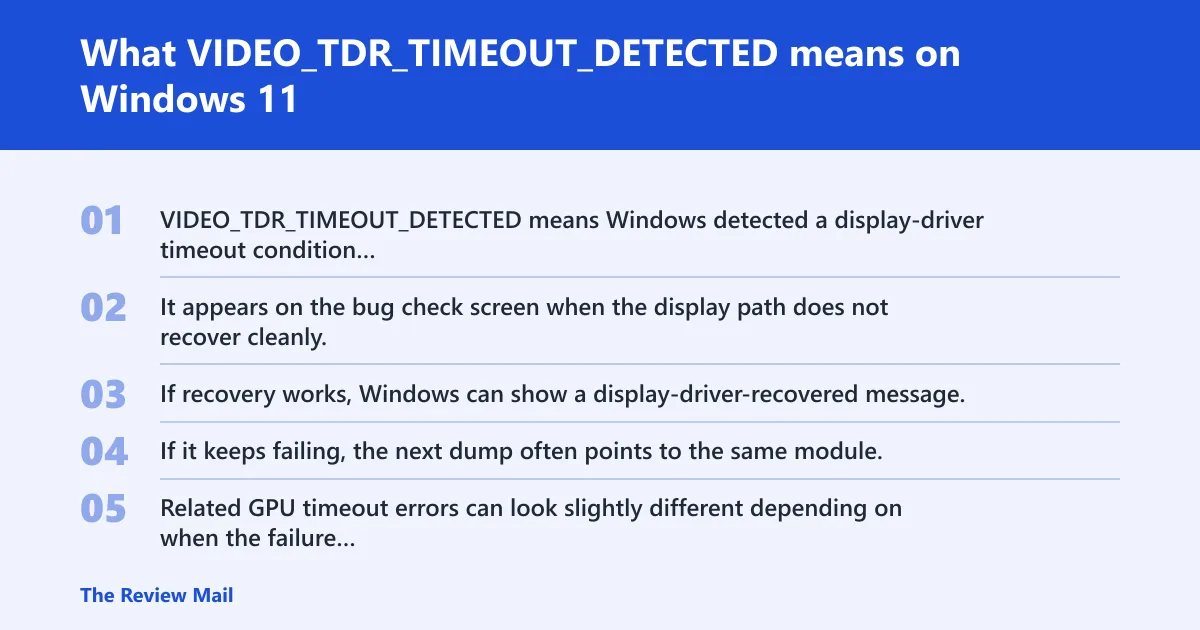
VIDEO_TDR_TIMEOUT_DETECTED means Windows detected a display-driver timeout condition during graphics recovery. It appears on the bug check screen when the display path does not recover cleanly.
If recovery works, Windows can show a display-driver-recovered message. If it keeps failing, the next dump often points to the same module, which helps separate a bad driver from a deeper hardware fault.
Why Windows may show a GPU-related error instead
Related GPU timeout errors can look slightly different depending on when the failure occurs, but the troubleshooting logic is the same: look for the display driver first, then decide whether heat, power, overclocking, memory timing, or the GPU itself is the real problem.
📊 The bug check screen can show a display-driver timeout condition. Source: Bug Check 0x117 Video_TDR_Timeout_Detected.
Likely causes, ranked by what shows up first
Most often, the trigger gives away the class of fault. A crash right after a driver update can point to the driver. A crash only during long gaming sessions points another. Wake-from-sleep failures, repeated reboot loops, or crashes that start after BIOS tuning shift suspicion toward power, cooling, memory settings, or the card itself.
- Display driver problems after a vendor update, Windows update, or new game.
- Load-related instability from heat or weak power delivery during GPU-heavy work.
- Overclocking or BIOS settings that destabilize GPU, CPU, or memory timing.
- Hardware faults in the GPU, memory modules, motherboard, or PSU.
Driver problems that appear after an update or new game
When the crash starts right after a driver install, the display driver is the first suspect. That includes vendor-specific driver versions that changed recently, shader-cache issues tied to a new game, or a bad clean install that left an old module behind.
- Open Device Manager > Display adapters > your GPU > Properties > Driver.
- Select Roll Back Driver if the button is available. If not, choose Uninstall device.
- Reboot, then install the card maker’s driver package that matches your exact GPU model.
- Reproduce the crash with the same game or app before changing anything else.
Load-related failures tied to heat or power
If the blue screen appears only under gaming, CAD, rendering, or a GPU stress load, heat or PSU headroom moves up the list. Those failures usually wait until the card draws more current and heats up under sustained load.
- Return BIOS/UEFI settings to default, then remove any GPU or CPU overclock.
- Run the same workload while watching GPU temperature, fan behavior, and case airflow.
- Try a different power cable path to the GPU, or a different PCIe power connector if the PSU allows it.
- If the crash happens sooner as load rises, suspect cooling or PSU capacity before reinstalling Windows.
Overclocking, memory timing, and BIOS settings
Over-clocked components can trigger timeout failures, and memory settings matter more than many users expect. A board that looks stable in the BIOS can still fail once the GPU driver pushes memory, PCIe, and CPU boost behavior together. Incorrect memory timings or shaky XMP or EXPO settings can mimic a bad GPU.
- Enter BIOS/UEFI and load Optimized Defaults or Setup Defaults.
- Disable CPU, GPU, and RAM overclocks, including XMP or EXPO.
- Boot Windows and test the same game or app again.
- If stability returns, re-enable one setting at a time and retest after each change.
When the GPU or support hardware is failing
If the same crash returns after a clean driver install, stock BIOS settings, and sane temperatures, suspect the GPU, memory modules, motherboard, or PSU. A failing discrete GPU often breaks under render load first. Integrated graphics failures can show up differently because system memory and the CPU package are part of the graphics path.
- Test with the integrated graphics path if your CPU supports it, or move the display cable to the motherboard video output.
- Run the system on a single memory stick, then retest.
- Swap the GPU to another system or test a known-good card in this system.
- Use vendor diagnostics or ask for board-level service if the crash survives every software step.
How do I fix VIDEO_TDR_TIMEOUT_DETECTED without reinstalling Windows?
The fastest non-destructive fix is a clean GPU driver reinstall, then a retest under the same load that caused the crash. If that fails, reset overclocking, check cooling and power, and use Safe Mode or a clean boot to rule out software conflicts before touching Windows itself.
- Boot into Safe Mode if the machine is unstable: Settings > Recovery > Advanced startup > Restart now > Troubleshoot > Advanced options > Startup Settings.
- Use Device Manager to Uninstall device for the display adapter, then reboot.
- Install the vendor driver package that matches the GPU model and Windows 11 build.
- Run
sfc /scannowandDISM /Online /Cleanup-Image /RestoreHealthif the system files may be damaged.
sfc /scannow
DISM /Online /Cleanup-Image /RestoreHealth
Is VIDEO_TDR_TIMEOUT_DETECTED a GPU driver problem or hardware problem?
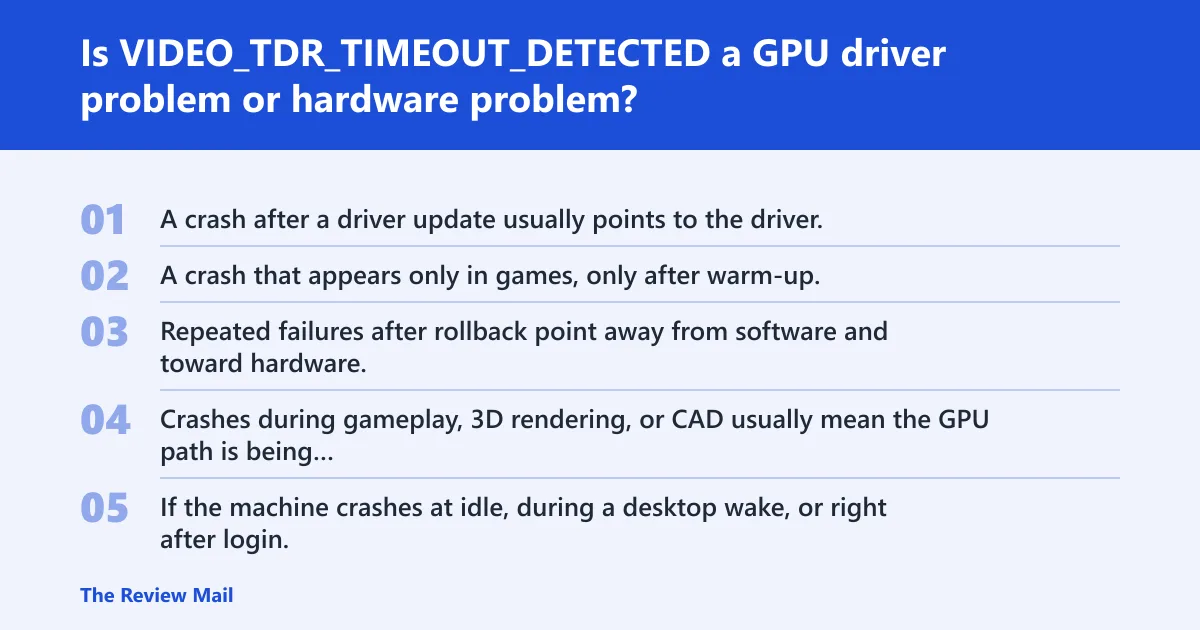
Start with the trigger. A crash after a driver update usually points to the driver. A crash that appears only in games, only after warm-up, or only when the GPU boosts hard leans toward heat, power, or the card itself. Repeated failures after rollback point away from software and toward hardware.
Gaming-only crashes versus crashes at idle
Crashes during gameplay, 3D rendering, or CAD usually mean the GPU path is being stressed enough to expose instability. If the machine crashes at idle, during a desktop wake, or right after login, look harder at the driver stack, sleep state transitions, and module timestamps.
Wake-from-sleep crashes and what they usually mean
Wake-from-sleep failures often show up when the driver cannot recover cleanly from a power-state change. That can be a bad driver, but it can also be weak firmware, an aggressive power plan, or borderline hardware that fails when the GPU leaves low-power mode.
Crashes that start right after a driver update
When the problem begins immediately after an update, rollback is the first test. If the older version is stable, stop there and keep that branch until the vendor ships a better build. If both versions fail, move on to cooling, power, and hardware checks.
Discrete GPU versus integrated graphics clues
Discrete GPU crashes often isolate to one card, one power lead, or one PCIe slot. Integrated graphics share system memory and the CPU package, so memory timings, memory modules, and motherboard settings matter more. That difference saves time when a laptop or small-form-factor system behaves unlike a desktop tower.
How do I tell whether the issue is my graphics driver, power supply, or overheating?
Use the trigger pattern, then the fastest validation test. Driver faults show up after installs or with one app. Power faults follow load spikes. Heat faults worsen after several minutes and improve after the system cools. The table below separates those patterns before you start replacing parts.
| Trigger pattern | Most likely cause | First test | Escalation step |
|---|---|---|---|
| Crashes right after a GPU driver update | Display driver regression or bad install | Device Manager driver rollback or uninstall/reinstall | Try a different vendor driver version and check lmvm output for the module timestamp |
| Crashes only while gaming or rendering | GPU load exposes thermal or power weakness | Reset BIOS defaults, remove overclocking, retest at stock | Check temperatures and PSU adequacy under load |
| Crashes after sleep or wake | Driver power-state recovery problem | Clean driver reinstall, then test sleep and wake again | Review power plan, Fast Startup, and module backtrace output |
| Crashes on an integrated graphics system | Memory timing or shared-resource instability | Disable XMP or EXPO, then test one memory stick | Run Windows Memory Diagnostic or memtest86 |
If the same pattern repeats after the first test, stop guessing. Move to the next layer in the table instead of reinstalling Windows.
What should I update first for a video TDR timeout BSOD?
Update the display driver first, then Windows Update, then the motherboard chipset or firmware only if the crash pattern still points there. A new GPU driver is the shortest test because it can fix the issue or confirm that the current branch is the wrong one.
- Open the GPU vendor installer and choose a clean install if offered.
- Use Device Manager to remove the existing display adapter driver if rollback is not available.
- Run Settings > Windows Update and install pending updates.
- Retest the same workload before changing BIOS, firmware, or hardware.
Can overclocking cause VIDEO_TDR_TIMEOUT_DETECTED on Windows 11?
Yes. Overclocking can push the GPU, CPU, memory, or motherboard beyond stable timing. A system may look stable in light desktop use and still fail when the graphics driver asks for a burst of power or bandwidth.
- Enter BIOS/UEFI and load default settings.
- Turn off CPU boost tuning, GPU overclocks, and memory profiles such as XMP or EXPO.
- Boot Windows and run the same game, benchmark, or CAD scene.
- If the crash stops, reapply one setting at a time and test after each change.
What does the 0x117 stop code mean in Windows?
0x117 is the live dump value tied to VIDEO_TDR_TIMEOUT_DETECTED. It identifies a display timeout condition on the bug check screen and helps separate a GPU path failure from unrelated blue screen causes. (Microsoft Learn)
Why does Windows sometimes show VIDEO_TDR_FAILURE instead of VIDEO_TDR_TIMEOUT_DETECTED?
Windows may label the event differently depending on when the recovery failed. The practical difference is small: use the same driver, thermal, power, and hardware checks either way.
What to try next if the crash keeps coming back
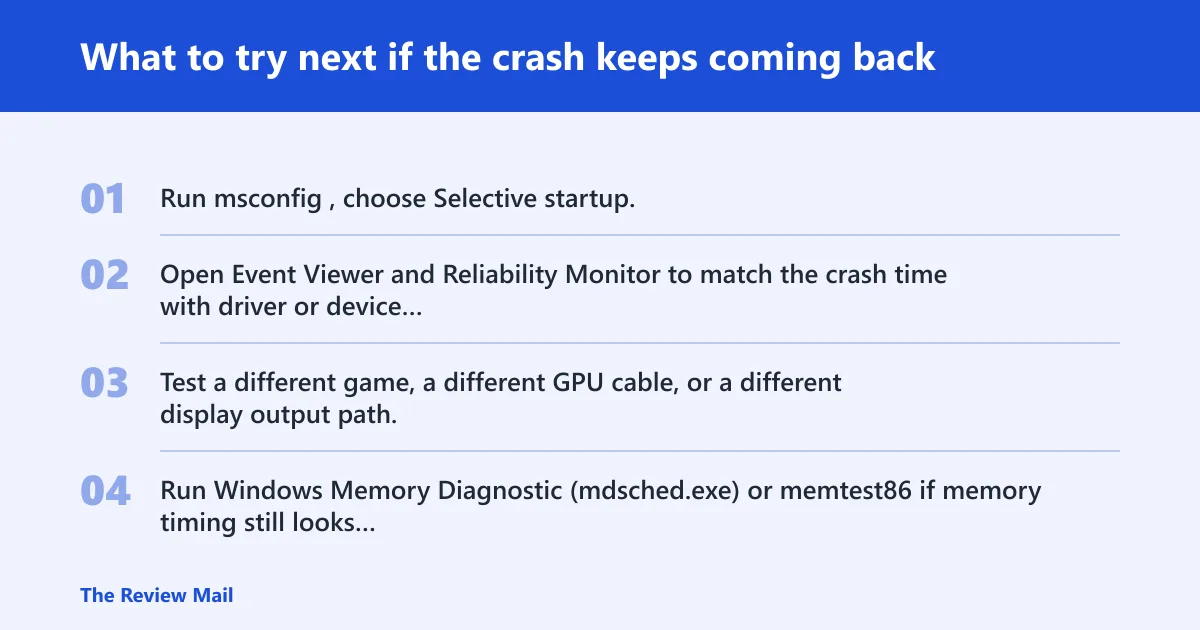
If the system still crashes after the driver and stock-settings checks, move to isolation tests. The goal is to separate Windows software from a failing device or a bad interaction. At that point, logs and module names matter more than another blind reinstall.
- Run msconfig, choose Selective startup, and disable non-Microsoft services for a clean boot test.
- Open Event Viewer and Reliability Monitor to match the crash time with driver or device errors.
- Test a different game, a different GPU cable, or a different display output path.
- Run Windows Memory Diagnostic (mdsched.exe) or memtest86 if memory timing still looks suspect.
Safe Mode entry:
Settings > Recovery > Advanced startup > Restart now > Troubleshoot > Advanced options > Startup Settings

Driver rollback path:
Device Manager > (device) > Properties > Driver tab > Roll Back Driver / Uninstall device

Memory test:
Windows Memory Diagnostic (mdsched.exe) or a third-party memory test tool
How to use debugger output when the crash keeps returning
When minidumps are available, use !analyze -v to identify the probable faulting module, then check lmvm for the driver version and timestamp. A stack backtrace from k, kb, or kp helps confirm whether the display driver, another filter driver, or a peripheral stack is involved.
If the same module keeps appearing, that is the lead. If the module changes every time, suspect memory instability, power delivery, or a hardware fault that is corrupting the stack.
Frequently asked questions
What causes VIDEO_TDR_TIMEOUT_DETECTED in Windows 11?
It usually starts with a display driver that failed to answer in time during graphics recovery, but the trigger can be heavy GPU load, overclocked components, weak cooling, weak power delivery, or defective hardware such as memory modules or a motherboard. Check the crash pattern first, then test the most likely layer.