PAGE_FAULT_IN_NONPAGED_AREA BSOD Fix for Windows 11
For PAGE_FAULT_IN_NONPAGED_AREA on Windows 11, use one rule first: if the crash started after a driver, update, or new device, test that change first; if it happens at boot or repeats, check memory and storage before reinstalling Windows. If the cause is not addressed, one blue screen can sometimes lead to a boot loop, lost work, and a lot of blind guessing. This guide gives a step-by-step triage path to split RAM, driver, disk, and hardware problems before you try fixes.
What PAGE_FAULT_IN_NONPAGED_AREA means on Windows 11
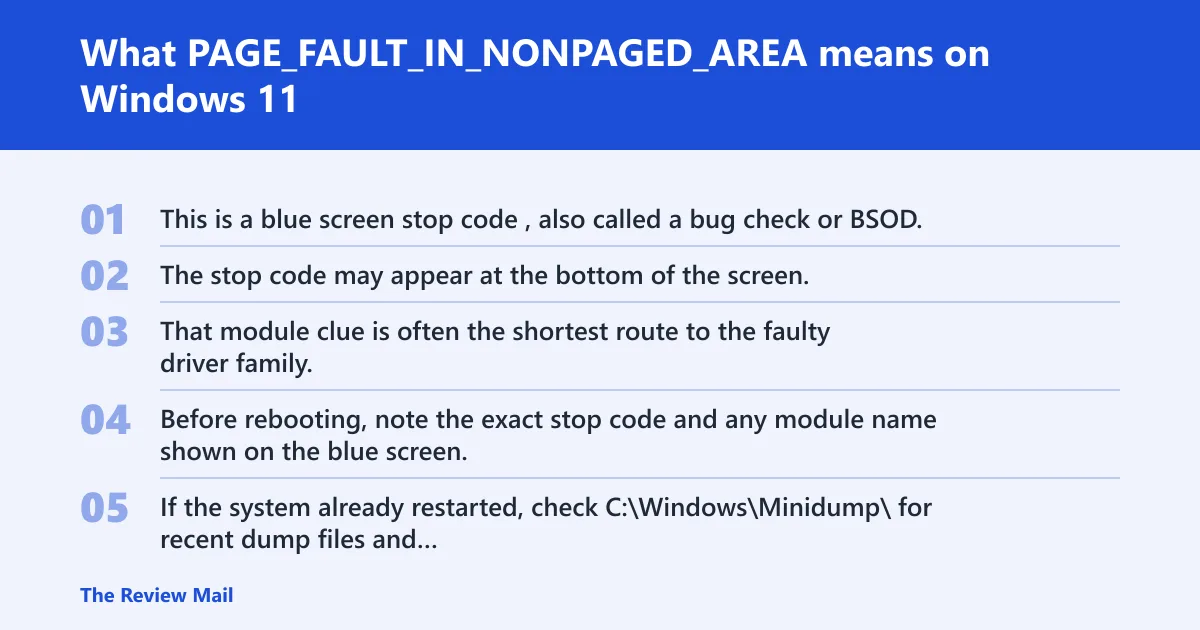
This is a blue screen stop code, also called a bug check or BSOD, and Windows 11 can restart without warning when a serious fault occurs. The stop code may appear at the bottom of the screen, and a module name may also appear if Windows can identify the code running at crash time. That module clue is often the shortest route to the faulty driver family.
Write down the exact crash clues first
Before rebooting, note the exact stop code and any module name shown on the blue screen. If the system already restarted, check C:\Windows\Minidump\ for recent dump files and keep the newest one in mind for later analysis. The point is not to guess. It is to narrow the suspect list before changing anything else.
Why the module name matters
A module name can point to a storage filter, GPU driver, network stack component, or OEM utility. That matters because the right fix changes with the suspect. A generic repair loop wastes time when the crash points to one piece of software or one add-in part.
📊 Windows 11 can restart unexpectedly when a serious problem occurs. Source: Troubleshooting Windows unexpected restarts and stop code….
Which causes are most likely?
A driver fault is a common starting point, though bad RAM, storage corruption, and added hardware can also be involved. Microsoft’s guidance keeps the list broad, but the order should not be broad. Start with the change that happened most recently, then move toward memory and storage when the crash happens at boot or keeps returning. If the same blue screen appears after every reboot, the problem is rarely random.
Use the crash pattern to narrow the cause
- After a driver update: suspect the updated driver or a related filter driver first.
- After Windows Update: suspect the new build interaction, then check drivers and storage.
- After new hardware: suspect the added device, cable, module, or adapter first.
- Boot loop or crash on login: move memory and storage higher on the list.
- Safe Mode is stable: software or driver is more likely than a failing core component.
Crash triage checklist
Use this table before you run random fixes. It maps the symptom pattern to the next best action so you do not mix software, driver, storage, and hardware checks in the wrong order.
| Symptom pattern | Likely cause | Next action |
|---|---|---|
| One crash, then Windows boots normally | Transient driver or software fault | Check recent updates, then review Device Manager and Windows Update |
| Crashes began after new external hardware | Added device, cable, or peripheral driver | Power off and disconnect the device before any other repair |
| Crashes began after an internal upgrade | Add-in card, drive, or memory stick | Remove the added part and test one item at a time |
| Crash starts after a driver update | Bad driver revision or filter conflict | Roll back, then uninstall the device if rollback fails |
| Crash starts after Windows Update | Update conflict or driver mismatch | Install the latest Windows Update fixes and recheck drivers |
| Safe Mode also crashes | Memory, storage, or failing hardware | Run memory diagnostics and storage checks before deeper repair |
Did the crash start after new hardware?
If the problem started after a new device, remove it before anything else. That is the fastest fault-isolation step. New hardware is a known trigger for repeated stop code errors, and it is the cleanest branch to test first because it avoids chasing unrelated software fixes.
- Power off the PC completely.
- Disconnect any new external device, dock, USB adapter, storage device, or peripheral.
- If the change was internal, remove the add-in card, drive, or memory stick.
- Boot and use the system long enough to see whether the crash returns.
- If the crash stops, reintroduce one item at a time.
- If the fault returns with one item reinstalled, reseat the part or replace it.
If the system is an HP unit or another OEM desktop or laptop, the order is the same. Remove the last change first. Vendor branding does not change the fault-isolation method.
Is a driver causing the blue screen?
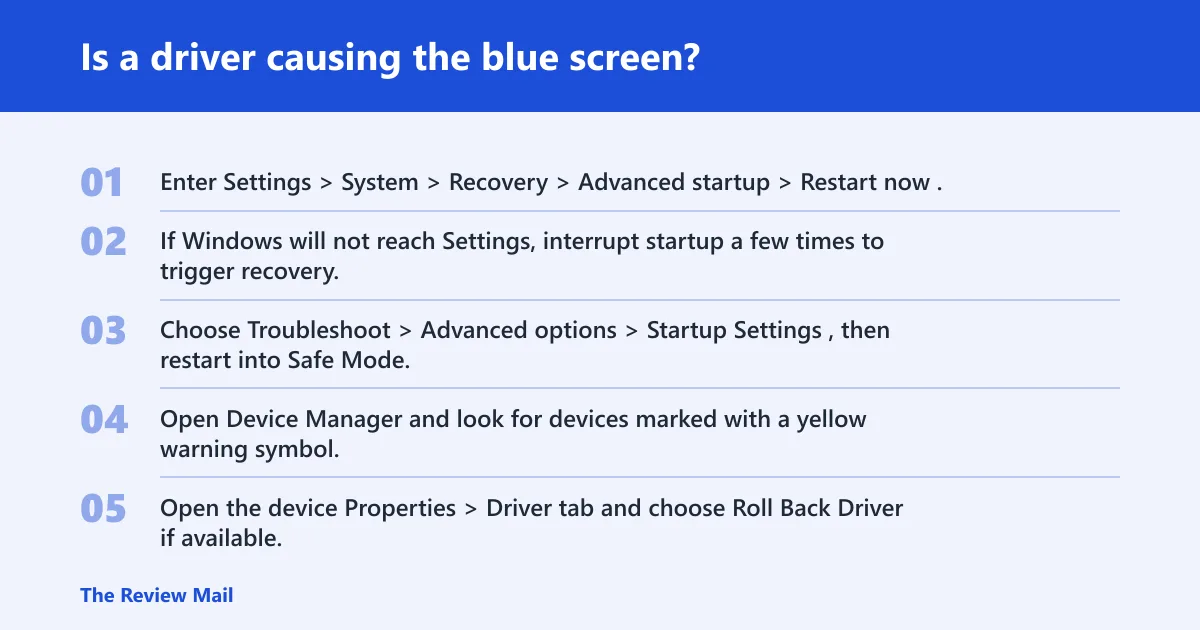
Driver faults are one of the most common software-side causes, especially when the crash began after an update or a new device install. Safe Mode is useful here because it loads only basic components and can keep the machine usable long enough to inspect the problem. If the system still crashes outside Safe Mode, the driver may not be the only issue.
- Enter Settings > System > Recovery > Advanced startup > Restart now.
- If Windows will not reach Settings, interrupt startup a few times to trigger recovery.
- Choose Troubleshoot > Advanced options > Startup Settings, then restart into Safe Mode.
- Open Device Manager and look for devices marked with a yellow warning symbol.
- Open the device Properties > Driver tab and choose Roll Back Driver if available.
- If rollback is unavailable or fails, choose Uninstall device and reboot.
- If the module name matches a device family, focus on that driver first.
A module name such as a storage, graphics, or network component is a strong clue, not a final answer. It points to the code active at the moment of the crash, which may be the cause or the last thing touched by the failure.
Could storage, disk space, or Windows files be involved?
Yes. Low free space can make Windows unstable, and Microsoft recommends keeping 10% to 15% of the drive free. Storage corruption can also trigger repeated blue screens, especially when the crash appears during sign-in or while loading the desktop. Clean space first, then repair the file system if needed. (Microsoft Support)
- Open Settings > System > Storage and check free space on the system drive.
- Empty temporary files and the Recycle Bin.
- Move large downloads or media to another drive.
- Install the latest Windows Update fixes.
- If the crash follows file corruption signs, run
sfc /scannowand thenDISM /Online /Cleanup-Image /RestoreHealth.
Do not treat disk cleanup as a cure-all. It is a quick isolation step. If the crash persists after storage repair and updates, memory and hardware need attention next.
What Windows Update steps should I try for a PAGE_FAULT_IN_NONPAGED_AREA crash?
Install the latest Windows updates before deeper repair work, especially if the crash began after a patch cycle. Updates can fix known stop code problems, but they can also expose a bad driver that needs rollback. The next step depends on whether the machine still boots normally or only reaches Safe Mode.
- Open Settings > Windows Update.
- Select Check for updates and install everything offered.
- Restart the PC and test for the blue screen again.
- If the system is stuck in a loop, enter Safe Mode first and try the update path there.
- If the issue began right after a specific update, use Device Manager to inspect recently affected hardware drivers.
What if Safe Mode and driver checks do not stop it?
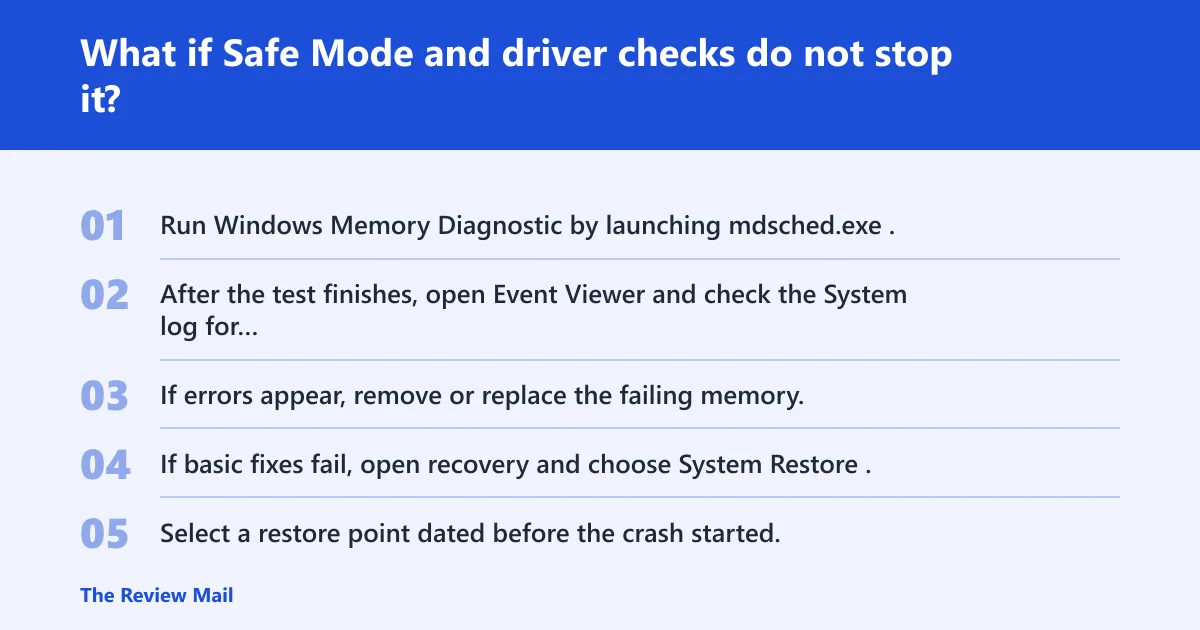
If Safe Mode still leads to crashes, stop focusing on drivers alone. The next branch is memory, then storage, then faulty hardware. Microsoft’s memory diagnostics are the right move here, and manufacturer hardware diagnostics are appropriate if the test points to a failing component. A restore point can help when the problem started after a recent change.
- Run Windows Memory Diagnostic by launching mdsched.exe.
- After the test finishes, open Event Viewer and check the System log for MemoryDiagnostics-Results.
- If errors appear, remove or replace the failing memory.
- If basic fixes fail, open recovery and choose System Restore.
- Select a restore point dated before the crash started.
- Finish the restore and test before installing more changes.
If Windows will not open Settings, interrupt startup a few times to reach recovery, then use the restore option from there. That is often faster than trying to boot normally through a repeated crash cycle.
What if the same BSOD keeps happening after reboot?
Repeated crashes after reboot usually mean the fault is still present, not that the restart fixed anything. Go back to the last change, remove or undo it, and test in this order: new hardware, driver rollback, Safe Mode, memory test, storage repair, then System Restore. If the machine still loops, vendor diagnostics and service repair are the next sensible step.
Frequently asked questions
How do I fix PAGE_FAULT_IN_NONPAGED_AREA BSOD on Windows 11?
Start with the newest change, then move in order: disconnect new hardware, boot into Safe Mode, check Device Manager for warning symbols, install Windows Update, and run mdsched.exe if the crash keeps returning. If Windows still fails, use System Restore from a point before the problem began.
What causes PAGE_FAULT_IN_NONPAGED_AREA in Windows 11?
The usual causes are invalid memory references tied to a bad driver, faulty RAM, storage problems, or recently added hardware. The fastest way to sort them is to match the crash timing to the last change, then test only one branch at a time instead of repairing everything at once.
Is PAGE_FAULT_IN_NONPAGED_AREA a driver problem or bad RAM?
It can be either, and the crash pattern usually decides which one to check first. If the issue started after a driver change, inspect Device Manager first. If Safe Mode still crashes or the blue screen appears before the desktop loads, run Windows Memory Diagnostic and review the System log.
How do I start Windows 11 in Safe Mode after a BSOD?
Go to Settings > System > Recovery > Advanced startup > Restart now, then Troubleshoot > Advanced options > Startup Settings. If Windows will not open Settings, try interrupting startup a few times until recovery appears. Safe Mode is a useful place to check drivers when normal boot keeps failing.
Should I remove new hardware if PAGE_FAULT_IN_NONPAGED_AREA started after an upgrade?
Yes. Power off the PC and disconnect the new external device first. If the upgrade was internal, remove the add-in card, drive, or memory stick. If the crash stops, add parts back one at a time. If the fault returns with one piece installed, reseat it or replace it.
How much free disk space does Windows 11 need to avoid stop code errors?
Microsoft recommends keeping 10% to 15% free. Free that space by emptying temporary files and the Recycle Bin, then move large downloads or media to another drive. That is a maintenance step, not proof of the cause, but low space can make repair work harder and hide storage issues.
Prevention: Keep device drivers current only after confirming they match the hardware, and avoid stacking several updates and new parts in one maintenance session. One change at a time makes the next crash easier to read.