Enable Disabled Device Windows 10: Quick Fix Steps
Before you click Enable in Device Manager, check whether Windows marks the device as disabled, disconnected, or missing a driver. The fix depends on that status. Skip that check, and audio, USB, Bluetooth, keyboard, mouse, or touchpad problems can stay put while you repeat the same reset steps. This guide shows how to read the device status, spot common causes, and choose the right Windows 10 fix.
This guide is part of our Windows driver errors: full list and fixes series.
What a disabled device means in Windows 10
A disabled device often means the hardware or driver is installed, but Windows is not currently loading it. That is different from a missing device, an unplugged device, or a hidden device that no longer has an active connection. A disabled item can often be re-enabled, but only if the hardware is still functioning.
Disabled vs missing vs unplugged vs hidden
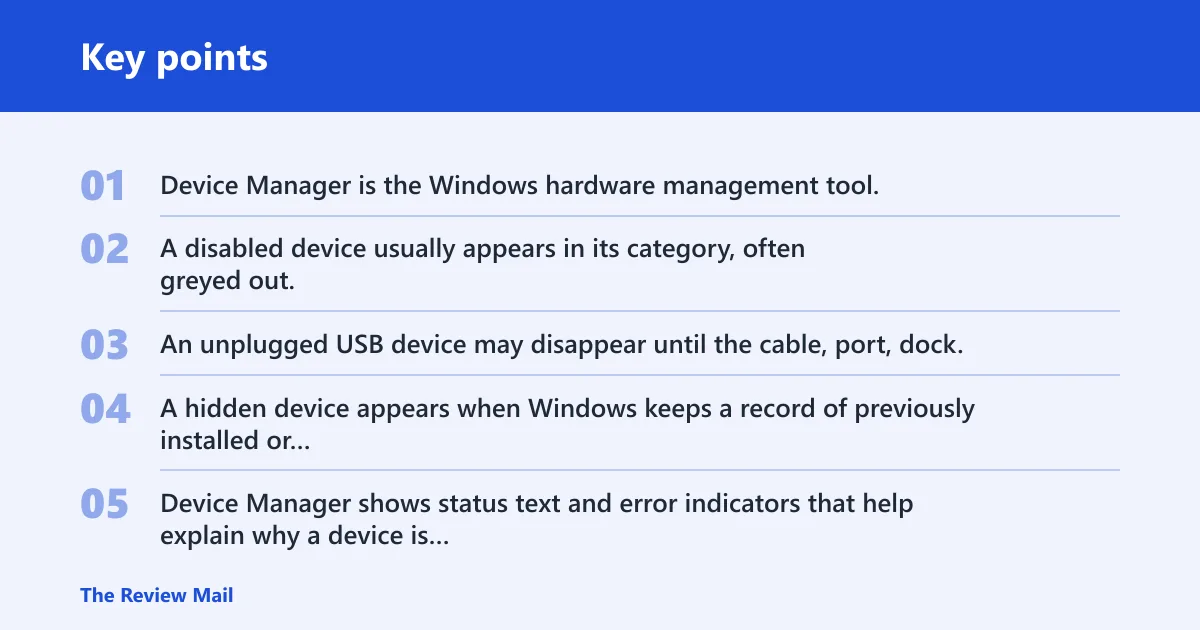
Device Manager is the Windows hardware management tool, and it is a useful place to sort out these states. A disabled device usually appears in its category, often greyed out, with an Enable device option in the right-click menu. A missing device may not appear at all. An unplugged USB device may disappear until the cable, port, dock, or internal connection is restored. A hidden device appears when Windows keeps a record of previously installed or non-present hardware.
What Device Manager status icons and codes mean
Device Manager shows status text and error indicators that help explain why a device is not active. Open the device properties and check the General tab first. A working device usually says the device is working properly. If you see an error code, Windows is pointing to a driver, firmware, or hardware problem rather than a simple disabled state.
When a device can be re-enabled and when it cannot
You can usually re-enable a device if Windows merely turned it off or a user disabled it manually. You cannot count on enabling if the device is blocked by policy, security software, missing firmware support, BIOS settings, or a failed component. That difference matters because repeated clicks on Enable device will not fix a device that is not being detected correctly.
How to tell whether the device is actually disabled
Start by finding the right entry in Device Manager, then use the device’s status tabs to confirm whether Windows has disabled it, hidden it, or flagged an error. The clue is not always the same for audio, USB, and input devices. Read the status first, then choose the fix.
Open Device Manager and find the right category
- Open Device Manager from the Start menu or the Run box.
- Look in the category that matches the problem device.
- Check Sound, video and game controllers for speakers, microphones, and sound cards.
- Check Human Interface Devices for keyboards, mice, touchpads, and many USB peripherals.
- Check Universal Serial Bus controllers for ports, hubs, and dock-related hardware.
Check the General tab for status text and codes
Right-click the device, open Properties, and read the General tab. The status text often tells you whether the device is disabled, not started, not connected, or reporting an error. A code like this usually means Windows sees a problem, but not one that an Enable command can always fix.
Use the Driver tab to spot rollback, update, or uninstall clues
The Driver tab gives you the next diagnostic step. If a recent driver update triggered the issue, Roll Back Driver may be the right move. If the driver is outdated or incomplete, Update Driver can help. If the driver is corrupted, Uninstall Device followed by a rescan can be better than trying to enable it again.
How do you enable a disabled device in Device Manager?
If the device is truly disabled, right-click it in Device Manager and select Enable device. If that option is missing, greyed out, or replaced by different wording, the device may not be disabled at all. In that case, check status, permissions, and hardware connection before trying again.
Right-click the device and choose Enable device
Device Manager usually shows Enable device in the right-click context menu for a disabled item. After you select it, Windows may reactivate the hardware right away or after a restart. If the device is on a laptop or dock, unplug and reconnect the external connection only after you confirm the device is present in Windows.
What to do when Enable device is greyed out or missing
If Enable device is greyed out or absent, the device may already be enabled, may not be the selected object, or may be blocked by a policy or permission issue. Hidden devices can also confuse the menu state. In some cases, security software, Group Policy, or a BIOS-level setting prevents reactivation even though the entry is visible.
Why admin rights or policy may block the action
You may need an administrator account to change hardware state. On managed PCs, Group Policy can restrict device enablement, and endpoint security tools can block driver or device changes. If the account lacks permission, switch to an administrator account before changing the device state. If a company policy or security rule blocks the action, local clicks will not override it.
How do you find a hidden device in Windows 10?
Use Show hidden devices from the View menu in Device Manager when a device is greyed out, previously installed, or not currently present. Hidden entries can reveal an older adapter, a disconnected USB device, or a device that Windows remembers but is not actively using. That view helps separate old clutter from a real active problem.
Turn on Show hidden devices from the View menu
Open Device Manager, select View, then choose Show hidden devices. Greyed-out entries appear when Windows knows about a device but does not currently detect it as active. This is useful for finding duplicate audio devices, old USB peripherals, or input devices that were removed but still have drivers attached.
What greyed-out entries mean
A greyed-out device is usually not the same as a disabled active device. It may be non-present, unplugged, or previously installed. If the entry is greyed out but still listed, the next step depends on its status: enable it if Windows only disabled it, reinstall the driver if it is broken, or remove the old entry if it is no longer needed.
When a hidden device still needs a driver or connection check
Suppose a USB headset appears only after hidden devices are shown, but it stays greyed out and has no sound. That often points to a connection issue, driver problem, or dock problem rather than a simple disabled state. Check the cable, port, or dock first, then use Scan for hardware changes after reconnecting it.
Decision checklist: what to do based on the symptom
Use the symptom to choose the next step instead of repeating the same fix. Disabled, hidden, missing, unplugged, and error-coded devices need different actions. This checklist maps the most common Device Manager clues to the right next move for audio, USB, and input devices.
| Device Manager symptom | What it usually means | Next action | Good examples |
|---|---|---|---|
| Disabled but present | The device is installed, but Windows is not loading it | Right-click, choose Enable device, then restart if needed | Speaker, microphone, mouse, touchpad |
| Present with an error code | Windows sees the device, but the driver or hardware has a problem | Open Properties, read General and Driver tabs, then update, roll back, or uninstall the driver | Audio adapter with Code 10, USB controller with Code 43 |
| Missing or unplugged | Windows is not detecting the device or its connection | Check hardware connection, then run Scan for hardware changes | USB headset, docked mouse, internal webcam |
| Hidden and greyed out | The device is remembered, but not currently active | Show hidden devices, then decide whether to enable, reinstall, or remove | Old audio endpoint, removed Bluetooth adapter |
Disabled but present: enable it, then restart if needed
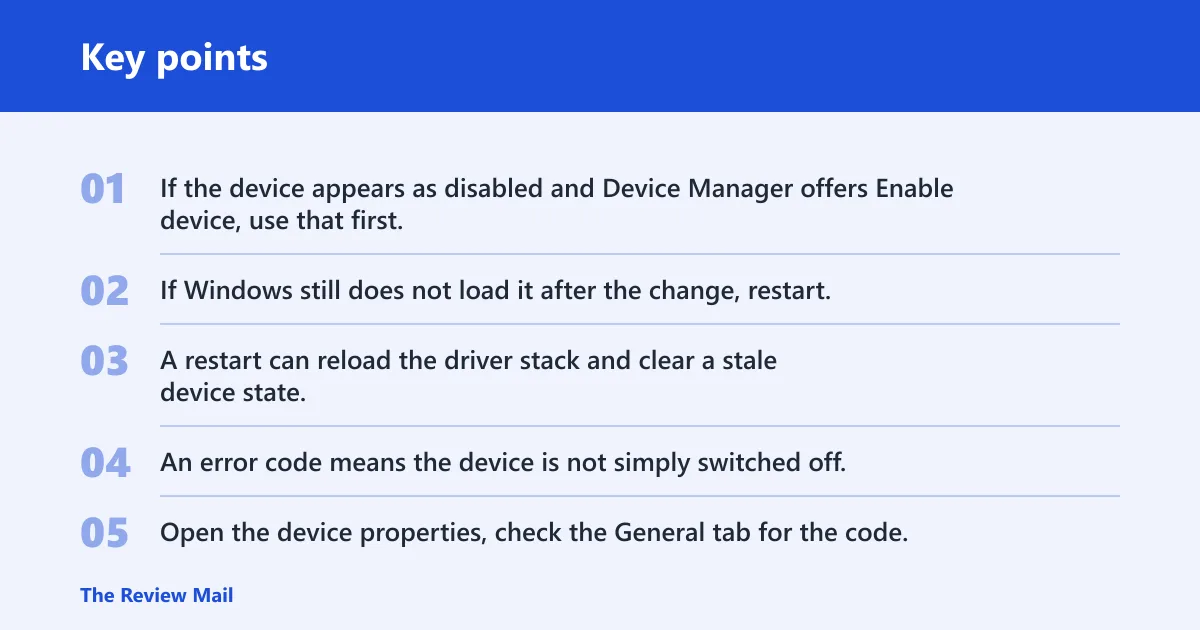
If the device appears as disabled and Device Manager offers Enable device, use that first. If Windows still does not load it after the change, restart. A restart can reload the driver stack and clear a stale device state.
Present with an error code: fix the driver first
An error code means the device is not simply switched off. Open the device properties, check the General tab for the code, then use the Driver tab to update, roll back, or uninstall the driver. Re-enabling alone will not fix driver corruption or a bad update.
Missing or unplugged: check hardware connection and Scan for hardware changes
Check the USB cable, port, dock, or internal seating before making software changes. After reconnecting, choose Action and then Scan for hardware changes. If the device still does not appear, Windows may not be seeing the hardware at all, which points to cabling, power, or device failure.
Hidden and greyed out: reveal it, then decide whether to enable, reinstall, or remove
A hidden greyed-out device can be an old entry or the sign of a connection problem. If the hardware is present again, use the right-click menu to enable it. If not, reinstall the driver or remove the stale entry so Windows can rebuild the device list cleanly.
Which fix should you use for audio, USB, and input devices?
Device category matters. Audio issues often sit under Sound, video and game controllers. Keyboard, mouse, touchpad, and many peripherals appear under Human Interface Devices. USB problems can involve the cable, port, dock, or controller rather than the device entry alone.
Audio devices under Sound, video and game controllers
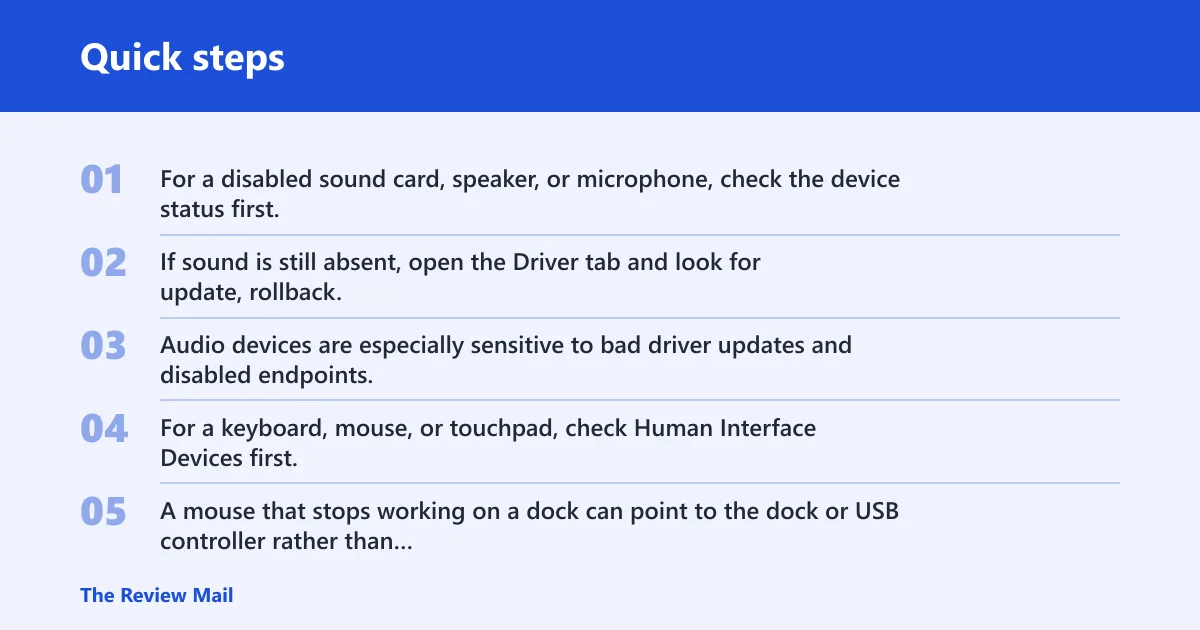
For a disabled sound card, speaker, or microphone, check the device status first, then enable it if the option exists. If sound is still absent, open the Driver tab and look for update, rollback, or uninstall clues. Audio devices are especially sensitive to bad driver updates and disabled endpoints.
Input devices under Human Interface Devices
For a keyboard, mouse, or touchpad, check Human Interface Devices first, then look for hidden entries or error codes. A mouse that stops working on a dock can point to the dock or USB controller rather than the pointer device itself. If the device is listed but disabled, enable it; if it is missing, check the connection.
USB ports, cables, docks, and internal seating checks
USB problems often start with the physical layer. Try a different USB port, disconnect and reconnect the cable, bypass the dock, or reseat an internal card where applicable. If the device only fails on one port or one dock, the hardware path is more likely than the driver.
Picture a laptop with a USB headset that vanishes after a dock firmware update. The headset may appear hidden in Device Manager, but the real issue could be the dock, not the headset. In that case, checking the dock connection and rescanning hardware makes more sense than repeatedly clicking Enable.
How do you enable a disabled audio device in Windows 10?
Open Device Manager, expand Sound, video and game controllers, and look for a greyed-out or disabled audio device. If it is genuinely disabled, choose Enable device. If the sound device shows an error code instead, use the Driver tab to update, roll back, or uninstall the driver before trying again.
Speaker and microphone troubleshooting relevance
Speakers and microphones can be disabled separately, so check both entries. A laptop mic can fail while speakers still work, or vice versa. If sound devices are hidden, reveal them first, then decide whether Windows disabled them or whether the audio driver stopped responding.
How do you enable a disabled driver windows 10?
Windows 10 usually enables or disables the device, not a standalone driver in the abstract. If the driver-related problem is the real issue, use the device’s properties, especially the Driver tab, to update, roll back, or uninstall and reinstall it. A disabled driver message often reflects the device state, not a separate driver switch.
Why the driver tabs matter more than repeated clicks
If Device Manager shows a status code, the driver tabs are more informative than the Enable command. They tell you whether Windows can roll the driver back, whether a newer version exists, or whether uninstalling the device and rescanning will force a clean reload. That is the better route when enablement fails.
Should I uninstall and reinstall the driver before enabling the device?
No. Start with Device Manager status, hidden devices, and the physical connection first. Uninstalling before you know whether the device is disabled, missing, or unplugged can add extra cleanup work and can hide the original clue. Save uninstall and reinstall for cases where the driver is corrupted, outdated, or blocked by an error code.
When uninstall and reinstall makes sense
If the General tab shows a driver error, or if update and rollback both fail, uninstalling the device can help Windows rebuild it on the next scan or restart. That step is especially useful when a bad driver update affects audio, USB controllers, or input devices that otherwise look present.
Frequently asked questions
how to enable disabled devices windows 10
Open Device Manager, find the device in the correct category, and right-click it to choose Enable device if that option appears. If the device is greyed out, hidden, or missing, first confirm whether it is truly disabled, then check the General and Driver tabs for errors or connection clues.
What if the Enable device option is greyed out?
If Enable device is greyed out, the item may already be enabled, may be a hidden entry, or may be blocked by permissions or policy. Check for administrator rights, reveal hidden devices, and inspect the General tab status. If the device shows an error code, fixing the driver usually matters more than the enable command.
How do I re-enable a hidden device in Device Manager?
Use View and then Show hidden devices to reveal greyed-out entries. If the device is still listed and appears disabled, right-click it and choose Enable device. If it is hidden because Windows no longer detects it, check the hardware connection and scan for hardware changes before trying again.