How to Find Disabled Devices in Windows 10 Device Manager
Open Device Manager, choose View > Show hidden devices, then check dimmed entries and status codes: a disabled device is usually available to enable, while a non-present one is faded and may be gone. Mix those up, and you can chase the wrong USB, audio, or network fix. This guide shows how to tell disabled, hidden, and driver-broken devices apart in Windows 10.
What you’ll need
- A Windows 10 PC with administrator access
- A keyboard and mouse for right-click actions
- The device name, if you already know it
- The hardware itself connected, if it is a USB, audio, or network device
📊 Some Apple devices can send location for up to 24 hours after being turned off or low on battery. Source: iCloud – Find My.
What you are trying to find in Device Manager
Device Manager is Windows’ built-in place for viewing hardware entries. It can show disabled devices, hidden devices, and old non-present entries, but those states are not the same. A disabled device often appears dimmed and may be re-enabled from the context menu.
A hidden or non-present device is different. It often appears faded after you turn on View > Show hidden devices, especially if the hardware was removed or disconnected earlier. A driver-broken device may still appear by name, but with a warning symbol or an error in its properties.
Status cues to watch for
| What you see | What it usually means | Next move |
|---|---|---|
| Dimmed entry with a right-click Enable device command | Disabled | Enable it, then scan for hardware changes |
| Faded entry after Show hidden devices | Hidden or non-present | Check whether the hardware is still connected |
| Yellow warning icon or device properties error | Driver problem | Stop retrying enable and reinstall the driver |
| Missing from the category entirely | Disconnected, removed, or driver not loading | Reconnect, then scan for hardware changes |
What you’ll need to check first
- Open Device Manager from the Start menu.
- Expand the likely category for the missing hardware.
- Turn on View > Show hidden devices.
- Right-click any dimmed entry and look for Enable device.
- After any change, choose Action > Scan for hardware changes.
how do I find disabled devices in Windows 10?
Open Device Manager, expand the right category, and look for a dimmed entry with a context-menu option to Enable device. A disabled device is still listed, unlike hardware that has been removed or never detected. If you see a warning icon instead, treat it as a driver issue first.
Use the category that matches the problem
For audio problems, check Audio inputs and outputs. For USB issues, open Universal Serial Bus controllers. For Wi‑Fi or Ethernet, inspect Network adapters. For graphics, check Display adapters. A missing speaker, hub, or adapter often shows up here first, if Windows still knows about it.
how do I show disabled devices in Device Manager?
In Device Manager, choose View > Show hidden devices. This reveals faded entries that Windows still remembers, including old hardware and non-present devices. It does not turn a disabled device back on. Use it to separate stale records from hardware that is simply turned off in Windows.
What hidden entries look like
Hidden devices usually appear faded compared with active entries. That visual cue means Windows has a record of the device, but it is not currently present or fully active. If the item is only hidden, you may be looking at an old keyboard, speaker, or network adapter that is no longer attached.
Find the device by category
Start with the hardware class that matches the symptom. That saves time and keeps you from enabling the wrong entry. A USB mouse belongs under USB controllers or Human Interface Devices, while a microphone or speaker belongs under audio categories.
Audio inputs and outputs
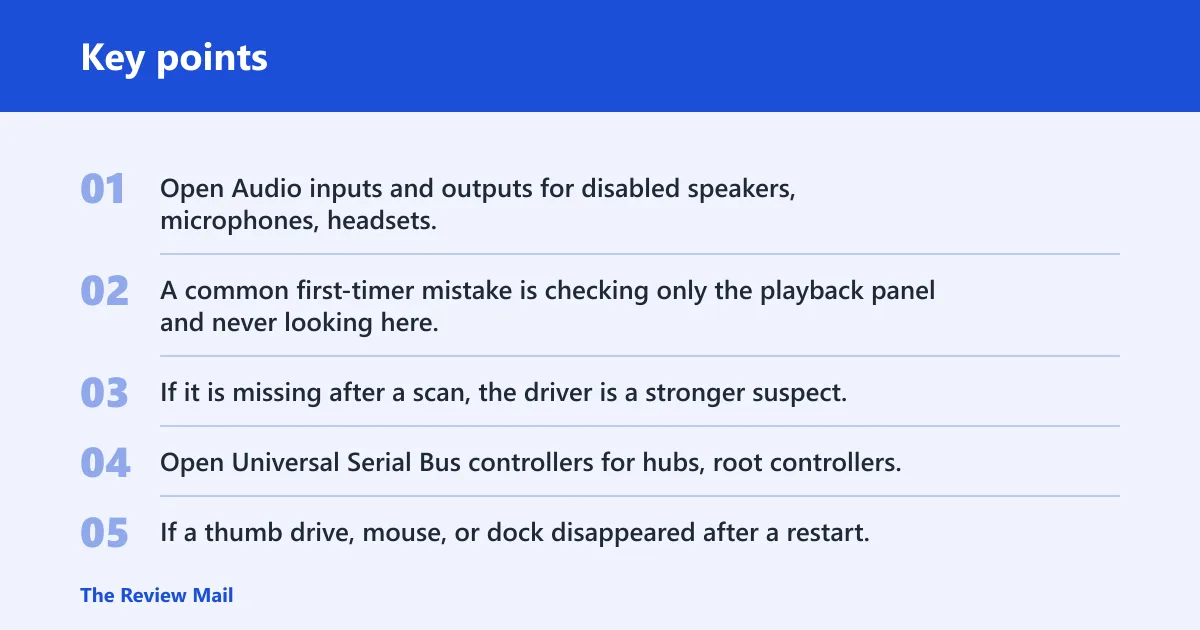
Open Audio inputs and outputs for disabled speakers, microphones, headsets, or monitor audio. A common first-timer mistake is checking only the playback panel and never looking here. If the device is dimmed, enable it. If it is missing after a scan, the driver is a stronger suspect.
Universal Serial Bus controllers
Open Universal Serial Bus controllers for hubs, root controllers, and many USB peripherals. If a thumb drive, mouse, or dock disappeared after a restart, this category is often the best place to look. Reconnect the device, then use Action > Scan for hardware changes.
Network adapters and display adapters
Check Network adapters for Wi‑Fi and Ethernet, and Display adapters for graphics hardware. If the adapter is present but disabled, Windows usually offers Enable device on right-click. If it shows a warning or does not reappear, move to the driver step instead of repeating the same click.
how do I enable a disabled device in Device Manager?
Right-click the dimmed device and choose Enable device. Then select Action > Scan for hardware changes so Windows refreshes the list. If the hardware returns to normal, stop there. If it stays broken, the problem is probably not a simple disable state.
If that didn’t work, try this next
- Right-click the device and open Properties.
- Read the Device status box for an error message.
- Choose Action > Scan for hardware changes.
- If the error remains, right-click the device and choose Uninstall device.
- Restart Windows, then install the correct driver package from the device maker.
How you tell disabled, hidden, disconnected, and driver-broken apart
Use the menu path, the visual cue, and the device status together. Hidden means View > Show hidden devices exposed an old or non-present entry. Disabled means Windows still lists the device and lets you enable it. Driver-broken means the hardware is there, but the driver or its load path is not working.
| State | Menu path or cue | What to do |
|---|---|---|
| Hidden | View > Show hidden devices; faded name | Leave it alone unless you need to clean up stale entries |
| Disabled | Dimmed entry; Enable device appears on right-click | Enable, then scan for hardware changes |
| Disconnected | Device absent from the active list, or only visible as hidden | Reconnect the hardware and scan again |
| Driver-broken | Warning icon or status error in Properties | Stop re-enabling; uninstall or reinstall the driver |
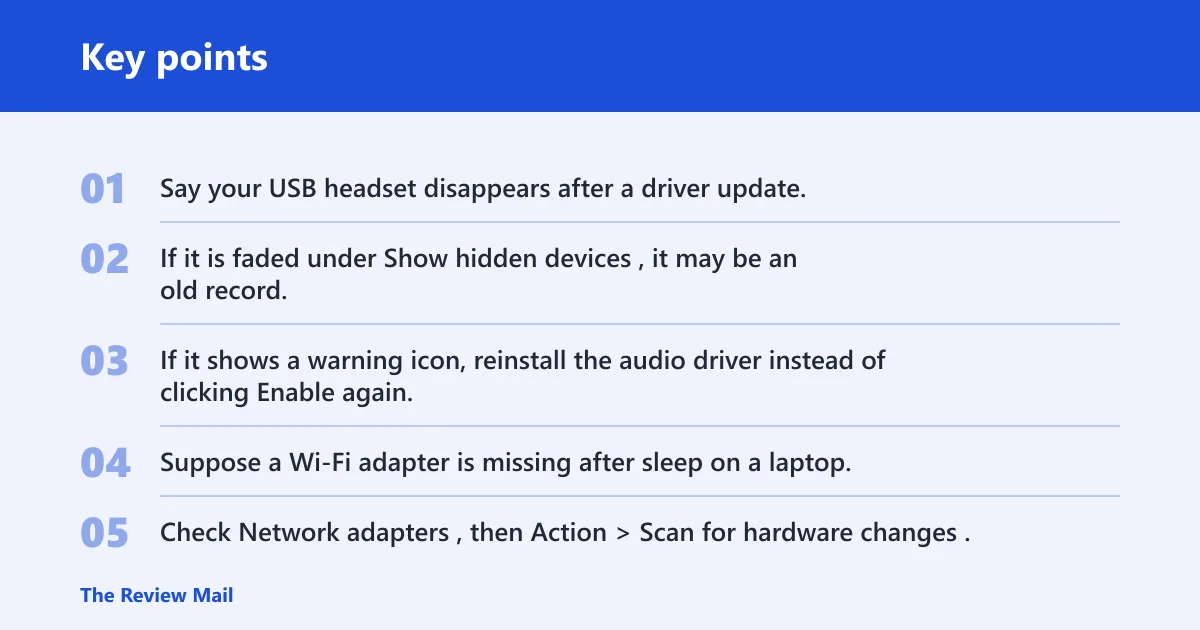
Say your USB headset disappears after a driver update. If it is dimmed, enable it. If it is faded under Show hidden devices, it may be an old record. If it shows a warning icon, reinstall the audio driver instead of clicking Enable again.
Suppose a Wi‑Fi adapter is missing after sleep on a laptop. Check Network adapters, then Action > Scan for hardware changes. If the adapter still does not return and Device Manager shows an error, the driver is the next stop.
how do I view disconnected devices in Windows 10?
Open Device Manager and choose View > Show hidden devices. Disconnected hardware is often shown as a faded entry, especially after it has been unplugged or removed. That view helps you confirm the device is not actively disabled, but it does not restore the device by itself.
When to stop and reinstall the driver
Stop troubleshooting as a disable problem when the device has no Enable device command, keeps returning a warning symbol, or disappears again after a scan. Uninstall the device, reboot, and install the correct driver from the manufacturer. That is the right move when Windows can see the hardware record but cannot load it properly.
how do I remove hidden devices in Windows 10?
Use View > Show hidden devices, right-click the faded entry, and choose Uninstall device if it is clearly stale. This is useful for old USB hubs, expired audio endpoints, and previous network adapters that keep cluttering Device Manager. Do not remove active hardware unless you are replacing it.
One-page Device Manager triage checklist
| Condition | Exact check | Action |
|---|---|---|
| Hidden | View > Show hidden devices; faded entry | Confirm it is old or non-present before removing |
| Disabled | Dimmed entry; right-click shows Enable device | Enable it, then choose Action > Scan for hardware changes |
| Disconnected | No active entry, or only a faded one after Show hidden devices | Reconnect the hardware and scan again |
| Driver-broken | Warning icon or error in Properties > Device status | Uninstall the device and reinstall the driver |
Common mistakes
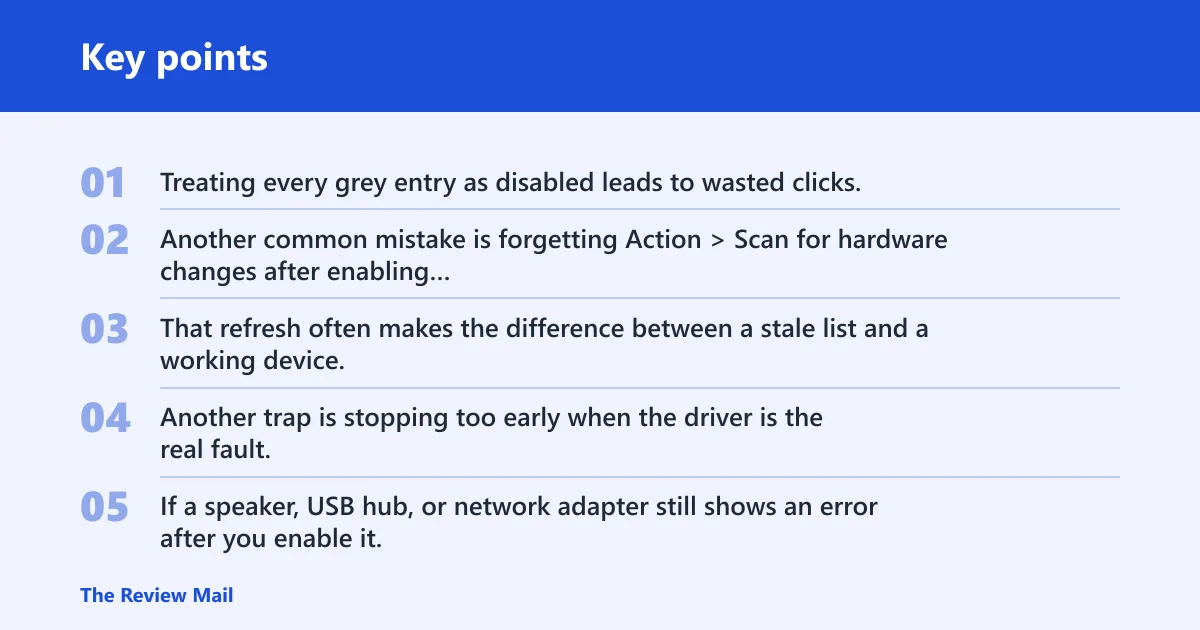
Treating every grey entry as disabled leads to wasted clicks. Grey can mean hidden, old, or non-present. Another common mistake is forgetting Action > Scan for hardware changes after enabling or reconnecting hardware. That refresh often makes the difference between a stale list and a working device.
Another trap is stopping too early when the driver is the real fault. If a speaker, USB hub, or network adapter still shows an error after you enable it, the next fix is not more enabling. It is driver repair.