bsod driver power state failure windows 11: quick fixes
If Windows 11 shows stop code 0x9F, you are experiencing a Blue Screen of Death (BSOD). A device or driver may have had trouble with a power transition. This guide focuses on the most useful checks: basic peripherals, card readers, third-party security software, and manufacturer-supplied drivers.
This guide is part of our Windows BSOD stop codes: full list and fixes series.
What does driver power state failure mean in Windows 11?
This is a power-transition crash tied to a device driver that did not respond correctly when Windows changed the device’s state. On Windows 11, the error may appear as a Blue Screen or Black Screen, may restart automatically, and often shows stop code 0x9F plus a module name near the bottom of the screen. (Microsoft Support)
What the stop code and module name can tell you
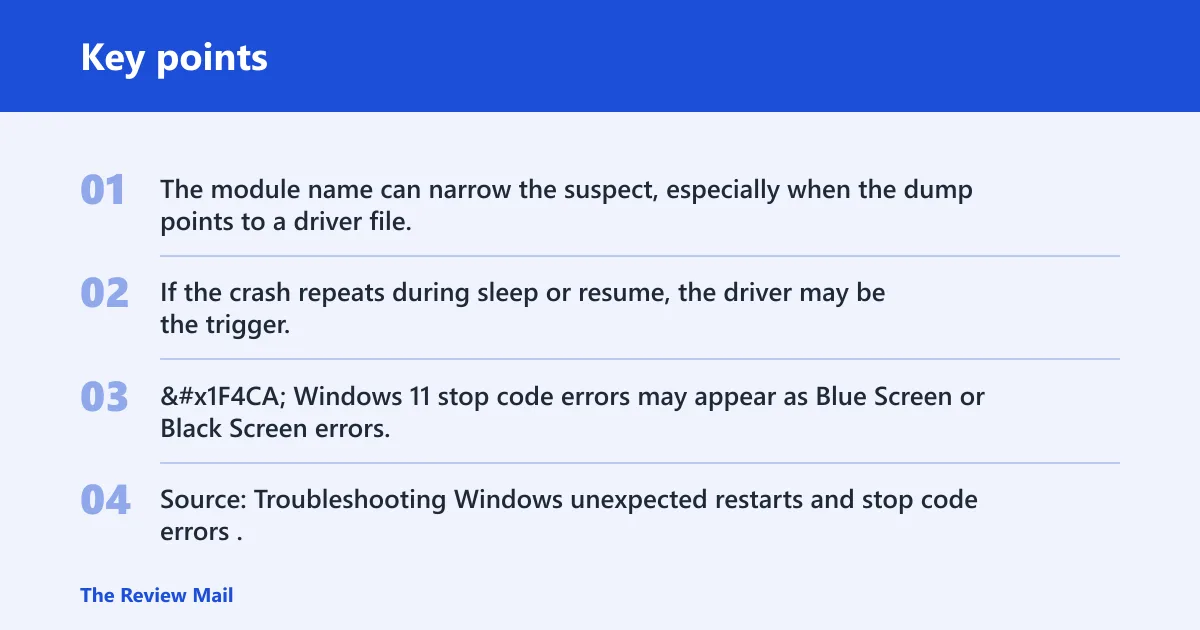
The stop code confirms the class of failure. The module name can narrow the suspect, especially when the dump points to a driver file. If the crash repeats during sleep or resume, the driver may be the trigger.
📊 Windows 11 stop code errors may appear as Blue Screen or Black Screen errors. Source: Troubleshooting Windows unexpected restarts and stop code errors.
Likely causes, ranked by crash timing
Focus first on the devices and software that are directly supported by the crash details. A card reader may be involved if the module name points to RtsPer.sys, which is related to Intel’s card readers. pci.sys can indicate a problem with some of the hardware. avpui.exe is part of Kaspersky, so third-party security software can also be relevant if it is installed.
| Crash timing | Most likely subsystem | First 3 checks | Best next action |
|---|---|---|---|
| After sleep or lid close | Device or driver involved in resume | Check the minidump; use Safe Mode; inspect Device Manager warning icons | Update or roll back the driver from the manufacturer |
| During shutdown or restart | Device or driver involved in power handoff | Check recent changes; unplug nonessential devices; review the dump file | Use the manufacturer’s driver package |
| After docking or undocking | Dock, hub, or attached peripheral | Disconnect the dock; test the PC alone; reconnect one device at a time | Remove the dock or related device during testing |
| After installing a driver or Windows update | New driver package or changed power management | Roll back the last driver; check Windows Update history; use restore points | Roll back or uninstall the change |
Sleep or hibernate usually points to a device that fails to resume
If the PC crashes only after waking from sleep, check the device that was recently active. Use Safe Mode if needed so Windows loads fewer drivers while you test.
Shutdown or restart often points to power handoff problems
When the crash happens as Windows is turning off or restarting, the problem may be in a device or driver that did not handle the power transition cleanly. That can include a hardware-related issue shown by pci.sys.
USB devices and docks often point to external peripherals or hub drivers
Keep only the most basic input devices attached: a USB mouse and keyboard. Do not connect related devices such as card readers to your computer for the time being. If a dock, hub, printer, or external storage device is connected, remove it while troubleshooting.
Wi‑Fi and GPU crashes often point to adapter drivers or power management
If a driver name appears in the crash report, use the driver provided by the manufacturer. Avoid updating it with third-party tools or software.
How do I fix driver power state failure on Windows 11?
Start with the least invasive checks: restart the PC, unplug nonessential peripherals, boot into Safe Mode if Windows keeps crashing, inspect Device Manager for warning icons, and install the latest Windows Update. If the machine still loops, use System Restore or recovery options to roll back recent changes (per Microsoft support).
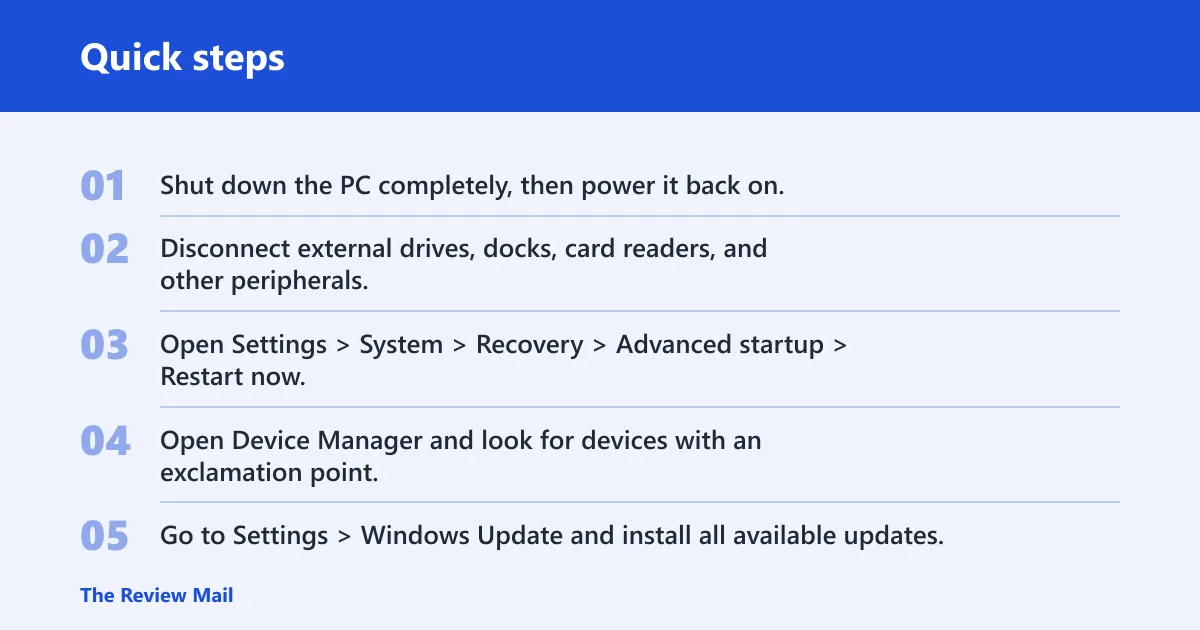
- Shut down the PC completely, then power it back on.
- Disconnect external drives, docks, card readers, and other peripherals.
- Open Settings > System > Recovery > Advanced startup > Restart now, then choose Troubleshoot > Advanced options > Startup Settings for Safe Mode.
- Open Device Manager and look for devices with an exclamation point.
- Go to Settings > Windows Update and install all available updates.
- Check that at least 10% to 15% of the drive is free.
- If the crash began after a recent change, open Control Panel > Recovery > Open System Restore.
Safe Mode entry:
Settings > System > Recovery > Advanced startup > Restart now > Troubleshoot > Advanced options > Startup Settings

Driver rollback path:
Device Manager > (device) > Properties > Driver tab > Roll Back Driver / Uninstall device

System File Checker + DISM:
sfc /scannow
Use the DISM /Online /Cleanup-Image /RestoreHealth command if you need to repair the Windows image during troubleshooting.
Should I use Safe Mode to fix a BSOD 0x9F error?
Yes. Safe Mode is a core troubleshooting step because it loads fewer drivers and can keep a suspect device package from crashing the system immediately. It also lets you remove or roll back a suspect driver without the same power-state trigger firing again.
When the crash points to a USB device, dock, or hub
If the timing tracks a dock, card reader, external drive, or USB hub, remove the attached device first. If RtsPer.sys appears in the analysis, treat the Intel card reader as a likely suspect and disconnect it for the time being. Keep only the basic keyboard and mouse connected while troubleshooting.
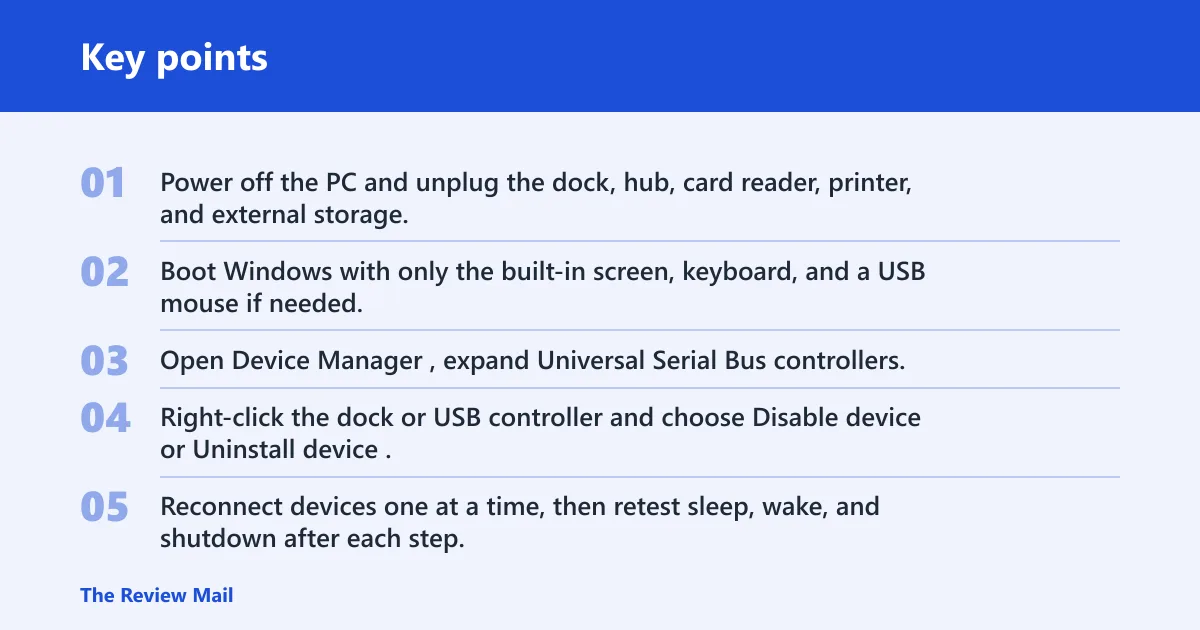
- Power off the PC and unplug the dock, hub, card reader, printer, and external storage.
- Boot Windows with only the built-in screen, keyboard, and a USB mouse if needed.
- Open Device Manager, expand Universal Serial Bus controllers, and note any warning icons.
- Right-click the dock or USB controller and choose Disable device or Uninstall device.
- Reconnect devices one at a time, then retest sleep, wake, and shutdown after each step.
If the crash stops when the dock is removed, the dock or a device attached through it may be involved. If the error returns only when a card reader is present, leave it disconnected while you continue testing.
When the crash points to graphics, Wi‑Fi, or storage drivers
If the minidump names a display, wireless, or storage module, the driver package is the first thing to change. Use the PC maker’s driver package first, and try not to update it with third-party tools or software. Microsoft also says to use the driver provided by the manufacturer.
- Open Device Manager and locate the graphics card, network adapter, or storage controller.
- Right-click the device, choose Properties, then open the Driver tab.
- Select Roll Back Driver if the crash started after a recent update.
- If rollback is unavailable, choose Uninstall device, then restart.
- Install the latest vendor driver from the PC maker’s support page.
- If the crash returns, leave that device disabled temporarily so you can confirm whether it is the cause.
If the analysis points to pci.sys, that can indicate a problem with some of the hardware rather than only a driver issue.
How do I find the minidump for a driver power state failure crash?
The minidump file is stored in C:\Windows\Minidump after a BSOD. Open that folder in File Explorer, then sort by date and copy the newest .dmp file if you want to inspect it later. BlueScreenView can read that folder and present a quick summary of the faulting stack.
- Open File Explorer and go to
C:\Windows\Minidump. - Copy the newest .dmp file to another folder if you want to inspect it later.
- Launch BlueScreenView and open the dump folder.
- Look for the Caused by driver entry and the module name.
- Match that driver against the crash timing and the connected device.
What to look for in the crash report
If BlueScreenView points to a USB or card-reader driver, remove that device and test again. If it points to a Kaspersky module such as avpui.exe, disable or uninstall the security software temporarily. If the report keeps changing while the crash timing stays the same, test with only the basic input devices connected.
Can Windows 11 updates or Device Manager fix this BSOD?
Yes. Windows Update can replace buggy platform drivers, and Device Manager can expose, disable, roll back, or remove the offending device. Microsoft recommends installing the latest updates and checking Device Manager for exclamation points as part of the basic fix path.
What if Windows 11 updates or Device Manager do not help?
Try System Restore or the recovery path next. If the crash started after a recent driver package, update or rollback from Device Manager first. If the package came from a third-party tool, remove it and install the manufacturer’s version instead. If you use Kaspersky or another third-party security package, disable or uninstall it temporarily.
What if driver power state failure keeps happening after restart?
If the crash returns after a clean restart, keep troubleshooting the connected device and the installed driver package instead of assuming the problem is random. Repeated failures can still point to a hardware problem, as indicated by pci.sys, or to a device that needs the manufacturer’s driver.
- Run
sfc /scannowandDISM /Online /Cleanup-Image /RestoreHealthin an elevated Command Prompt. - Open Settings > System > Recovery > Advanced startup and use System Restore if a restore point exists.
- Check the PC maker’s support page for BIOS, firmware, chipset, and device-driver updates.
- Use Windows Memory Diagnostic or memtest86 if the dump keeps changing or other crashes appear.
- If the same device fails on another PC, treat it as hardware service or replacement territory.
Keep device drivers and related updates from the PC or device manufacturer, and avoid third-party driver updaters. If a card reader or third-party security package is involved, remove it from the test setup first.
what is driver power state failure windows 10
In Windows 10, it is the same class of power-transition crash. Check the crash timing, inspect C:\Windows\Minidump, remove external devices, and use Device Manager to update, roll back, disable, or uninstall the suspect device. If RtsPer.sys appears, disconnect the Intel card reader; if avpui.exe appears, temporarily disable or uninstall Kaspersky or another third-party security package.
Frequently asked questions
Is driver power state failure caused by a bad driver or hardware?
It can be either. A driver or device can fail during a power transition, and pci.sys may indicate a hardware problem. The minidump and the module name help identify whether to focus on the driver, the connected device, or both.
Which driver usually causes driver power state failure?
Check the driver named in the dump first. If RtsPer.sys appears, look at the Intel card reader. If avpui.exe appears, look at Kaspersky or other third-party security software. Otherwise, use the device shown in Device Manager and the manufacturer’s driver package.