Machine Check Exception Bsod
MACHINE_CHECK_EXCEPTION usually points to a hardware problem or a corrupted driver. Ignoring it can lead to data loss, boot loops, and repeated crashes that hide the real failing part. This guide shows how to use crash context to separate bad drivers from hardware issues and the few Windows-side fixes worth trying first.
What MACHINE_CHECK_EXCEPTION means
This stop code is Windows’ blue-screen response to a fatal machine check exception. The numeric bug check identifier is 0x0000009C, and the error can appear on Windows 11 and Windows 10. It often shows up soon after Windows starts, which is why the crash can feel inconsistent even when the root cause is stable.
WHEA is the Windows hardware error reporting path you should watch next. When WHEA logs machine-check events, that often points toward hardware rather than a random app. If the system only crashes after the desktop appears, that still does not make it software-only; it can mean the failing part is stressed once Windows loads drivers, power states, and background services.
What to check first
Start with the fastest high-value check: return BIOS settings to stock and remove any CPU, GPU, or memory overclock. That takes unstable tuning out of the picture before you touch Windows. If the crash repeats at stock settings, move to driver cleanup and simple hardware checks.
What usually causes it first?
The most likely causes are a hardware problem or a corrupted driver. In practice, a bad driver can still be the trigger, but the stop code is commonly tied to failing hardware somewhere in the system.
Firmware or XMP instability
- Enter BIOS or UEFI setup.
- Load optimized defaults or default settings.
- Save and reboot.
If the system becomes stable after returning to defaults, add changes back one at a time so you can spot the setting that brings the crash back. If the crash remains even after restoring defaults, move on to driver cleanup and Windows-side isolation.
Say your PC crashes during idle after a memory profile is enabled. The next step is to prove whether stock memory settings stop the machine-check events before you try other changes. If the problem returns even with defaults restored, treat it as a deeper hardware or driver issue.
Driver corruption or conflict
- Boot into Safe Mode if the system cannot stay logged in.
- Open Device Manager.
- Check display, storage, chipset, and network devices first.
- Use Properties > Driver > Roll Back Driver if the failure began after an update.
- If rollback is unavailable, use Uninstall device, then reboot.
(reported by bleepingcomputer.com) A corrupted driver can trigger this stop code, but the stop code is still more often tied to hardware. If you recently installed a new driver package, that change belongs in the rollback queue.
Failing hardware components
- Use Windows Memory Diagnostic if you want a quick RAM check from Windows.
- Run
chkdskon the affected volume if you suspect disk corruption. - If crashes continue at stock settings, stop adding software fixes and focus on the parts that are still in play.
Hardware triage matrix
This table gives you a practical order for triage. Read the crash pattern first, then use the WHEA clue and the first test to run. If the same symptom appears across idle, games, and browsing, that points away from a single app and toward the platform.
| Component | Crash pattern | WHEA / bugcheck clue | First test to run |
|---|---|---|---|
| CPU | Random crashes at idle, light load, or right after login | Machine-check entries with processor-related wording in Event Viewer | Reset BIOS to defaults |
| RAM | Crashes during app launch, game loading, or after waking from sleep | WHEA events plus unstable memory behavior | Run Windows Memory Diagnostic |
| Driver stack | Crashes start after a new driver or update | Events line up with the time of the driver change | Roll back or uninstall the newest driver |
| Storage | Boot delays, file corruption, crashes after disk activity | Disk errors alongside WHEA or reboot loops after login | Run chkdsk |
(reported by bleepingcomputer.com) One case listed the bug check code as 0x0000009c and described random crashes during idle, games, and browsing on Windows 10 64-bit hardware. That pattern is useful because it cuts across workload types, which is exactly when you should suspect a platform problem rather than a single app.
Can drivers cause it?
Yes, drivers can cause MACHINE_CHECK_EXCEPTION, but they are not the only thing to blame. If the problem began after a driver or app change, undo that change first. If the system is unstable enough that normal boot is difficult, use Safe Mode or recovery to remove the recent software change.
- Open Settings > Recovery > Advanced startup > Restart now.
- Go to Troubleshoot > Advanced options > Startup Settings, then restart into Safe Mode.
- Open Device Manager and review GPU, storage, chipset, and network drivers.
- Roll back the newest driver first.
- Check Settings > Windows Update > Update history for a recent quality or driver update.
(reported by windowscentral.com) If a recent app or driver change triggered the crashes, uninstall the problematic app or disconnect non-essential devices while testing. If Windows Update introduced the bad change, roll it back after you confirm the timing.
What if Windows will not boot?
When the PC cannot stay logged in, move to recovery tools instead of forcing repeated normal boots. If Windows will not load far enough to use Device Manager, use recovery options or installation media to reach the repair environment.
- Power on and interrupt startup to reach recovery, or use installation media if needed.
- Open Advanced Startup Options.
- Choose Troubleshoot > Advanced options > Startup Repair.
- If Startup Repair fails, remove the most recent driver or update from recovery options if that choice is available.
(reported by windowscentral.com) If a recent Windows Update preceded the boot loop, remove that change before you assume the disk or CPU is dead. If that does not help, perform a clean installation as a last resort after you have tried the basic rollback steps.
Crash logs and dump files
If you can read minidumps, use them to confirm whether the stop code is matching a hardware path or a software path. Minidumps are in C:\Windows\Minidump\*.dmp, and the exact STOP code and parameters from the blue screen help line up the crash with WHEA records. When the same component shows up across multiple dumps, that is a stronger signal than a single generic error screen.
Collect the exact STOP code/parameters from the blue screen or C:\Windows\Minidump\*.dmp
Check Event Viewer for WHEA-Logger entries around the crash time
If the failure appears after a driver change, compare the driver date and version in Device Manager
If the failure appears at stock BIOS settings, focus on driver cleanup and hardware checks next
Patterns that point more toward hardware include crashes during idle and mixed workloads, repeated WHEA entries, and the same bug check across clean boots. Patterns that point more toward software include a clear start date after one driver or update, then stability after rollback.
Machine check exception decision tree
Use this split to decide whether to keep testing in Windows or move straight to recovery and hardware checks. Bootable systems should be handled through Safe Mode and driver rollback first. Unbootable systems should go straight to recovery tools and stock settings.
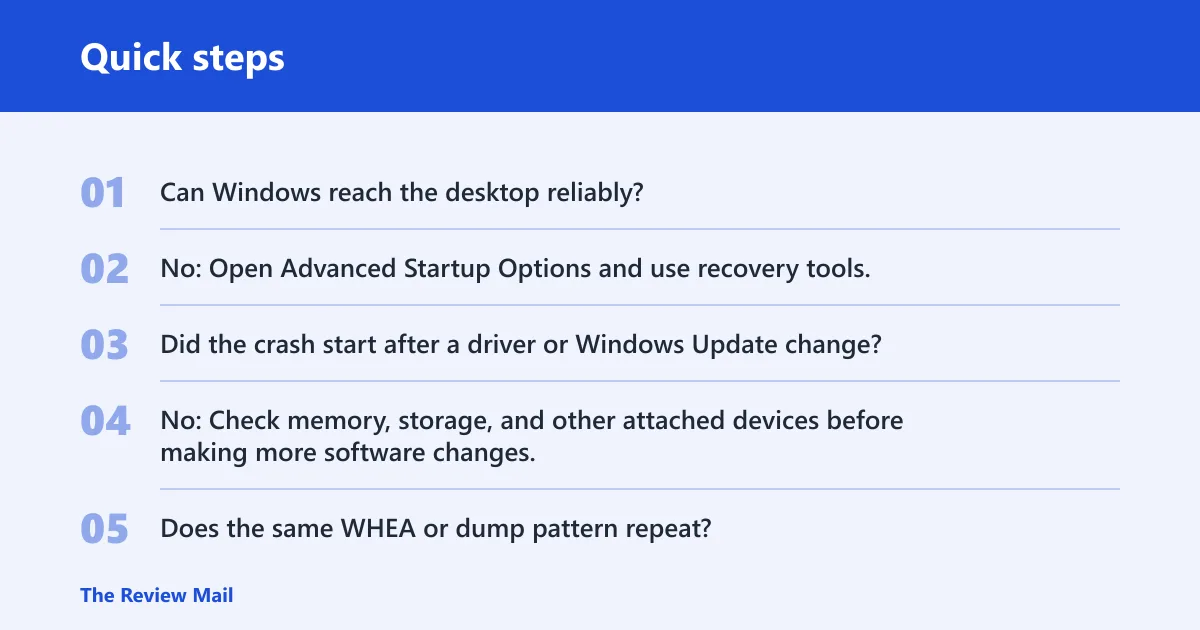
- Can Windows reach the desktop reliably?
- Yes: Reset BIOS to defaults, boot Safe Mode, roll back recent drivers, then check Windows Update history.
- No: Open Advanced Startup Options and use recovery tools.
- Did the crash start after a driver or Windows Update change?
- Yes: Remove the newest change first.
- No: Check memory, storage, and other attached devices before making more software changes.
- Does the same WHEA or dump pattern repeat?
- Yes: Treat it as a component fault until the crash stops after a rollback or stock-settings test.
- No: Recheck BIOS settings and driver timing.
Suppose a desktop crashes only while gaming, and the minidumps point to the same GPU driver after a fresh update. Roll back that driver first. Suppose the same PC then crashes at the login screen with defaults restored and no driver change at all. That shift tells you to stop chasing software and verify the remaining hardware path.
Prevention: keep BIOS settings documented before changes, and apply one firmware or driver update at a time so the next crash has a clear starting point.
Frequently asked questions
What is machine check exception?
It is a Windows BSOD stop code tied to a fatal machine check exception. The first thing to do is return BIOS settings to defaults and remove any recent overclock or driver change.
What is stop code machine check exception?
The stop code is 0x0000009C. If you see that number in the blue screen or minidump context, check WHEA logs and look for the last driver or update change that happened before the crash.
How do I fix MACHINE_CHECK_EXCEPTION in Windows 11?
Start in Safe Mode through Settings > Recovery > Advanced startup > Restart now > Troubleshoot > Advanced options > Startup Settings. Then roll back the newest driver, check Windows Update history, and return BIOS to defaults before you try Windows Memory Diagnostic or chkdsk.
Why does MACHINE_CHECK_EXCEPTION keep happening after boot?
That usually means the failing part is stressed only after Windows loads power management, graphics, or storage drivers. Check stock BIOS settings first, then the newest driver, then the component that matches the workload pattern.
Is MACHINE_CHECK_EXCEPTION a hardware problem?
It often is. CPU, RAM, storage, and other hardware can be involved, and a corrupted driver can also trigger it. If the crash repeats across idle, games, and browsing, rule out hardware and corrupted drivers before you try anything more complicated.
What should I check first when I get a MACHINE_CHECK_EXCEPTION error?
Check BIOS defaults and any recent driver or app changes first. Then note the exact 0x0000009C code, open WHEA-Logger events, and decide whether the system is bootable. If it is, use Safe Mode and driver rollback; if not, use recovery options.