bsod error memory management: how to fix it in Windows
A blue screen can appear after a critical error that the system cannot handle and resolve automatically. Start with the least disruptive checks first: note when it happens, undo recent changes, and test Windows memory and storage before replacing parts. Ignoring it can turn random crashes into data loss or a system that will not boot.
What does MEMORY_MANAGEMENT mean?
MEMORY_MANAGEMENT is a Windows stop code shown at the bottom of the blue screen on Windows 10 and Windows 11. It points to a memory handling failure, but the cause may still be a driver, a Windows update, a program conflict, or another hardware-related issue rather than one single fault.
It differs from other blue screen errors because the message is about memory handling, not a specific module or app. Because the cause is not usually obvious from the stop code alone, the safest approach is to check recent changes and then narrow down the likely source.
What to do first
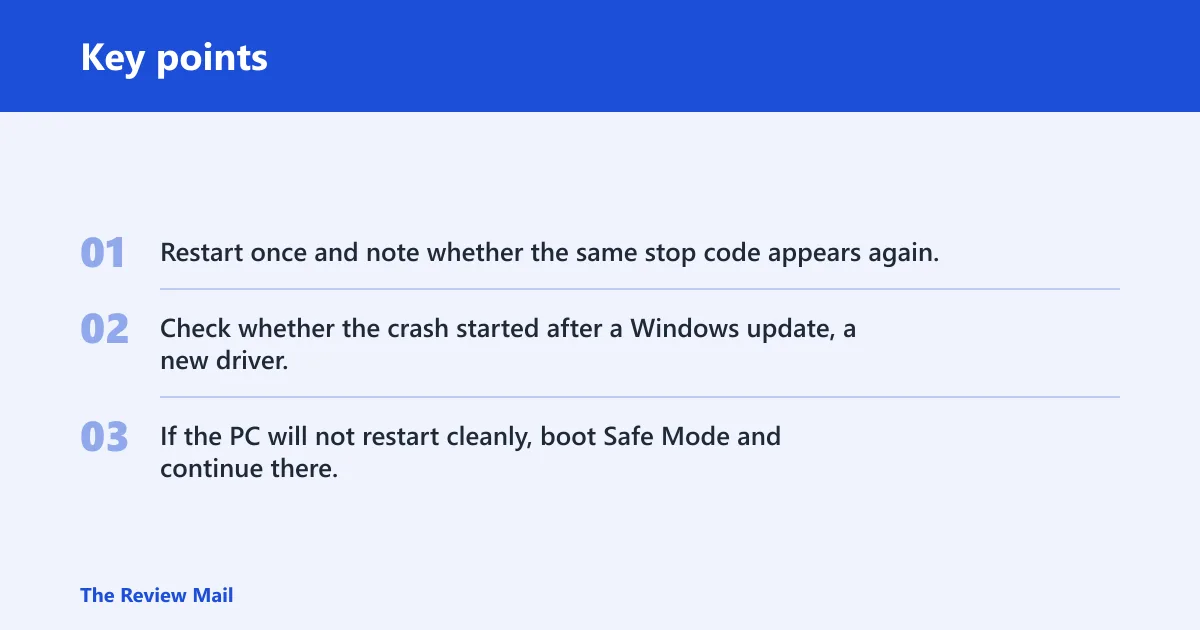
- Restart once and note whether the same stop code appears again.
- Check whether the crash started after a Windows update, a new driver, or a newly installed program.
- If the PC will not restart cleanly, boot Safe Mode and continue there.
📊 Windows 11 and Windows 10 can both show MEMORY_MANAGEMENT on the stop-code screen. Source: Troubleshooting Windows unexpected restarts and stop code errors.
What causes MEMORY_MANAGEMENT most often?
Common causes include a quality or feature update for Windows 10, a recently installed driver, an incompatible program, or a hardware-related issue. A blue screen can also show up during the Windows 10 upgrade process, when the computer boots up, or randomly when actively using the device. After a buggy update or another critical error, the system may stop before it can recover on its own.
When a crash starts after a change, the fastest path is to undo that change first. If nothing recent stands out, use the symptom clues below to decide whether to test storage, drivers, or a Windows update next.
Clue-to-cause table
| Clue you notice | Most likely cause | First test | Next step | Stop and back up data when |
|---|---|---|---|---|
| Crashes started after a Windows update | Quality or feature update problem | Uninstall the latest update | Wait for a corrective update if the issue is known | Windows becomes less stable after the rollback |
| Crash began after a recent driver install | Recently installed driver | Roll back or uninstall the driver | Test again in Safe Mode | It crashes in Safe Mode too |
| Crash began after a new app or security tool was installed | Incompatible program | Uninstall the non-essential app | Restart and retest | The crash continues after removal |
| Crash happens when a device is connected or during setup | Hardware-related issue | Disconnect non-essential peripherals | Test again with only required devices attached | Crashes keep increasing or the system will not boot |
How do I fix BSOD memory management?
Start with the checks that change the least. Undo recent changes, boot into Safe Mode if needed, and inspect Device Manager for warning icons. Then move to Windows memory testing, storage checks, and Windows Update. If the crash started after a known change, rolling that change back is faster than swapping parts at random.
Fast triage steps
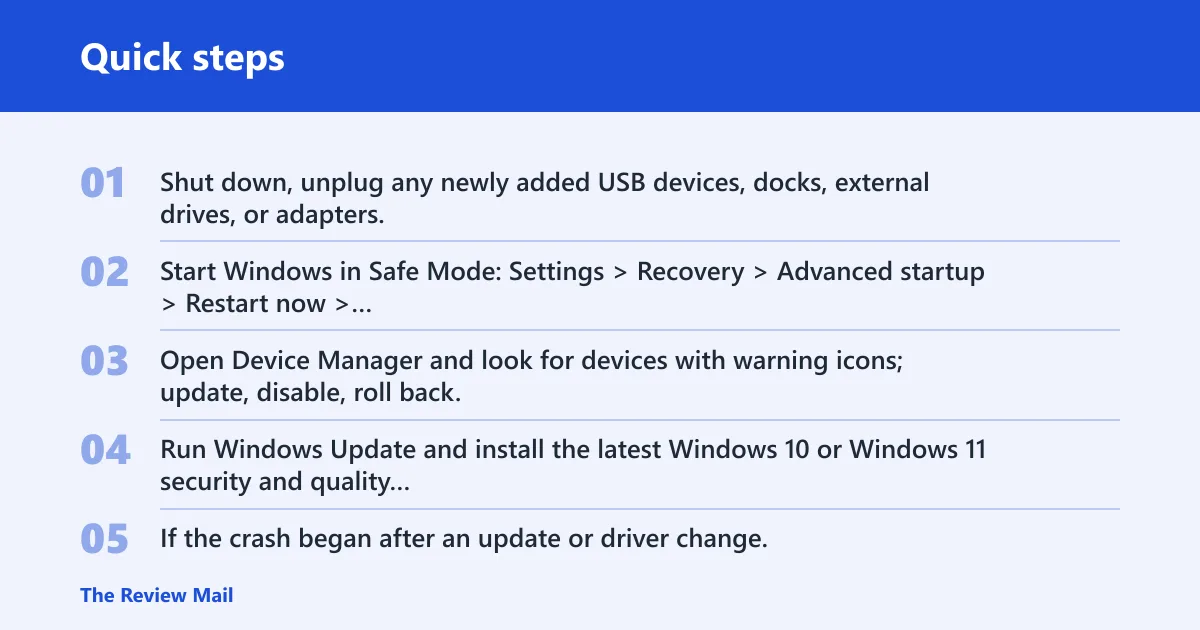
- Shut down, unplug any newly added USB devices, docks, external drives, or adapters.
- Start Windows in Safe Mode: Settings > Recovery > Advanced startup > Restart now > Troubleshoot > Advanced options > Startup Settings.
- Open Device Manager and look for devices with warning icons; update, disable, roll back, or uninstall the one that changed most recently.
- Run Windows Update and install the latest Windows 10 or Windows 11 security and quality updates.
- If the crash began after an update or driver change, use Settings > System > Recovery > Open System Restore or Recovery options and roll back.
If the issue began after installing a non-essential app, remove that app before trying hardware replacement. If the system started crashing after a Windows update, pause and wait for a corrective update if Microsoft or the product vendor has acknowledged the problem.
Is MEMORY_MANAGEMENT more likely RAM, drivers, or storage?
The stop code does not point to one single part. Because the cause can be a hardware-related issue, a driver, an incompatible program, or a Windows update, start with the most recent change and the clearest symptom rather than assuming memory hardware is bad.
When to test each one
- RAM checks if crashes happen randomly or after a critical error and you have no clear software change to undo.
- Storage checks if boot is slow, files are missing, copy operations fail, or the system drive is nearly full.
- Drivers first if the problem began after a recent driver update or a Windows update that installed new drivers.
Suppose a laptop starts showing MEMORY_MANAGEMENT after a Windows update and then again after a driver installation. Remove the most recent change first, then retest before moving to deeper checks.
Which cause should you test next: RAM, storage, or drivers?
The safest order is to remove recent changes, then test Windows memory, storage, and drivers based on the timing of the crash. Use Windows Memory Diagnostic for memory, check the system drive for corruption and free space for storage, and then focus on Device Manager and Windows Update for drivers or a bad update.
Run the right test in the right order
- Press Win+R, type mdsched.exe, and run Windows Memory Diagnostic.
- Open an elevated Command Prompt and run
sfc /scannow, thenDISM /Online /Cleanup-Image /RestoreHealthif Windows files look damaged. - Run a storage check with
chkdskon the system drive, and make sure the drive has enough free space. - Open Device Manager and roll back, uninstall, update, or disable the most recent problematic driver.
- Use Windows Update if the crash began after a patch or feature change.
collect:
1) The date of the first blue screen
2) The date of the last driver or Windows update
3) Whether the crash started after a new app, driver, or device was added
4) Whether non-essential USB devices, docks, external drives, or adapters were connected
5) Free space on the system drive
Use this decision tree to narrow the fault
A decision tree keeps you from replacing good hardware. If one branch gives a strong clue, stop there and back up data before you keep going. That matters most when crashes are increasing, the drive is noisy, or Windows is taking longer to start.
Decision tree by symptom
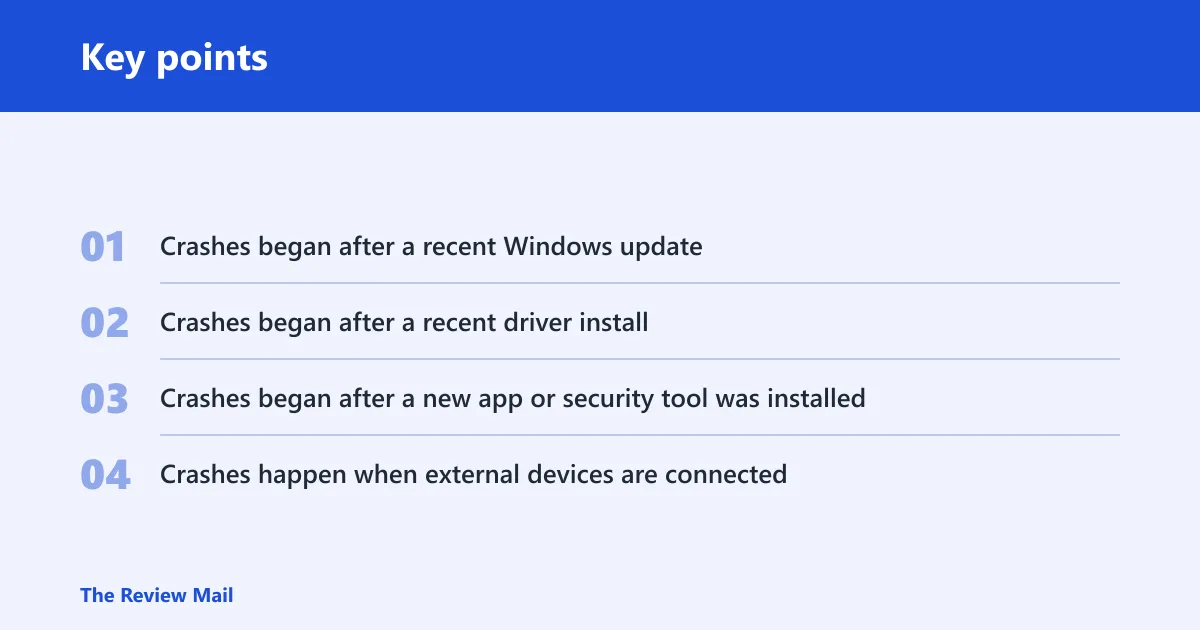
- Crashes began after a recent Windows update → likely update-related. First test: uninstall the latest update. Next step: wait for a corrective update if the problem is known.
- Crashes began after a recent driver install → likely driver conflict. First test: Device Manager > device > Properties > Driver > Roll Back Driver or Uninstall device. Next step: restart in Safe Mode and retest.
- Crashes began after a new app or security tool was installed → likely incompatible program. First test: uninstall the non-essential app. Next step: restart and retest.
- Crashes happen when external devices are connected → likely a hardware-related issue or device conflict. First test: disconnect non-essential peripherals. Next step: test again with only required devices attached.
Stop and back up data if the machine crashes more often after each boot, if the system drive reports errors, or if Windows cannot stay up long enough to finish tests.
How do you use minidumps to find the culprit behind MEMORY_MANAGEMENT?
Minidumps are small crash files stored in C:\Windows\Minidump. They can help show whether the same driver or system component appears across multiple crashes. If one name repeats, that is a useful clue; if the results vary, keep looking for a broader software or hardware issue.
Practical workflow
- Open
C:\Windows\Minidumpand copy the newest .dmp files. - Open them with a minidump viewer and compare the bug check code across more than one crash.
- Look for the same driver name appearing repeatedly in the suspected driver field.
- If the same third-party driver repeats, roll it back or uninstall it in Device Manager.
- If the dumps point to different drivers every time, or the dumps only show corruption, keep the focus on recent software changes or hardware checks.
If the dumps do not point to one repeating driver, do not assume the first one you see is the root cause. Recheck the timing of the crash against updates, device changes, and newly installed apps.
What should you try if the crash still keeps happening?
If the basic checks do not stop the blue screen, roll changes back with System Restore or another Recovery option, then retest from a clean boot state. If Windows memory testing or storage checks fail, stop swapping software fixes and plan for hardware service or replacement. Back up data first if the system is getting less stable.
Escalation ladder
- Use System Restore to return to a restore point from before the crash started.
- Open Recovery options and try Startup Repair if Windows will not boot normally.
- Test with the minimum hardware attached and a clean boot state.
- If memory or disk tests fail, replace the bad part instead of repeating software repairs.
Keep a known-good restore point before a major driver or Windows change, and keep the system drive with enough free space.
Frequently asked questions
How do I fix the memory management blue screen of death?
Boot into Safe Mode, remove new hardware or drivers, and install the latest Windows updates. If the same stop code returns, check C:\Windows\Minidump with a dump viewer and look for the same suspicious driver name across multiple crashes. That helps you decide whether to focus on drivers, updates, or hardware next.
What is the memory management error?
It is a Windows stop code that appears when memory handling fails badly enough that the system cannot continue safely. On Windows 10 and Windows 11, it often means a broader system issue rather than one single failed part.
What causes the memory management error?
Most often it comes from a quality or feature update, a recently installed driver, an incompatible program, or another hardware-related issue. It can also appear during the Windows 10 upgrade process, when the computer boots up, or randomly when actively using the device.
What should I check first after a MEMORY_MANAGEMENT BSOD?
Check whether the crash started after a new app, driver, device, or Windows update, then boot Safe Mode if needed. After that, run mdsched.exe and inspect Device Manager for warning icons. Those checks separate the common causes faster than random part swapping.