0x000000BE Fix: Attempted Write to Readonly Memory
0x000000BE usually means a driver wrote into protected memory. If the dump names a .sys file, I treat that driver as the first suspect, and if the name is generic, I check recent updates, RAM, and firmware next. Ignore it, and you can burn hours reinstalling Windows while the real fault keeps dropping the PC. This guide shows how to read the stop code, pull the offending driver from a dump, and separate driver trouble from bad memory or hardware.
This guide is part of our Windows BSOD stop codes: full list and fixes series.
What does stop code 0x000000BE mean?
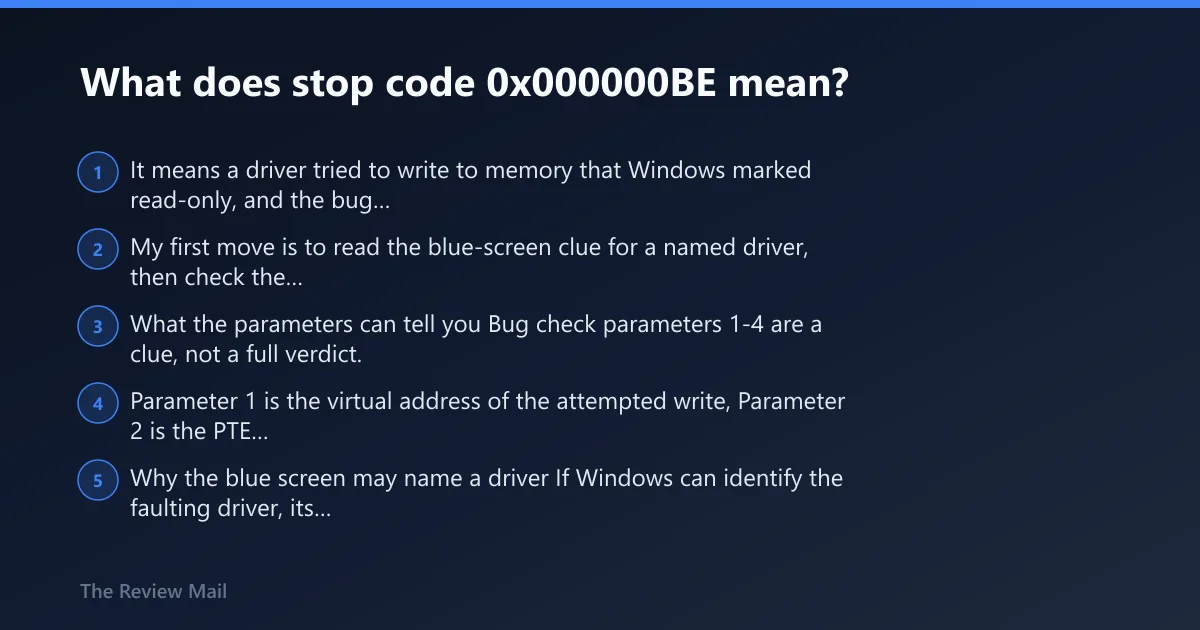
It means a driver tried to write to memory that Windows marked read-only, and the bug check value is 0x000000BE (per Microsoft support). My first move is to read the blue-screen clue for a named driver, then check the minidump if the PC restarts too fast to catch it.
What the parameters can tell you
Bug check parameters 1-4 are a clue, not a full verdict. Parameter 1 is the virtual address of the attempted write, Parameter 2 is the PTE contents, and Parameters 3 and 4 are reserved; these details can help when the driver name is missing or the dump is generic.
Why the blue screen may name a driver
If Windows can identify the faulting driver, its name may appear on the blue screen and be recorded in memory. NeoSmart and Techeia both note that the crash screen often points at a corrupt or incompatible .sys file, which is the first thing I trust before chasing RAM or firmware.
According to Bug Check 0xBE: ATTEMPTED_WRITE_TO_READONLY_MEMORY — The bug check value for ATTEMPTED_WRITE_TO_READONLY_MEMORY is 0x000000BE.
What usually causes 0x000000BE?
The most common direct cause is a Windows driver that is outdated, corrupt, or incompatible, especially a non-Microsoft storage, GPU, network, or security driver. After a Windows update, an older driver stack can clash with the new kernel or security changes, and that is often more likely than bad RAM on the first isolated crash.
Driver bugs and after-update conflicts
Faulty or corrupt device drivers are a common cause, and incompatible firmware software is another listed trigger. On Windows 11, security software drivers and modern filter drivers can sit deep in the stack, so a system update can expose a bug that had been quiet for weeks or months.
When memory or firmware move up the list
If the crash repeats across different drivers, appears during gaming or heavy compile loads, or starts after XMP/EXPO changes, memory and firmware move up the list. That is when RAM testing, BIOS/UEFI checks, and memory profile changes deserve attention before deeper driver surgery.
How do I find the driver named on the blue screen?
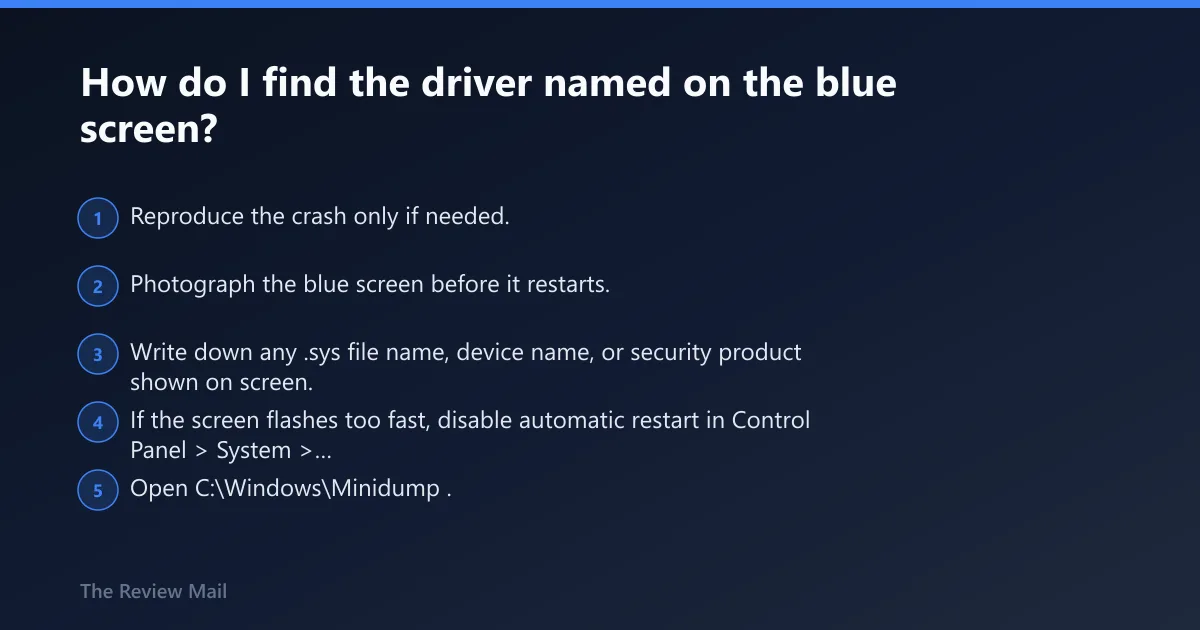
Catch the stop screen before the reboot, or inspect the minidump if Windows restarts too fast. The quickest usable clue is the driver name or .sys file on the blue screen; if that is missing, check C:\Windows\Minidump for a recent dump and read it with a viewer such as BlueScreenView.
Read the stop screen first
- Reproduce the crash only if needed.
- Photograph the blue screen before it restarts.
- Write down any .sys file name, device name, or security product shown on screen.
- If the screen flashes too fast, disable automatic restart in Control Panel > System > Advanced system settings > Startup and Recovery.
Check the minidump when the screen is gone
- Open
C:\Windows\Minidump. - Sort by date and grab the newest .dmp file.
- Open it in BlueScreenView or WinDbg Preview.
- Look for a .sys file or a repeated third-party driver in the stack.
What it means if no driver name appears
When no driver is named, do not jump straight to reinstalling Windows. That usually means the dump is generic, the fault happened in a shared Windows component, or the crashing driver was masked by memory corruption. In that case, the triage path shifts toward recent driver changes, Driver Verifier, and then RAM or firmware checks.
Fix the driver first
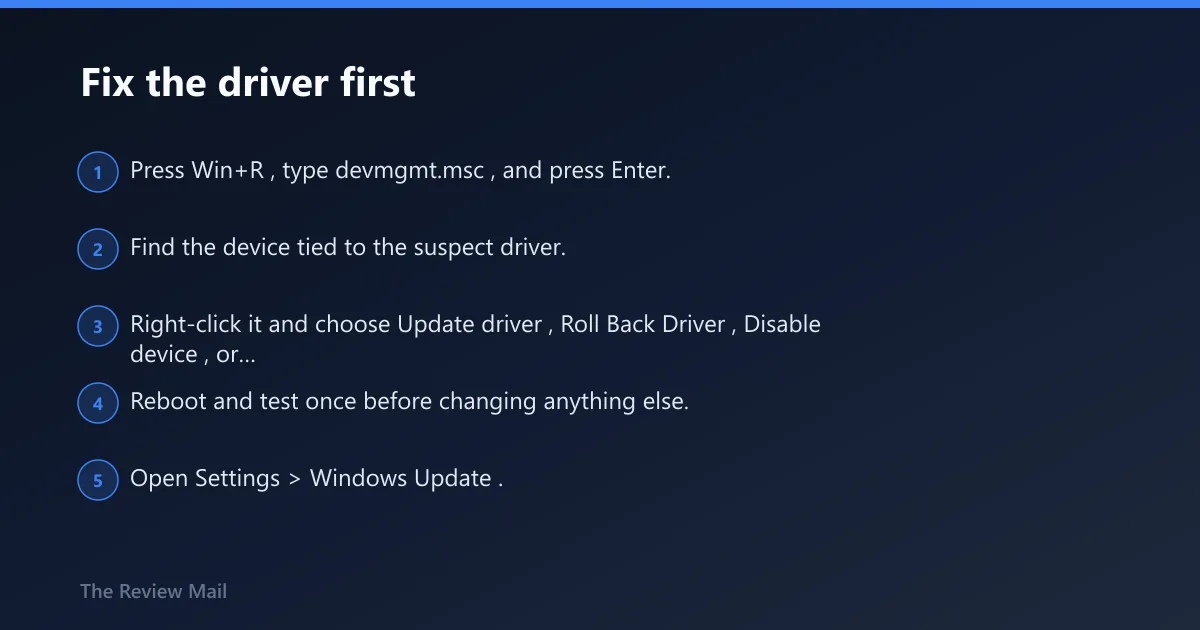
Start with the named .sys file, or the last driver you updated if the dump is generic. Device Manager can update, disable, roll back, or uninstall drivers, and Windows Update can replace a bad inbox or optional driver after the change (per Microsoft support; NeoSmart recommends Device Manager for this step).
Update, roll back, disable, or uninstall in Device Manager
- Press Win+R, type
devmgmt.msc, and press Enter. - Find the device tied to the suspect driver.
- Right-click it and choose Update driver, Roll Back Driver, Disable device, or Uninstall device.
- Reboot and test once before changing anything else.
Use Windows Update after the driver change
- Open Settings > Windows Update.
- Click Check for updates.
- Install pending quality updates and optional driver updates only if they match the failing device.
- Restart and watch for a repeat crash.
Remove recent software drivers in Safe Mode
- Boot into Safe Mode if Windows will not stay up normally.
- Open
devmgmt.mscand uninstall the last driver or security product tied to the crash. - If needed, use msconfig to make a clean boot and turn off third-party startup items.
- Reboot normally and retest.
Could bad RAM or XMP/EXPO be causing it?
Yes, but only move memory high on the list when the driver trail is weak, the crash repeats under load, or the machine started failing after a memory profile change. Bad RAM can corrupt the path that leads to a 0x000000BE crash, and XMP/EXPO instability often shows up after long, boring stability ran fine for months.
Run MemTest86 for a real RAM check
- Create a bootable MemTest86 USB.
- Boot from it and let it run multiple passes.
- If errors appear, test one stick at a time.
- Replace the failing module or stop using the failing profile.
Disable XMP/EXPO or check BIOS/UEFI
- Enter BIOS/UEFI setup during boot.
- Set memory to default JEDEC speed by disabling XMP or EXPO.
- Save and reboot.
- If the crash stops, keep the lower setting or retune memory later.
Fast triage table for 0x000000BE
Use the blue screen, the minidump, and the crash context together. The table below maps the fastest next move so you do not waste time on RAM tests when the driver name is already sitting on the stop screen.
| Blue-screen clue | Minidump clue | Crash context | Most likely next step |
|---|---|---|---|
| Named .sys file shown on screen | Same .sys file appears in the stack | Crash started after a driver or security app install | Update or uninstall that driver in Device Manager |
| No driver name shown | Generic dump with a third-party filter driver | Happens after a Windows update | Check Windows Update, then roll back or replace the affected driver |
| Named driver, but only once | No repeat in later dumps | One isolated crash after sleep or resume | Monitor once; if it repeats, use Driver Verifier |
| Driver name missing | No clear third-party driver | Random reboot under memory load or gaming | Run MemTest86 and disable XMP/EXPO |
How do I use Driver Verifier for 0xBE crashes?
Driver Verifier is worth the risk when the crash keeps returning and the dump keeps hiding the real offender. It can force a buggy non-Microsoft driver to fail sooner, which makes the bad .sys file easier to catch, but only use it when you are ready to boot into Safe Mode if the system becomes unstable (per Microsoft support; Techeia recommends targeting non-Microsoft drivers only).
Set it up for third-party drivers only
- Press Win+R, type verifier, and press Enter.
- Choose Create standard settings.
- Select Select driver names from a list.
- Check only non-Microsoft drivers, then reboot.
If Verifier points at the same.sys file
- Uninstall or roll back that driver in
devmgmt.msc. - If it belongs to security software, remove the product in Safe Mode.
- Install the newest vendor package or leave the device disabled.
- Turn Verifier off once the fault is confirmed.
Still crashing after the first fixes?
If the driver path does not clear it, move to OS repair and recovery. SFC can repair corrupted system files, and if Windows will not stay up long enough to troubleshoot, use recovery options or Reset This PC before replacing hardware. At that point, a shop with kernel-debugging tools may save time.
Run SFC, then check the image
- Open an elevated Command Prompt.
- Run
sfc /scannow. - If SFC reports corruption it cannot fix, run
DISM /Online /Cleanup-Image /RestoreHealth. - Reboot and test again.
If Windows will not stay up
- Boot Safe Mode or the recovery environment.
- Use Reset This PC only after the driver path and memory checks fail.
- If the crash still returns, gather the latest minidump and the blue-screen photo for deeper analysis.
Prevention: after the system is stable, keep the suspect driver on the latest known-good release, avoid experimental XMP/EXPO profiles, and let Windows Update finish cleanly before adding new security software.
Frequently asked questions
How do I fix ATTEMPTED_WRITE_TO_READONLY_MEMORY in Windows 11?
Open devmgmt.msc, update or roll back the named driver, then check Settings > Windows Update for fixes. If Windows will not boot, use Safe Mode to remove the driver, then run sfc /scannow after the system is stable.
What driver usually causes 0x000000BE BSOD?
The usual culprit is a non-Microsoft Windows driver that is outdated, corrupt, or incompatible. Storage, network, graphics, and security software drivers are common suspects. If the stop screen or minidump names a .sys file, that file should drive the first round of action.
Can bad RAM cause 0x000000BE?
Yes. If the crash repeats under load, after memory changes, or with no useful driver name, test RAM with MemTest86 for multiple passes and disable XMP/EXPO in BIOS/UEFI. If errors appear, test one stick at a time.
Should I update or uninstall the driver for 0xBE?
Start by updating or rolling back the driver in Device Manager. If the crash began right after new software, uninstall that driver or the related program instead. When the same file keeps returning, use Driver Verifier to confirm it before changing hardware.