This Device Cannot Work Properly Until You Restart Windows 10 Fix
Treat Device Manager Code 14 as a locked-driver-files problem first: restart Windows 10, then check whether the device loads normally. If the error comes back, the reboot did not clear the state. Ignoring it can leave the device unavailable or stuck in a loop of failed detections. This guide shows the fastest restart workflow, plus the checks that prove Windows cleared Code 14.
This guide is part of our Windows driver errors: full list and fixes series.
What Code 14 means in device Manager
Code 14 appears in Device Manager when Windows needs a restart before the device can function again, usually because installation or configuration work has not finished yet. The message appears in the Device Properties dialog box on the General tab, often in the Device Status area, and is commonly associated with driver installation work that has not fully completed. (Microsoft)
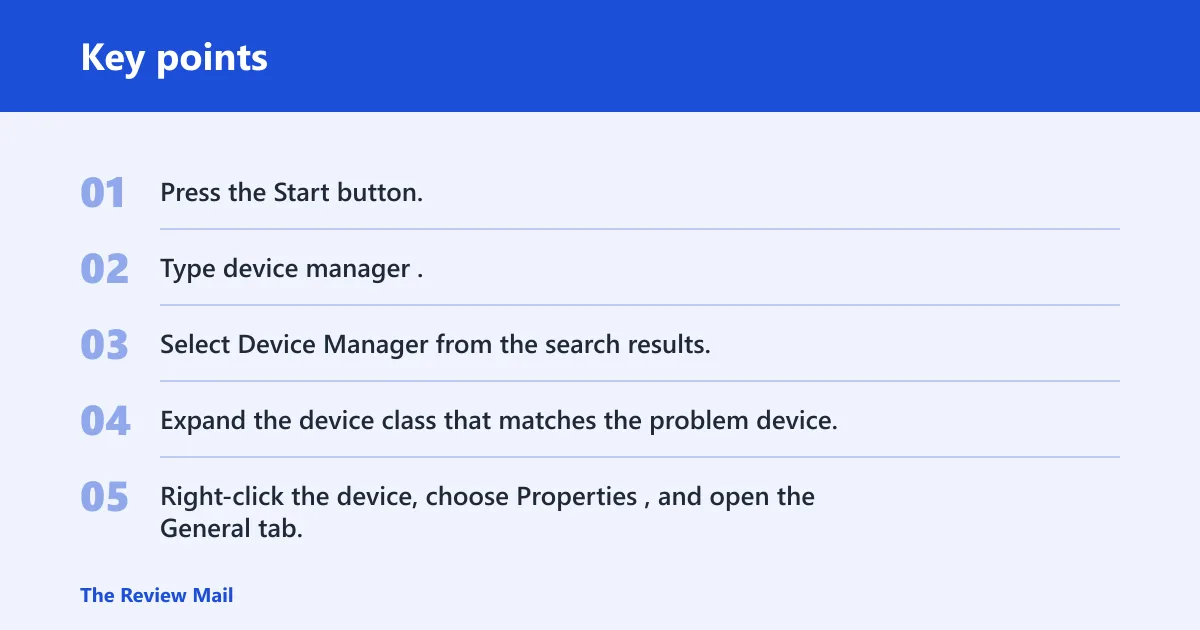
Open Device Manager from Start search, then find the affected device, open its Properties, and check the General tab. If the Device Status box shows the restart message, you are looking at the same Code 14 state Microsoft documents for Windows 10.
How to open device manager in Windows 10
Microsoft says to open Device Manager by searching from Start and choosing the Device Manager result (per Microsoft support). That path is the fastest way to inspect the device status without working through Control Panel or Settings menus.
- Press the Start button.
- Type device manager.
- Select Device Manager from the search results.
- Expand the device class that matches the problem device.
- Right-click the device, choose Properties, and open the General tab.
📊 The article applies to Windows Vista and Windows Server 2008. Source: Microsoft.
Likely causes of Code 14
Code 14 most often points to driver work that could not finish because files were still in use. Less often, a pending Windows action or an interrupted device installation leaves the same state behind. If a driver setup needs to replace files already loaded into memory, the install can queue work for the next boot instead of finishing immediately (per Microsoft support).
Say your USB headset driver updates while audio is active. The installer may need to replace a file that Windows has already loaded, so Device Manager keeps the restart status until the system starts fresh. A similar pattern can happen after a VPN client or filter driver update.
Driver files still in use
This is the main reason to check first. A setup program may need to copy a file to its final location, but another process has that file open, so the replacement waits until the next boot (per Microsoft support). That is why a full restart comes before reinstall steps.
- Close apps that use the device, such as audio tools, VPN clients, backup tools, or camera apps.
- Choose Start > Power > Restart.
- Do not use Sleep or Hibernate.
- After sign-in, return to Device Manager and open the device Properties.
- Check General > Device Status for a clean load.
Pending Windows actions or interrupted setup
Windows updates or installer work can leave device-related actions queued until the next full boot. That includes driver replacement, service startup, or a restart that the install process needed to complete (per Microsoft support). Pending installs are a common reason the status survives a simple sign-out.
- Open Settings > Update & Security > Windows Update.
- Install any pending updates.
- Choose Restart now if Windows offers it.
- After restart, reopen Device Manager and recheck the device.
Incomplete device installation
Device installation can end with a restart requirement if Windows could not finish copying files, restarting a service, or bringing the device back online at the end of setup (per Microsoft support). That is common after a new driver, a replacement driver, or a Windows update that touched hardware support files.
- Open Device Manager.
- Right-click the device and choose Uninstall device if the driver install clearly failed.
- Restart Windows 10.
- Install the latest vendor driver after the reboot.
Do you just need to restart your computer to fix Code 14?
Often, yes. Microsoft’s first-line resolution is a simple restart, but it must be a full system reboot, not sleep, hibernate, or a sign-out cycle. After Windows loads again, check Device Manager right away; if the status clears, the driver state was released and completed at startup (per Microsoft support).
What a clean pass looks like: the device opens normally in Device Manager, the Properties dialog no longer shows the restart message in Device Status, and the device class does not reopen with the same warning a minute later. If you searched for this device cannot work properly until you restart windows 10 fix on startup, this is the point to verify first, not later.
- Save open work and close hardware-heavy apps.
- Choose Start > Power > Restart.
- Wait for the desktop to fully load after restarting.
- Open Device Manager again.
- Open the device Properties > General tab.
- Confirm the Device Status box no longer shows the restart error.
Why does Code 14 keep coming back after restart?
If the message returns after a full reboot, Windows did not finish the pending driver or device action. That can happen when another update is still queued, when a driver install keeps getting interrupted, or when the device needs a different post-install step before it can load cleanly again.
Another common reason is a restart-adjacent state that looks like a reboot but does not clear the same file locks. A full power cycle from Start > Power > Restart is the test that matters. If the error remains after that, inspect the device again instead of assuming the first reboot failed for no reason.
What to check before trying another reboot
- Open Settings > Update & Security > Windows Update.
- Install anything pending.
- Open Device Manager and note whether the device is still present, missing, or disabled.
- If the device is disabled, enable it from the device context menu.
- Then restart Windows 10 again and recheck the status.
A common first-time mistake is checking the device only after a long delay. Instead, inspect it right after startup, while the machine is still in a clean post-boot state and before extra software starts loading.
Should you reinstall the driver?
If a full restart does not clear Code 14, reinstalling the driver is the next step. That is especially sensible when the issue started right after a driver update, when the device class is known to use vendor software, or when Windows Update installed a generic driver that does not finish correctly.
- Open Device Manager.
- Right-click the affected device.
- Choose Uninstall device.
- Check the box to remove the driver software if Windows offers it.
- Restart the PC.
- Install the latest driver from the device maker, then check General > Device Status again.
Device classes that often need this path include USB, Bluetooth, display, storage, and VPN-related virtual adapters. If your search was for this device cannot work properly until you restart windows 10 fix hp or this device cannot work properly until you restart windows 10 fix vpn, the same uninstall-and-reinstall path is usually the next real test after the reboot check.
Device cannot work until checklist
This checklist helps you decide whether Windows actually cleared the state after restart. Run it immediately after boot, before troubleshooting grows more complicated.
| Symptom | Likely cause | Exact action | Pass/fail result |
|---|---|---|---|
| Device Manager still shows the warning right after startup | Driver files were still locked or setup did not finish | Open Device Manager from Start search, open device Properties, check General > Device Status | Pass if the warning disappears; fail if it remains |
| Device works only after a second restart | Pending Windows action completed late | Install pending Windows updates, then use Start > Power > Restart again | Pass if the second reboot clears it; fail if the code returns |
| The device disappears or shows as disabled | Setup or a device state change did not finish cleanly | Enable the device from Device Manager, then restart Windows 10 | Pass if the device loads normally; fail if Code 14 stays |
| The error appears only after a driver update | Incomplete driver installation | Uninstall the device, reboot, then reinstall the vendor driver | Pass if the new install clears the status; fail if the same warning returns |
Still not working?
If restart and reinstall do not clear the code, move by device class. USB devices should be checked on another port and with a different cable. Bluetooth devices should be removed from paired devices and added again. Display devices should be tested with a known-good cable and, if possible, a different adapter. Storage devices need extra caution; back up data before changing drivers or controller settings.
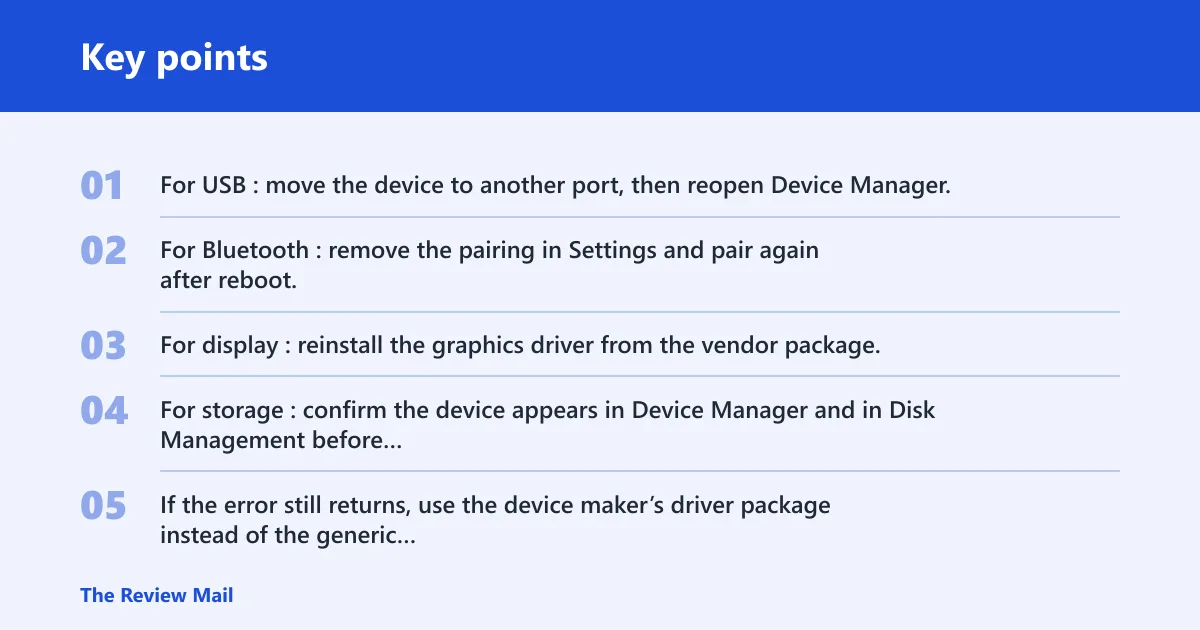
- For USB: move the device to another port, then reopen Device Manager.
- For Bluetooth: remove the pairing in Settings and pair again after reboot.
- For display: reinstall the graphics driver from the vendor package.
- For storage: confirm the device appears in Device Manager and in Disk Management before changing drivers.
- If the error still returns, use the device maker’s driver package instead of the generic Windows driver.
Prevention is mostly about timing. Let Windows finish updates and avoid interrupting driver installs, because a forced shutdown during setup is one of the easiest ways to leave the device in the same locked state again.
Frequently asked questions
How do I fix this device cannot work properly until you restart Windows 10?
Open Device Manager, check the device’s Properties on the General tab, then choose Start > Power > Restart. After Windows loads, check the Device Status box again. If the message remains, uninstall and reinstall the driver from the device maker.
Why does Device Manager keep showing Code 14 after restart?
The reboot may not have cleared a queued driver action, or Windows may still have pending update work. Check Settings > Update & Security > Windows Update, install anything pending, then restart again. If the code stays, reinstall the device driver.
Which devices commonly get the restart error in Windows 10?
USB devices, Bluetooth adapters, display adapters, storage controllers, and VPN-related virtual devices are common examples. These classes often depend on driver files or services that can be left in an unfinished state after an update or installation.